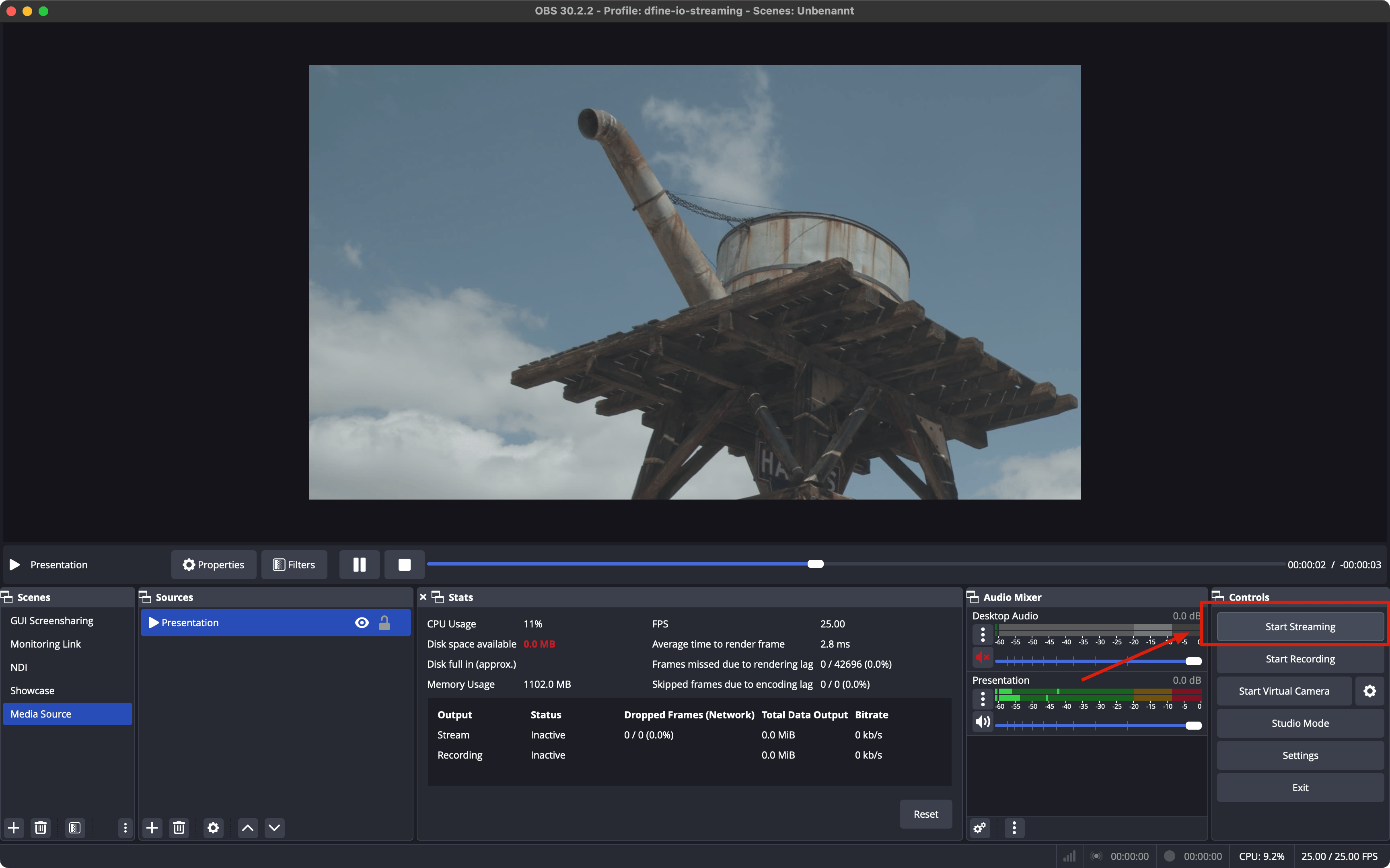
1
Open OBS settings
Open the Settings menu in OBS.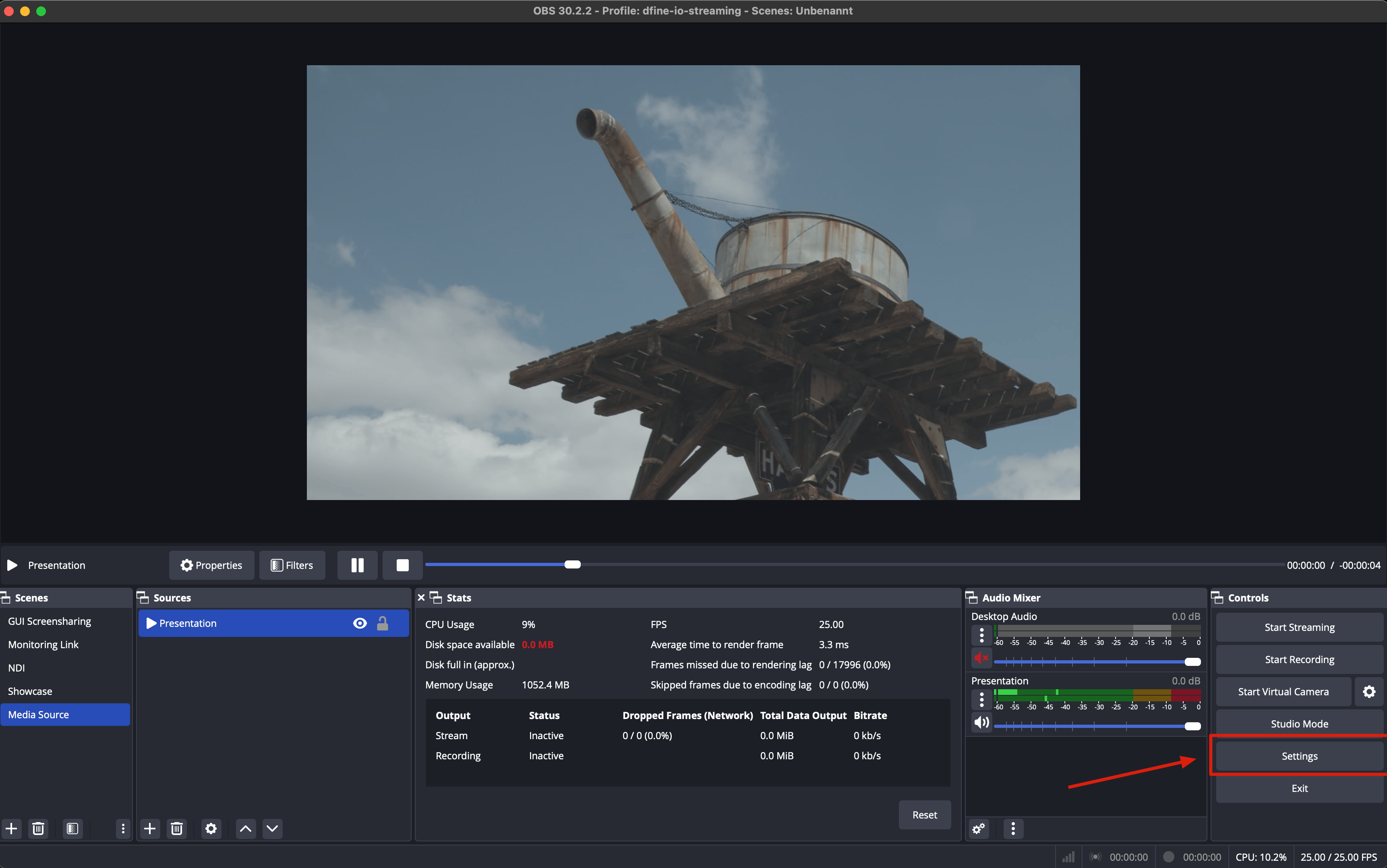
2
Enter server and stream key
Open the Stream pane, then enter your ingest URL in the Server field and your stream key in the Stream Key field.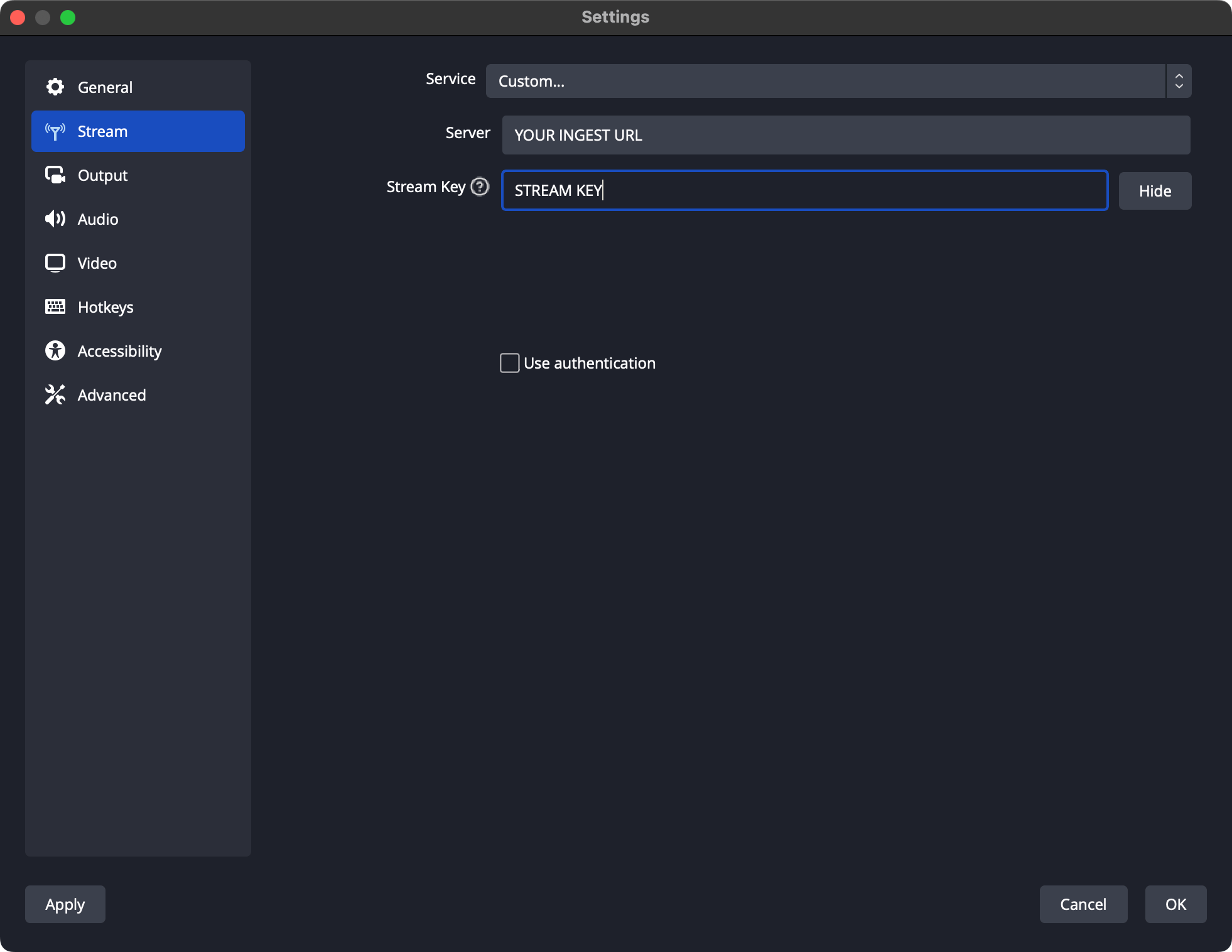
Can’t find them? See Find your ingest URL and Find your stream key.
3
Set the bitrate
In Settings → Output, stream with at least 3,500 kbps for good quality (subject to your plan). If available, use FFmpeg AAC as the audio encoder instead of CoreAudio AAC.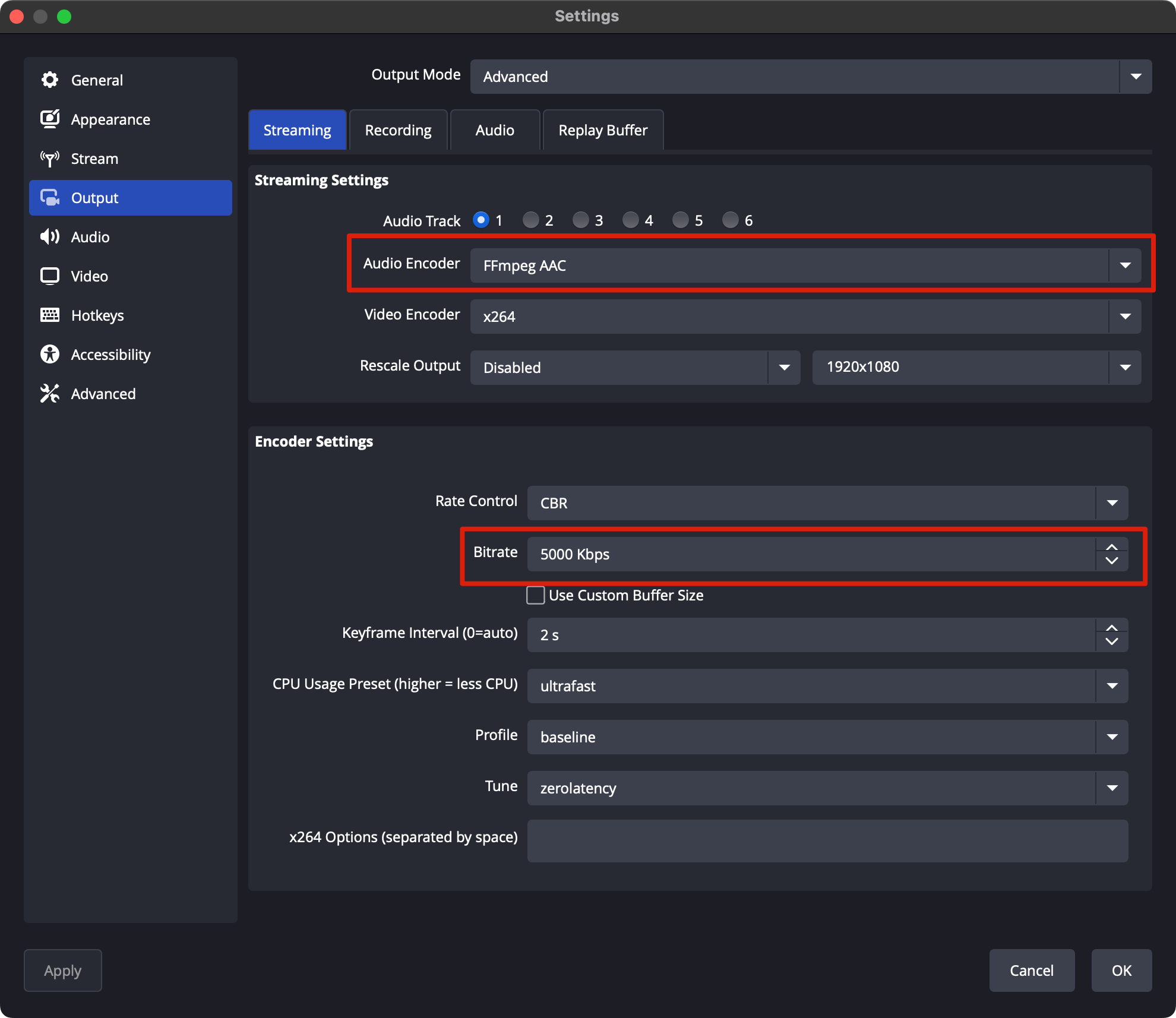
4
Set the audio sample rate
In the Audio pane, use a 48 kHz sample rate.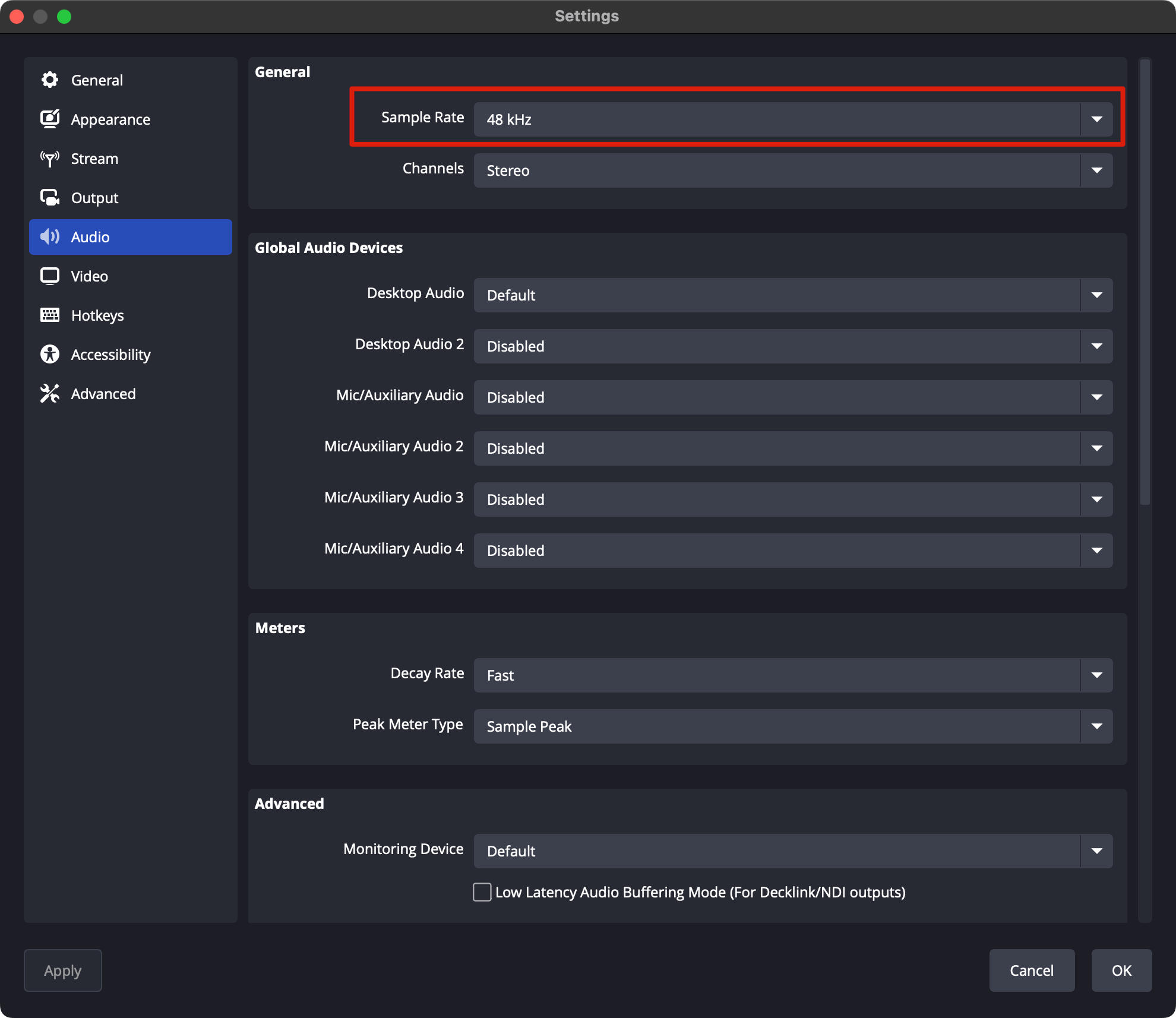
5
Choose a color format
In the Advanced pane, pick a color format. We use the H.264 codec, so the stream is 8 bit, supported up to 4:4:4 (I444, 3 planes).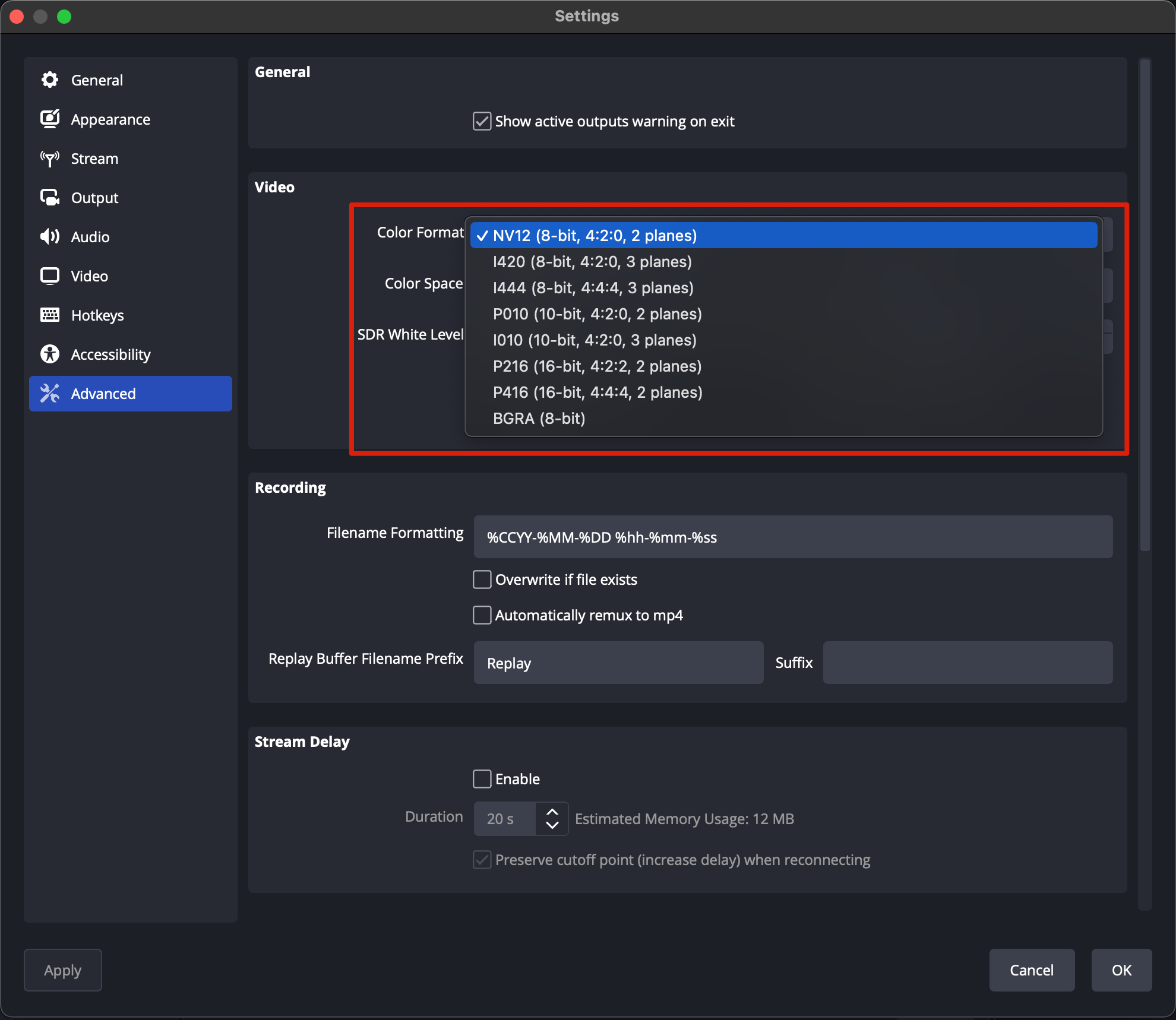
6
Go live
Click OK, then Start Streaming.