

These steps apply to both dfine.io products that livestream — Streaming Classic and Review. The encoder setup is the same; only where you copy your ingest URL and stream key differs by product. See Where do I find the ingest server URL?.
Tested devices
- Blackmagic UltraStudio HD/4K Mini
- Blackmagic UltraStudio 4K Extreme
- Blackmagic Decklink 8K Pro
- Blackmagic Decklink 4K Extreme 12G
- Blackmagic Decklink Quad
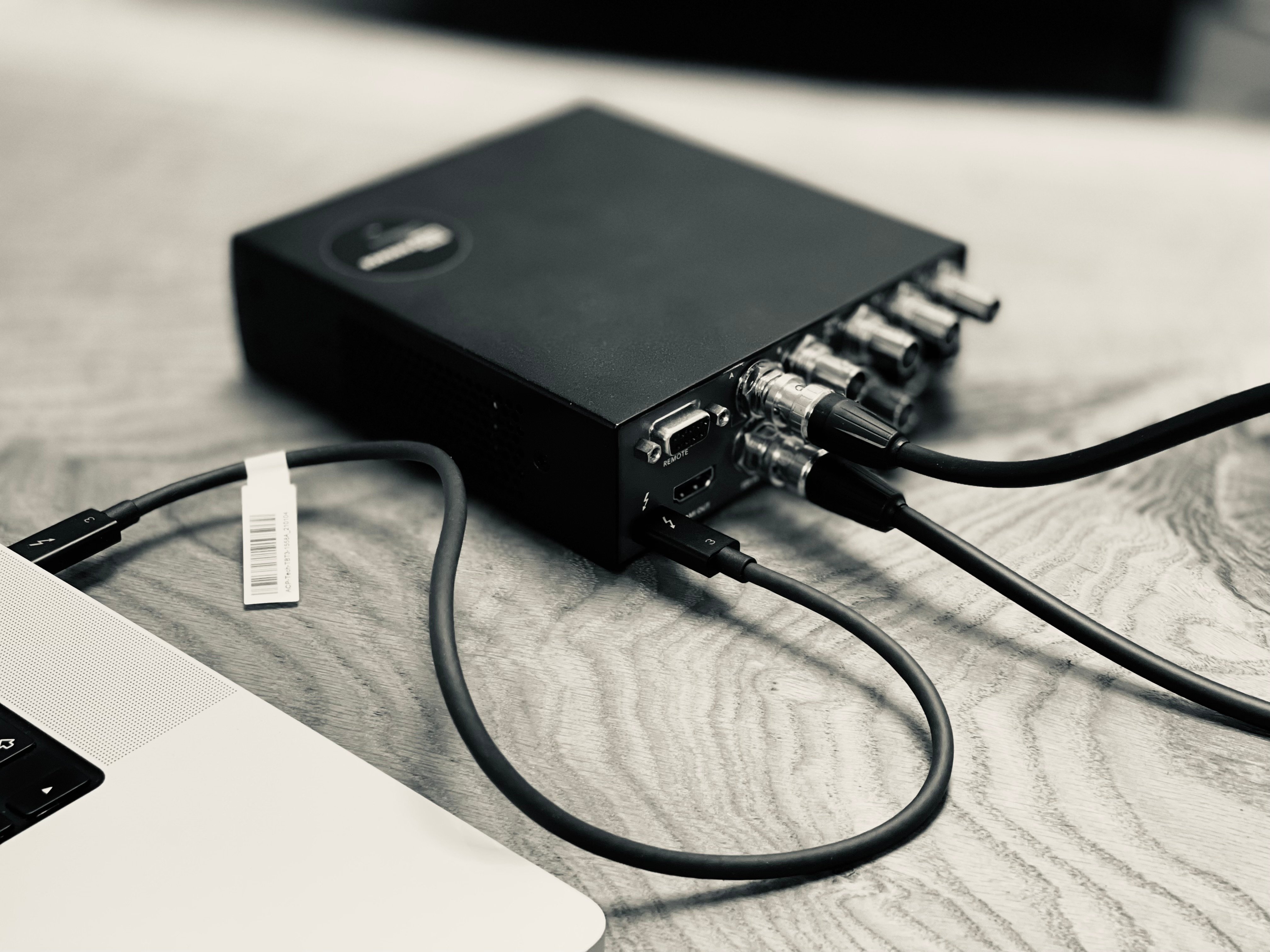
Set it up
1
Create a scene
In OBS, use the + button at the lower left to add a new scene and give it a name.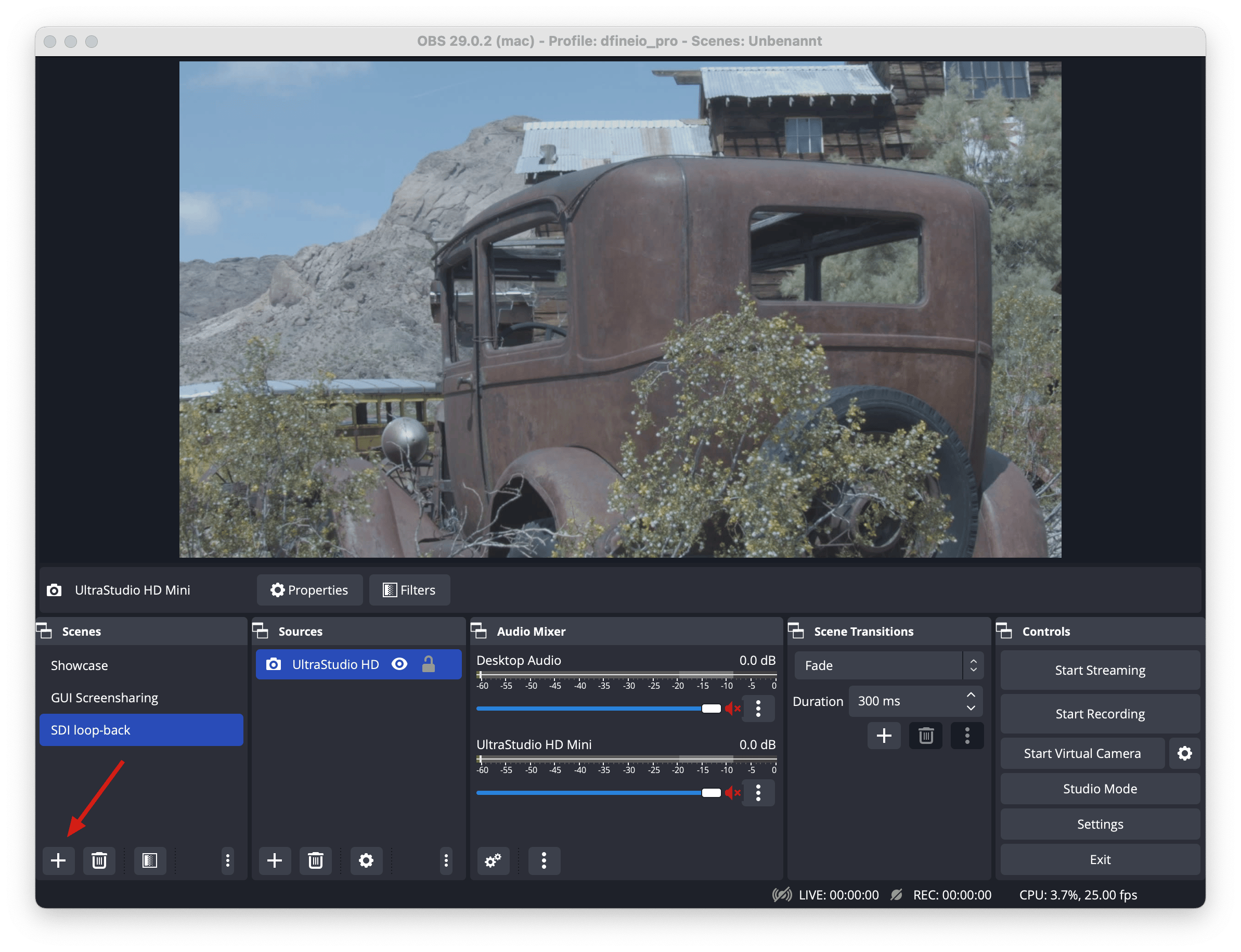
2
Add the source
Add a new source on the right side. We use a Blackmagic Device and give it a name.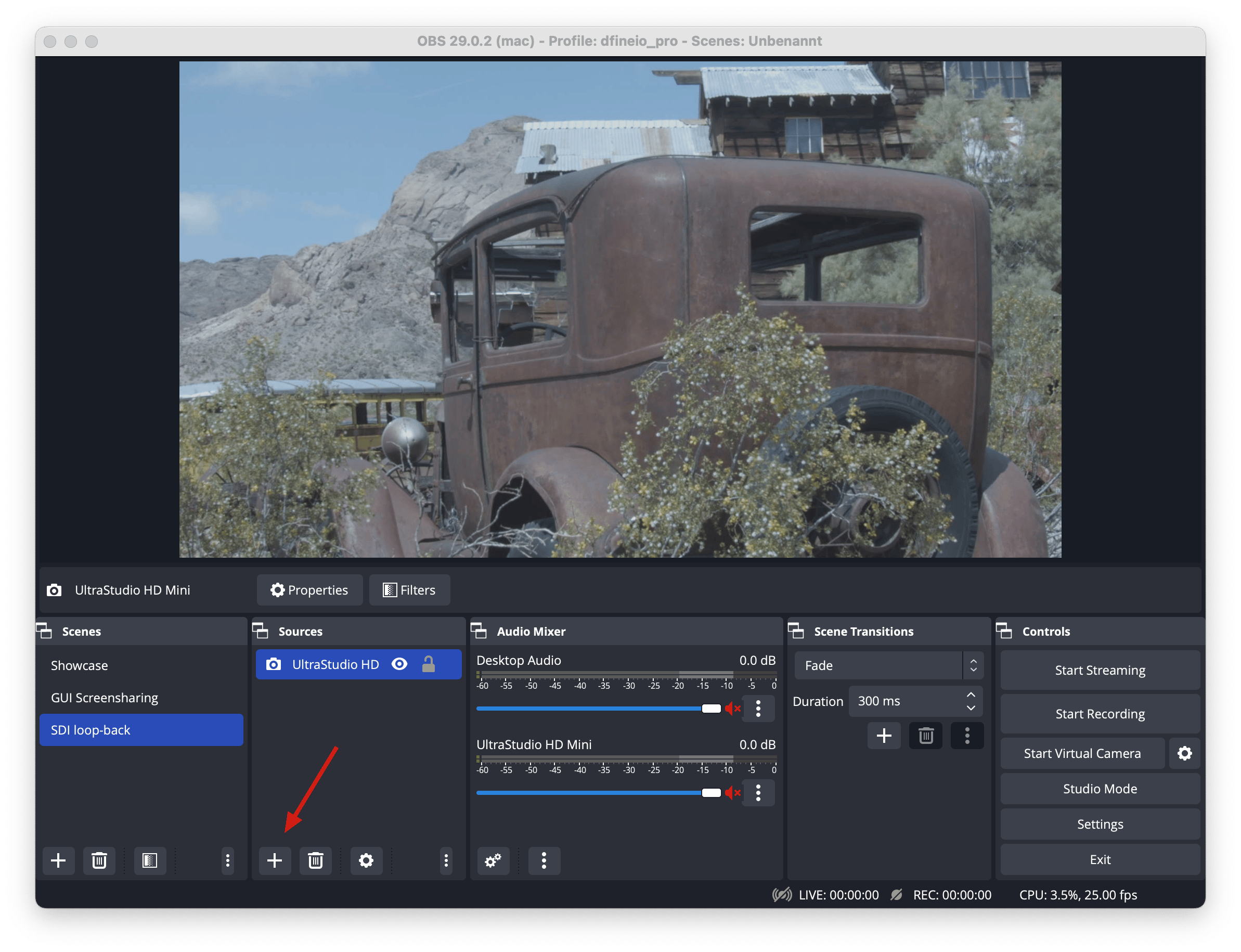
3
Configure the source
Double click the source, set it up as shown and save.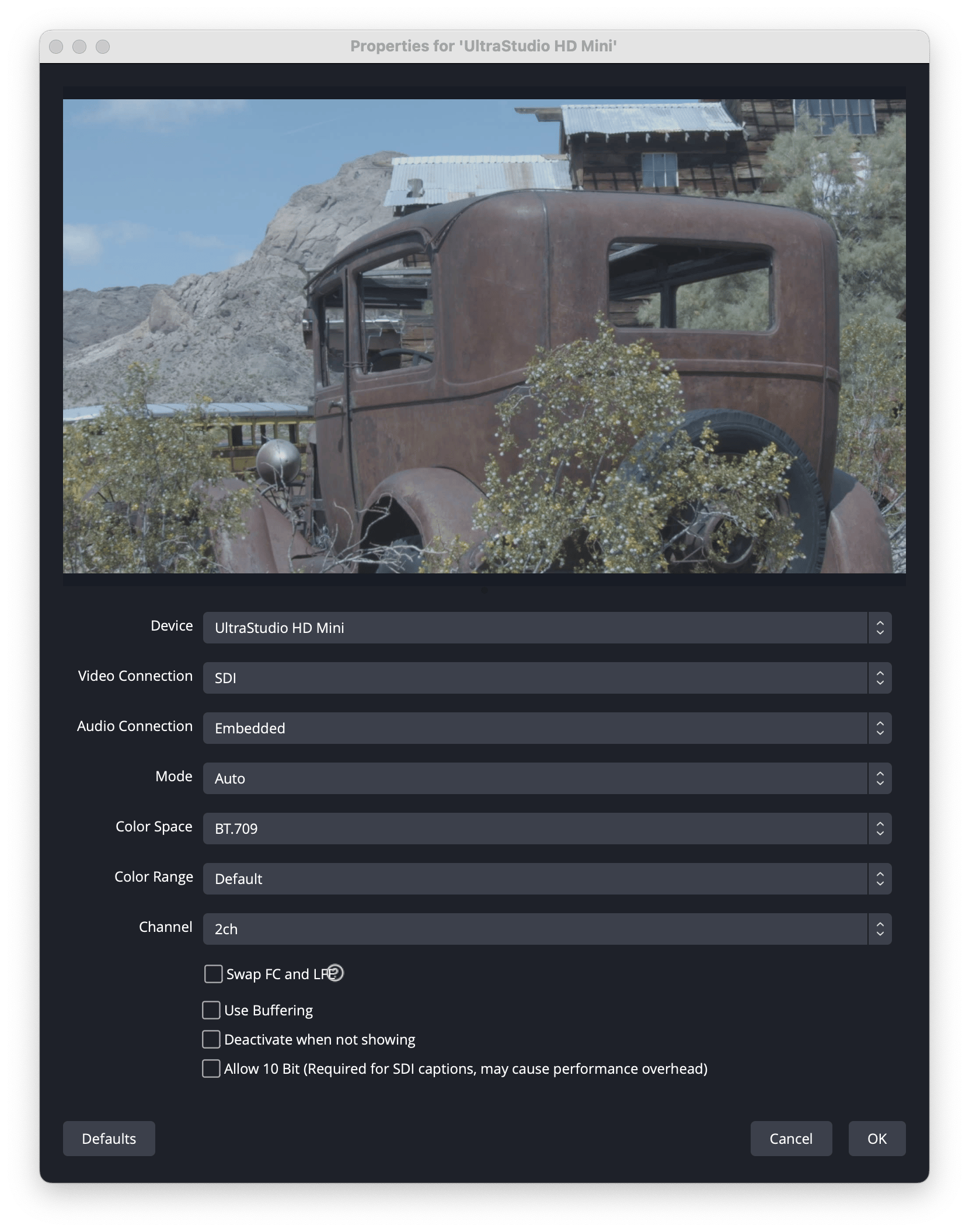
Next: enter your ingest URL and stream key
Add your connection details in OBS and go live.