

In Auto Mode the WebPresenter switches profiles on its own. In our experience 4K mode needs at least 20 Mbit/s, which can trigger automatic blocking during peak loads. Unless you really need 4K, we recommend HD.
Download the WebPresenter profile
Get the generic XML setting from the download page. It works for WebPresenter HD, 4K and ATEM.
These steps apply to both dfine.io products that livestream — Streaming Classic and Review. The encoder setup is the same; only where you copy your ingest URL and stream key differs by product. See Where do I find the ingest server URL?.
Add your ingest URL to the profile
The downloaded XML ships with a placeholder for the server address — you must replace it with your own dfine.io ingest URL before loading it. Open the XML in any text editor, find the<servers> block, and swap ENTER YOUR OWN INGEST URL HERE for your ingest URL (see Where do I find the ingest server URL?), then save.
Prefer not to edit XML by hand? You can generate a ready-to-load profile with an online tool such as heretorecord.com/xml, then load that file in the next step instead.
1
Connect the device
Connect the WebPresenter to the SDI loop of your reference monitor, or to the second SDI output of your Decklink capture card.
2
Install the setup utility
Download and install the latest Blackmagic WebPresenter Setup utility from the Blackmagic support website.
3
Connect to your workstation
Connect the WebPresenter to your workstation over USB or over the network. The network is the preferred option. You can then load and manage the generic XML.
4
Open the Live Stream tab
Open the utility, click your WebPresenter when it appears, and go to the Live Stream tab.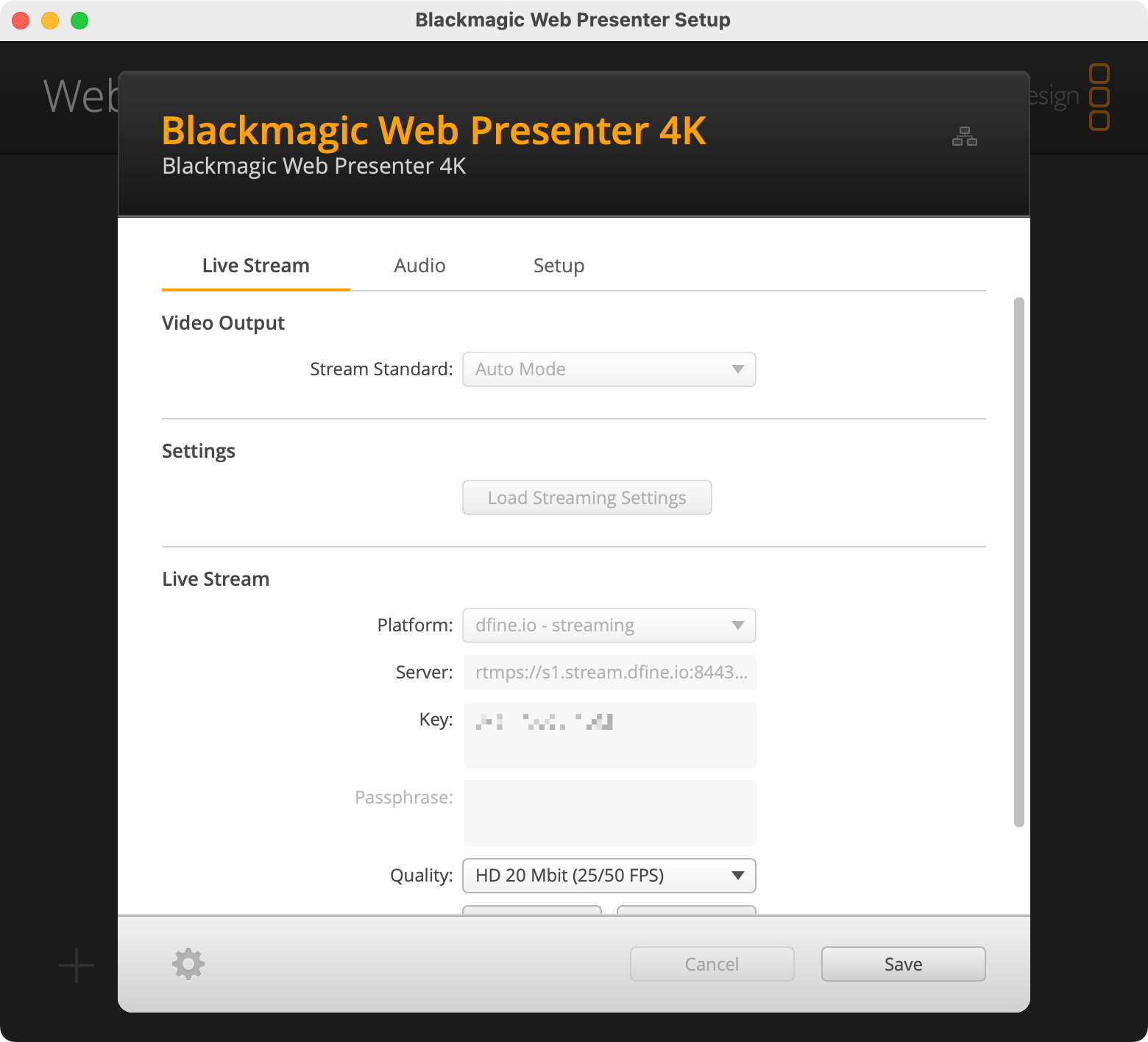
5
Load the profile and set the bitrate
Open Settings, load the XML profile you edited above, and set the video output stream standard to Auto Mode. Choose a dfine.io bitrate profile that suits your needs, then enter your stream key.
6
Go on air
Click On Air to start streaming.
Find the ingest server URL
Where to copy the server address.
Find the stream key
Where to copy your private key.