

These steps apply to both dfine.io products that livestream — Streaming Classic and Review. The encoder setup is the same; only where you copy your ingest URL and stream key differs by product. See Where do I find the ingest server URL?.
First, install OBS and the profile
Get OBS ready before you build the scene.
1
Create a scene
Create a new scene called Media Source.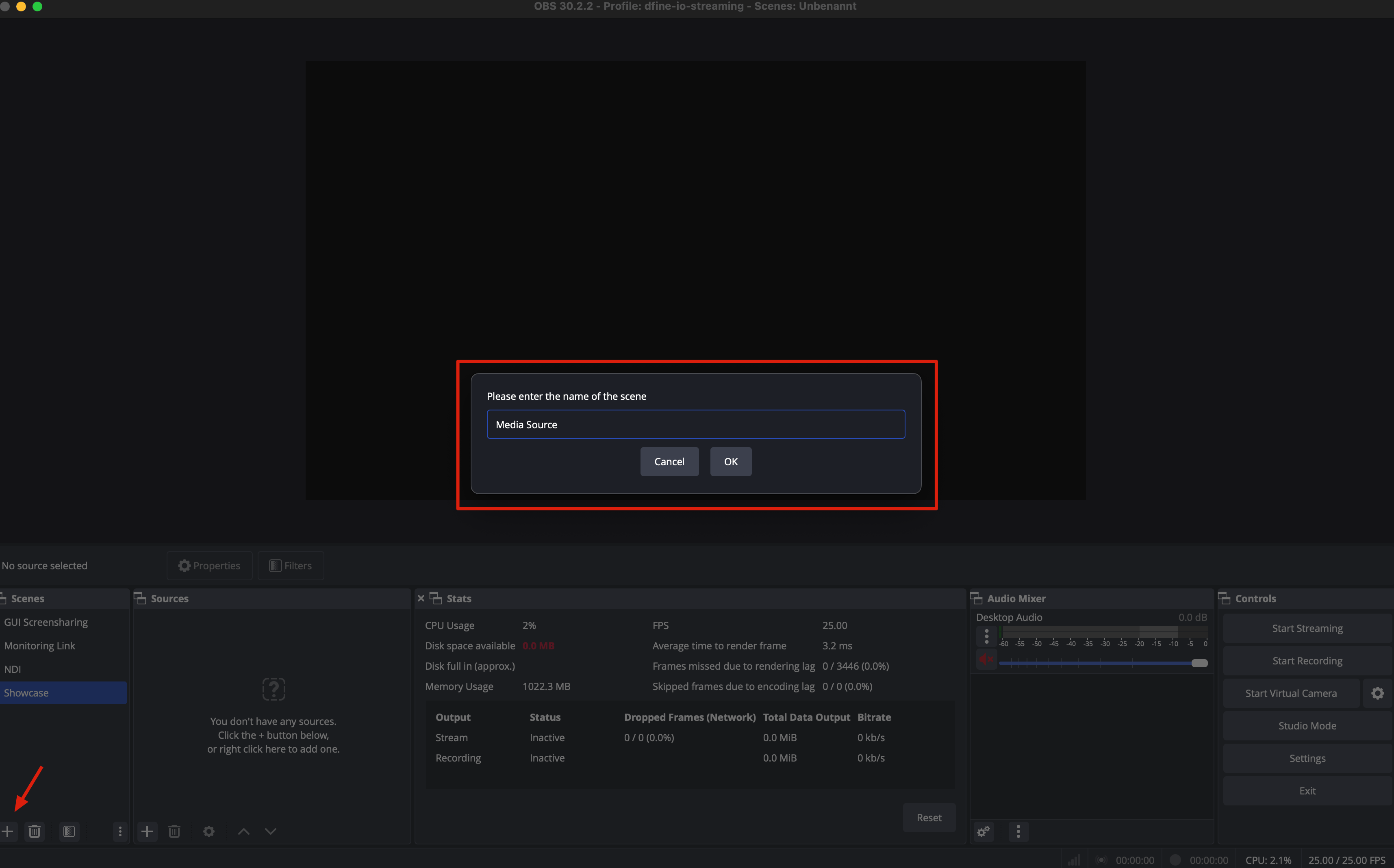
2
Add a media source
Inside the scene, add a new media source and give it a name. We call it Presentation.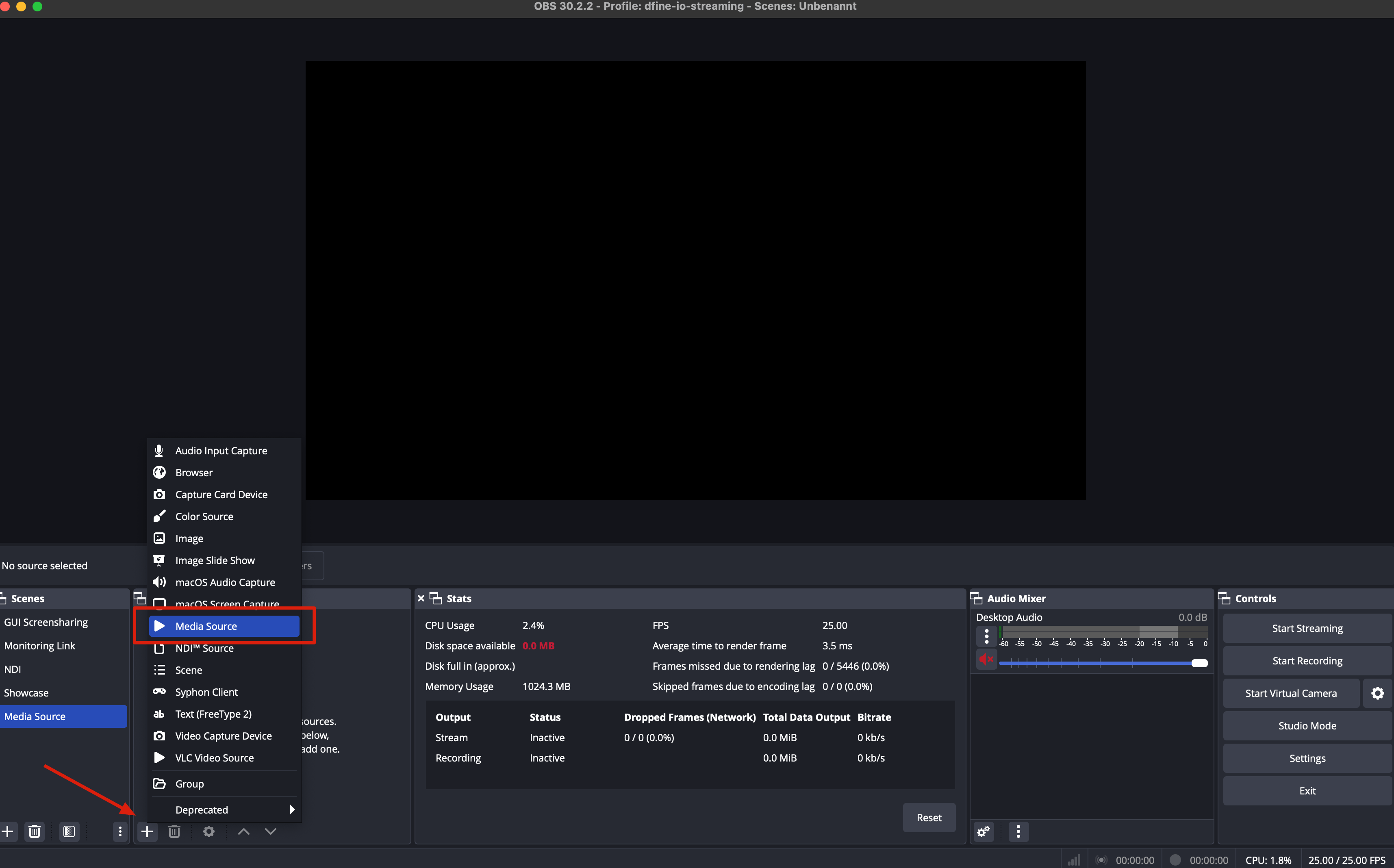
3
Pick your file
In the window that opens, select the file you want to stream. Turn on Loop if you need it, then confirm with OK.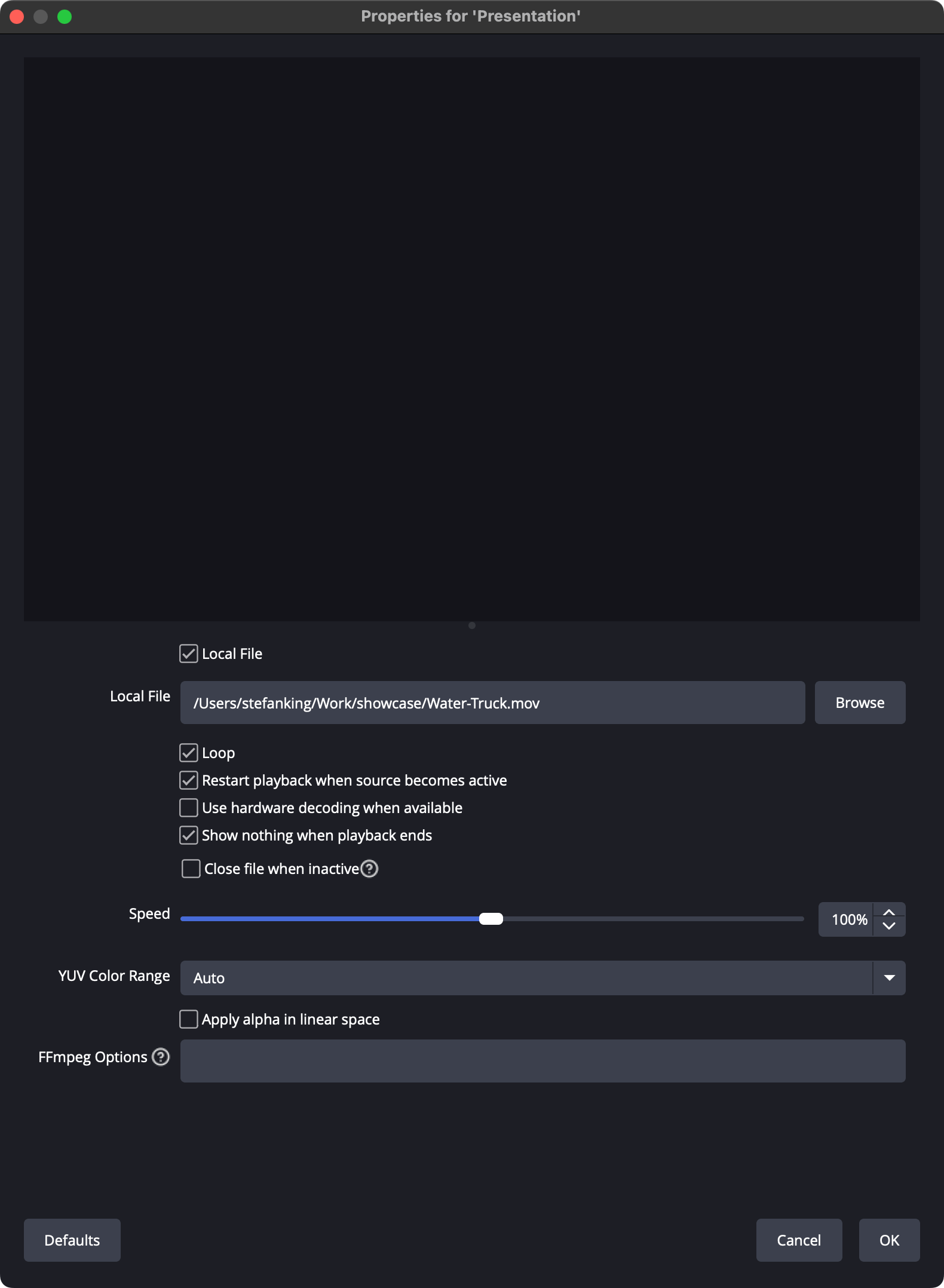
4
Fit the preview
Right click the preview, then choose Transform, then Fit to Screen.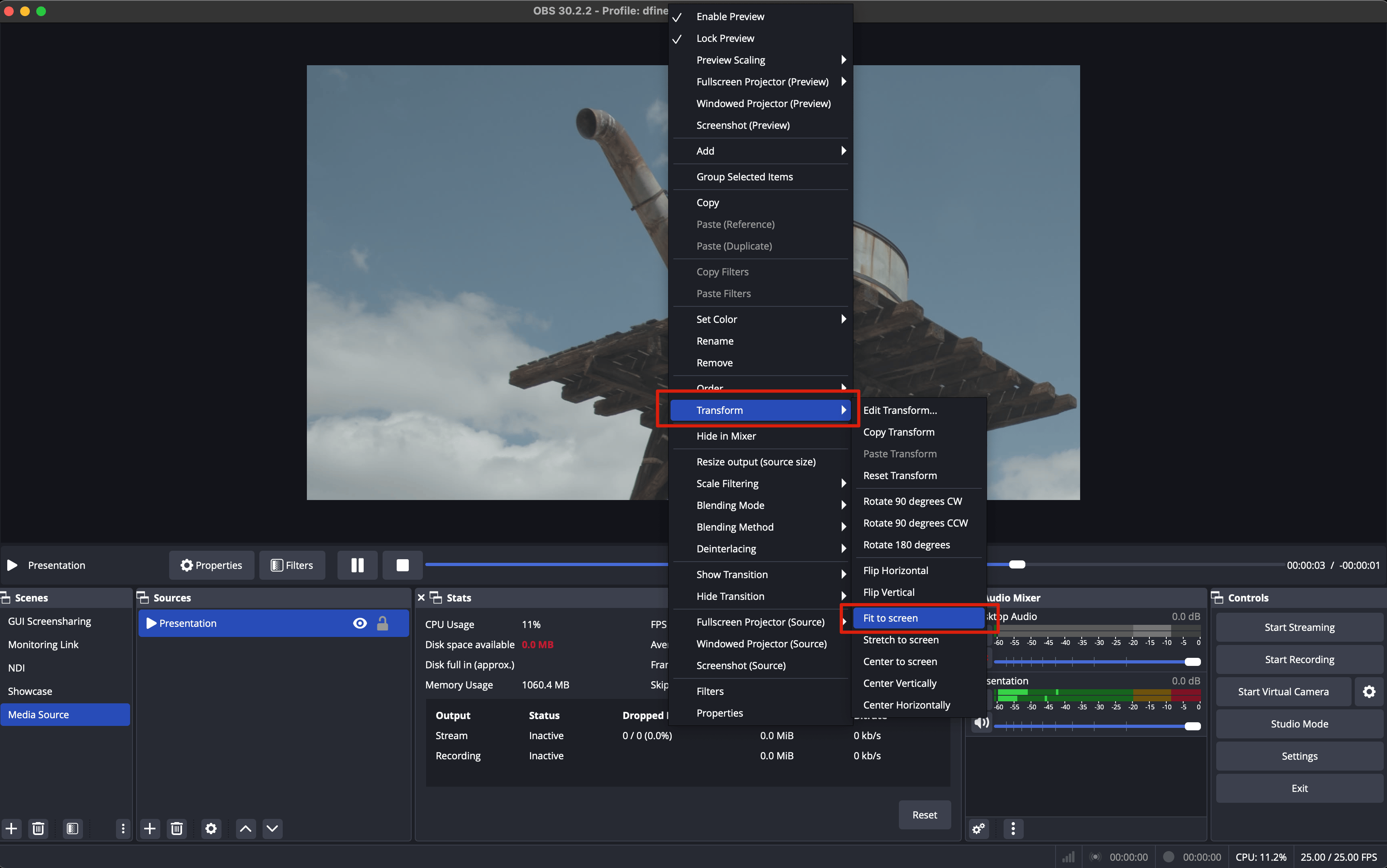
5
Control playback
You can now play, pause and moderate the file from the playback bar.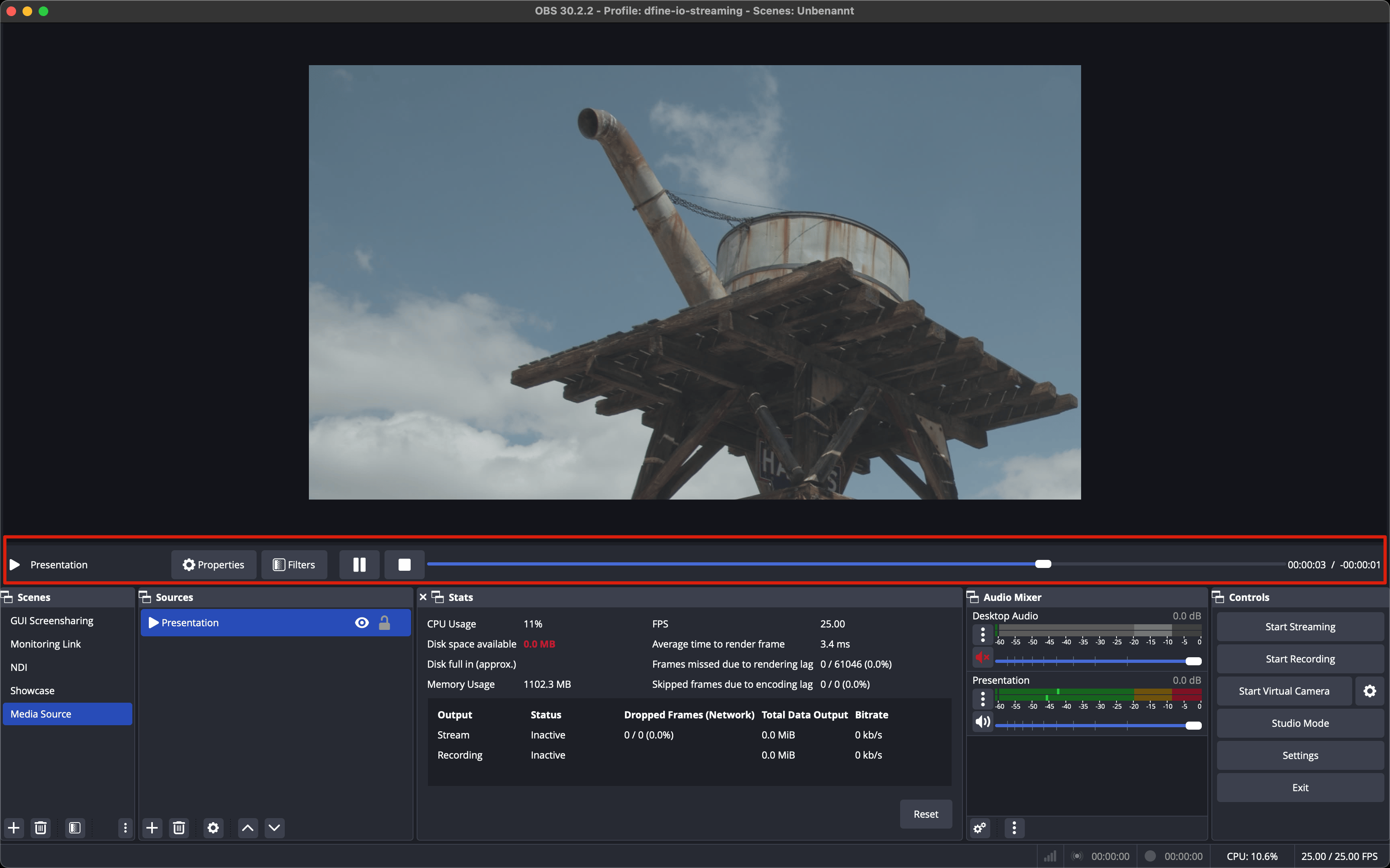
Next: enter your ingest URL and stream key
Add your connection details in OBS and go live.