

These steps apply to both dfine.io products that livestream — Streaming Classic and Review. The encoder setup is the same; only where you copy your ingest URL and stream key differs by product. See Where do I find the ingest server URL?.
First, install OBS and the profile
Get OBS ready before you build the scene.
1
Create a scene
Create a new scene called GUI Screensharing.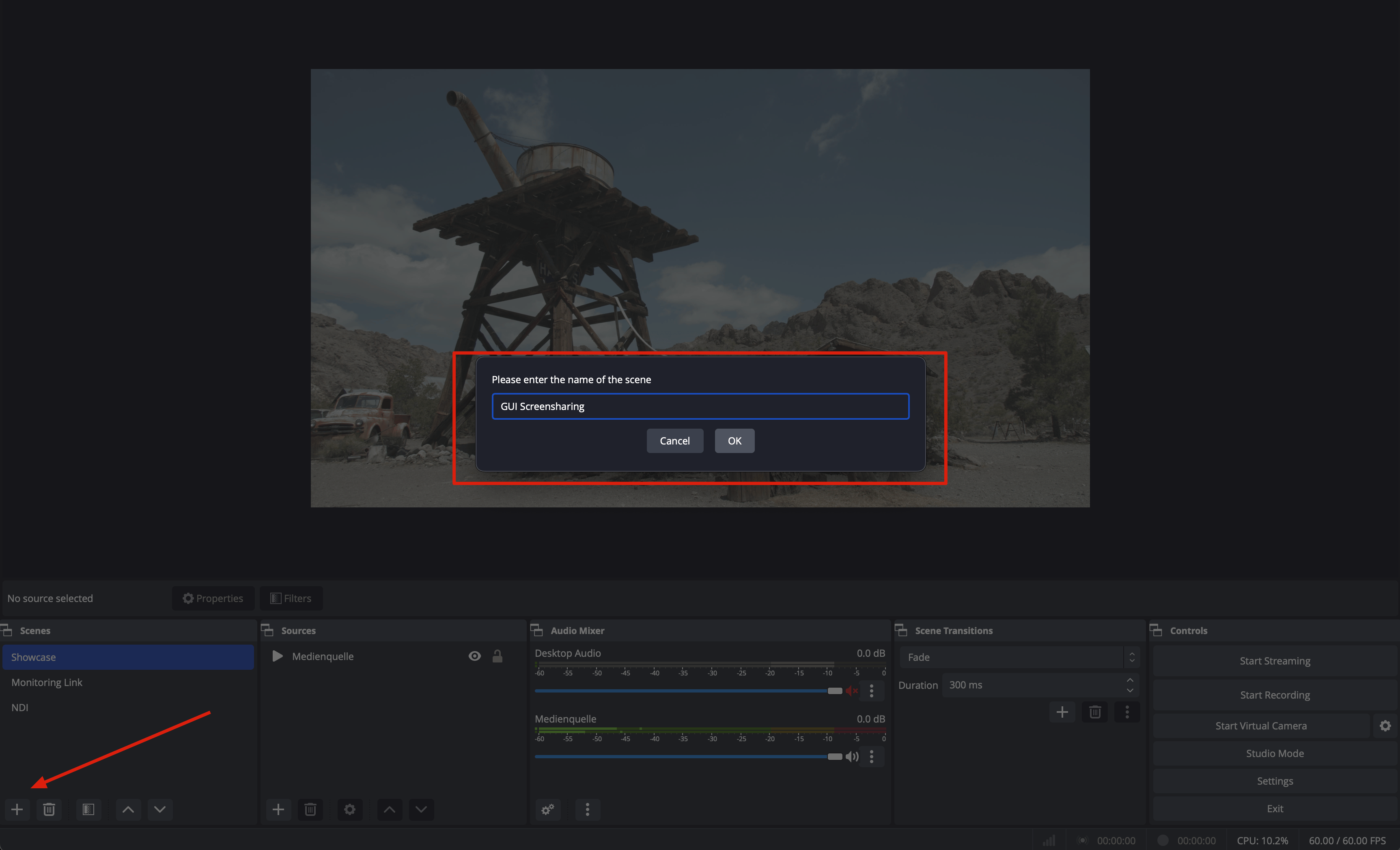
2
Add the screen capture
Add a macOS Screen Capture source and give it a name.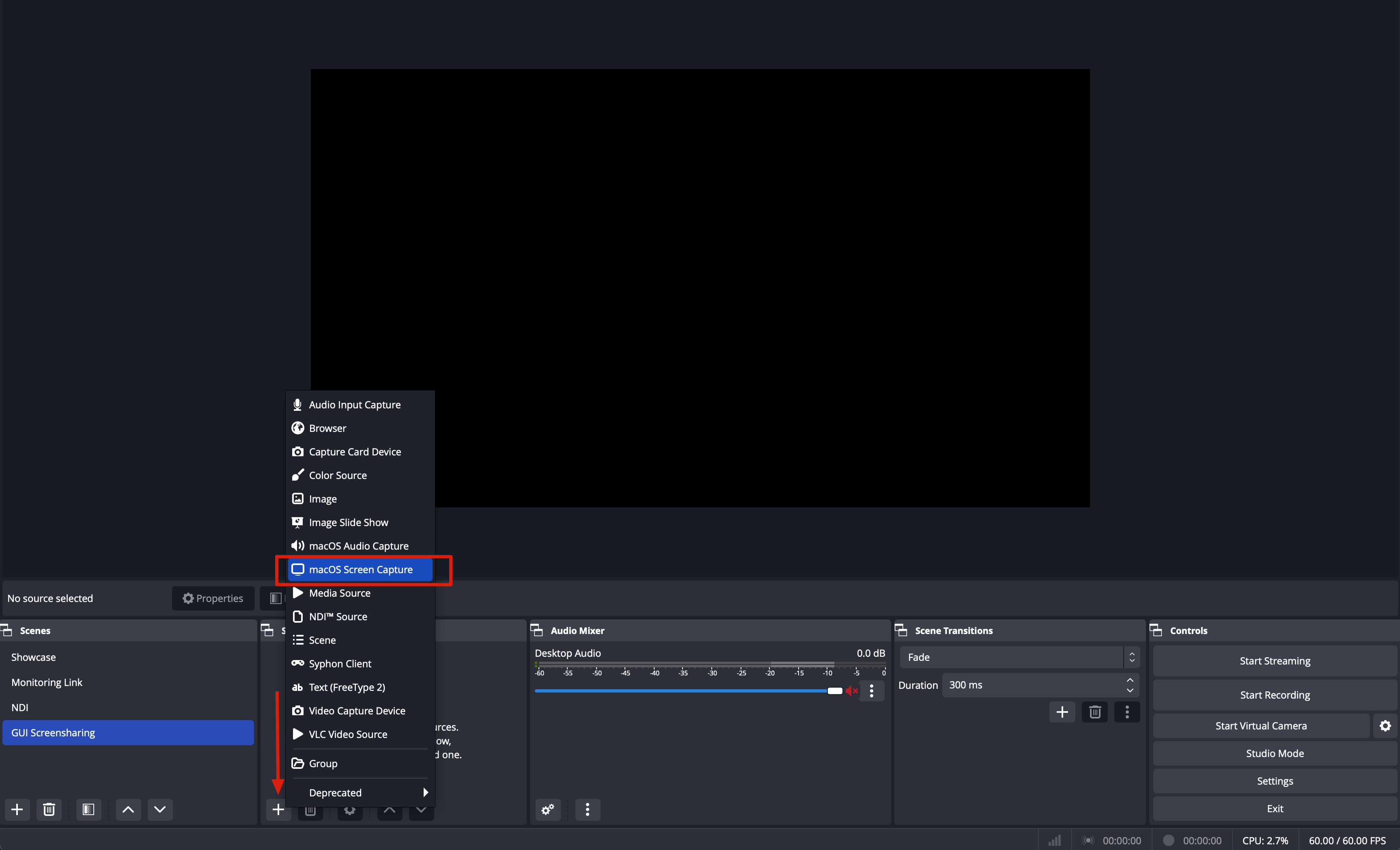
3
Choose what to share
In the window that opens, select the settings as shown.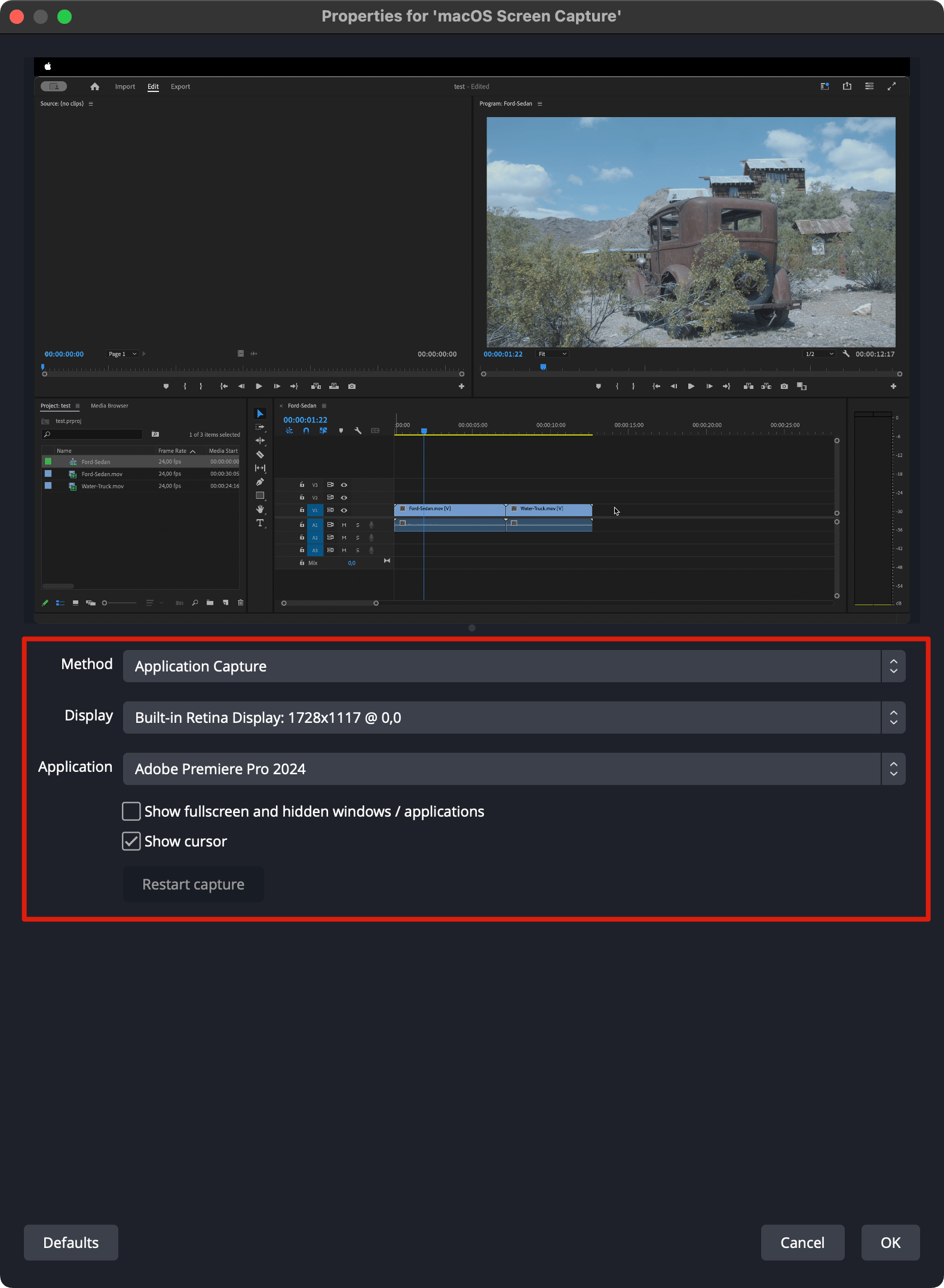
4
Fit the preview
Right click the preview, then choose Transform, then Fit to Screen.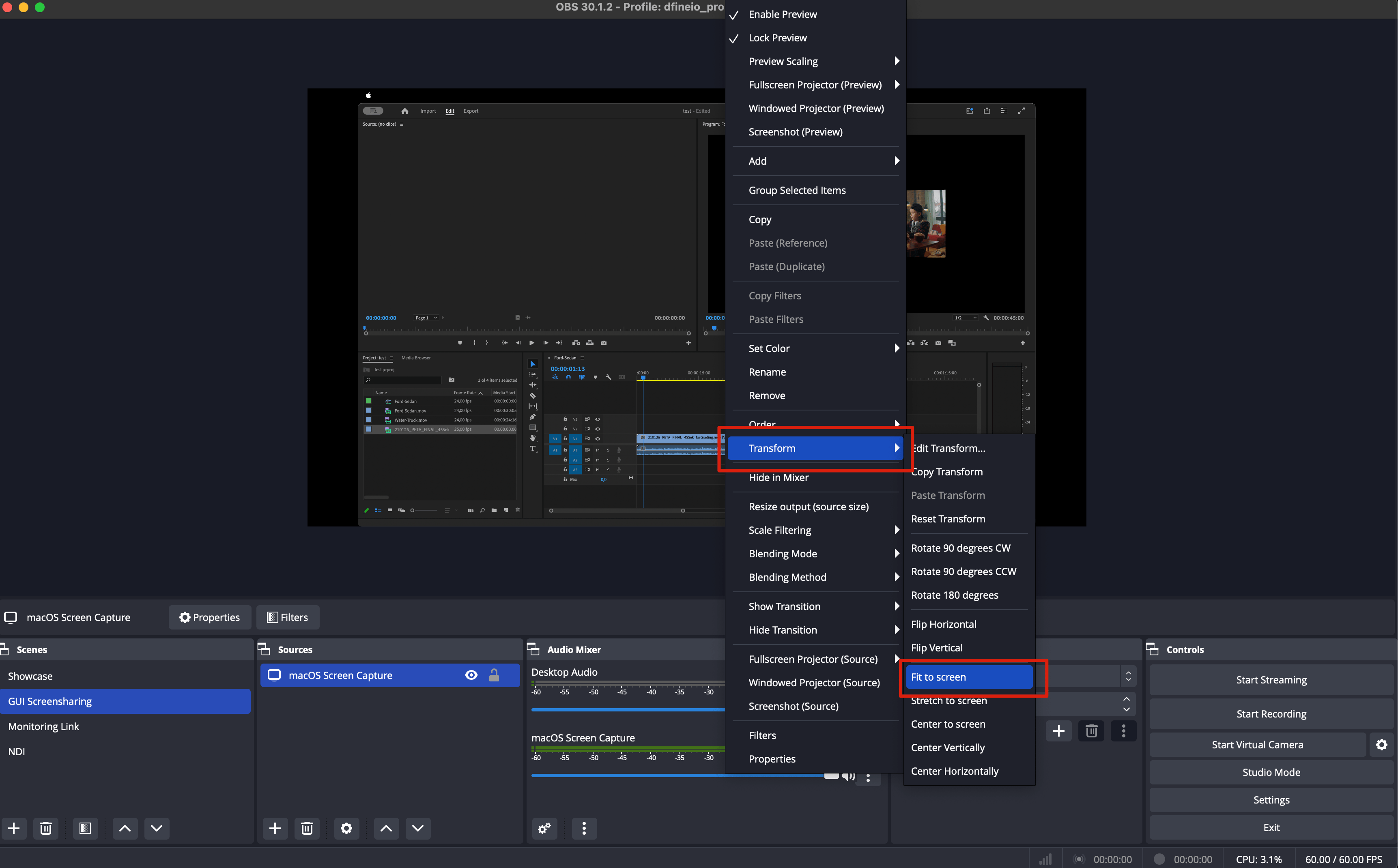
5
Set the audio
Turn off the default desktop audio, because no audio comes in on that channel. The audio is delivered through the macOS Screen Capture source instead.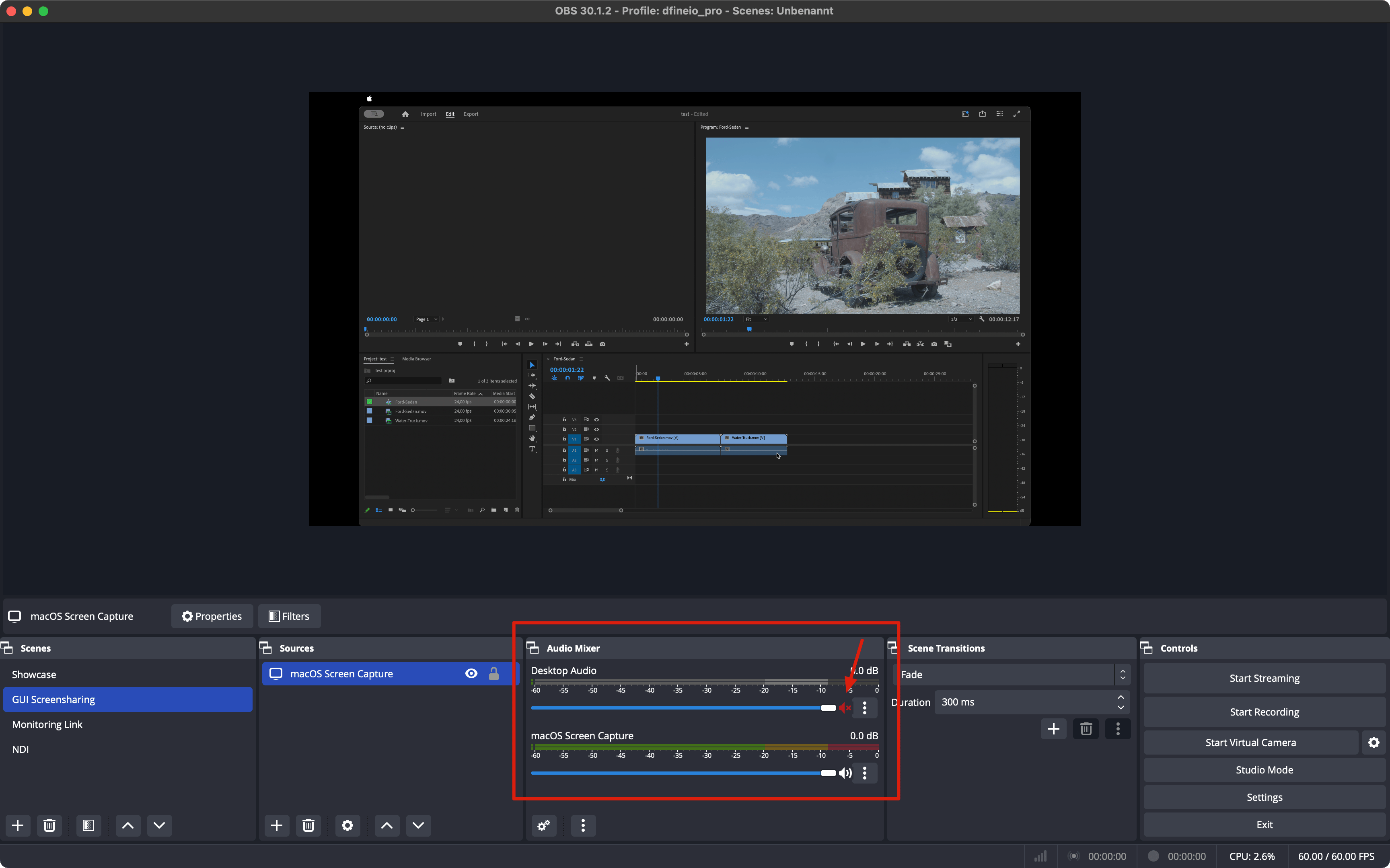
With the latest OBS version you no longer need the BlackHole audio drivers, which makes the setup much simpler.
Next: enter your ingest URL and stream key
Add your connection details in OBS and go live.