

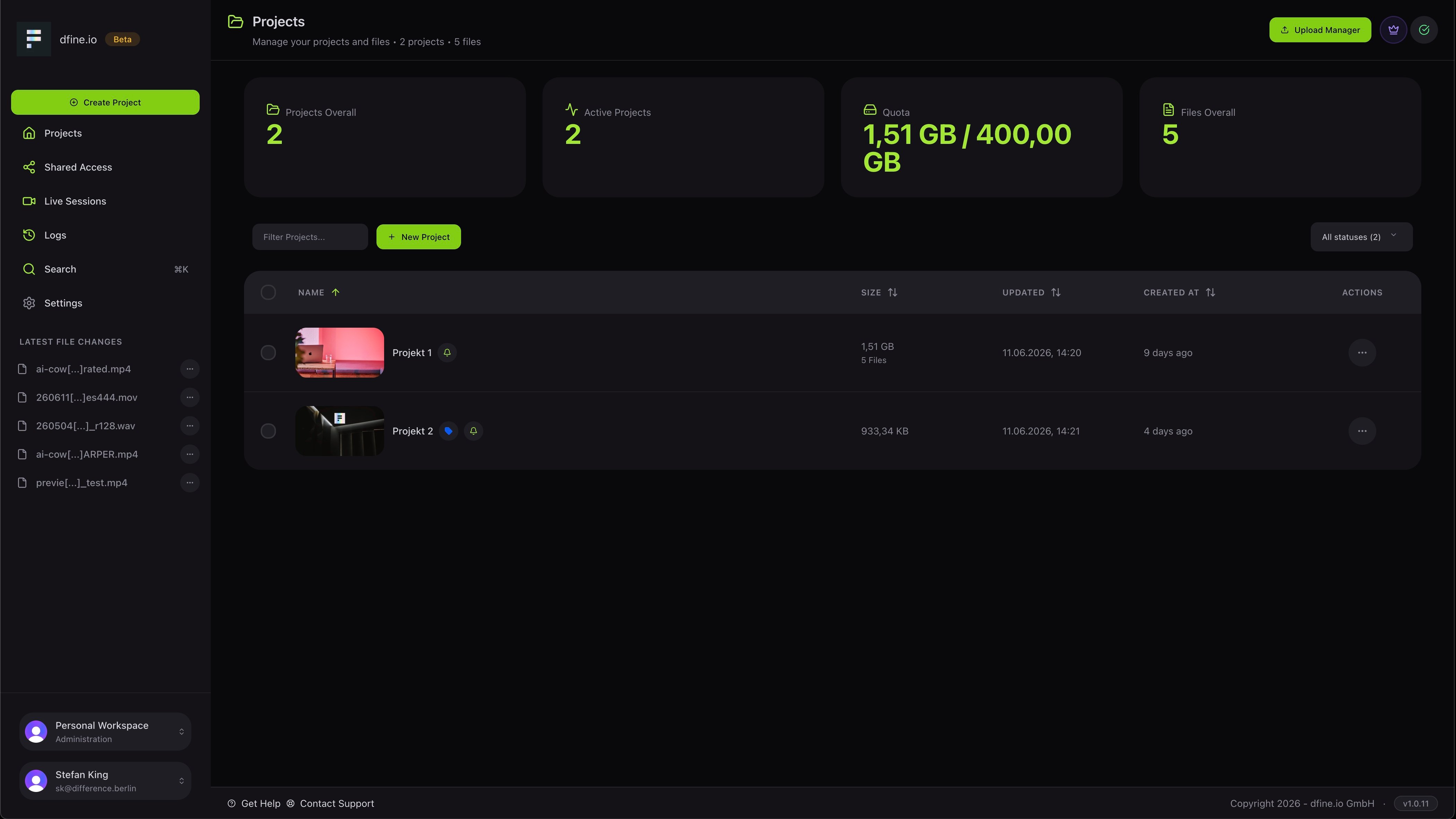
Inside a project
Open a project to see its files and folders. Each file shows its size, when it changed, and small badges and notes, WIP, In Review, Needs Approval or Approved, so the status is clear at a glance. You can create folders to keep large projects tidy.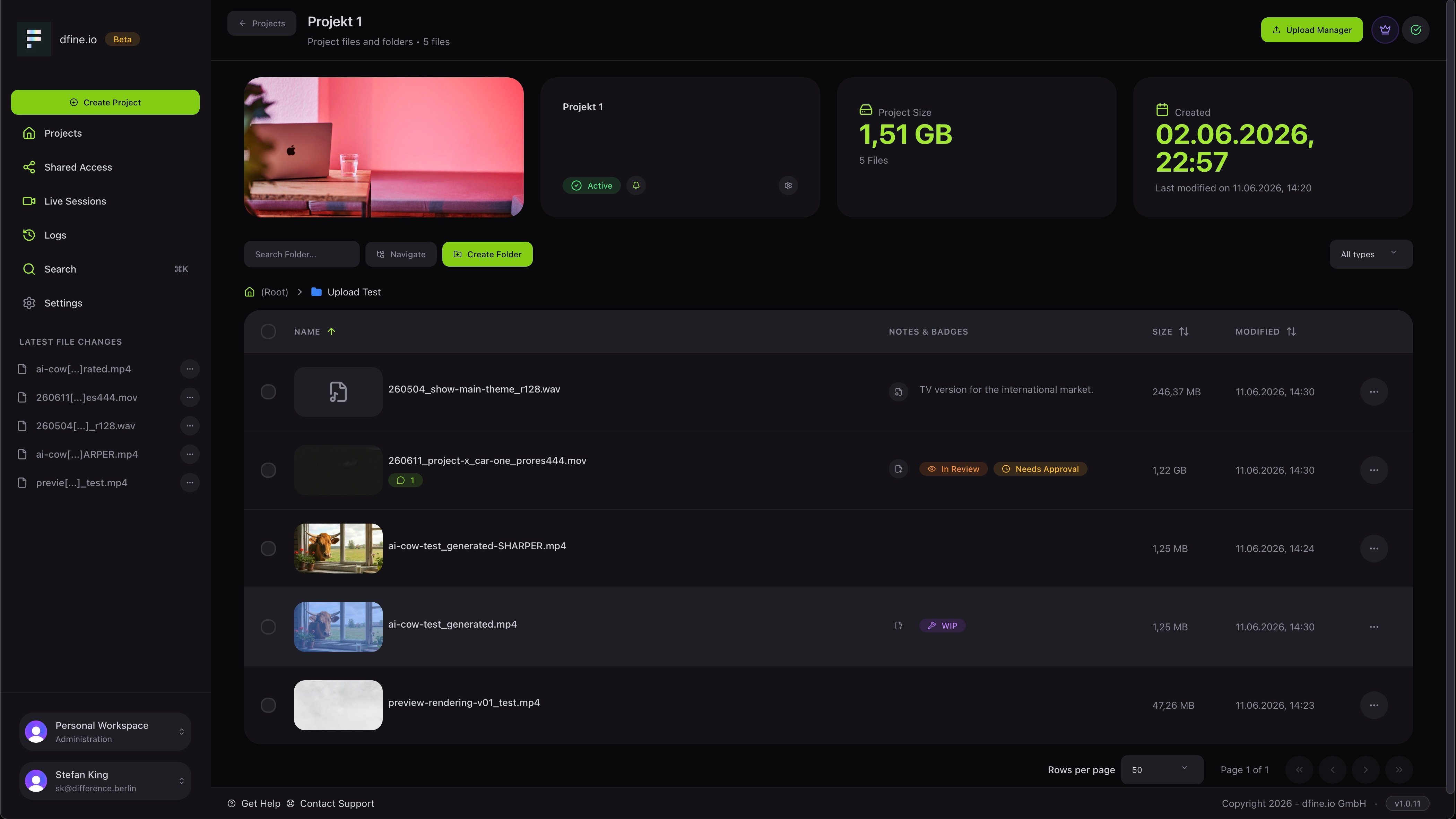
Act on files and folders
The menu on each row gives you everything in one place: open, download, rename, move, add a note, set a color tag, share, save as a template, protect with a password or delete.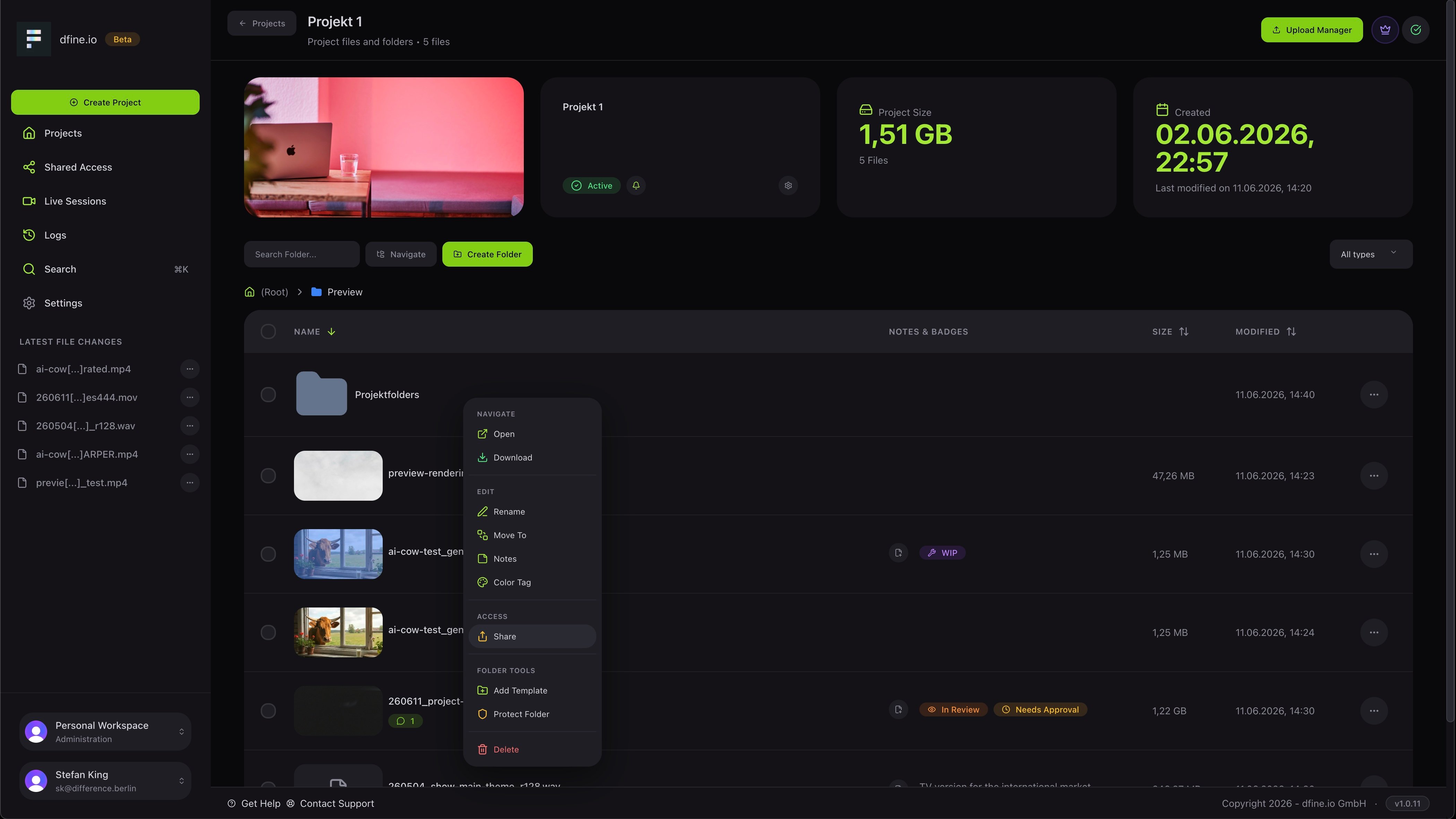
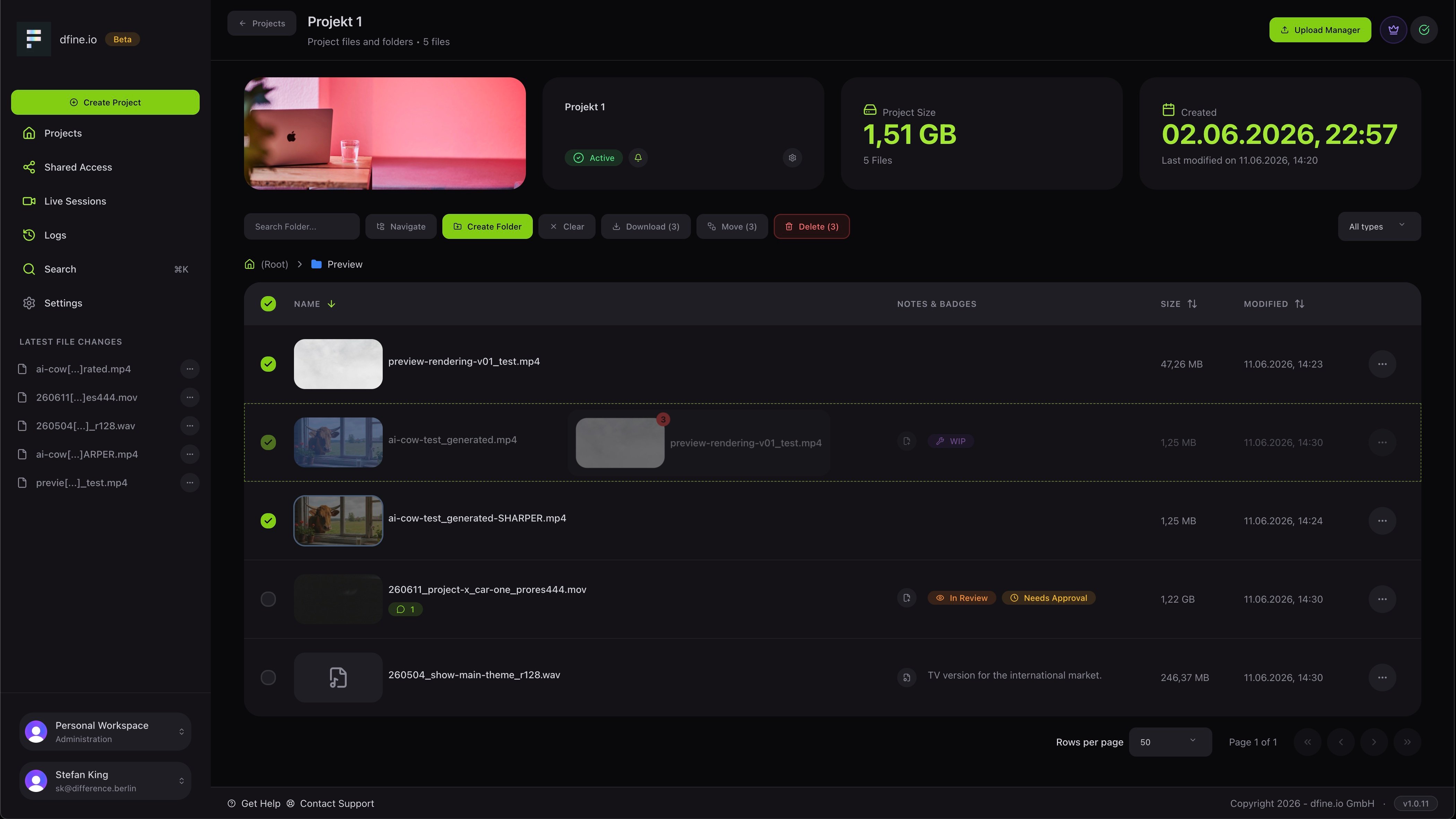
Preview a file
Open a quick preview to check a file without leaving the project. For video you can switch between the original and the optimised version and see the technical details at a glance.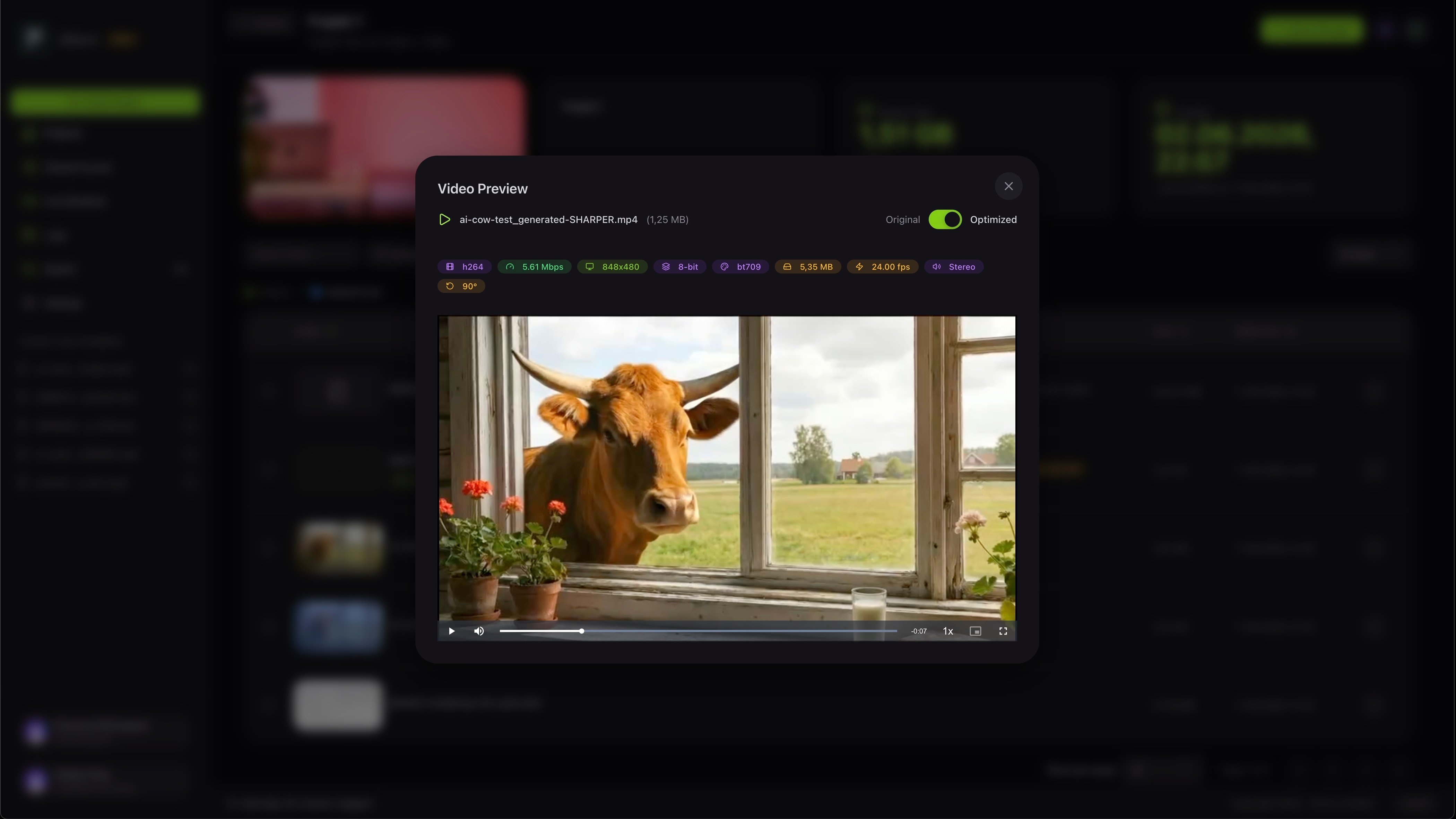
Find anything
Press the search shortcut to find projects, folders, files, comments, shares, rooms, accesses and sources from one box.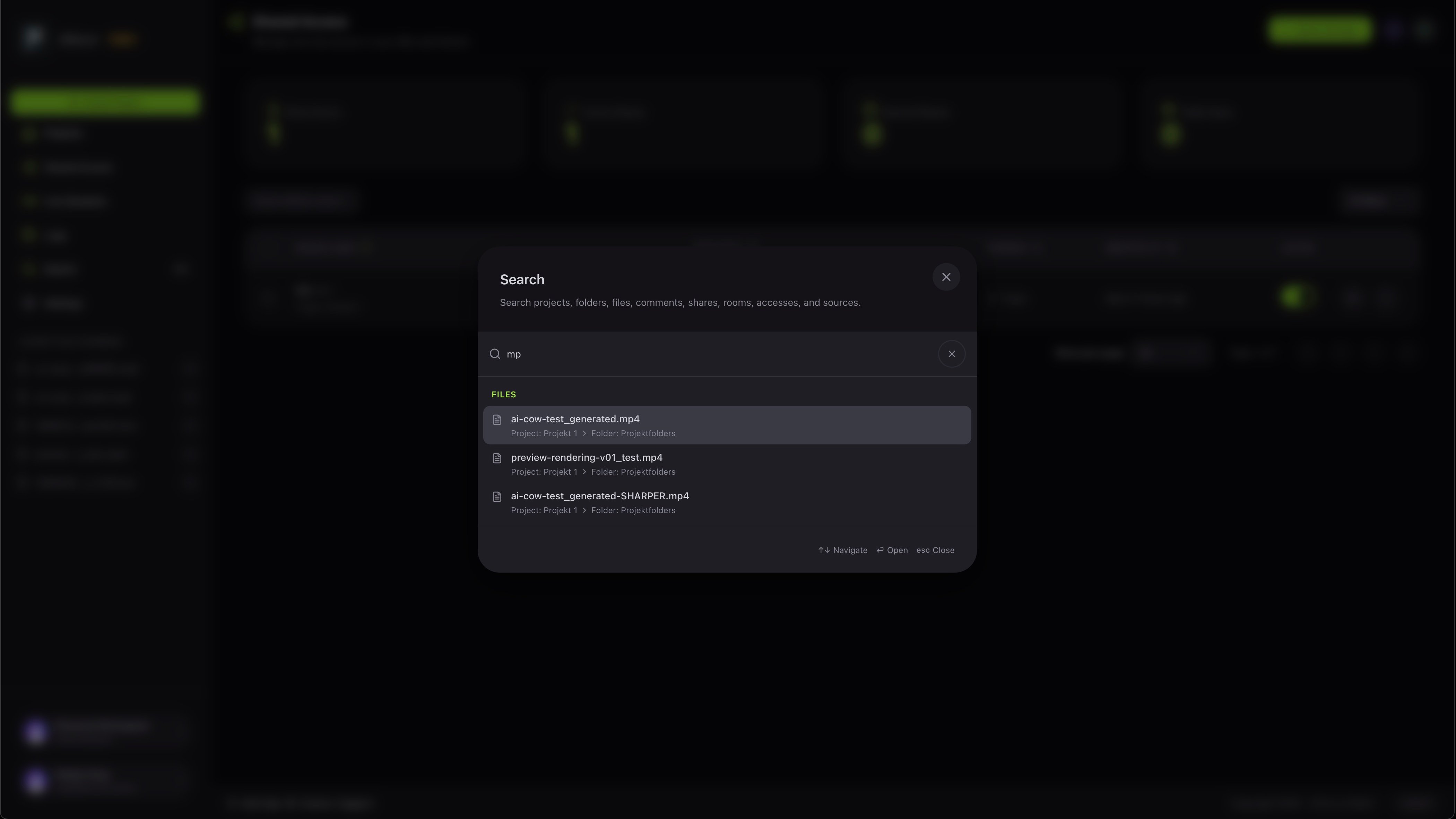
File formats and limits
Which formats preview, which stay download-only, and the current numbers.