

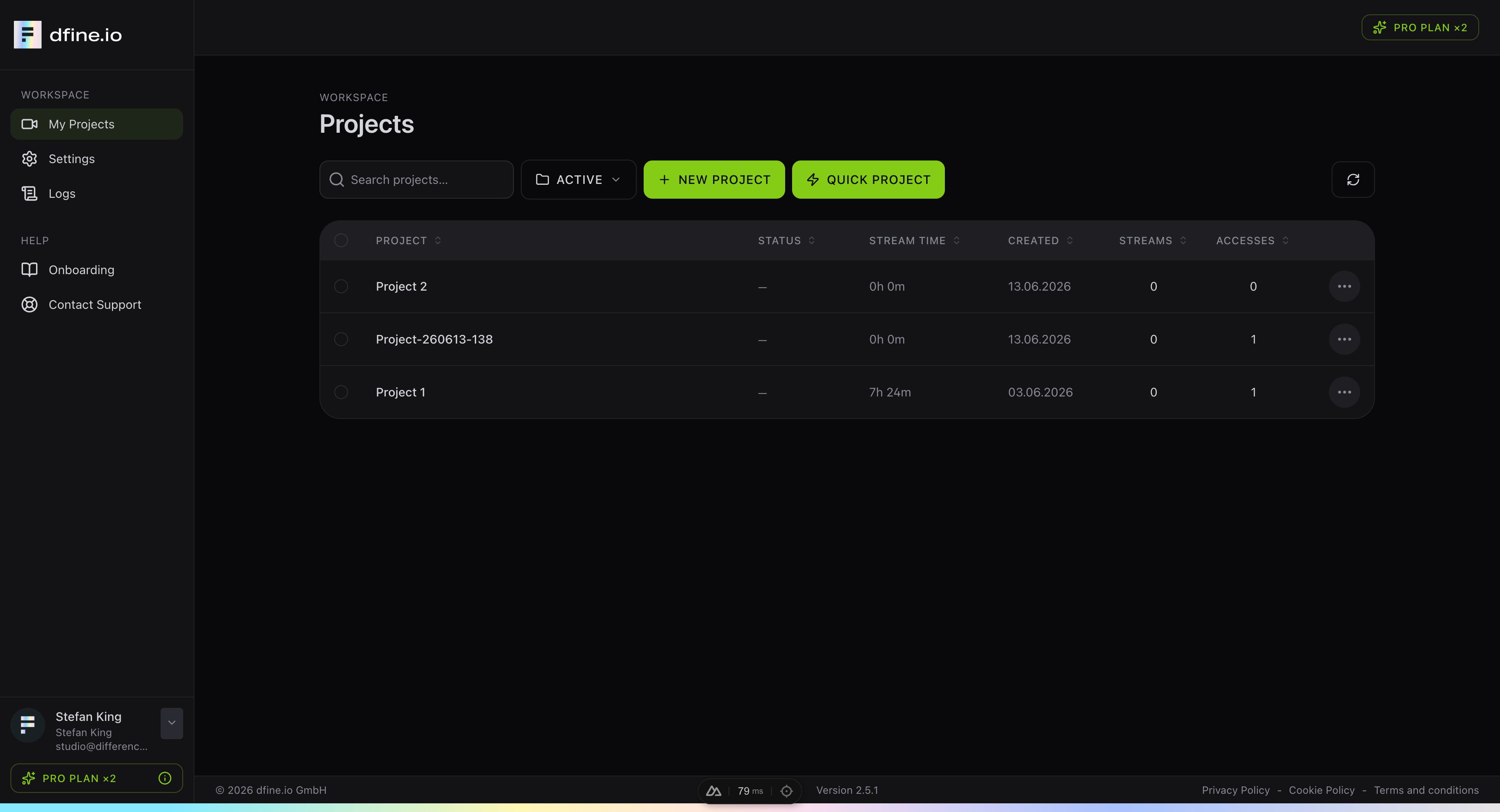
The project list
Each row is one project. The columns give you a quick overview:- Status shows whether a project is live right now.
- Stream time is how long the project has streamed in total.
- Created is the day you set it up.
- Streams and Accesses count the stream slots and the viewers with access.
Create a project
You have two ways to start:- New project lets you set everything up step by step.
- Quick project creates a project, a stream slot and a protected viewer access that is valid for 24 hours, all in one click. It is the fastest way to go live for a quick review.
Stream slots
A project holds one or more stream slots. Each slot is one ingest endpoint with its own stream key, and you add one with New stream slot.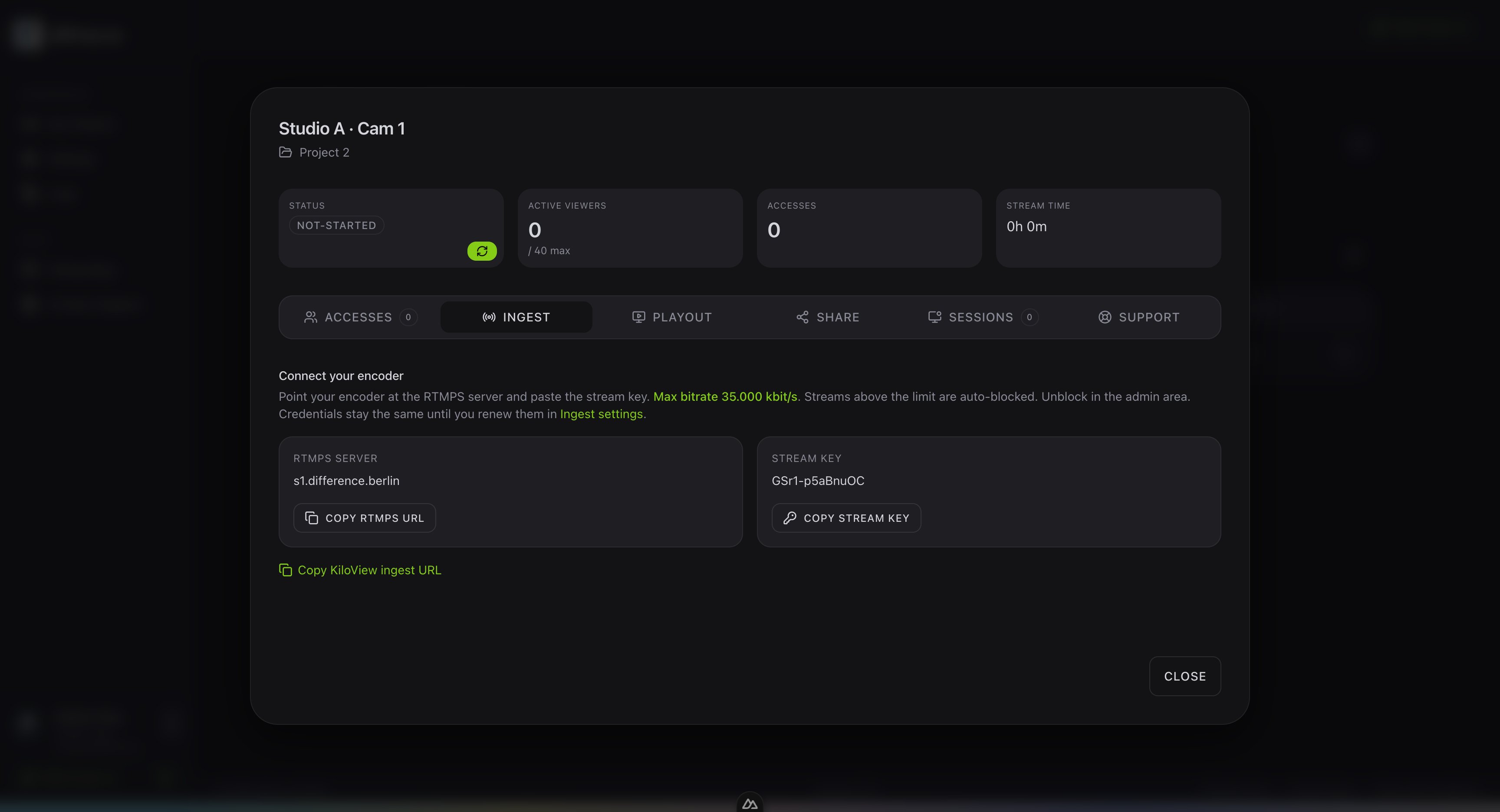
- Ingest has the RTMPS server and the stream key for your encoder.
- Playout creates the link for a reference monitor or decoder.
- Share lets an outside publisher stream into the slot with their own credentials.
- Accesses holds the viewer access codes for your clients.
Give your clients access
In the Accesses tab, choose New access to create a viewer access code. You set a name, a start and end time, and pick how strict the access should be.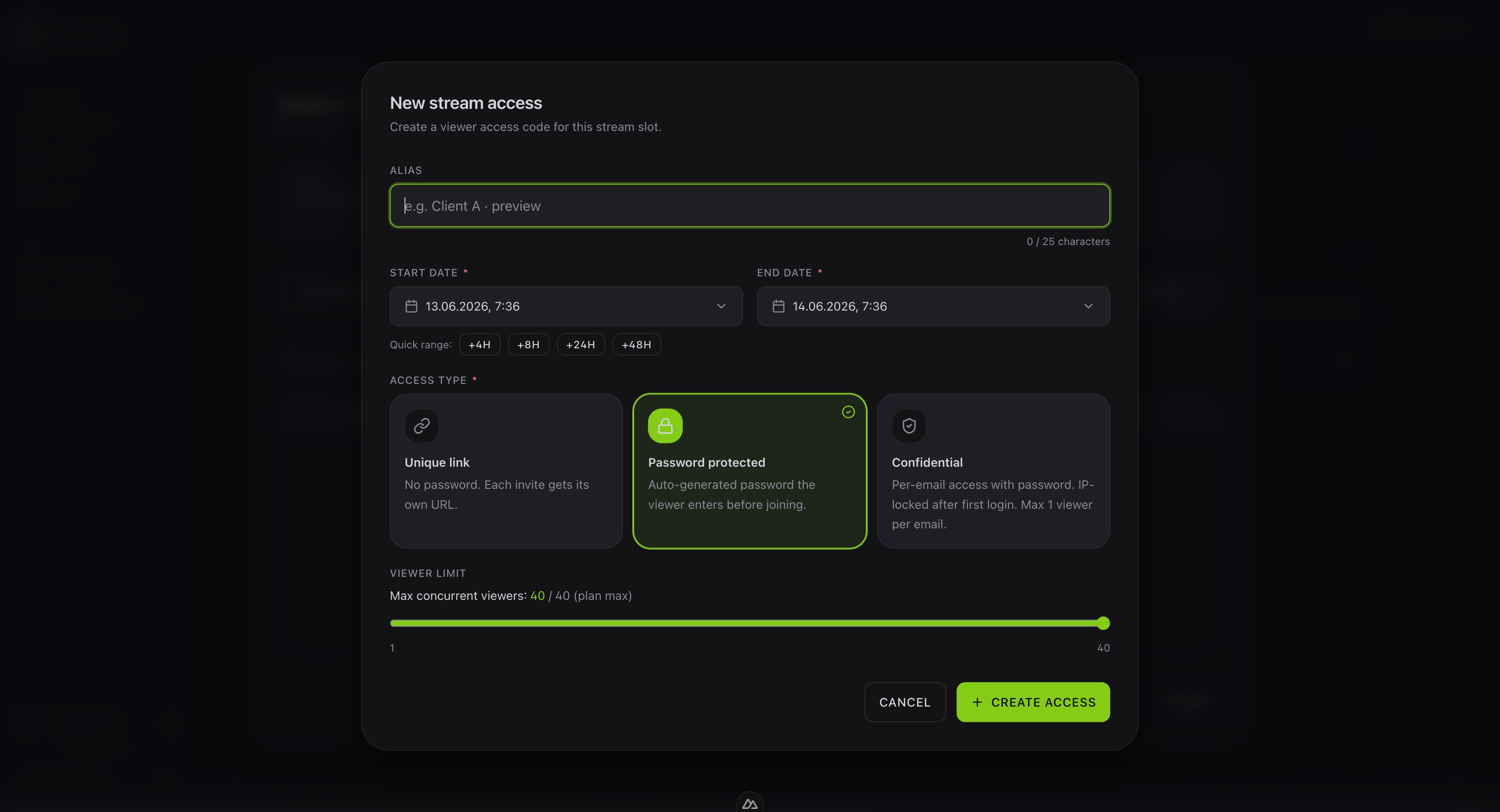
- Unique link has no password, and each invite gets its own URL.
- Password protected adds an auto generated password the viewer enters before joining.
- Confidential ties access to a single email, with a password and an IP lock after the first login.
Find your stream key
Copy the key your encoder needs from the slot.