

Install the plugin
Open Settings in dfine.io Desktop, go to Plugin Sources, and install the Premiere plugin. Then quit Premiere Pro and start it again, because Premiere only reads its plugin folder at launch.Switch on Mercury Transmit
1
Open the playback preferences
In Premiere, go to Premiere Pro → Settings → Playback on macOS.
2
Enable Mercury Transmit
Tick Enable Mercury Transmit. Without it the whole device list stays inactive, no matter what else you set.
3
Select dfine.io Transmit
In the device list, tick the checkbox for dfine.io Transmit under Video Stream. Tick Audio Stream as well if you want sound on the stream.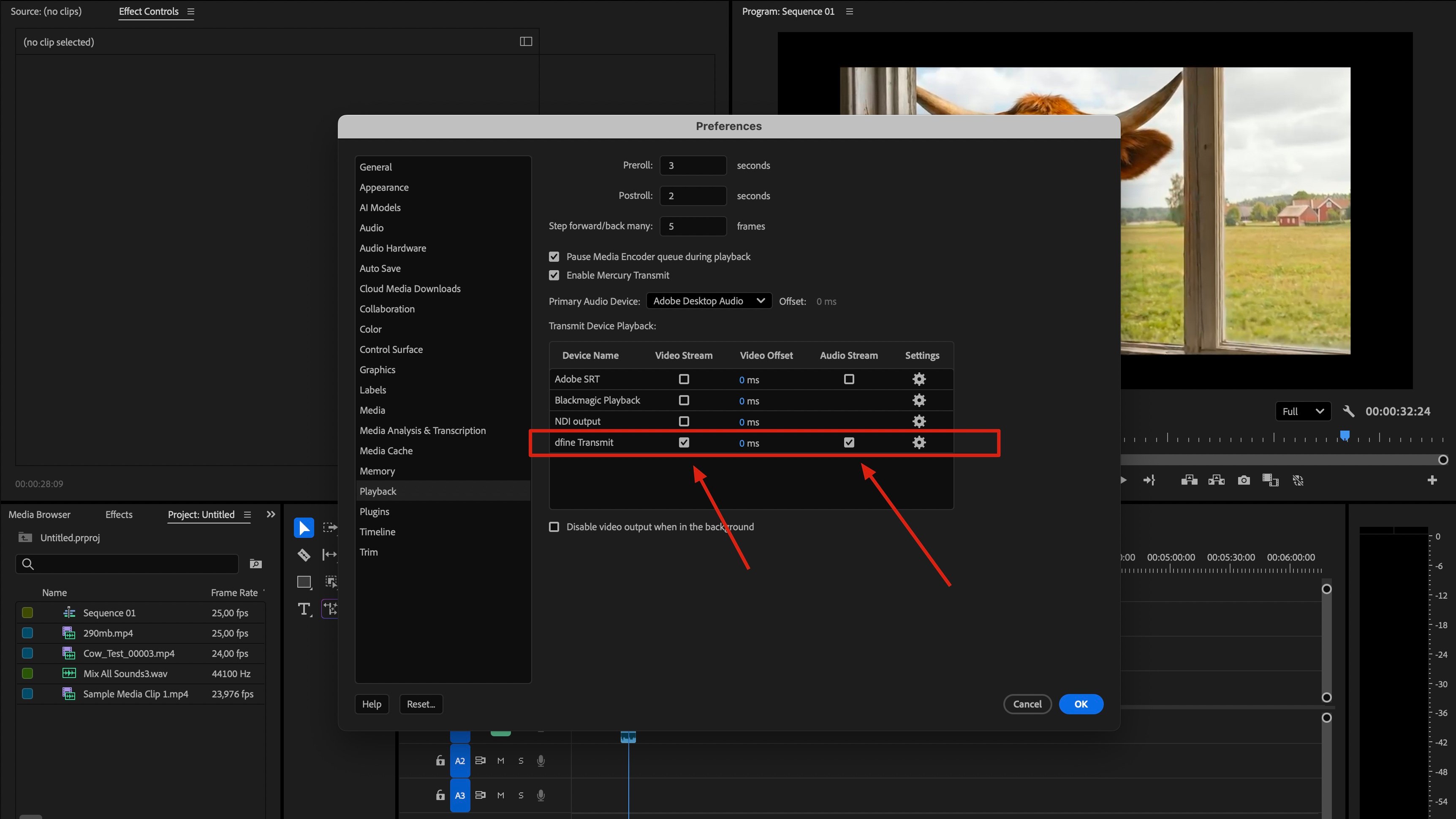
4
Confirm with OK
Close the preferences. Premiere starts feeding the device right away.
Check that it arrives
Play your sequence in Premiere, then switch to the Ingest tab in dfine.io Desktop. You should see the picture in the preview and the source listed as connected. Now press Start to go live.Premiere only sends while it is playing or scrubbing. On a paused timeline the last frame stays on the stream, which is normal and not an error.