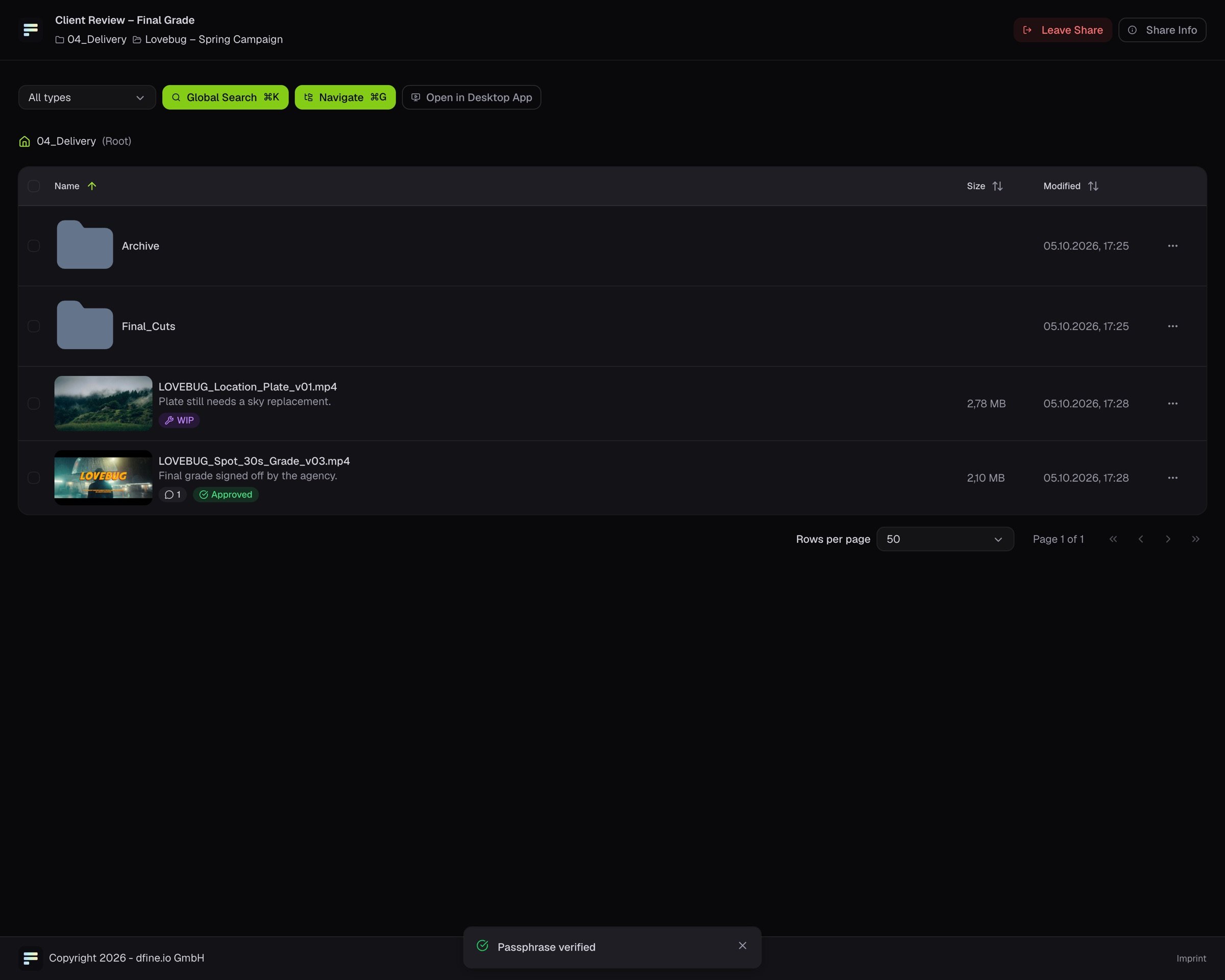
A share link lets your client open a file or folder without an account. Its protection is set when you create it.
1

Open Share

In the project, open the menu on the file or folder and choose Share. On Settings, enter the name your recipients see.
2

Open Security

Switch on what you need: Password, Invite Only for named recipients, Audit Trail to record every access, Expiration, a country restriction and an access limit.
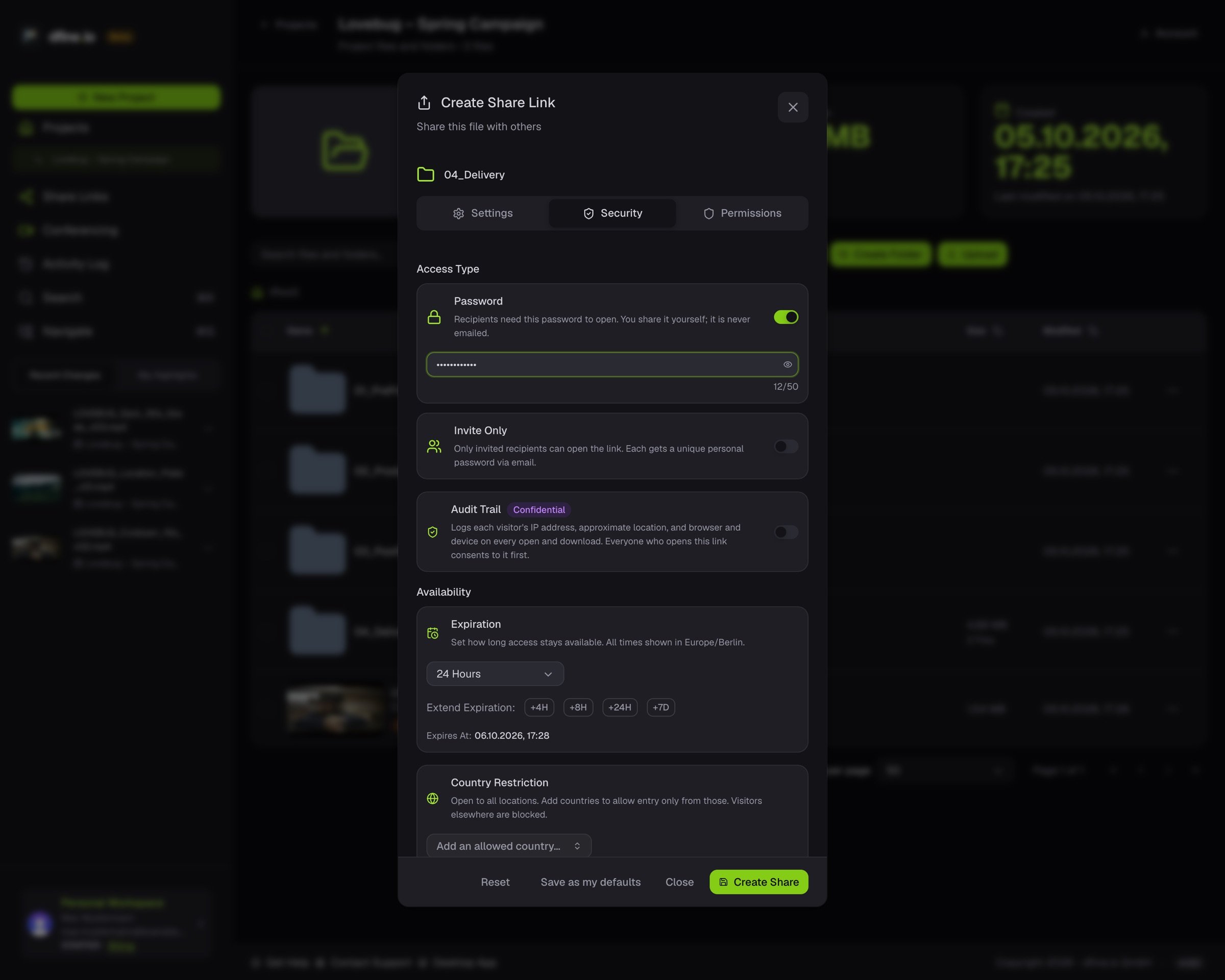
The Create Share Link dialog on the Security tab with a password set
3

Open Permissions

Set what recipients may do: download, upload, add to a stack, comment and more, each with its own switch.
4

Create the link

Click Create Share and copy the link.
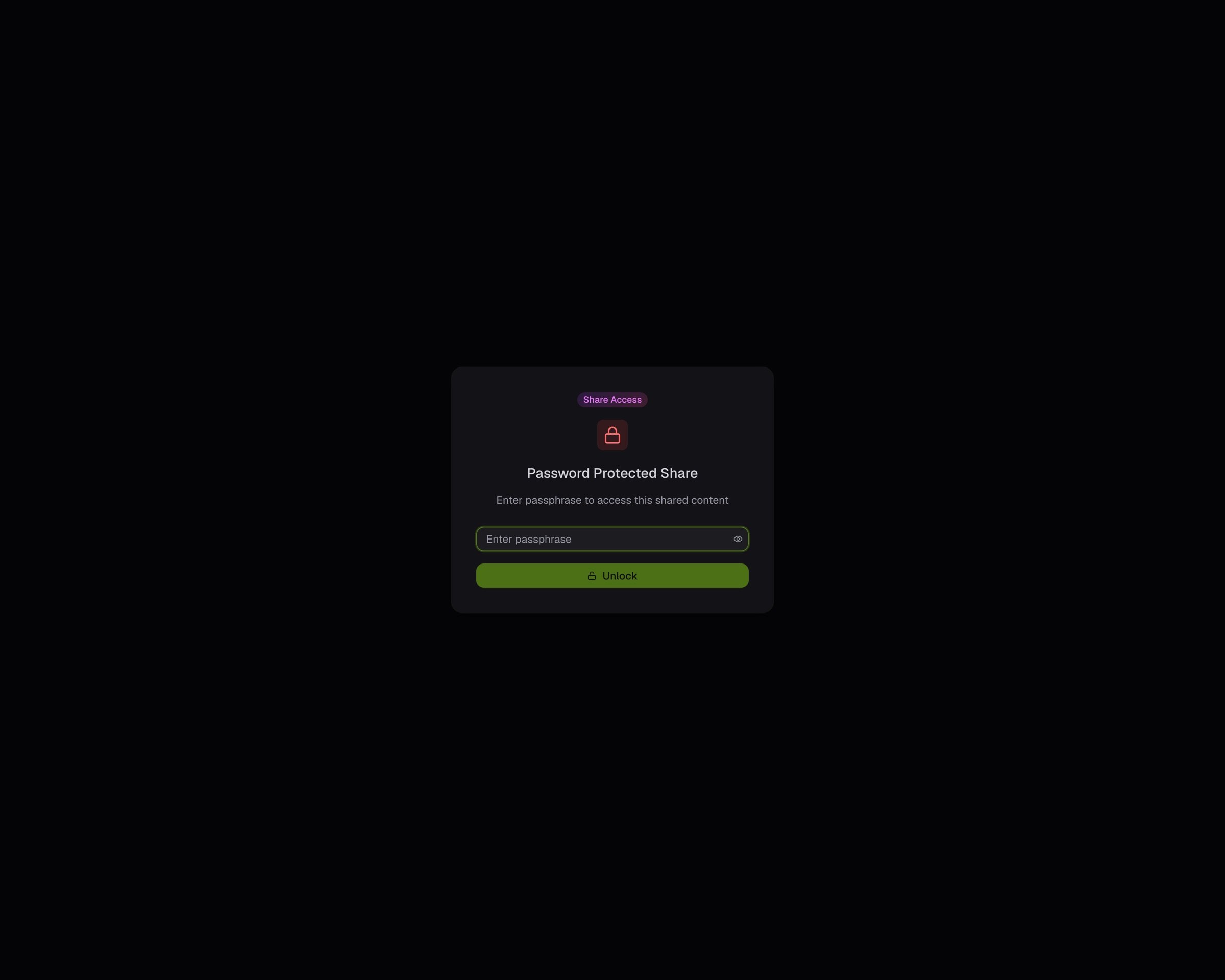
What your client sees. With a password, a passphrase screen first. After that, a clean view of your shared folder.
The passphrase screen a guest sees for a protected share
The guest view of a shared folder with its files
Your client wants the originals at full size: Download a share at full size. Your links later: Where do I find my share links?