Get Blackmagic Desktop Video
The driver for DeckLink and UltraStudio cards.
1. Set up the input
1
Connect the feed
Cable the SDI or HDMI output of your source into the input of the card.
2
Open the gear
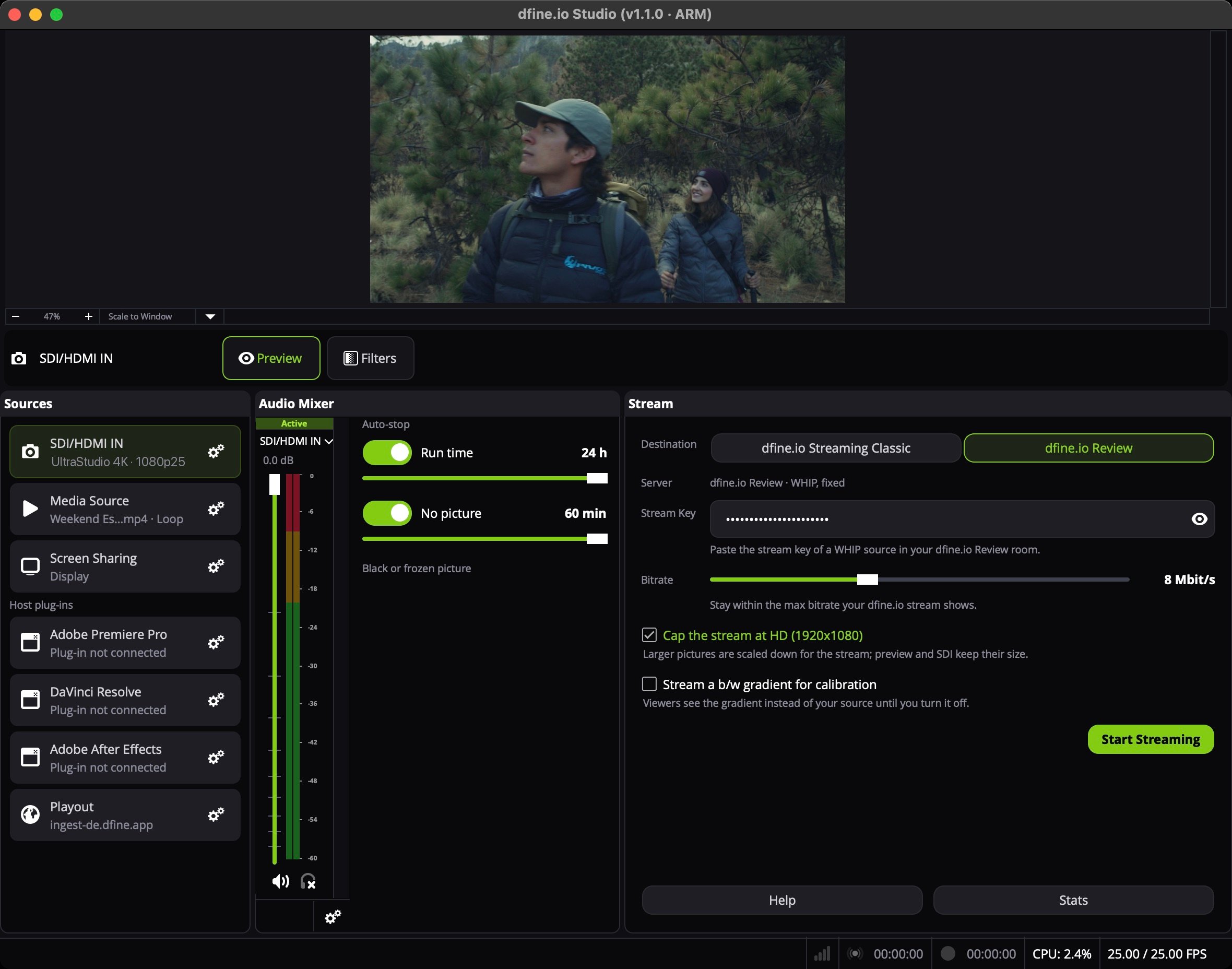
In Studio’s Sources panel, click the gear on SDI/HDMI IN. Without the driver the row reads Not available on this Mac.
3
Pick device and mode
Pick the Device and set Mode to the format of the incoming signal. Pixel Format, Color Space and Color Range match the signal as well. Until a card is chosen, the row reads No card chosen yet.
2. Pick where it goes
- dfine.io Review
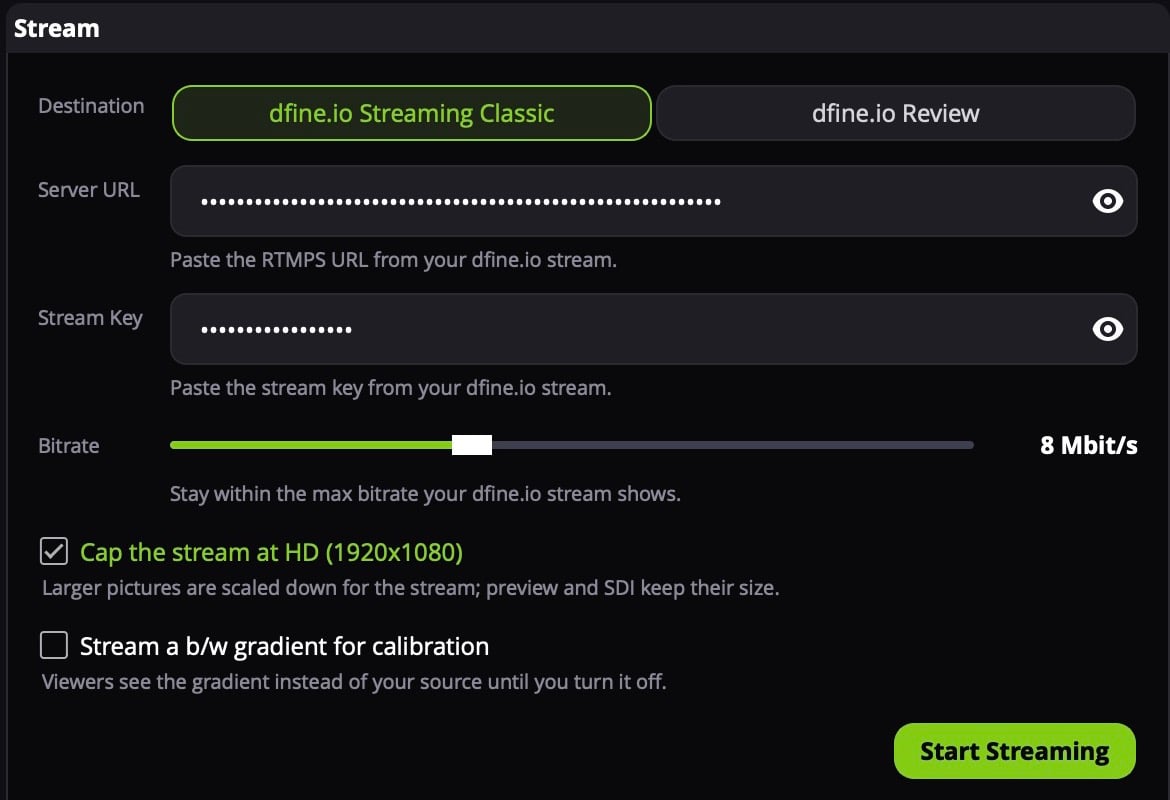
- dfine.io Streaming Classic
In Review, open the room and create a source with the type WHIP, or use Quick Create. Click Copy Stream Key.In Studio’s Stream panel, set Destination to dfine.io Review. Server reads dfine.io Review · WHIP, fixed. Paste the key into Stream Key.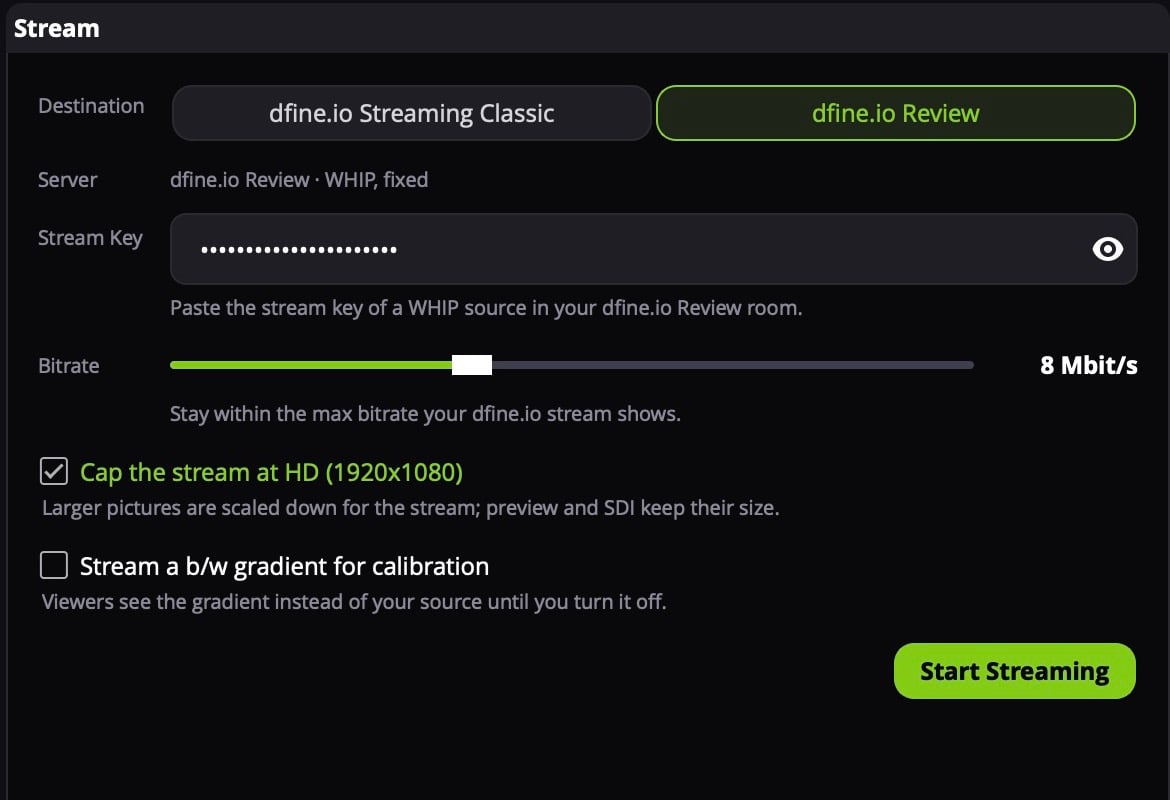
3. Start
Click the SDI/HDMI IN row to put it on air, then click Start Streaming. The row shows the card and the mode, for exampleUltraStudio 4K · 1080p25. The stream takes the size of the signal. To send a UHD feed as HD, tick Cap the stream at HD (1920x1080), see Stream settings.