

Download dfine.io Download
One app for Apple Silicon and Intel, macOS 15 or newer.
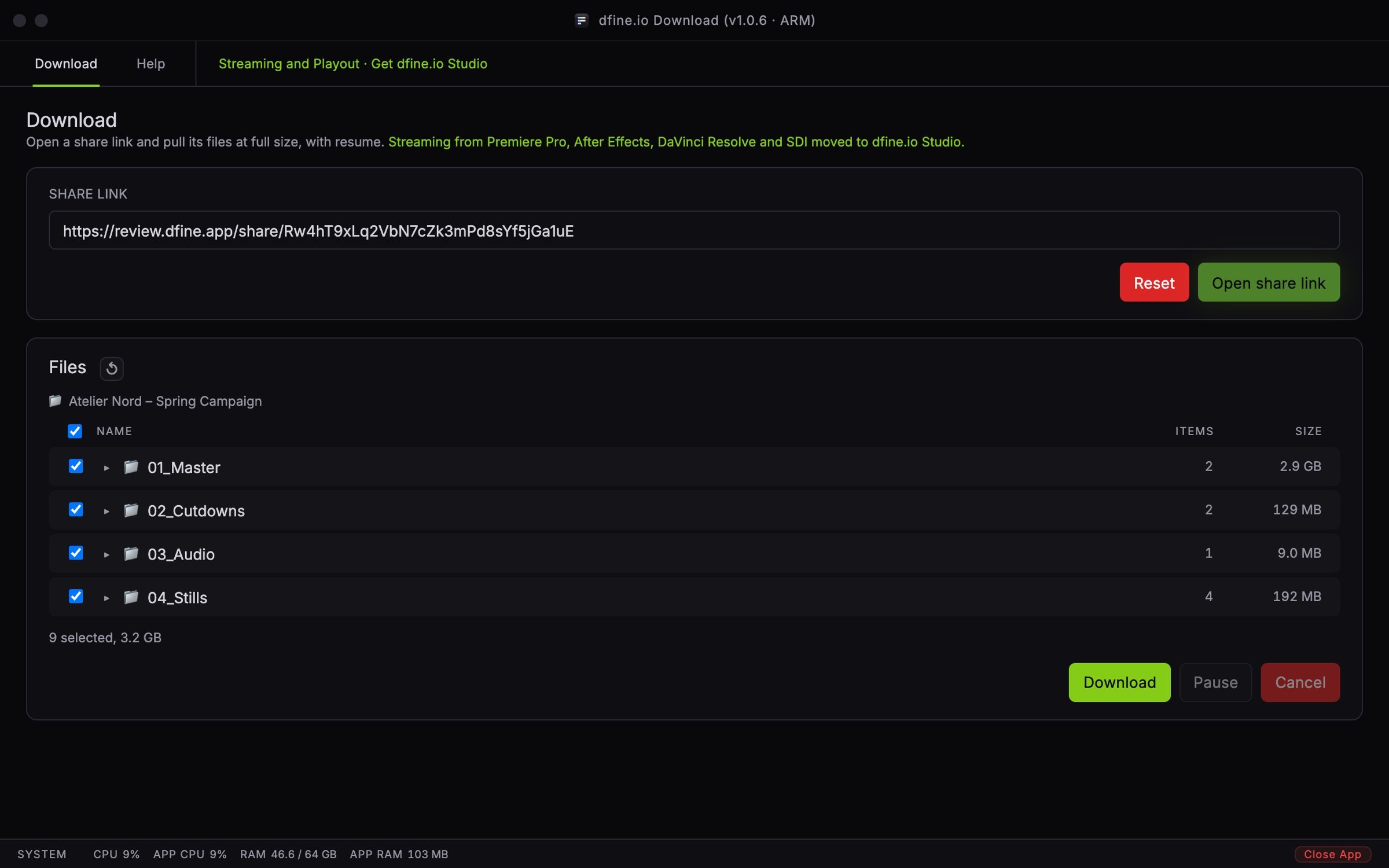
Download a share
1
Paste the link
Paste the share link into Share link and click Open share link.
2
Unlock it if asked
A protected share shows a Password field. Enter the password and click Unlock.
3
Pick what you need
Files lists the share with Name, Items and Size. Everything is ticked; untick what you do not need.
4
Start
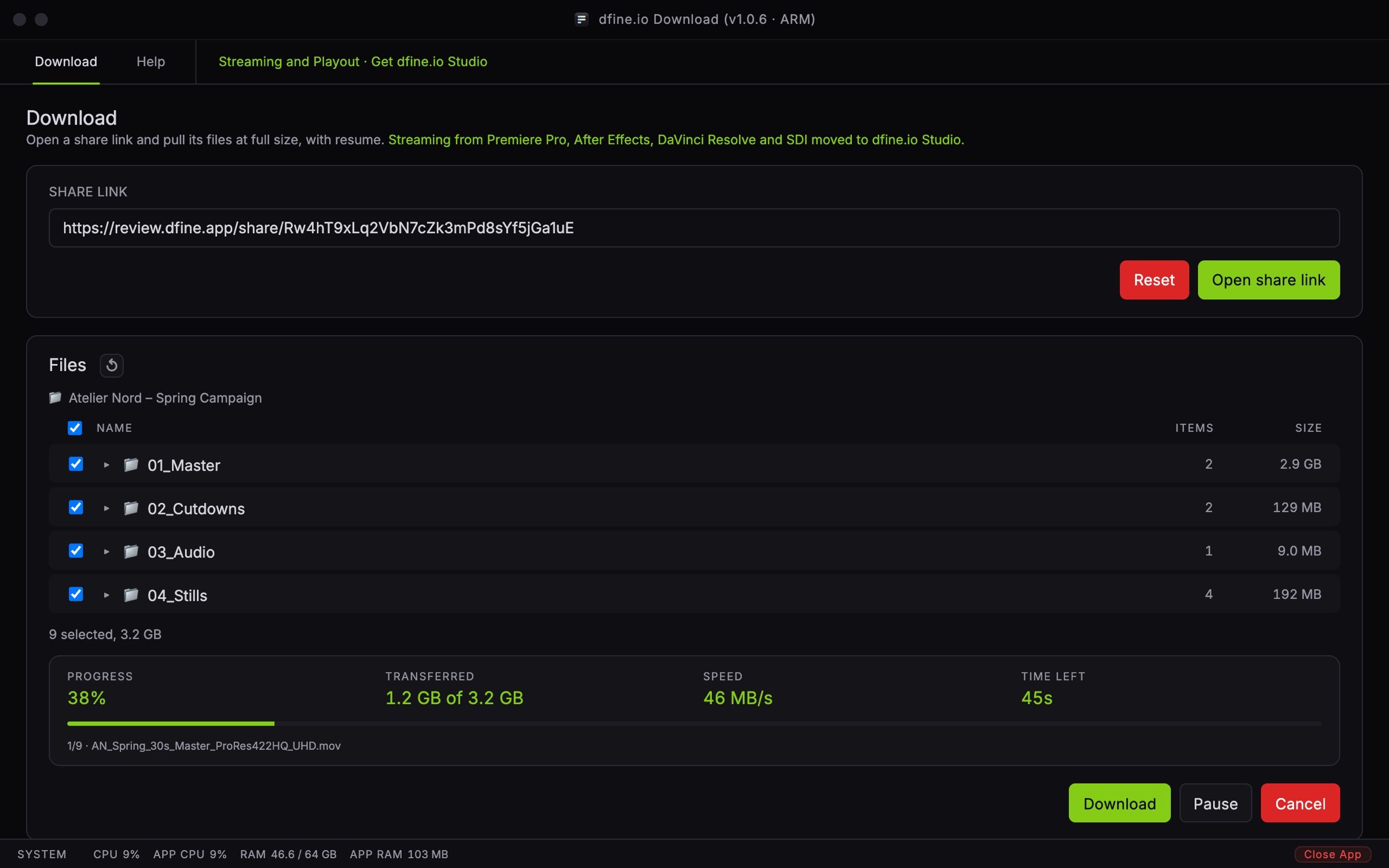
Click Download and choose a folder. The app recreates the folders there.
Good to know
Only Review share links work. Links toreview.dfine.app/share/ open. Anything else is refused.
Opening from the browser. A share page can hand its link to the app. The app asks once before it opens it.
Locked folders stay closed. A folder with its own password does not open here. Download it in your browser for now.
When a share does not open, the app names the reason: protected, invitation-only, expired, not open yet, switched off by the sender, view limit reached, not available in your country, archived project, or no files right now.
Help tab
Open the full documentation leads here. Debug logging writes~/.dfine-monitor/logs/monitor.log; switching it off deletes the file. The tab also shows your version and whether an update is out.