1. Install the plug-in
1
Open the gear
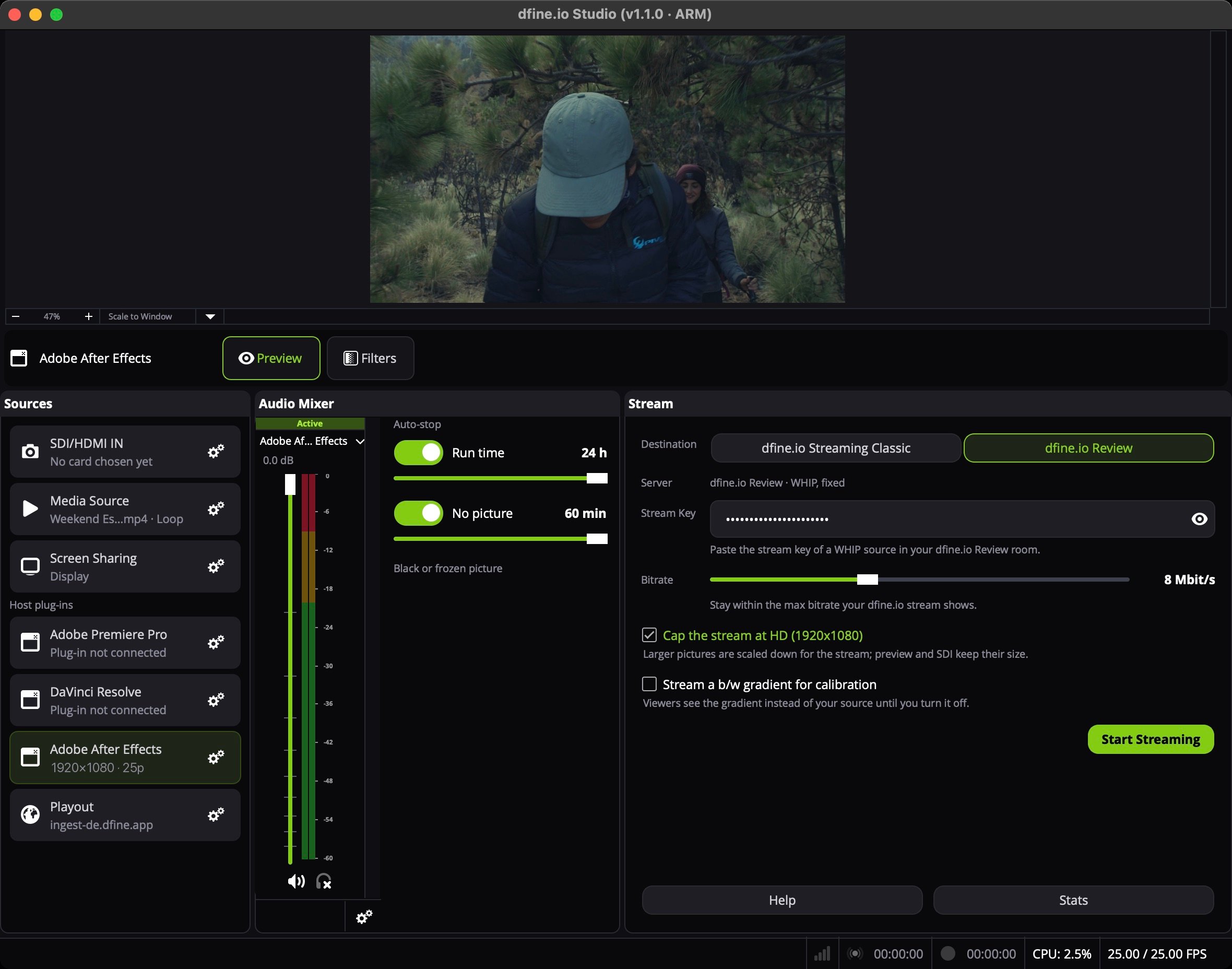
In Studio’s Sources panel, click the gear on Adobe After Effects. Plug-in reads Not installed.
2
Install
Click Install plug-in. No password is needed, the plug-in goes into your own Adobe plug-in folder.
3
Restart After Effects
Quit After Effects and start it again. It reads its plug-in folder only at launch.
2. Switch on Mercury Transmit
1
Open Video Preview
Open the After Effects preferences and go to Video Preview.
2
Enable Mercury Transmit
Tick Enable Mercury Transmit. Without it the device list stays inactive.
3
Select dfine.io Transmit
Tick dfine.io Transmit in the device list.
3. Pick where it goes
- dfine.io Review
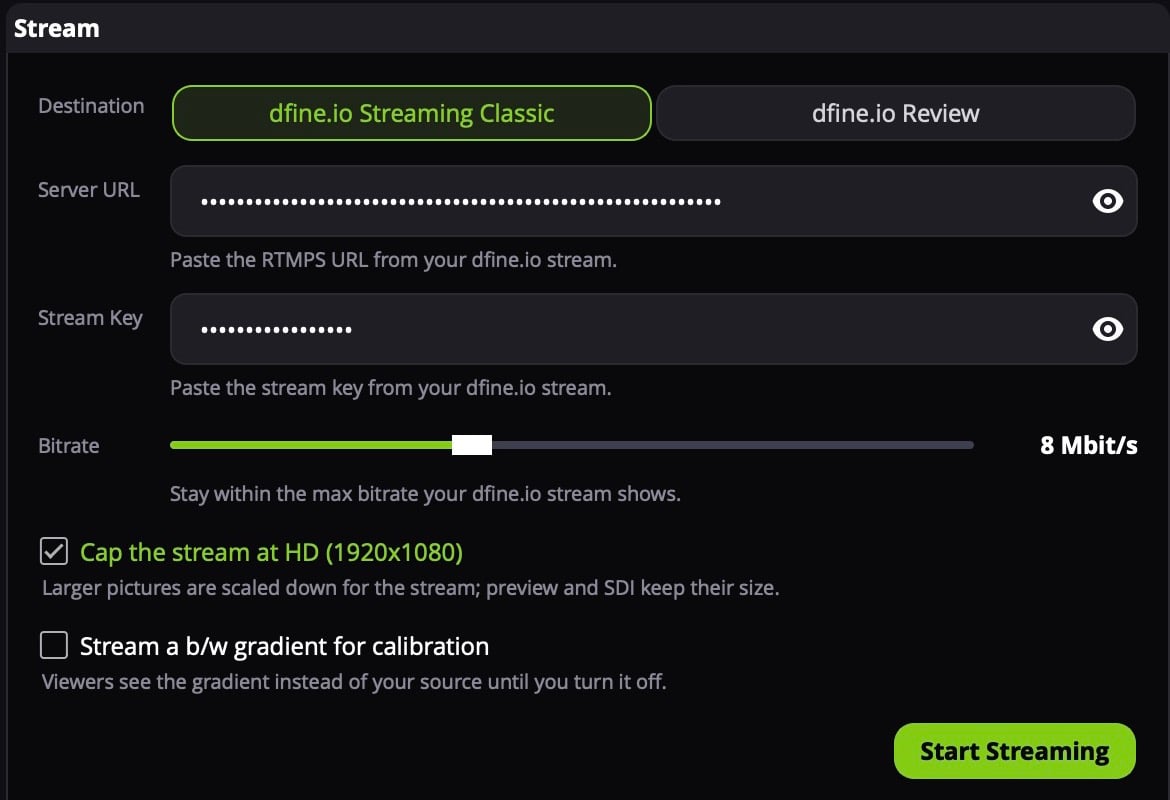
- dfine.io Streaming Classic
In Review, open the room and create a source with the type WHIP, or use Quick Create. Click Copy Stream Key.In Studio’s Stream panel, set Destination to dfine.io Review. Server reads dfine.io Review · WHIP, fixed. Paste the key into Stream Key.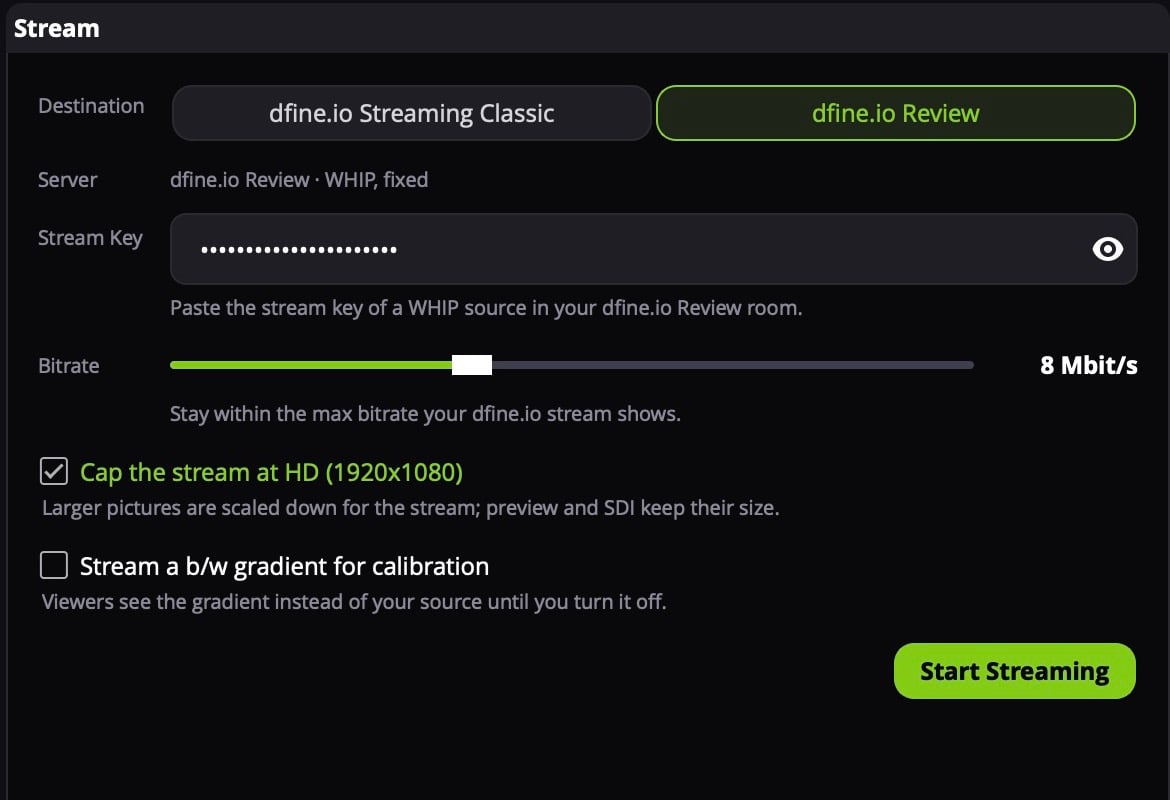
4. Start
Play the preview. In Studio the Adobe After Effects row shows the size and frame rate instead of Plug-in not connected. Click the row to put it on air, then click Start Streaming.