

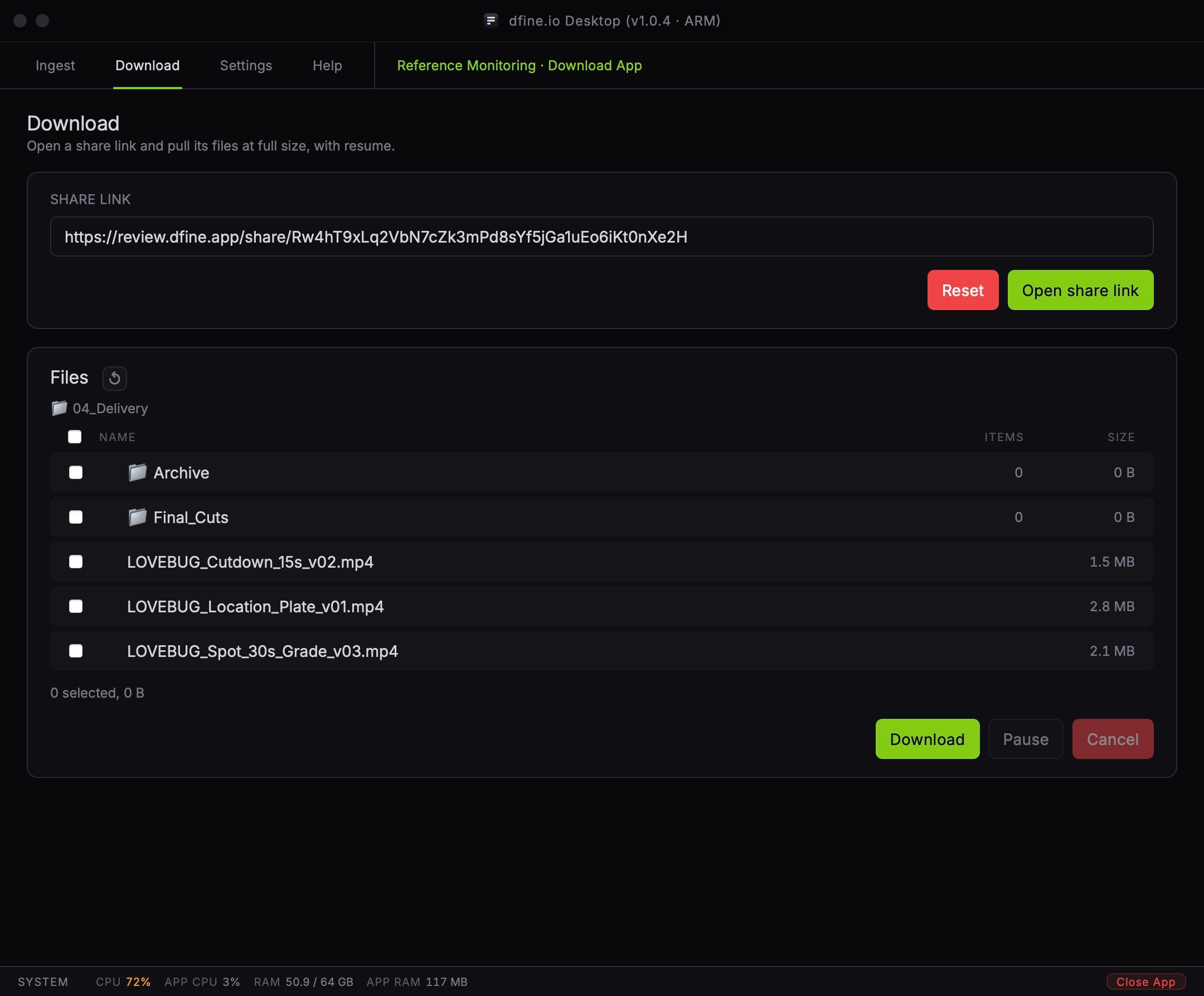
Download a share
1
Paste the link
Copy the share link you were sent and paste it into Share link. Then click Open share link.
2
Unlock it if asked
If the share is protected, a Password field appears. Enter the password you were given and click Unlock.
3
Pick what you need
The Files list shows the share like the file table in your browser, with Name, Items and Size. Open folders to go deeper, and tick the files or folders you want.
4
Start the transfer
Click Download and choose a folder on your Mac. The app recreates the folders there and fills them file by file.
Good to know
Only Review share links work. The app accepts links that point toreview.dfine.app/share/. Anything else is refused before a single byte moves.
Opening from the browser. A share page in the browser can hand its link to the app directly. The app asks once whether to open that share before it does anything.
Locked folders stay closed. A folder with its own password shows a lock and does not open here, because its contents never reach the app. Download such a folder in your browser for now.
Versions come as a family. A file with several versions lists them together, the newest on top. The one marked Original is the first upload.
Reset clears the link and the list, so you can open a different share.