Download dfine.io Playout
Apple Silicon and Intel builds, macOS 13 or newer.
Playout needs a Blackmagic DeckLink card and the Blackmagic Desktop Video driver on the Mac. Without the card you can connect and preview, but Start Monitoring has nowhere to send the picture.
How it is laid out
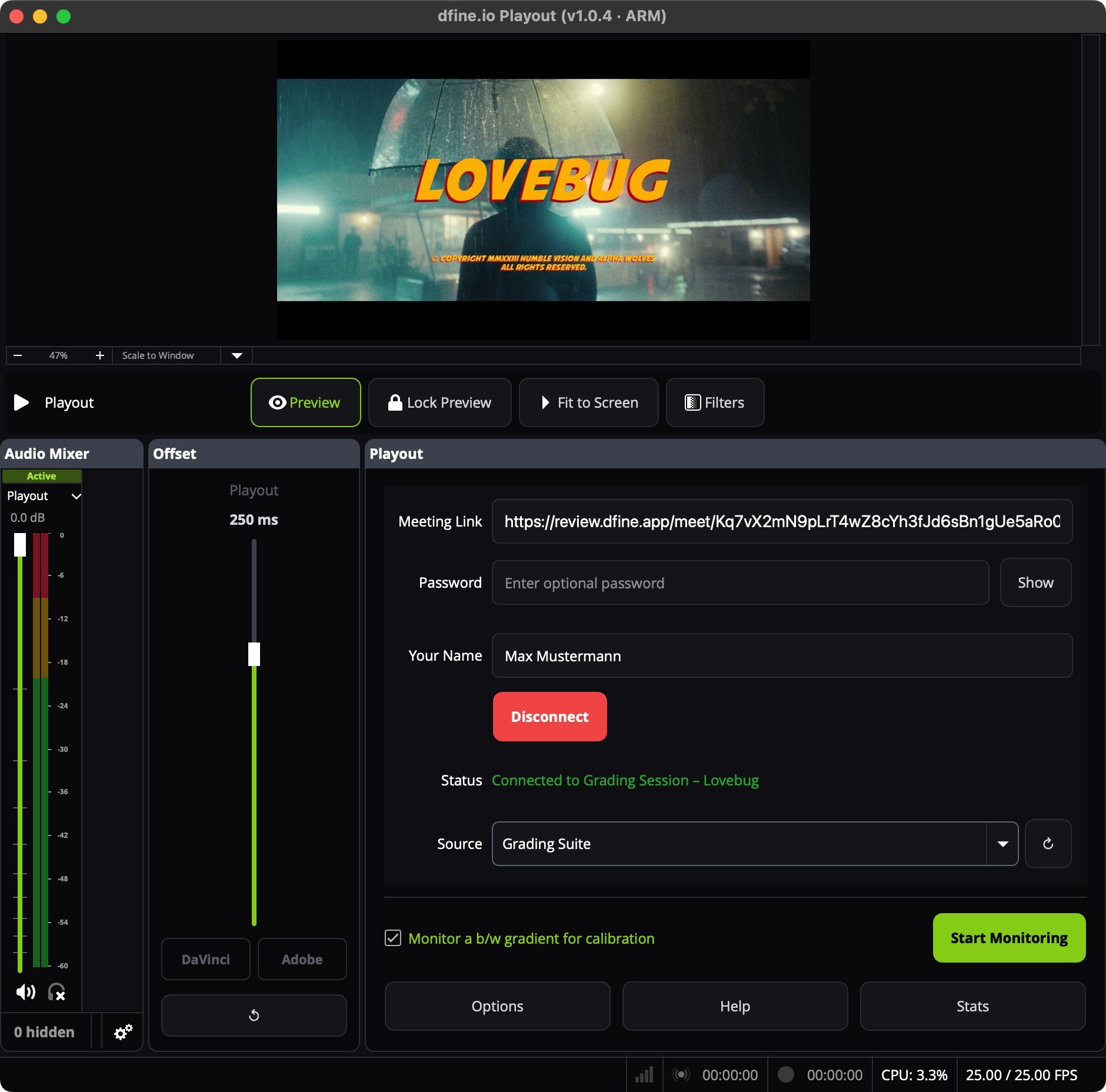
Playout has one window. The preview at the top shows what goes out. Below it sit three panels: Audio Mixer, Offset and Playout. The buttons at the bottom open Options, Help and Stats.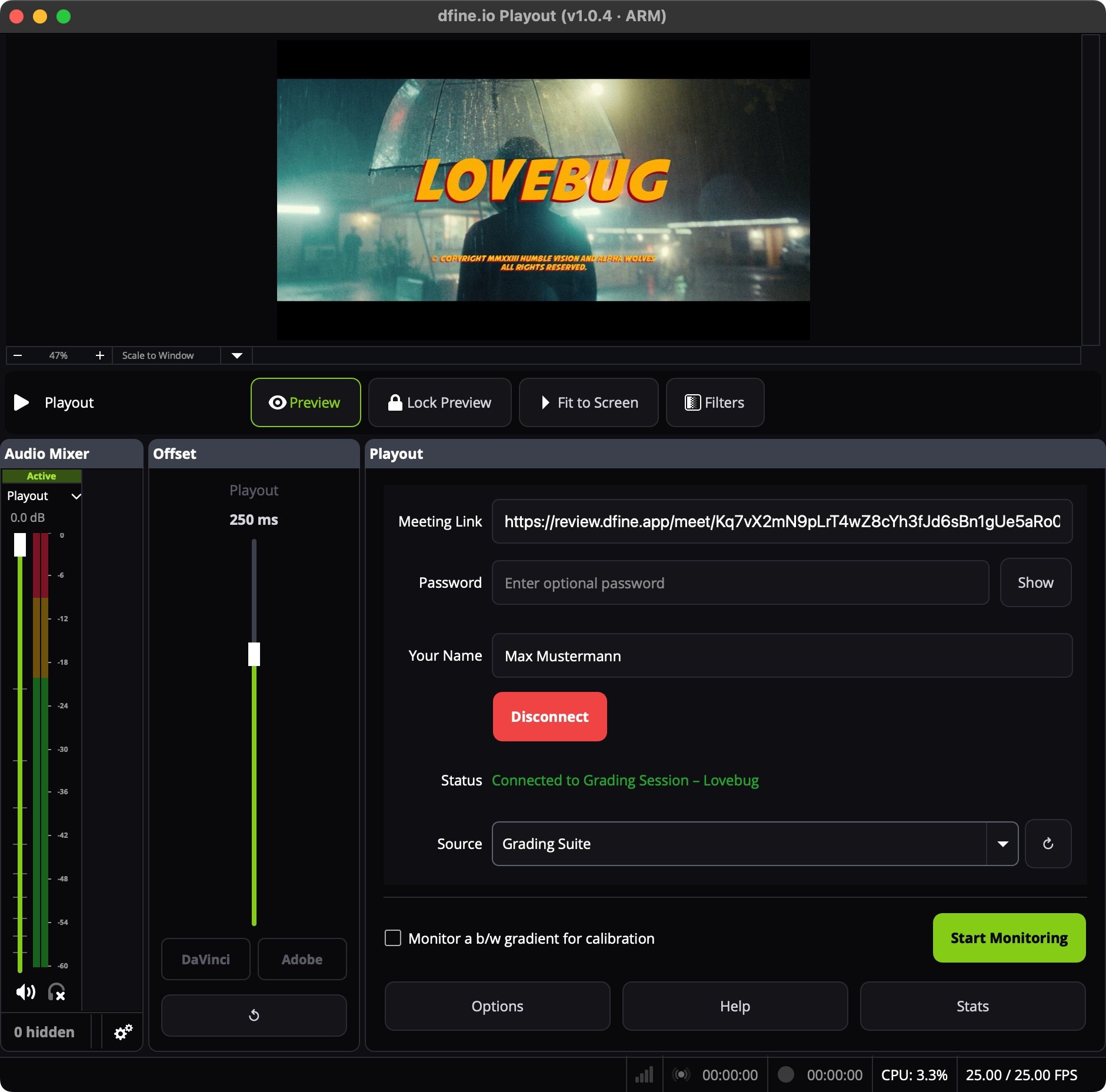
Monitor a room in five steps
1
Get the meeting link
Copy an access link of the room. You find it in the room’s Accesses in Review, or in the invitation you were sent. See Conferencing.
2
Connect
In the Playout panel, paste the link into Meeting Link. Add the Password if the access has one, enter Your Name and click Connect. The status turns to Connected and names the room.
3
Pick the source
Choose what you want to see in the source list, for example the edit someone streams from dfine.io Desktop. The preview switches to it. Click ↻ if a source joined after you.
4
Choose the output
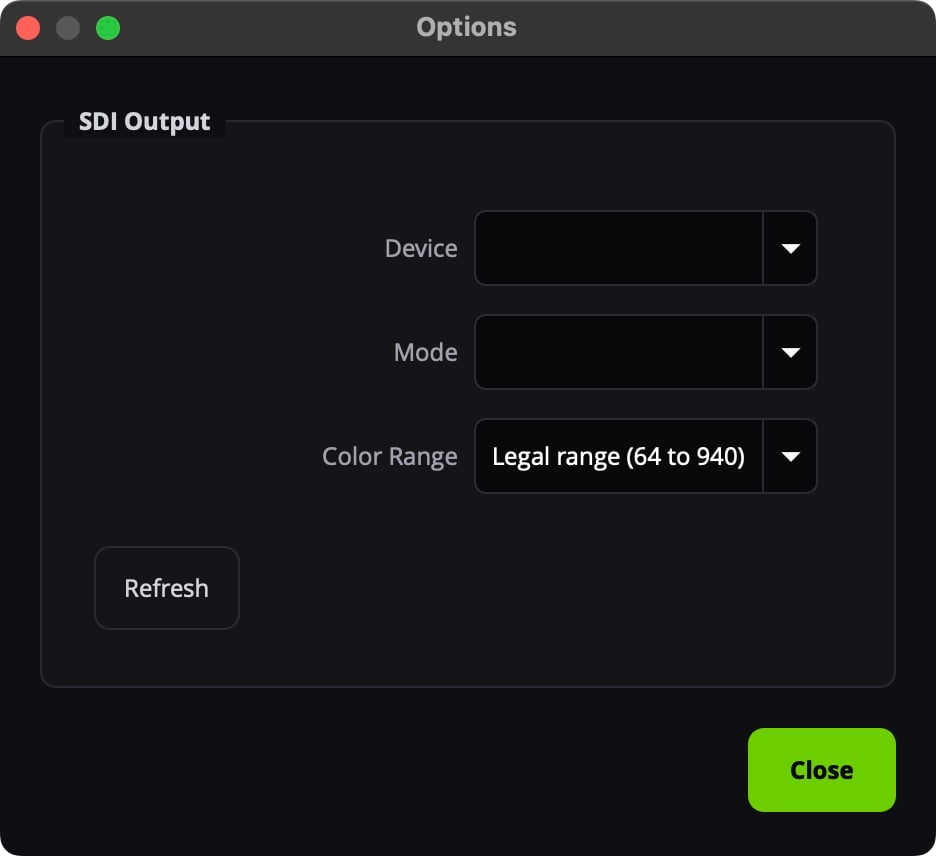
Click Options. Under SDI Output, pick your DeckLink Device, the Mode your monitor expects and the Color range.
5
Start monitoring
Click Start Monitoring. The picture now plays on your reference monitor. Stop Monitoring ends it.
Playout joins the room as a participant under the name you entered, so everyone in the room can see that you are watching.
Colour range
Legal range (64 to 940) is the broadcast convention and right for almost every monitor. Use Full range (0 to 1023) only when your monitor is set up for full-range input. A wrong choice shows as lifted blacks or clipped highlights.Check the monitor chain
Tick Monitor a b/w gradient for calibration and click Start Monitoring to send a black-to-white gradient to your monitor instead of the room. It works without a room, so you can check the cabling and the range before a session starts. The gradient goes to the card only, and the preview keeps showing the room.