

/meet/. You need no account, only a current browser such as Chrome, Edge, Firefox or Safari, on a computer as well as on iPad and iPhone.
1
Open the link
Click the link in your invitation. If the access has a password, enter it under Enter meeting password and click Unlock.
2
Enter your name
Under Your Name, type the name the others should see, up to 25 characters.
3
Set up camera and microphone
Camera and microphone start off. Click Activate Video and Activate Audio. Your browser then asks whether the page may use your camera and microphone. Allow it. You then see yourself in the preview, and the arrow next to each icon picks another device.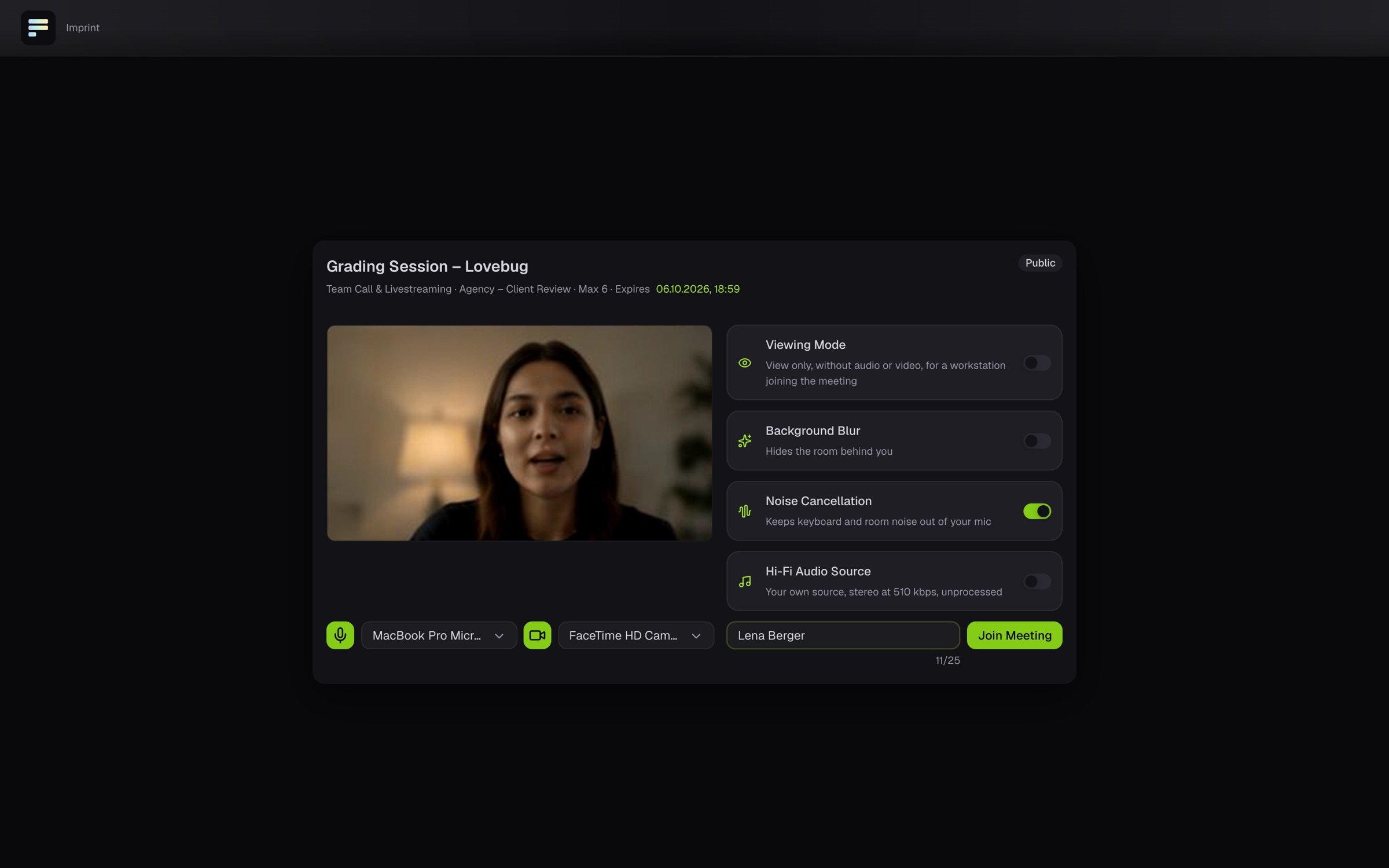
4
Join
Click Join Meeting. You are now in the room and see the other participants.
When you only watch
Some rooms are pure live streams. Before joining you then see no camera or microphone switches, only your name field and Join Meeting. If the host has not started yet, the room shows Waiting for Stream. The picture appears by itself as soon as it starts.Leave the session
Click the gear at the top (Meeting settings), choose Leave Meeting and confirm with Leave. Your browser’s back button asks first as well. Rejoin Meeting takes you back in with one click.If it does not work
If the preview shows No access to your camera or No access to your microphone, you declined access in the browser. Allow it in your browser’s site settings and reload the page. Another app is using your camera means another program, such as Zoom or Teams, holds the camera.
Camera and microphone in the room
Mute, turn the camera on and off, switch devices.