

Use this when you have no plugin for your application, or when you monitor through hardware anyway, for example an on-set grading rig or a switcher feeding the card.
Pick the device
Open the Ingest tab and select SDI IN. Click Options to open the device dialog.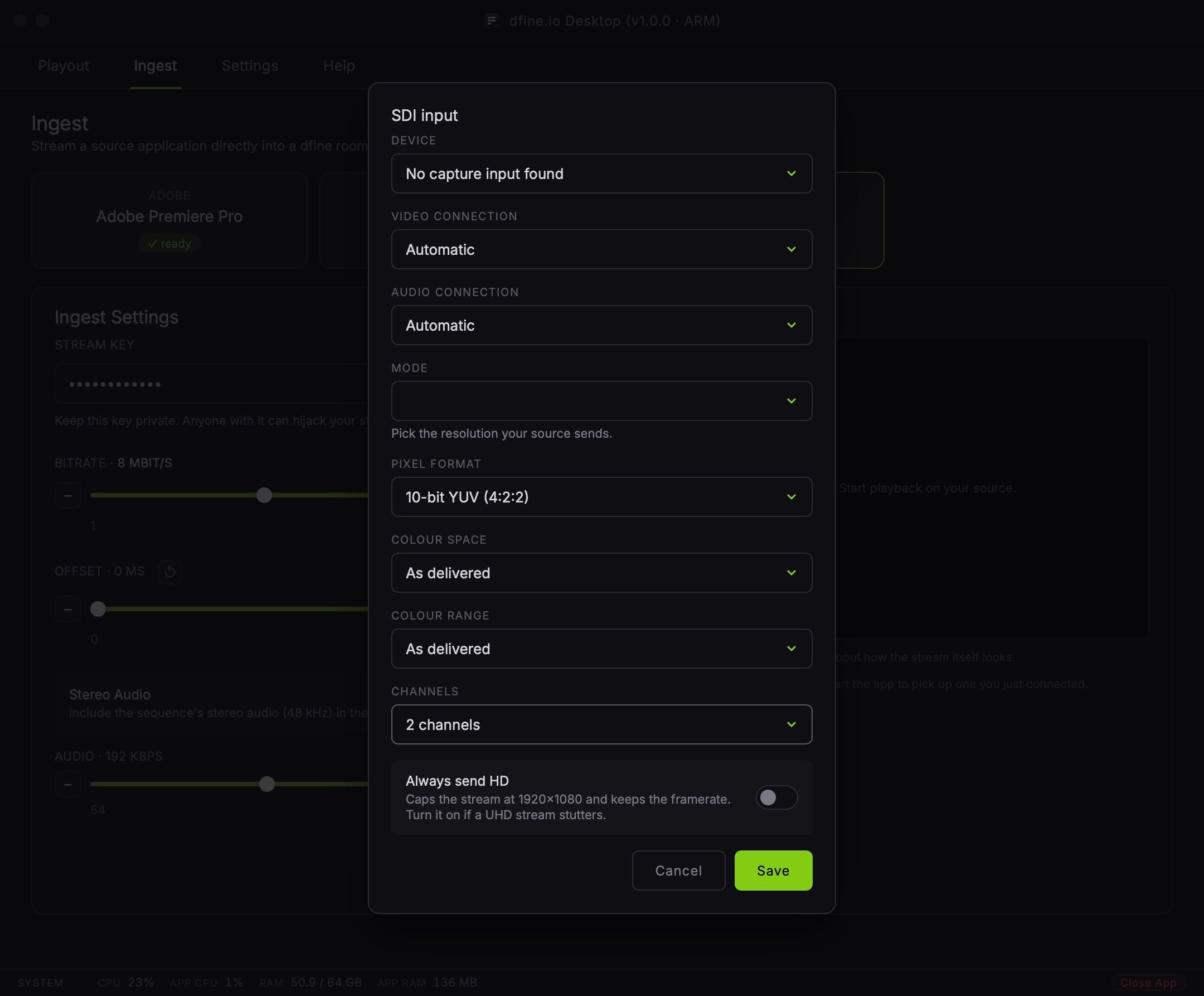
Mode is not automatic, on purpose
Every other setting has a sensible default. Mode does not. The card itself recognises the incoming format for its own preview, a second or so after a signal appears. That detection never reaches the encoder: the encoder starts on whatever mode you picked, and a card left on autodetect would send at a default resolution while you watch a correct-looking preview. Pick the mode your source actually sends. Until you do, the mode placeholder in the dialog names what is currently arriving on the card, and it carries the alarm colour.Pixel format and colour
Pixel Format covers what the card can deliver: five formats from 8-bit YUV up to 10-bit RGB, plus Automatic. Pick 10-bit RGB if your source is a Resolve grade going out at 4:4:4. Colour Space defaults to As delivered, which trusts the tag the card sends. Override it only when you know the card is mistagging the signal, for example a deck that always reports full range regardless of what it actually sends.Colour range is not in this dialog. It applies to every source alike and lives under Settings → Color.
Always send HD
Caps the encoded stream at 1920×1080 while the card keeps reading in the mode you picked. Switch it on if a UHD stream stutters on the receiving end.This is a ceiling, not a resize. A smaller mode passes through untouched, and shape is preserved: a 720×576 source with a 40/33 pixel aspect leaves as 872×576, not squeezed into the wrong shape.
Check that it arrives
Once a mode is picked and saved, the preview switches to your picture as soon as playback starts on the source feeding the card. See Check that it arrives for the shared steps.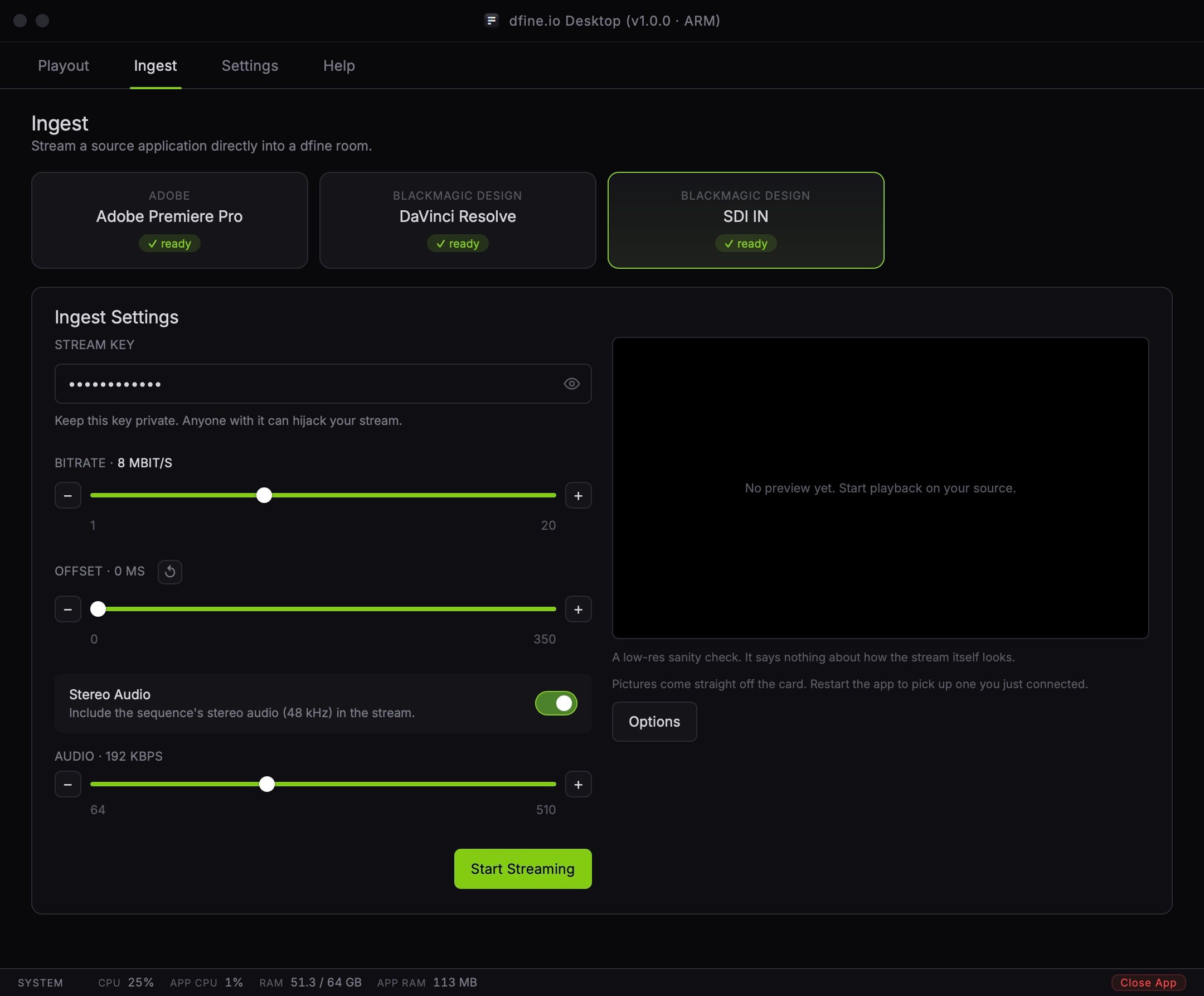
The preview is a low-resolution sanity check. It says nothing about how the stream itself looks.