

In a live session
When the host plays a file for everyone, you see the playback bar under the picture with the comment icon (New Comment).1
Get to the spot
Wait until the spot you mean is on screen. If you control playback yourself, pause there.
2
Write the comment
Click New Comment and write what you notice in Add a comment…. While the field is open, your strokes stay on the picture, so draw what you mean right away.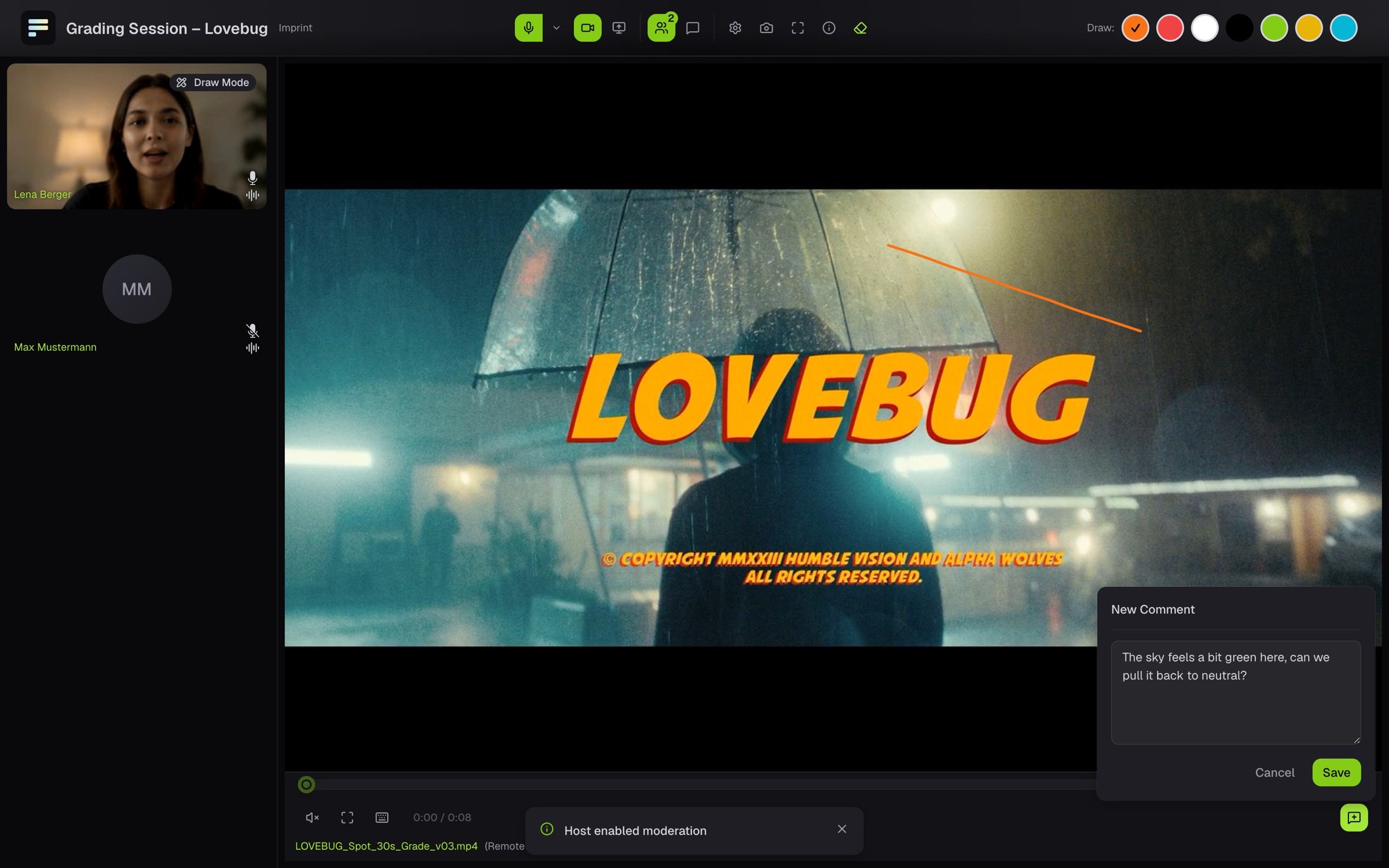
3
Save
Click Save. The comment now sits on the file with the point in time, your name and your strokes, and a marker appears on the timeline.
If the comment icon is missing, the host has turned off comments for this file stream.
In a share
A link with/share/ opens a share. If it is protected, enter the password under Enter passphrase and click Unlock.
1
Find the spot
Open the file, play it and pause at the spot you want to comment on.
2
Give your name
On your first comment the share asks for your name. Your email address is optional. If you add it, you get a message when someone replies. You confirm the address with a six-digit code. No account is created.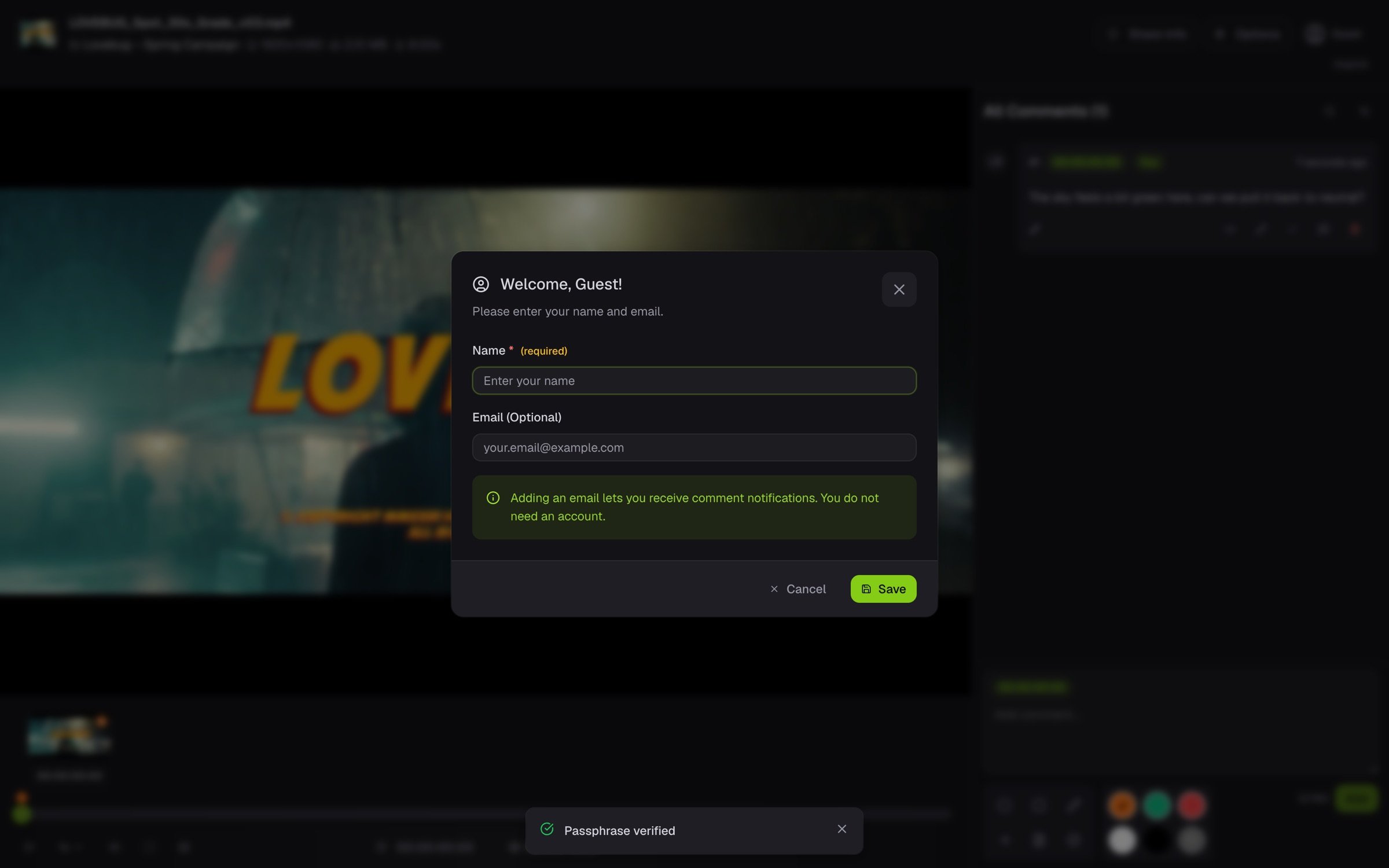
3
Write and mark
Write in Add comment…. The tools above the picture add a circle, rectangle, arrow, freehand line, note or numbered marker. Click Add.