

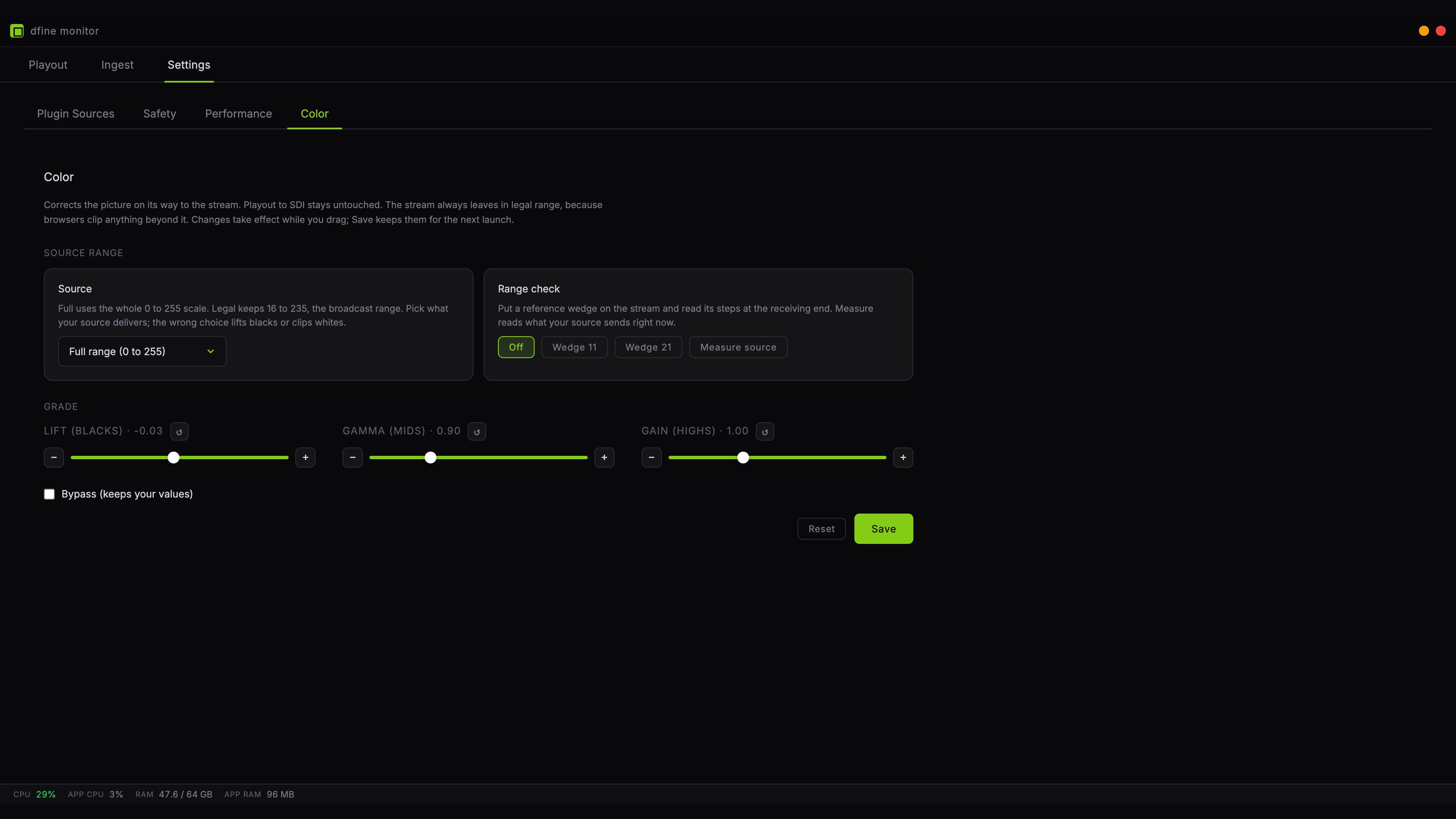
Everything here affects the stream only. Playout to your SDI monitor stays untouched, so your reference stays a reference.
Source range
This is the one setting that matters for correctness, and getting it wrong is visible. Video comes in two conventions. Full range uses the whole scale from 0 to 255. Legal range keeps black at 16 and white at 235, the broadcast convention. The stream itself always leaves in legal range, because browsers clip anything beyond it. Pick what your source delivers. Choose wrong and one of two things happens: your blacks lift and the picture looks washed out, or your highlights clip and detail disappears. If you are unsure, use the range check rather than guessing.Range check
Wedge 11 and Wedge 21 put a grey staircase on the stream instead of your picture, with eleven or twenty-one steps from black to white. Look at it on the receiving end: if the steps are evenly spaced and both ends are distinct, the chain is intact. The wedge is a reference, so the grading controls deliberately do not touch it. A click arms a wedge, and clicking the armed one turns it off again. There is no separate Off button.Both buttons stay disabled until an ingest is running. A wedge acts on the live stream, so there is nothing to put it on before you start one.