

 dfine.io Desktop is how you get into a Review live session without a hardware encoder. It takes the picture from your editing or grading application, or straight off a capture card, and sends it into the session as a live stream. No screen recording, no second machine, no scaling in between. What leaves your source is what your client sees, with the full return path Review gives you: conferencing, screen sharing and comments on the exact frame.
The app needs macOS 15 or newer. It ships as two builds, one for Apple Silicon and one for Intel, so pick the one that matches your Mac on the download page. For Premiere Pro, After Effects and DaVinci Resolve it talks to the host through a small plugin that you install from inside the app. For a Blackmagic capture card it reads the card directly, no plugin and no host application needed.
dfine.io Desktop is how you get into a Review live session without a hardware encoder. It takes the picture from your editing or grading application, or straight off a capture card, and sends it into the session as a live stream. No screen recording, no second machine, no scaling in between. What leaves your source is what your client sees, with the full return path Review gives you: conferencing, screen sharing and comments on the exact frame.
The app needs macOS 15 or newer. It ships as two builds, one for Apple Silicon and one for Intel, so pick the one that matches your Mac on the download page. For Premiere Pro, After Effects and DaVinci Resolve it talks to the host through a small plugin that you install from inside the app. For a Blackmagic capture card it reads the card directly, no plugin and no host application needed.
How it is built
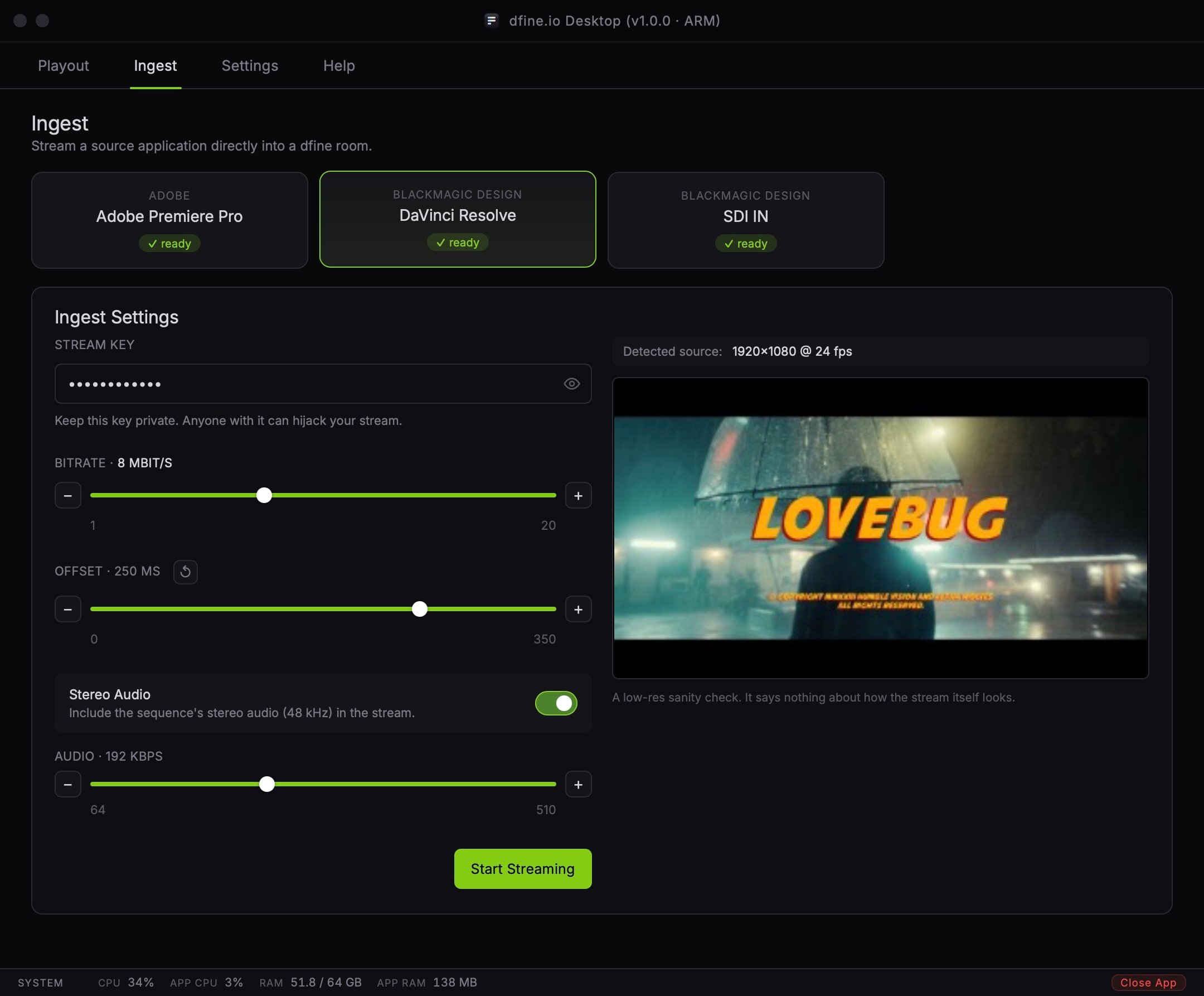
The app has five tabs, in a bar across the top of the window.Ingest
Where the picture comes in. Pick your source, check that it arrives, and start the stream.
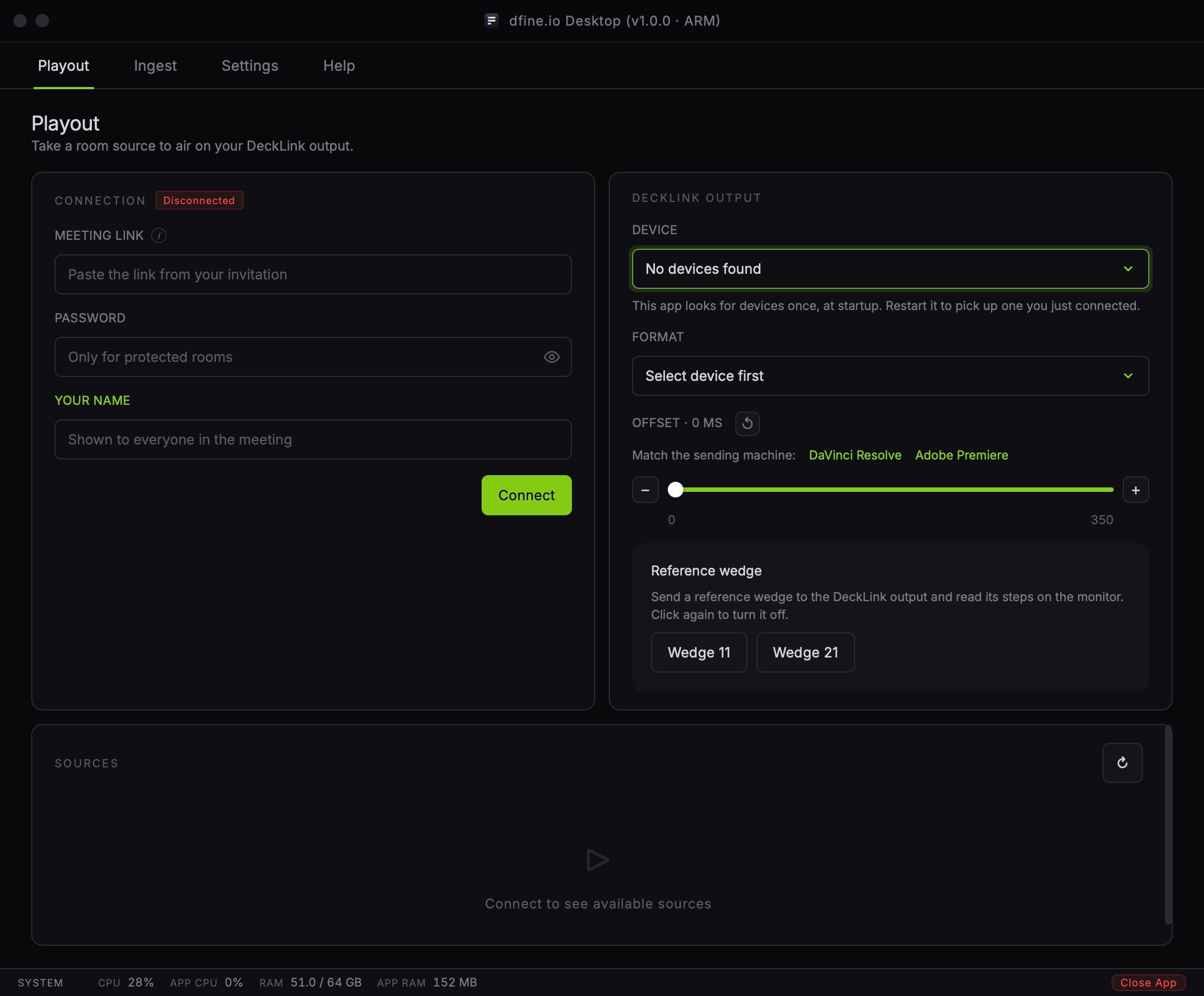
Playout
Where a room source goes back out, to a reference monitor over SDI.
Download
Where files from the session come down to your machine.
Settings
Plugins, safety limits, streaming behaviour and colour handling.
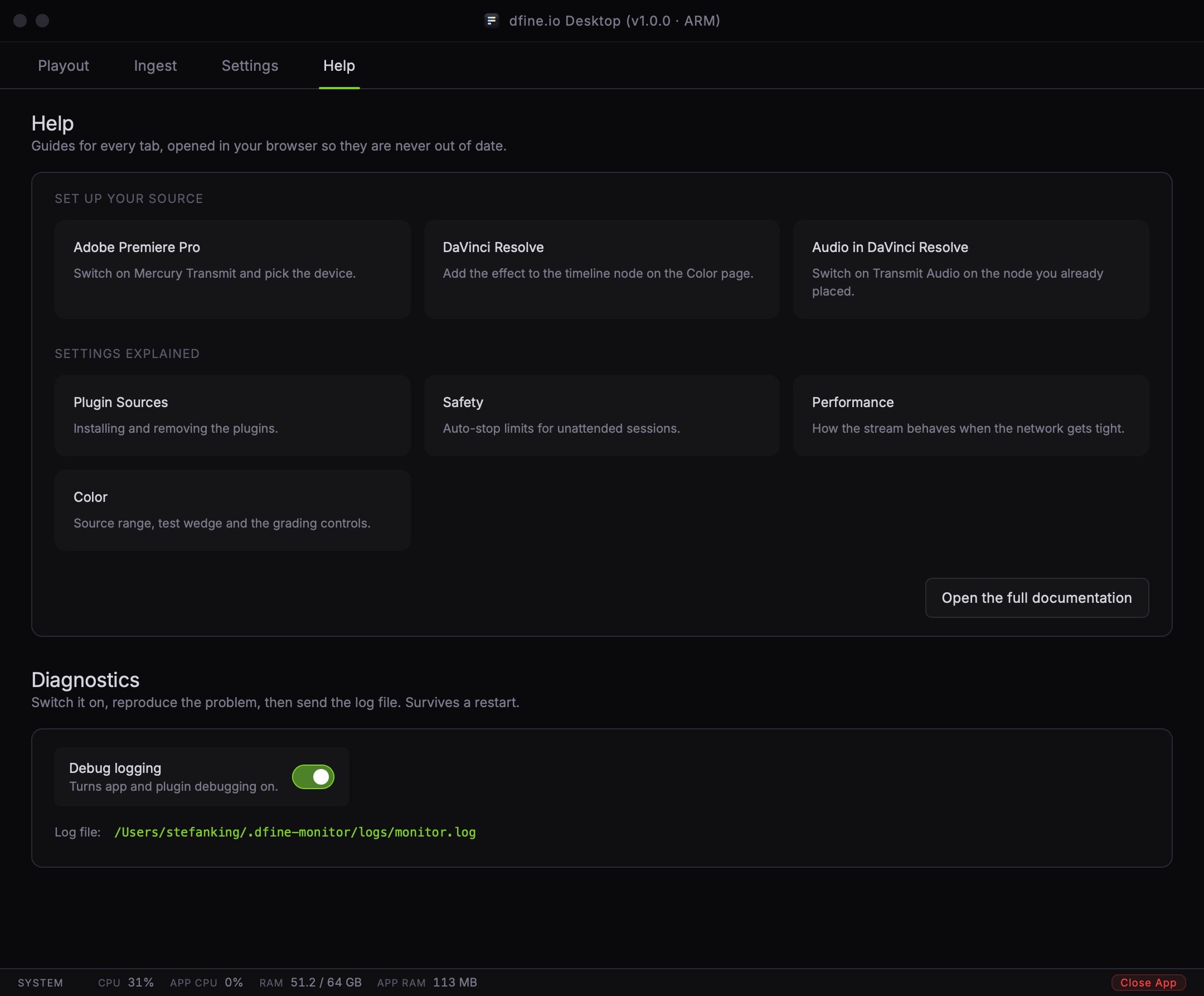
Help
Every guide on this page, opened in your browser, plus diagnostics. It is the last tab on the right.
- Ingest
- Playout
- Help
Set up your source
There are four ways to get a picture into the app. Pick the one that matches your setup.Adobe Premiere Pro
Switch on Mercury Transmit and pick dfine.io Transmit as the device.
Adobe After Effects
Uses the same plugin as Premiere Pro, installed in one go.
DaVinci Resolve
Add the effect to the timeline node. Picture and audio both travel on it.
SDI IN
Plug a Blackmagic capture card into the app directly, no plugin, no host application.
DaVinci Resolve is the one source with requirements of its own. See DaVinci Resolve before you start.
Check that it arrives
However you feed the app, the last step is the same. Play your source, then switch to the Ingest tab. The preview shows your picture and the source is listed as connected. Press Start to go live. If the preview stays empty, the source page for your setup lists what to check. The most common cause with a plugin is a host application that was running during the install.Diagnostics
If something needs a closer look, open Help, the last tab in the bar at the top, and switch on Debug logging. It turns on detailed app and plugin logging and survives a restart, so you can reproduce the problem and send the log afterwards. The log file lives at~/.dfine-monitor/logs/monitor.log.