

Create the monitor link
Open your stream slot and go to the Playout tab. Turn on SDI / monitor playout to create the link.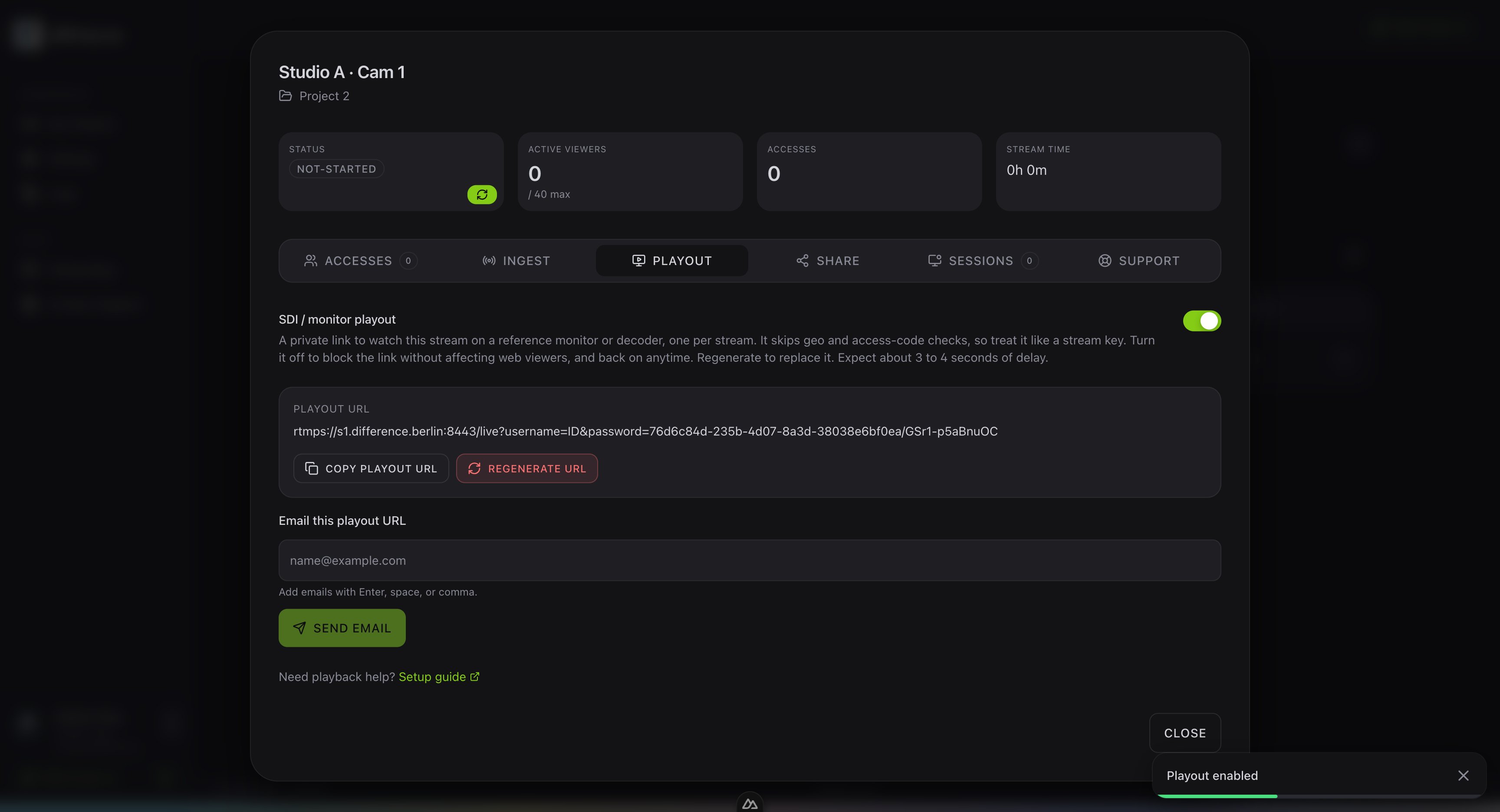
The SDI playout adds about two to three seconds of delay. For timing-critical checks we recommend keeping the web viewer open alongside it. The browser stream runs at noticeably lower latency. Use the reference monitor for colour and image quality, and the web viewer when exact timing matters.
Play it out in OBS
1
Create a scene
In OBS, create a new scene and give it a name.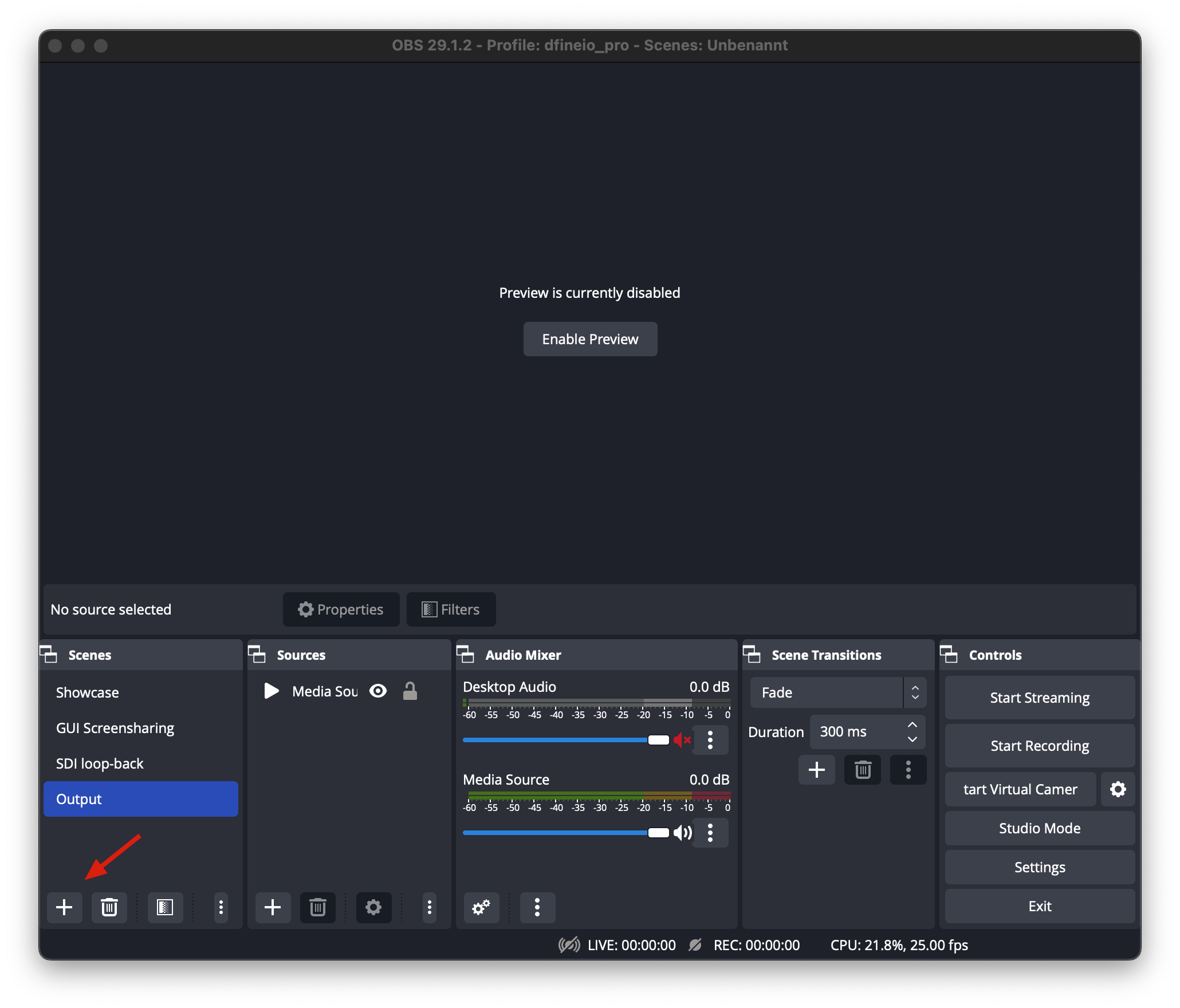
2
Add a media source
Add a new Media Source and give it a name.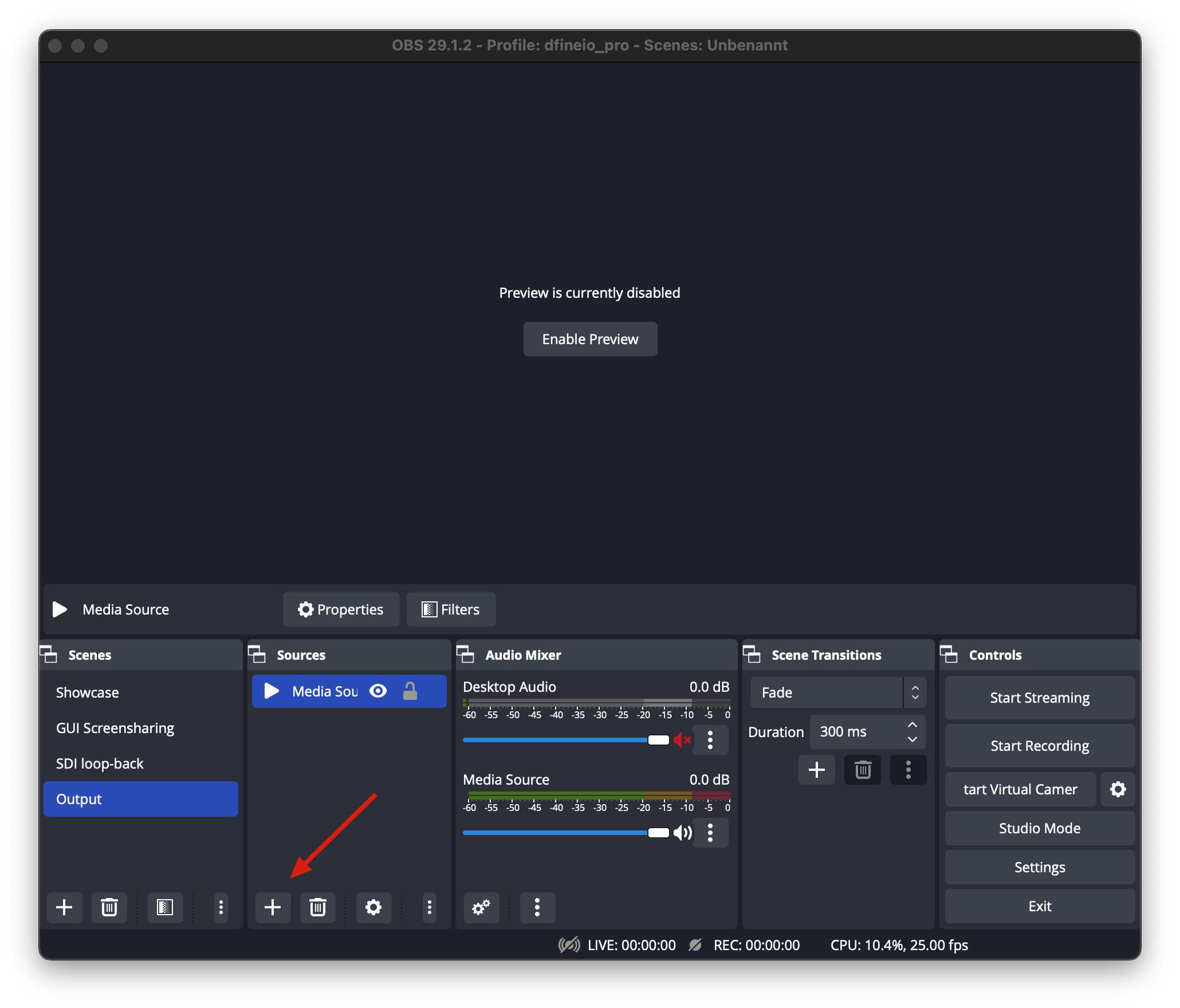
3
Paste the monitor link
In the window that opens, paste the monitor link into the input field and confirm with OK.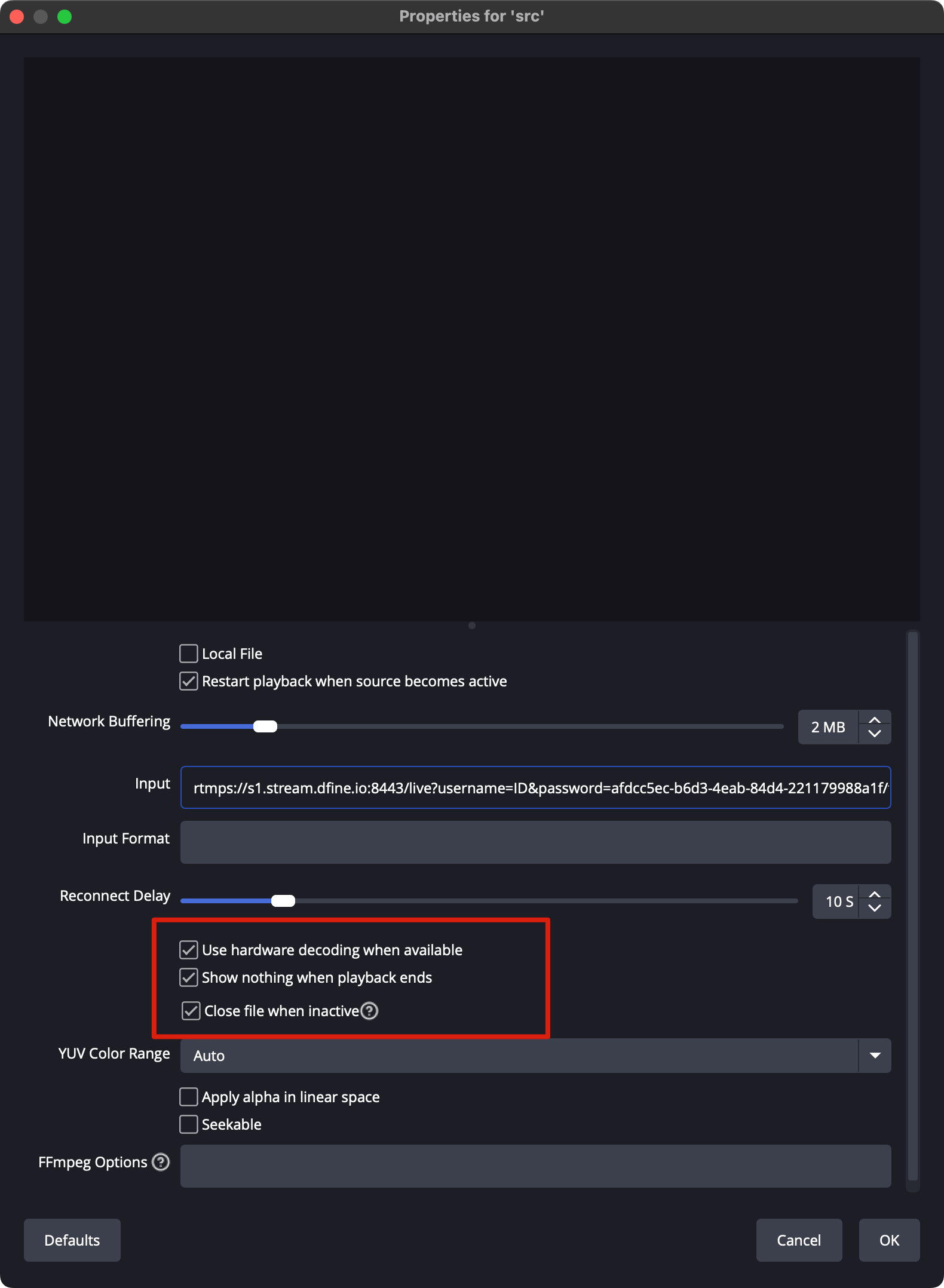
4
Turn on the Decklink output
Make sure you have the latest Blackmagic capture drivers installed. Then open the Tools menu in OBS and choose Decklink Output.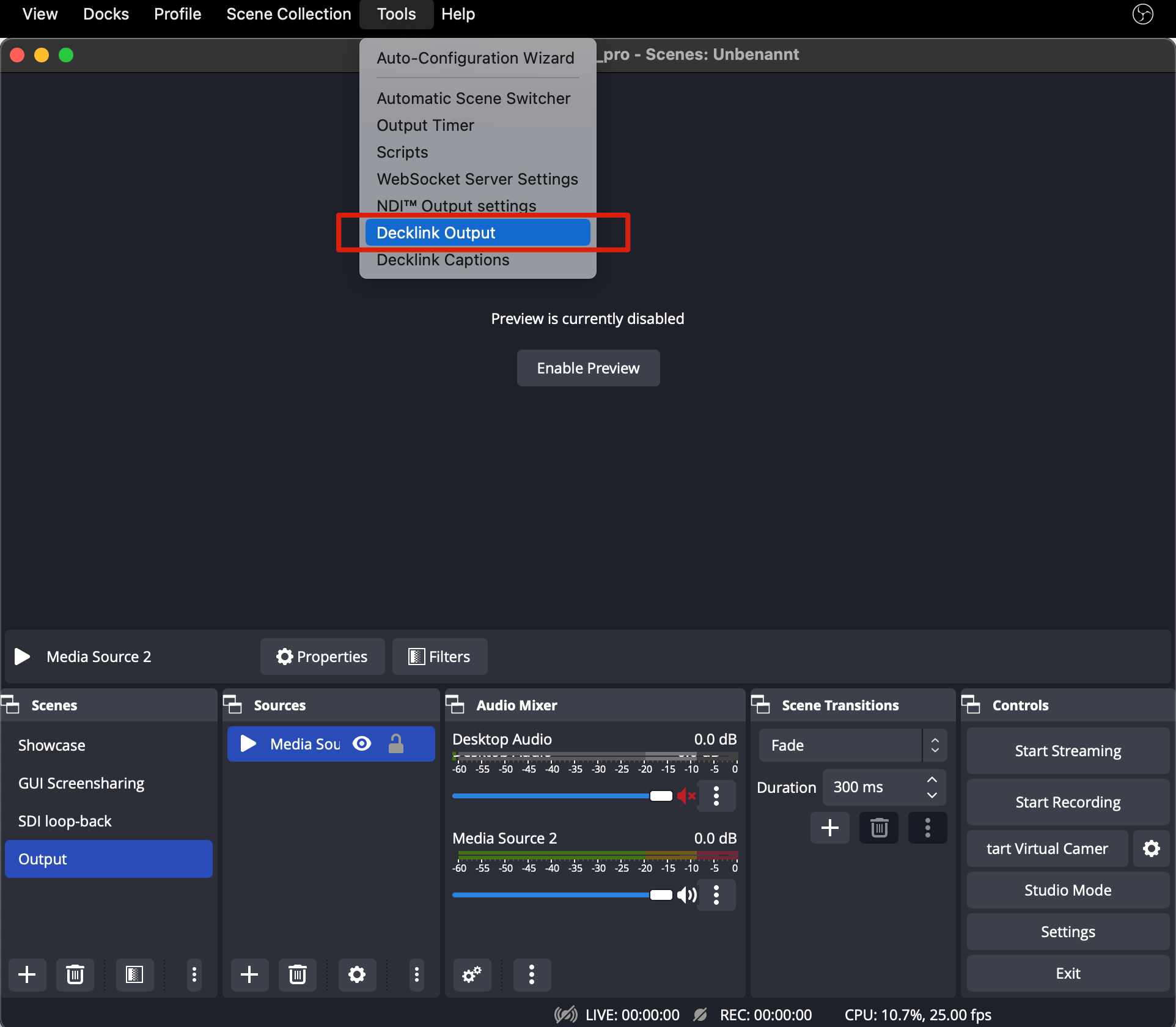
5
Set the output and start
In the Decklink Output window choose your Device, set the Mode to match your OBS video settings, and leave the Keyer disabled. Click Start to begin. For security, stop the Decklink output when you are done.
Get the Blackmagic capture drivers
Latest software, manuals and support from Blackmagic Design.