> ## Documentation Index
> Fetch the complete documentation index at: https://docs.dfine.app/llms.txt
> Use this file to discover all available pages before exploring further.
# Share your screen or one app
> Stream a whole display, one window or one app live into a Review room or to Streaming Classic with dfine.io Studio.
The **Screen Sharing** row in dfine.io Studio sends a whole display, one window or one app. Pick one app to show your editor, grading tool or presentation while everything else on your desktop stays private.
**You need** [dfine.io Studio](/en/apps/studio/index) and a Review room or a Streaming Classic stream.
## 1. Choose what to share
In Studio's **Sources** panel, click the gear on **Screen Sharing**.
Choose whether you share a display, a window or an app, then pick it.
The first time, macOS asks for **Screen & System Audio Recording**. Allow it. If the preview stays black, restart Studio.
## 2. Pick where it goes
In Review, open the room and create a source with the type **WHIP**, or use **Quick Create**. Click **Copy Stream Key**.
In Studio's **Stream** panel, set **Destination** to **dfine.io Review**. **Server** reads **dfine.io Review · WHIP, fixed**. Paste the key into **Stream Key**.
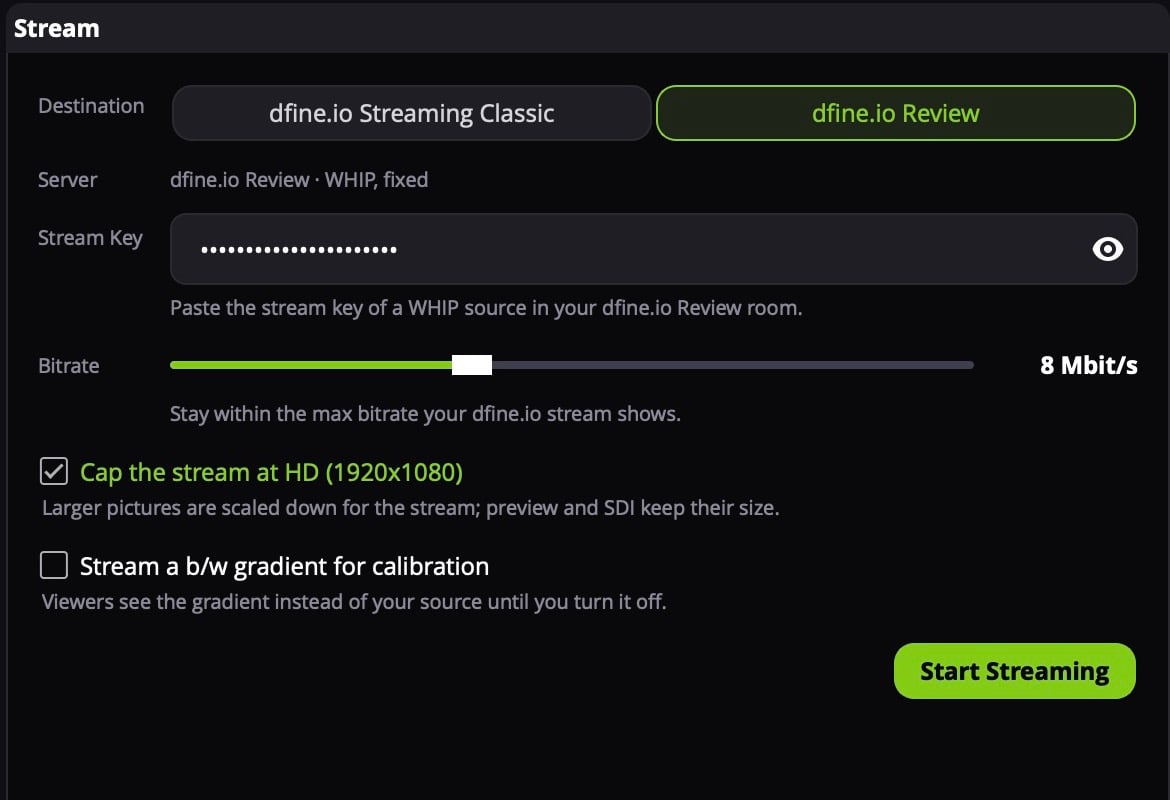 Paste the key of a **WHIP** source. Review refuses the key of an RTMPS source, those are meant for hardware encoders. Where the key is: [stream key and server URL of a room](/en/review/find/stream-key).
In Streaming Classic, open the stream slot and copy the **RTMPS** server URL and the stream key.
In Studio's **Stream** panel, set **Destination** to **dfine.io Streaming Classic**. Paste the URL into **Server URL** and the key into **Stream Key**.
Paste the key of a **WHIP** source. Review refuses the key of an RTMPS source, those are meant for hardware encoders. Where the key is: [stream key and server URL of a room](/en/review/find/stream-key).
In Streaming Classic, open the stream slot and copy the **RTMPS** server URL and the stream key.
In Studio's **Stream** panel, set **Destination** to **dfine.io Streaming Classic**. Paste the URL into **Server URL** and the key into **Stream Key**.
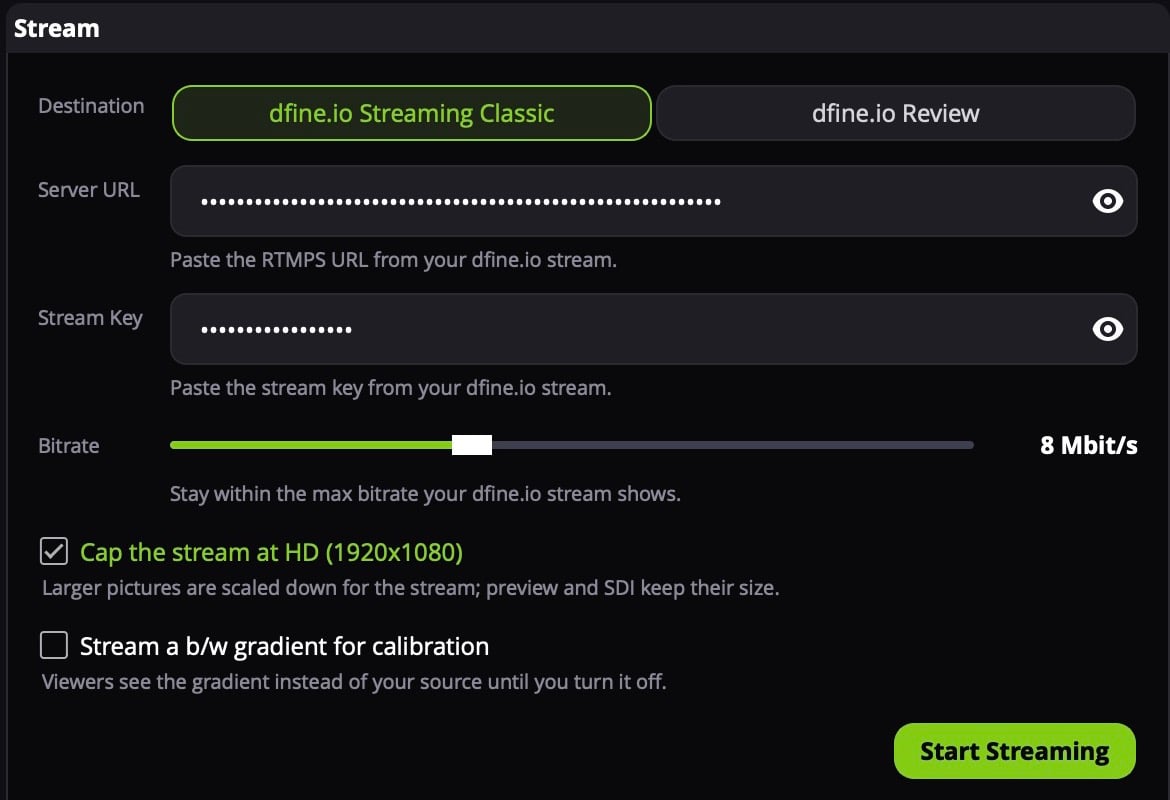 Only `rtmps://` URLs work. Where both values are: [ingest URL and stream key of a slot](/en/streaming-classic/find/ingest-and-stream-key).
## 3. Start
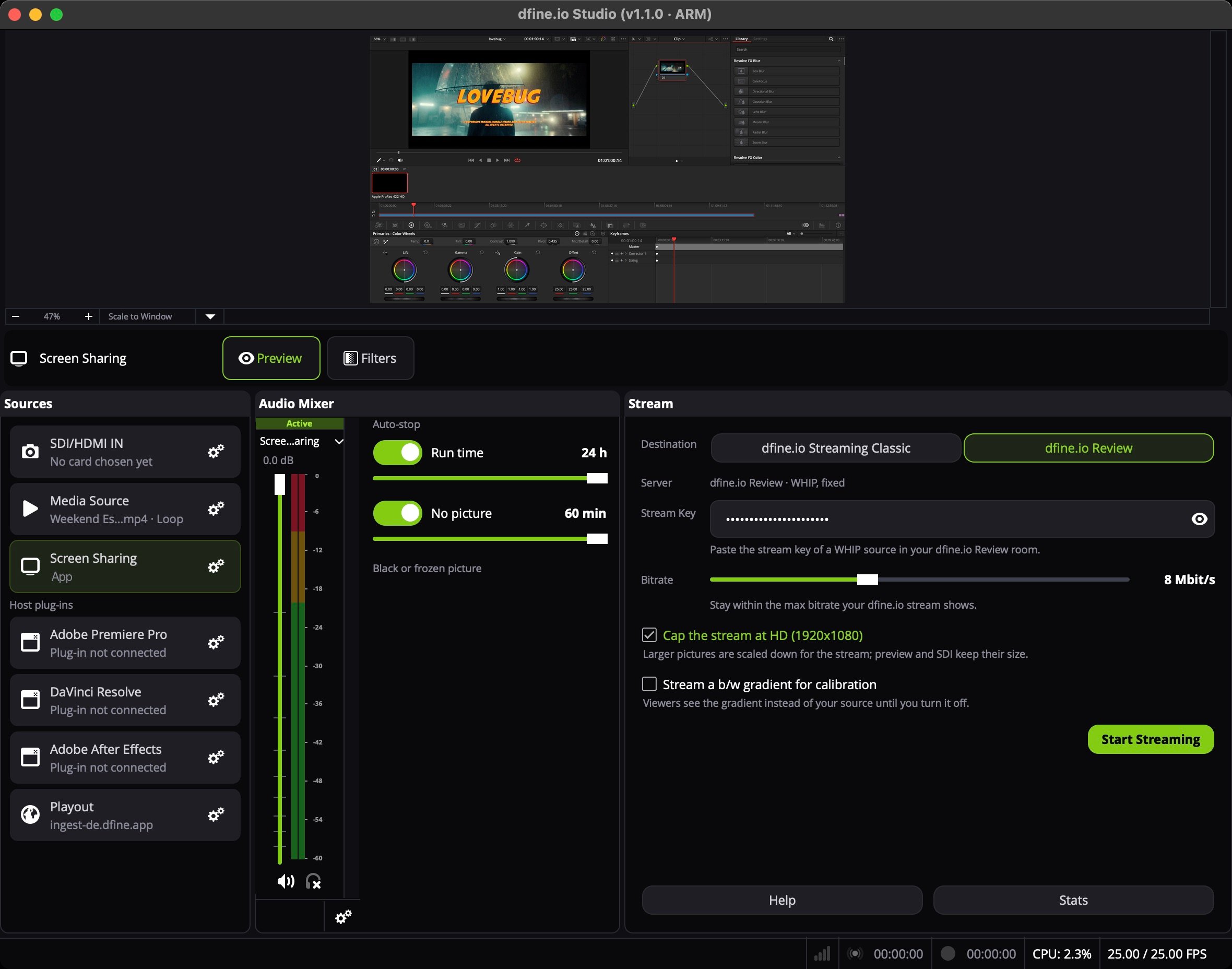
Click the **Screen Sharing** row to put it on air. The preview at the top shows exactly what goes out. Click **Start Streaming**.
Only `rtmps://` URLs work. Where both values are: [ingest URL and stream key of a slot](/en/streaming-classic/find/ingest-and-stream-key).
## 3. Start
Click the **Screen Sharing** row to put it on air. The preview at the top shows exactly what goes out. Click **Start Streaming**.
 ## When nothing arrives
**The preview is black.** Studio has no screen recording permission yet. Allow it under **System Settings → Privacy & Security → Screen & System Audio Recording** and restart Studio.
More causes: [Streaming from dfine.io Studio](/en/troubleshooting/studio).
This documentation is built and hosted on [Mintlify](https://mintlify.com), a developer documentation platform.
## When nothing arrives
**The preview is black.** Studio has no screen recording permission yet. Allow it under **System Settings → Privacy & Security → Screen & System Audio Recording** and restart Studio.
More causes: [Streaming from dfine.io Studio](/en/troubleshooting/studio).
This documentation is built and hosted on [Mintlify](https://mintlify.com), a developer documentation platform.