> ## Documentation Index
> Fetch the complete documentation index at: https://docs.dfine.app/llms.txt
> Use this file to discover all available pages before exploring further.
# Show a session on your reference monitor
> Put a Review session or a Streaming Classic stream on your reference monitor over SDI with dfine.io Studio and a Blackmagic DeckLink card.
The **Playout** row of dfine.io Studio brings a picture back out of dfine.io. Studio receives a Review session or a Streaming Classic stream and puts it on a Blackmagic DeckLink card, from where it goes over SDI to your reference monitor.
**You need** [dfine.io Studio](/en/apps/studio/index), a Blackmagic DeckLink card with the **Desktop Video** driver, and the link you were sent.
Studio either streams or plays out. A running stream locks the row: **Stop the stream to switch to Playout.**
## 1. Get the link
Use the invitation link to the room you were sent, and its password if the access has one.
The owner of the stream opens the stream slot, goes to the **Playout** tab and turns on **SDI / monitor playout**. That creates the playout link, one per slot.
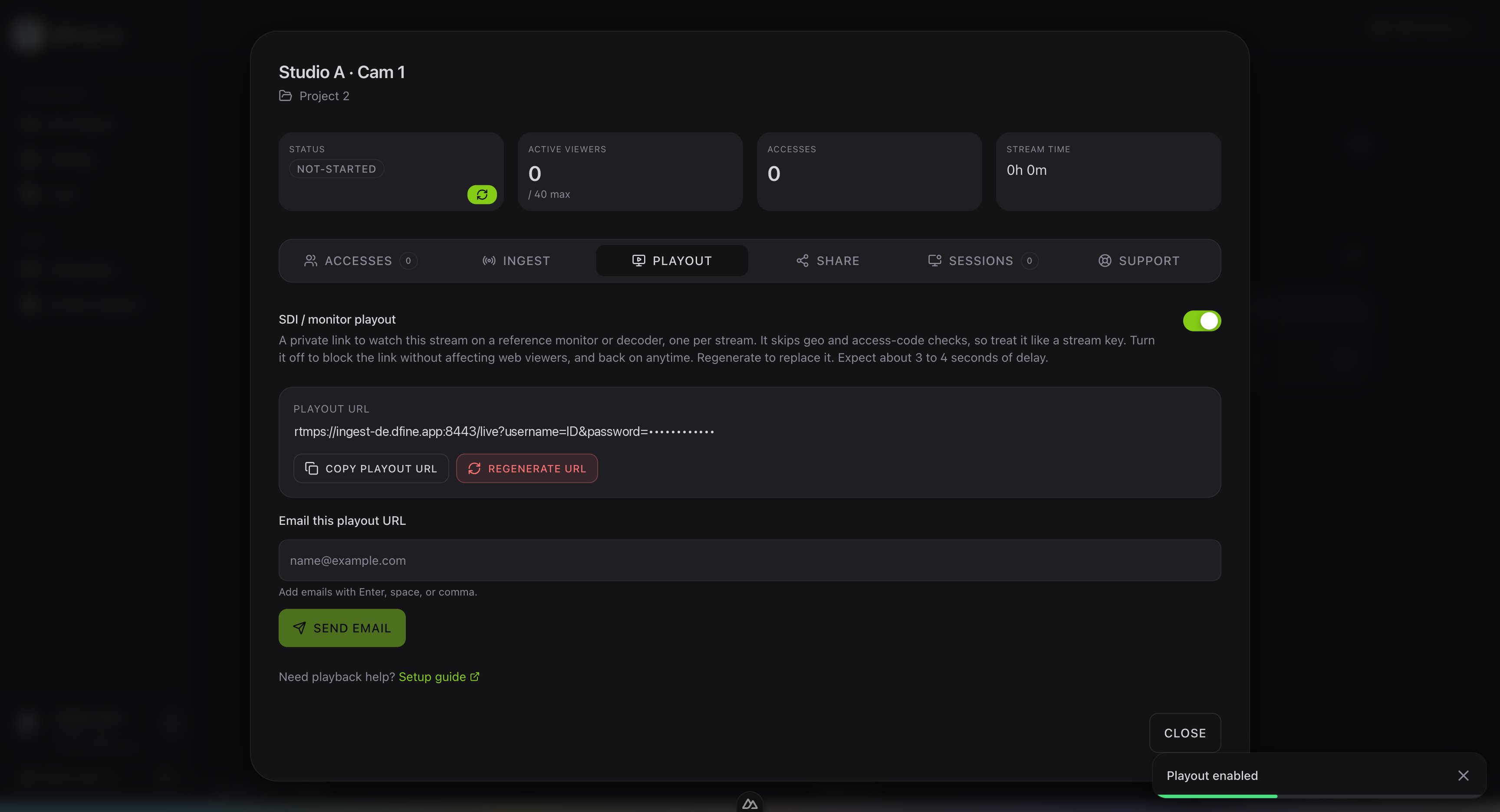 The link skips the geo and access code checks, so treat it like a stream key. Turning it off blocks it without affecting your web viewers, **Regenerate** replaces it. Copy it, or send it to your client with the email field. It starts with `rtmps://` and the ingest server of your stream.
## 2. Connect
Click the **Playout** row. The right panel turns into **Playout**.
Under **Receive from**, pick **dfine.io Review** or **dfine.io Streaming Classic**.
For Review, paste the whole invitation link into **Meeting link**, enter **Your Name** and the **Password** if there is one. For Streaming Classic, paste the playout link into **Playout link**.
The link skips the geo and access code checks, so treat it like a stream key. Turning it off blocks it without affecting your web viewers, **Regenerate** replaces it. Copy it, or send it to your client with the email field. It starts with `rtmps://` and the ingest server of your stream.
## 2. Connect
Click the **Playout** row. The right panel turns into **Playout**.
Under **Receive from**, pick **dfine.io Review** or **dfine.io Streaming Classic**.
For Review, paste the whole invitation link into **Meeting link**, enter **Your Name** and the **Password** if there is one. For Streaming Classic, paste the playout link into **Playout link**.
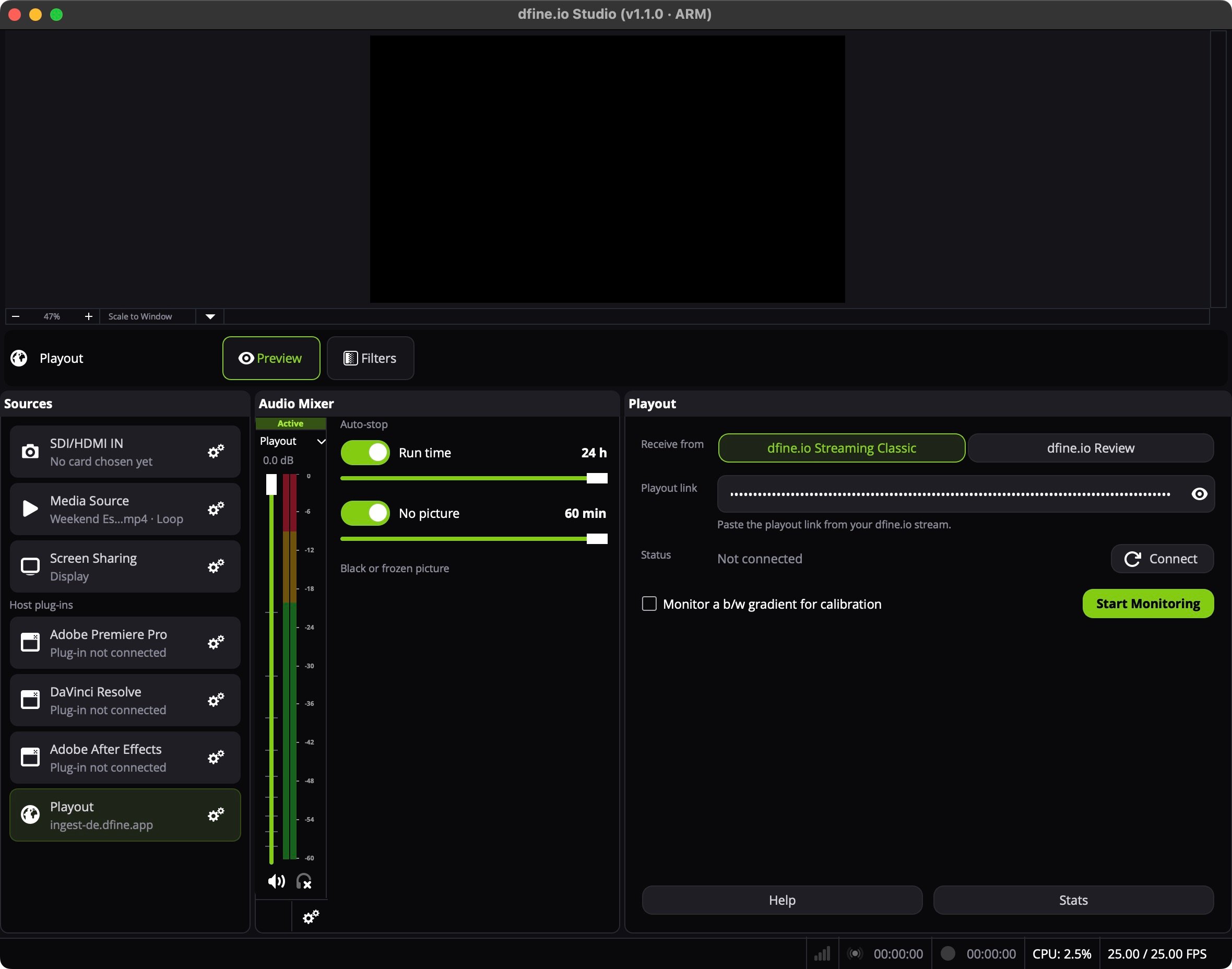 Click **Connect**. For Review, pick what you want to see under **Source**. **↻** refreshes the list when someone joins later. For Streaming Classic, the status turns to **Live** once the stream runs.
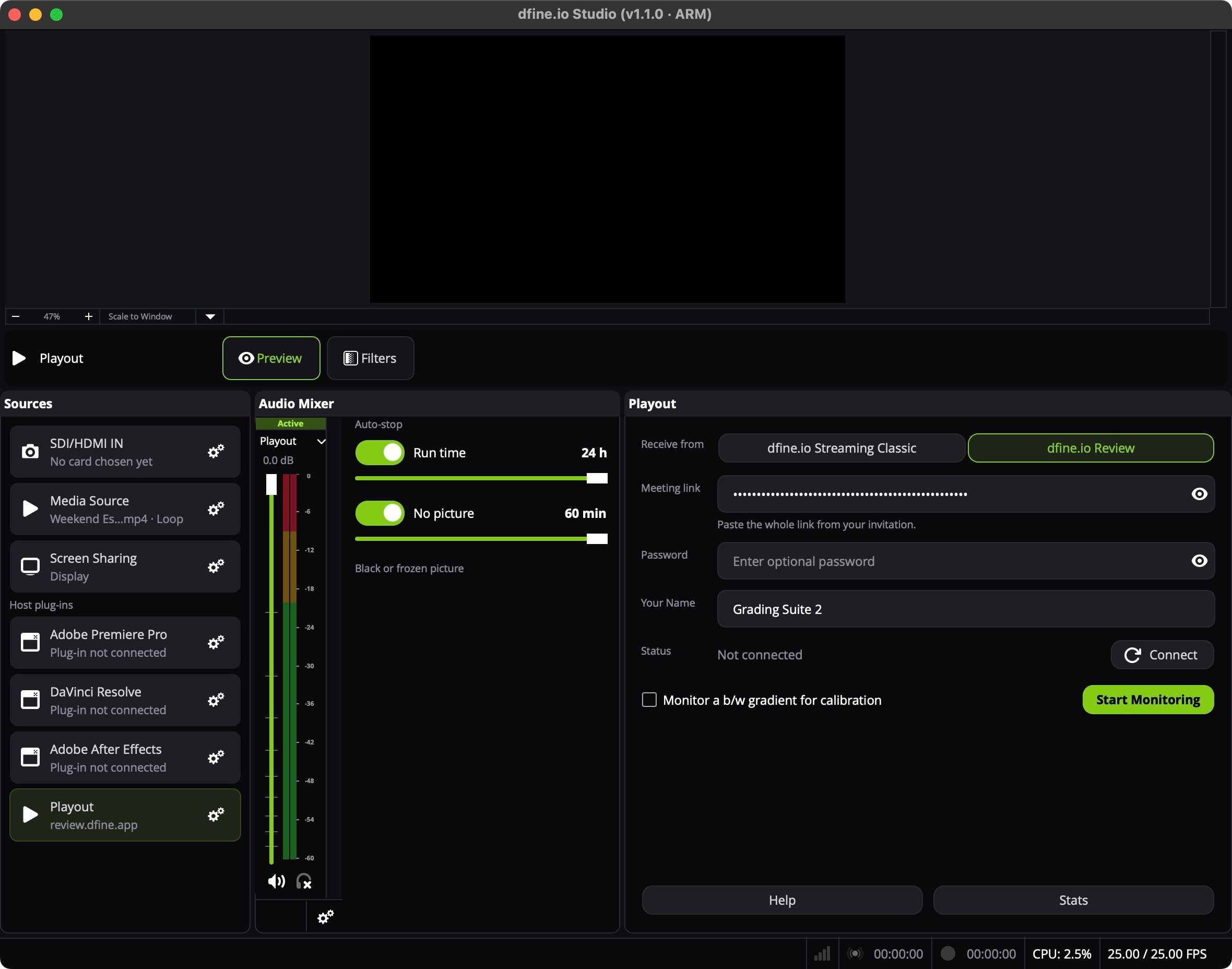 In Review, Studio joins the room as a participant under the name you entered, so everyone can see that you watch.
## 3. Send it to the card
Click the gear on the **Playout** row. Under **SDI Output**, pick the **Device**, the **Mode** your monitor expects and the **Color Range**, then click **Start Monitoring**. **Stop Monitoring** ends it. Stop the output when you are done.
In Review, Studio joins the room as a participant under the name you entered, so everyone can see that you watch.
## 3. Send it to the card
Click the gear on the **Playout** row. Under **SDI Output**, pick the **Device**, the **Mode** your monitor expects and the **Color Range**, then click **Start Monitoring**. **Stop Monitoring** ends it. Stop the output when you are done.
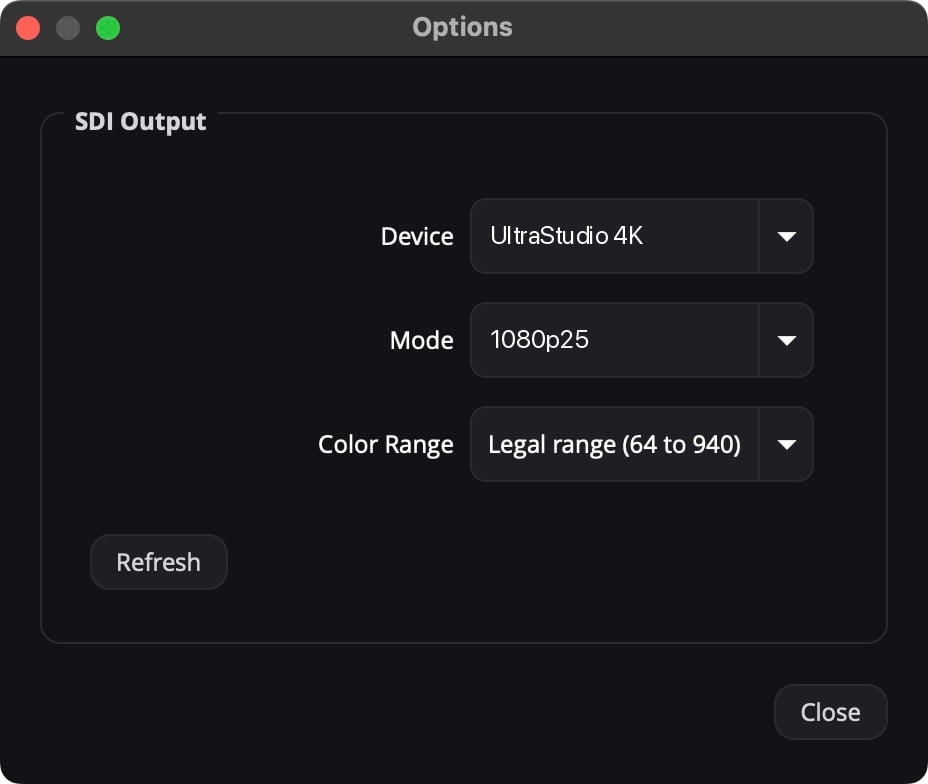 **Legal range (64 to 940)** suits almost every monitor. Pick **Full range (0 to 1023)** only when the monitor expects full range, otherwise blacks lift or highlights clip.
Studio holds the picture back a little to keep it smooth, and a Streaming Classic stream adds about three to four seconds on the SDI side. Use the reference monitor for colour and image quality, and keep the browser open when exact timing matters.
## Check the monitor chain
Tick **Monitor a b/w gradient for calibration** and click **Start Monitoring**. The card sends a black-to-white gradient instead of the session, so you can check cabling and range before a session.
## Status messages
**The stream is not live yet.** The Classic stream has not started. Studio connects as soon as it does.
**The server refused the link. Copy it again from dfine.io.** The link changed or was switched off.
**Connection lost. Reconnecting…** Studio retries on its own.
**No card selected. Pick one under Options.** Open the gear and pick a device under **SDI Output**.
The driver for DeckLink cards.
This documentation is built and hosted on [Mintlify](https://mintlify.com), a developer documentation platform.
**Legal range (64 to 940)** suits almost every monitor. Pick **Full range (0 to 1023)** only when the monitor expects full range, otherwise blacks lift or highlights clip.
Studio holds the picture back a little to keep it smooth, and a Streaming Classic stream adds about three to four seconds on the SDI side. Use the reference monitor for colour and image quality, and keep the browser open when exact timing matters.
## Check the monitor chain
Tick **Monitor a b/w gradient for calibration** and click **Start Monitoring**. The card sends a black-to-white gradient instead of the session, so you can check cabling and range before a session.
## Status messages
**The stream is not live yet.** The Classic stream has not started. Studio connects as soon as it does.
**The server refused the link. Copy it again from dfine.io.** The link changed or was switched off.
**Connection lost. Reconnecting…** Studio retries on its own.
**No card selected. Pick one under Options.** Open the gear and pick a device under **SDI Output**.
The driver for DeckLink cards.
This documentation is built and hosted on [Mintlify](https://mintlify.com), a developer documentation platform.