> ## Documentation Index
> Fetch the complete documentation index at: https://docs.dfine.app/llms.txt
> Use this file to discover all available pages before exploring further.
# Stream from Premiere Pro
> Stream your Premiere Pro sequence live into a Review room or to Streaming Classic with dfine.io Studio and the dfine.io Transmit plug-in.
Premiere Pro hands its picture to other apps through Mercury Transmit, the route a Blackmagic or AJA card uses. The dfine.io Transmit plug-in registers as one of those devices, and dfine.io Studio sends what it receives to Review or Streaming Classic.
**You need** [dfine.io Studio](/en/apps/studio/index) on the Mac that runs Premiere Pro, and a Review room or a Streaming Classic stream.
## 1. Install the plug-in
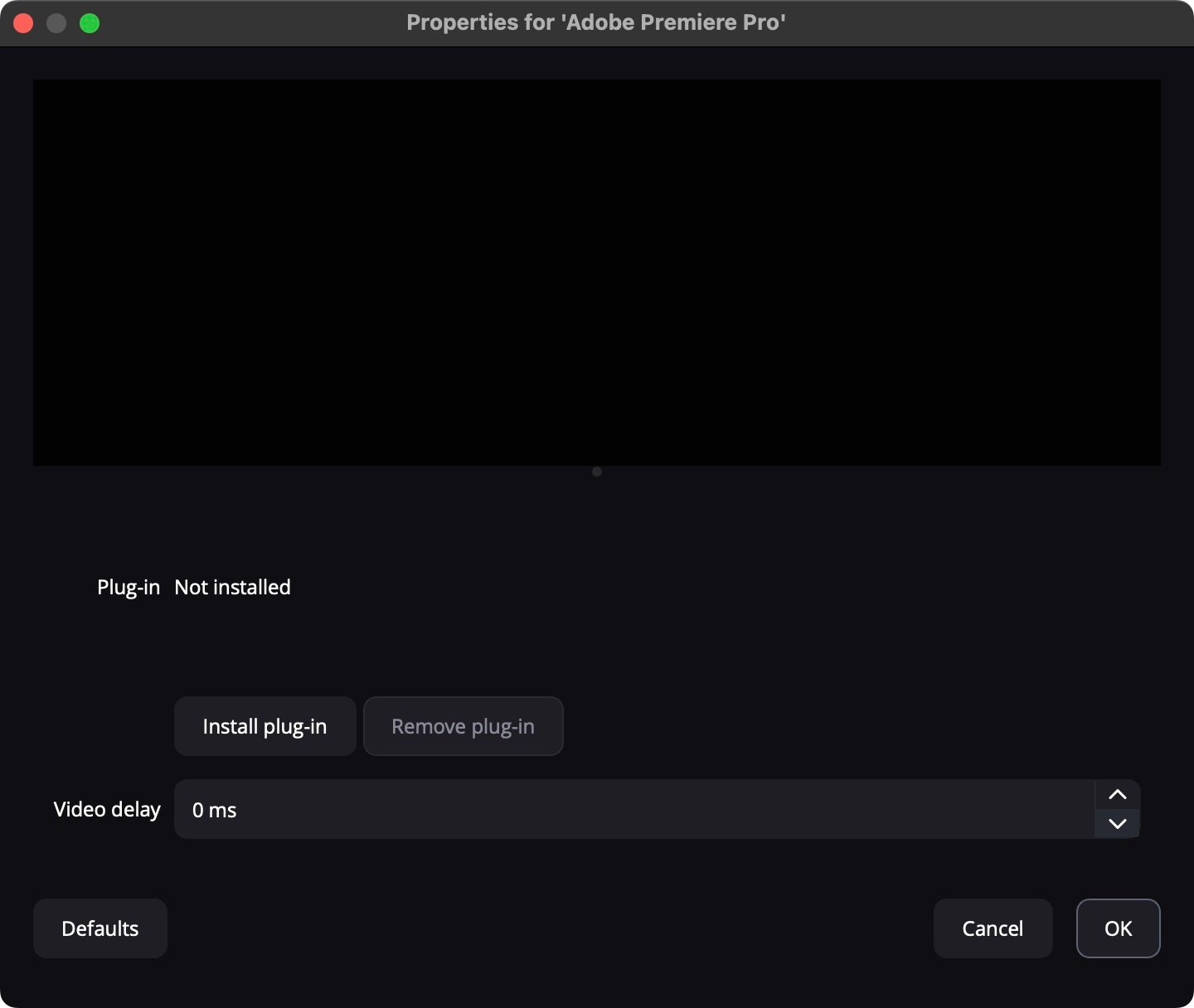
In Studio's **Sources** panel, click the gear on **Adobe Premiere Pro**. **Plug-in** reads **Not installed**.
Click **Install plug-in**. No password is needed, the plug-in goes into your own Adobe plug-in folder.
Quit Premiere Pro and start it again. It reads its plug-in folder only at launch.
 ## 2. Switch on Mercury Transmit
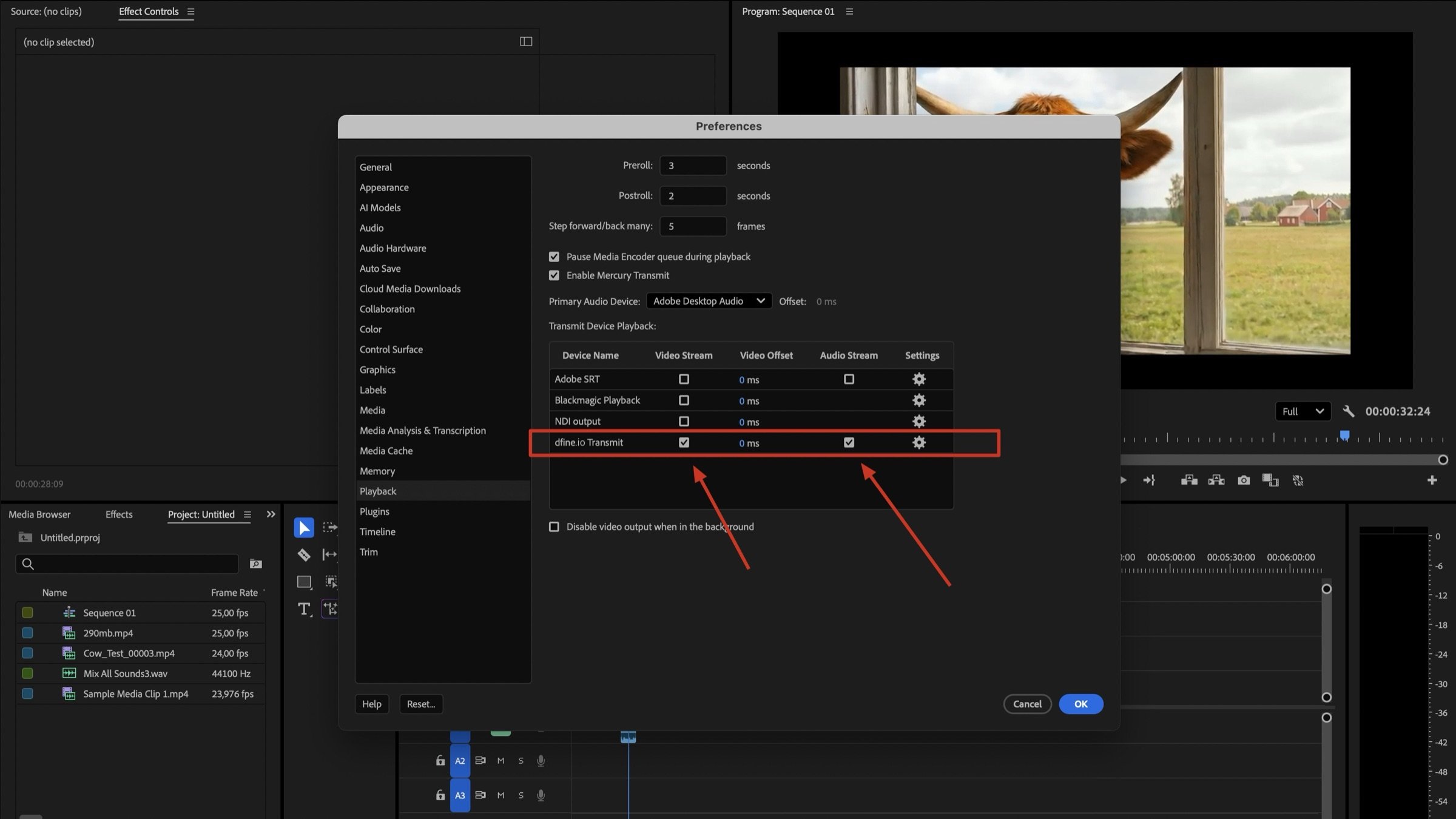
Go to **Premiere Pro → Settings → Playback**.
Tick **Enable Mercury Transmit**. Without it the device list stays inactive.
Tick **dfine.io Transmit** under **Video Stream**, and under **Audio Stream** if you want sound.
## 2. Switch on Mercury Transmit
Go to **Premiere Pro → Settings → Playback**.
Tick **Enable Mercury Transmit**. Without it the device list stays inactive.
Tick **dfine.io Transmit** under **Video Stream**, and under **Audio Stream** if you want sound.
 ## 3. Pick where it goes
In Review, open the room and create a source with the type **WHIP**, or use **Quick Create**. Click **Copy Stream Key**.
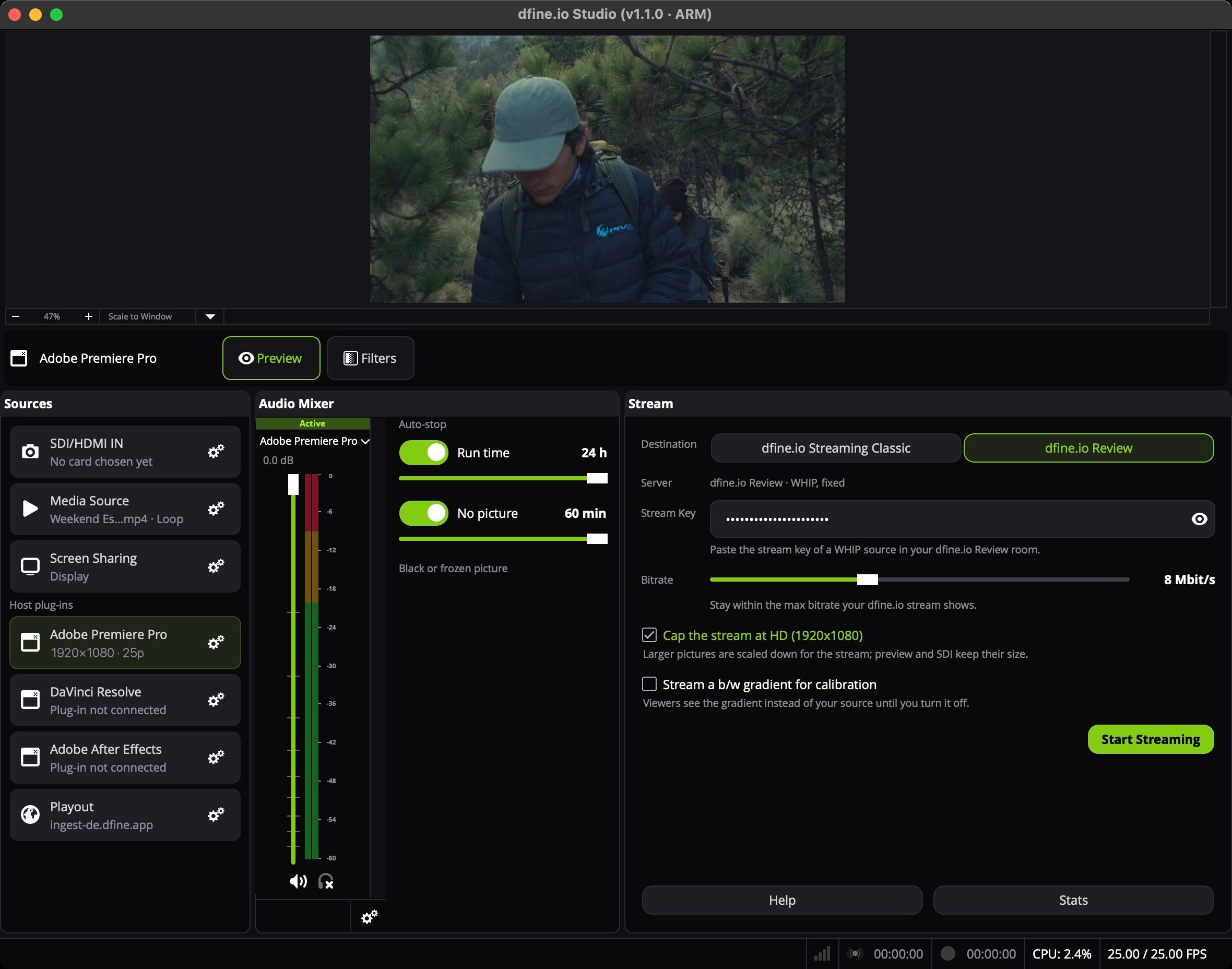
In Studio's **Stream** panel, set **Destination** to **dfine.io Review**. **Server** reads **dfine.io Review · WHIP, fixed**. Paste the key into **Stream Key**.
## 3. Pick where it goes
In Review, open the room and create a source with the type **WHIP**, or use **Quick Create**. Click **Copy Stream Key**.
In Studio's **Stream** panel, set **Destination** to **dfine.io Review**. **Server** reads **dfine.io Review · WHIP, fixed**. Paste the key into **Stream Key**.
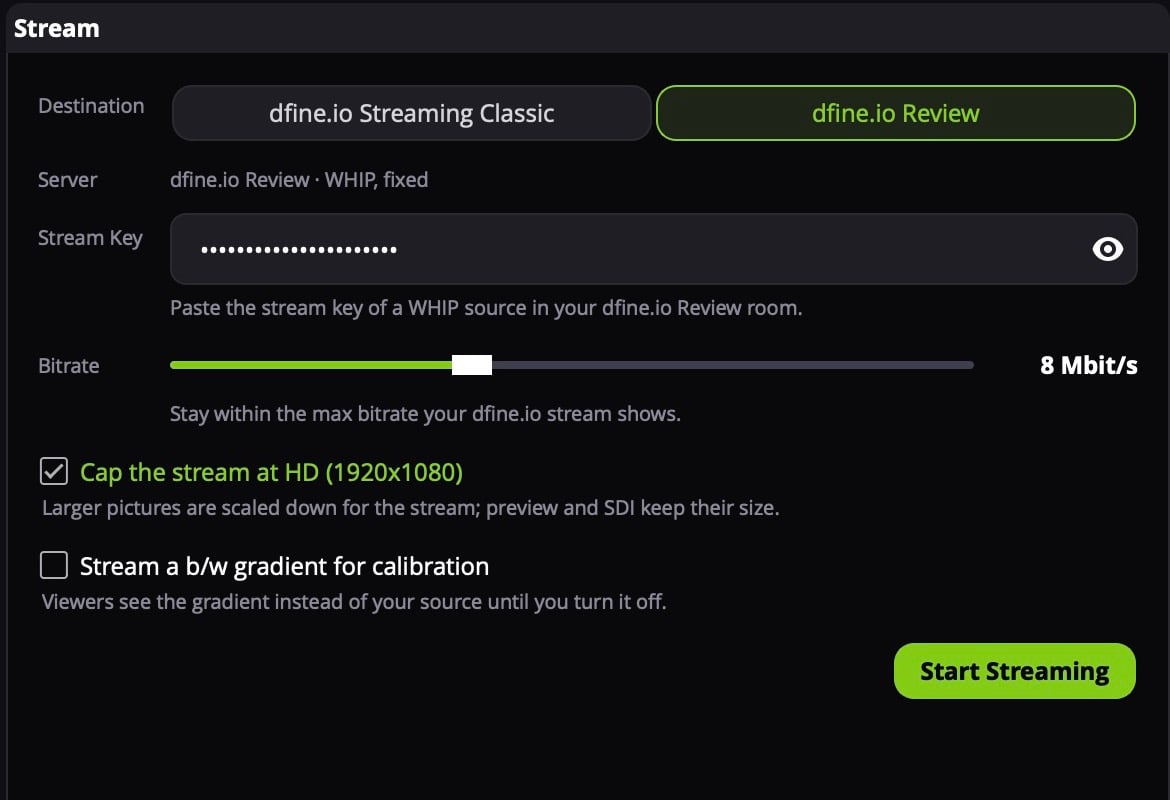 Paste the key of a **WHIP** source. Review refuses the key of an RTMPS source, those are meant for hardware encoders. Where the key is: [stream key and server URL of a room](/en/review/find/stream-key).
In Streaming Classic, open the stream slot and copy the **RTMPS** server URL and the stream key.
In Studio's **Stream** panel, set **Destination** to **dfine.io Streaming Classic**. Paste the URL into **Server URL** and the key into **Stream Key**.
Paste the key of a **WHIP** source. Review refuses the key of an RTMPS source, those are meant for hardware encoders. Where the key is: [stream key and server URL of a room](/en/review/find/stream-key).
In Streaming Classic, open the stream slot and copy the **RTMPS** server URL and the stream key.
In Studio's **Stream** panel, set **Destination** to **dfine.io Streaming Classic**. Paste the URL into **Server URL** and the key into **Stream Key**.
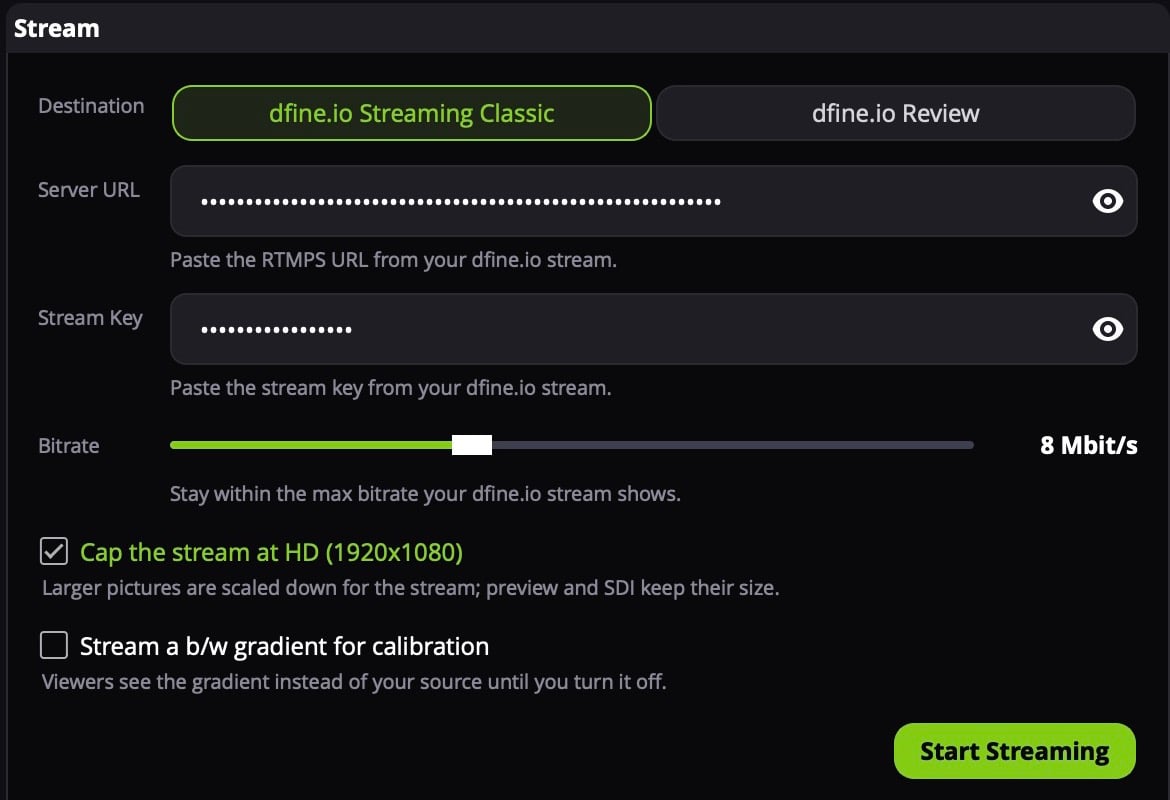 Only `rtmps://` URLs work. Where both values are: [ingest URL and stream key of a slot](/en/streaming-classic/find/ingest-and-stream-key).
## 4. Start
Play your sequence. In Studio the **Adobe Premiere Pro** row now shows the size and frame rate, for example `1920×1080 · 25p`, instead of **Plug-in not connected**. Click the row to put it on air, then click **Start Streaming**. Your client sees the picture a few seconds later.
Only `rtmps://` URLs work. Where both values are: [ingest URL and stream key of a slot](/en/streaming-classic/find/ingest-and-stream-key).
## 4. Start
Play your sequence. In Studio the **Adobe Premiere Pro** row now shows the size and frame rate, for example `1920×1080 · 25p`, instead of **Plug-in not connected**. Click the row to put it on air, then click **Start Streaming**. Your client sees the picture a few seconds later.
 If the picture arrives behind the sound, raise **Video delay** in the gear. It holds the picture back by up to 350 ms.
## When nothing arrives
**Premiere Pro was running during the install.** Quit it completely and start it again.
**Mercury Transmit is off.** The device checkbox does nothing while the main switch is unticked.
**Another device claims the output.** Untick Blackmagic Playback or NDI output and try again.
**Nothing is playing.** Premiere only sends while it plays or scrubs. On a paused timeline the last frame stays on the stream.
More causes: [Streaming from dfine.io Studio](/en/troubleshooting/studio). **Remove plug-in** in the gear takes the plug-in out again.
This documentation is built and hosted on [Mintlify](https://mintlify.com), a developer documentation platform.
If the picture arrives behind the sound, raise **Video delay** in the gear. It holds the picture back by up to 350 ms.
## When nothing arrives
**Premiere Pro was running during the install.** Quit it completely and start it again.
**Mercury Transmit is off.** The device checkbox does nothing while the main switch is unticked.
**Another device claims the output.** Untick Blackmagic Playback or NDI output and try again.
**Nothing is playing.** Premiere only sends while it plays or scrubs. On a paused timeline the last frame stays on the stream.
More causes: [Streaming from dfine.io Studio](/en/troubleshooting/studio). **Remove plug-in** in the gear takes the plug-in out again.
This documentation is built and hosted on [Mintlify](https://mintlify.com), a developer documentation platform.