> ## Documentation Index
> Fetch the complete documentation index at: https://docs.dfine.app/llms.txt
> Use this file to discover all available pages before exploring further.
# Play out a finished file
> Stream a finished video file live into a Review room or to Streaming Classic with the Media Source of dfine.io Studio, looped if you like.
The **Media Source** row of dfine.io Studio plays a video file into the stream, for a screening of a finished cut or a loop before a session starts.
**You need** [dfine.io Studio](/en/apps/studio/index) and a Review room or a Streaming Classic stream.
## 1. Choose the file
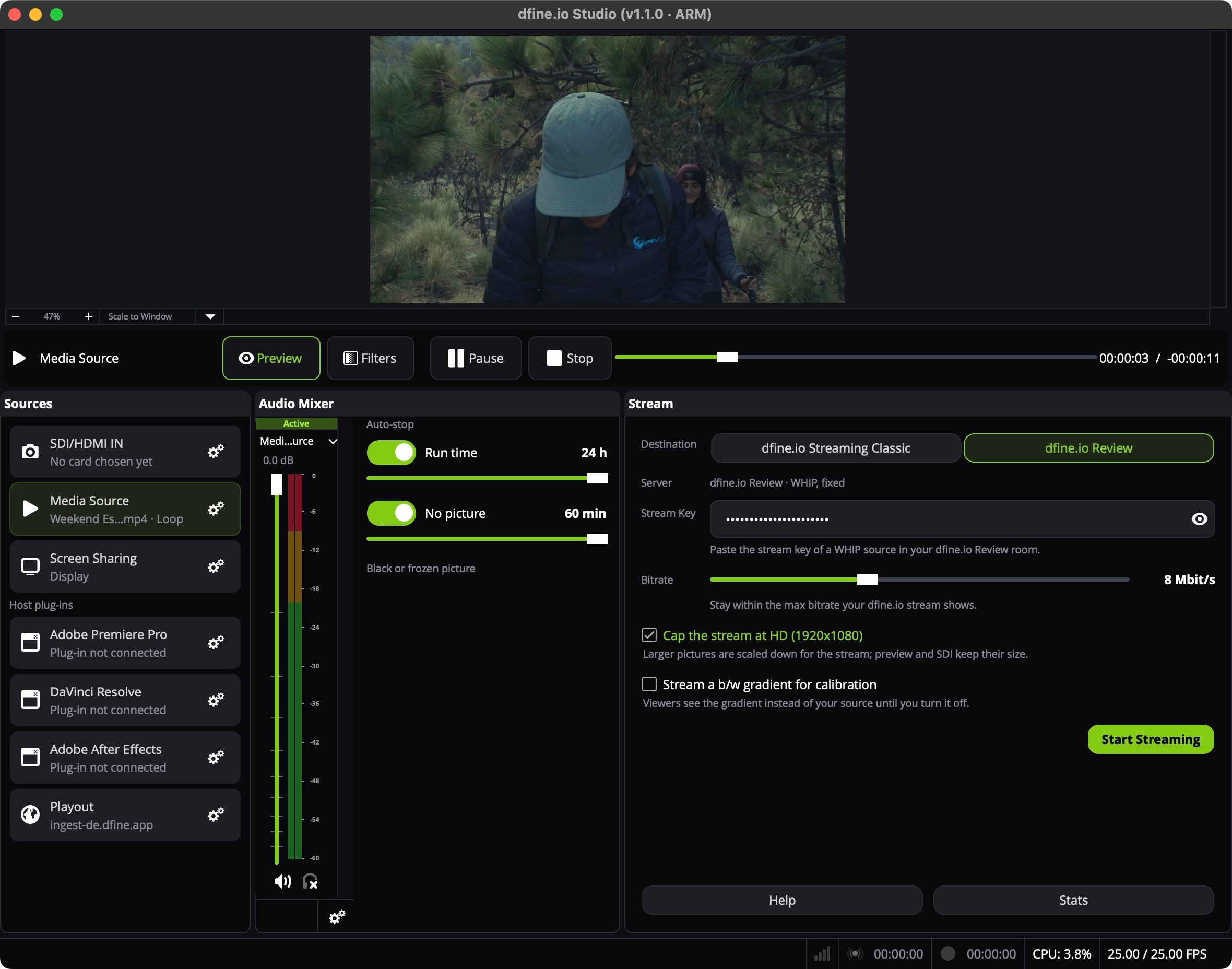
In Studio's **Sources** panel, click the gear on **Media Source**. Until a file is chosen the row reads **No file chosen**.
Choose the file. Tick **Loop** if it should start over at the end.
## 2. Pick where it goes
In Review, open the room and create a source with the type **WHIP**, or use **Quick Create**. Click **Copy Stream Key**.
In Studio's **Stream** panel, set **Destination** to **dfine.io Review**. **Server** reads **dfine.io Review · WHIP, fixed**. Paste the key into **Stream Key**.
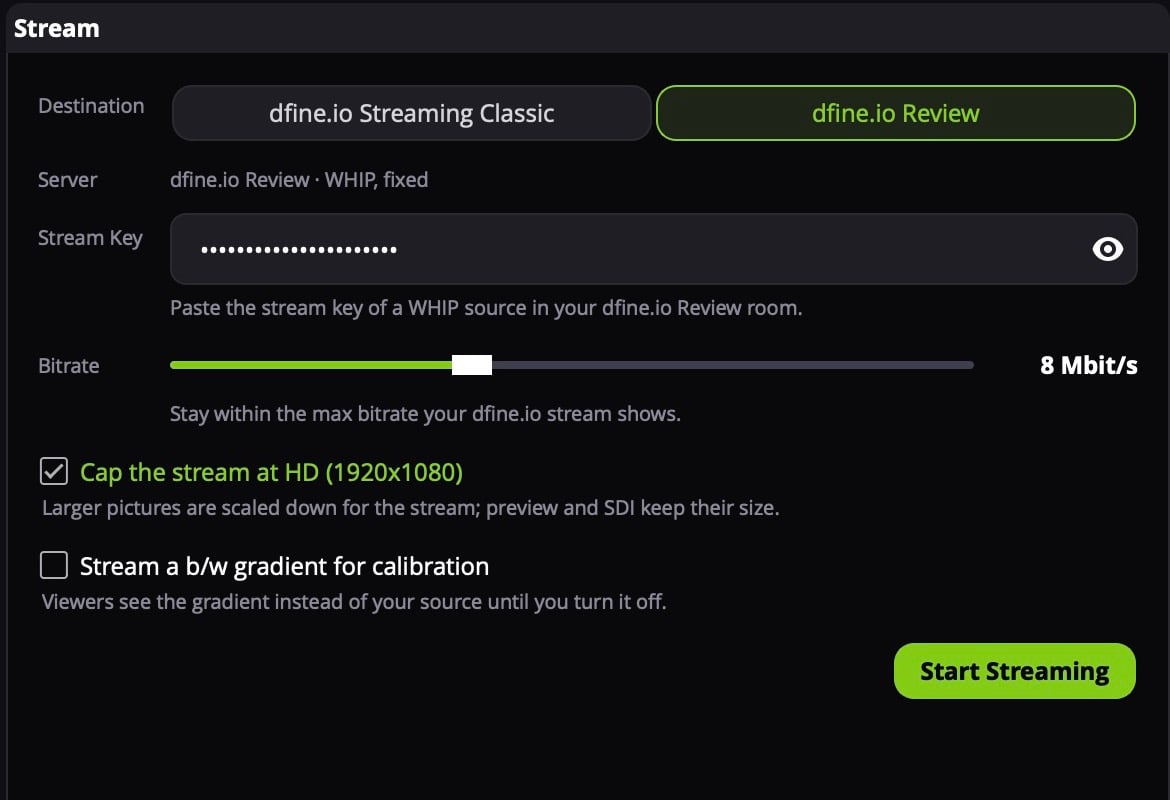 Paste the key of a **WHIP** source. Review refuses the key of an RTMPS source, those are meant for hardware encoders. Where the key is: [stream key and server URL of a room](/en/review/find/stream-key).
In Streaming Classic, open the stream slot and copy the **RTMPS** server URL and the stream key.
In Studio's **Stream** panel, set **Destination** to **dfine.io Streaming Classic**. Paste the URL into **Server URL** and the key into **Stream Key**.
Paste the key of a **WHIP** source. Review refuses the key of an RTMPS source, those are meant for hardware encoders. Where the key is: [stream key and server URL of a room](/en/review/find/stream-key).
In Streaming Classic, open the stream slot and copy the **RTMPS** server URL and the stream key.
In Studio's **Stream** panel, set **Destination** to **dfine.io Streaming Classic**. Paste the URL into **Server URL** and the key into **Stream Key**.
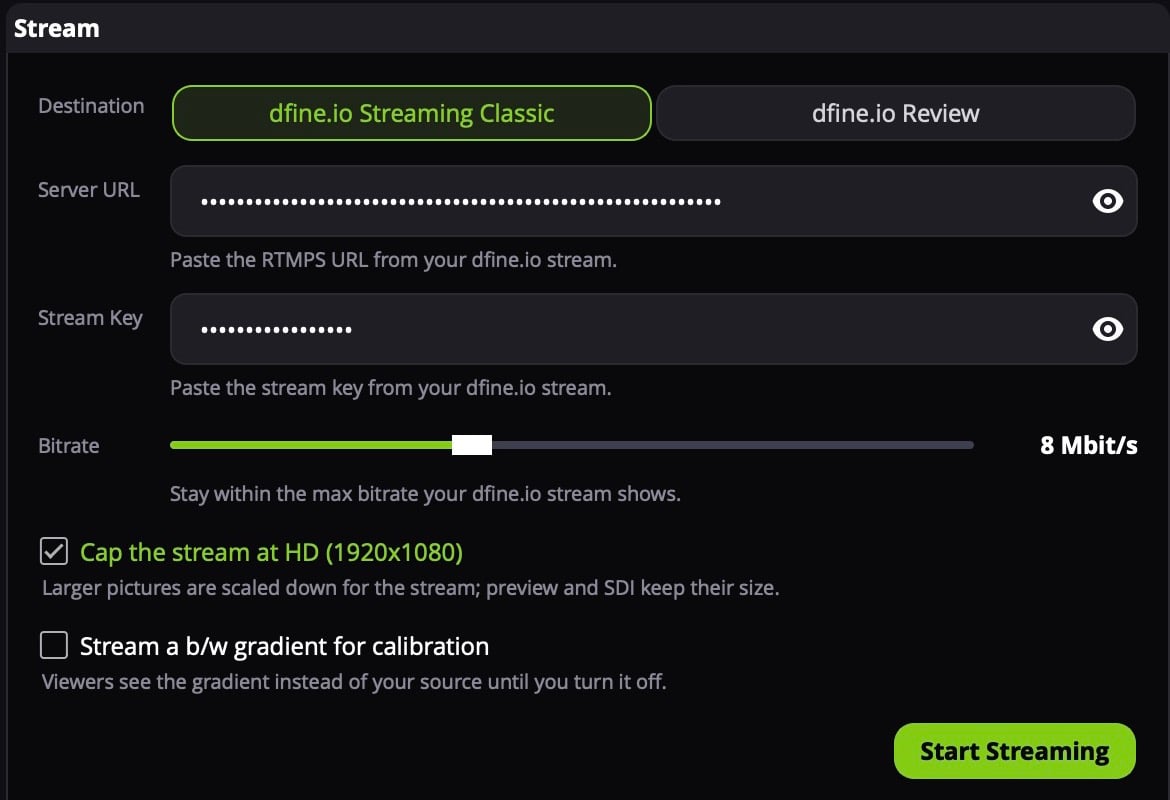 Only `rtmps://` URLs work. Where both values are: [ingest URL and stream key of a slot](/en/streaming-classic/find/ingest-and-stream-key).
## 3. Start
Click the **Media Source** row to put it on air. Above the panels, **Pause** and **Stop** control the file, and the bar shows where it is. Click **Start Streaming**.
Only `rtmps://` URLs work. Where both values are: [ingest URL and stream key of a slot](/en/streaming-classic/find/ingest-and-stream-key).
## 3. Start
Click the **Media Source** row to put it on air. Above the panels, **Pause** and **Stop** control the file, and the bar shows where it is. Click **Start Streaming**.
 More help: [Streaming from dfine.io Studio](/en/troubleshooting/studio).
This documentation is built and hosted on [Mintlify](https://mintlify.com), a developer documentation platform.
More help: [Streaming from dfine.io Studio](/en/troubleshooting/studio).
This documentation is built and hosted on [Mintlify](https://mintlify.com), a developer documentation platform.