> ## Documentation Index
> Fetch the complete documentation index at: https://docs.dfine.app/llms.txt
> Use this file to discover all available pages before exploring further.
# Stream from DaVinci Resolve
> Stream your DaVinci Resolve timeline with sound live into a Review room or to Streaming Classic with dfine.io Studio and the dfine.io Transmit OpenFX plug-in.
Resolve has no Mercury Transmit, so an OpenFX effect picks the picture up. Placed on the timeline node, it covers the whole programme. Its **Transmit Audio** switch makes Studio record Resolve's sound. dfine.io Studio sends what it receives to Review or Streaming Classic.
**You need** [dfine.io Studio](/en/apps/studio/index) on the Mac that runs Resolve, DaVinci Resolve **Studio**, and a Review room or a Streaming Classic stream.
The free version of DaVinci Resolve does not load OpenFX plug-ins from other vendors.
## 1. Install the plug-in
In Studio's **Sources** panel, click the gear on **DaVinci Resolve** and then **Install plug-in**. macOS asks for your administrator password, because OpenFX plug-ins live in a folder all users share. Quit Resolve and start it again. If Resolve is missing, the gear reads **DaVinci Resolve is not in Applications.**
## 2. Add the effect to the timeline node
Switch to the Color page and open the **Library** panel, where the OpenFX effects live.
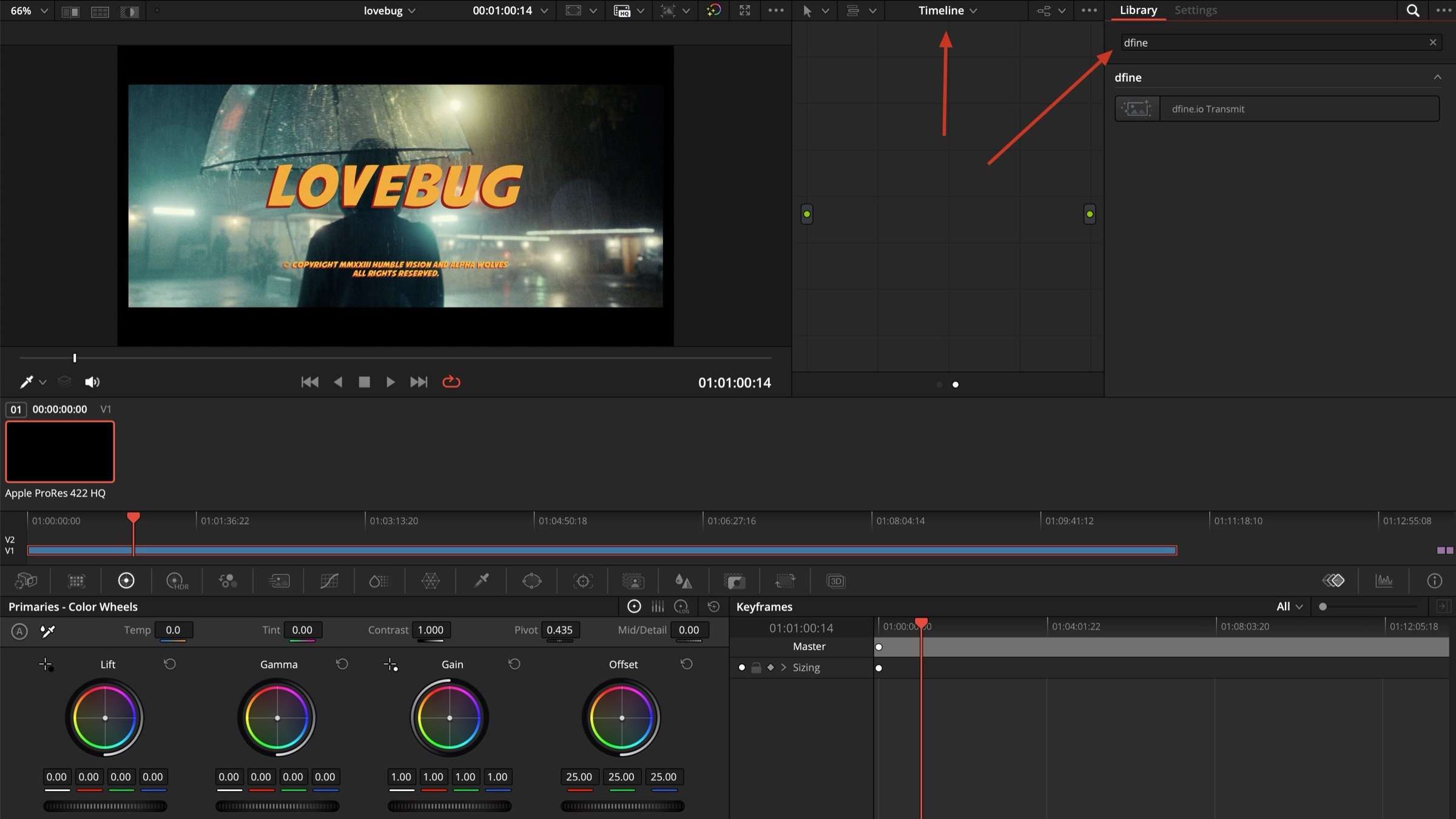
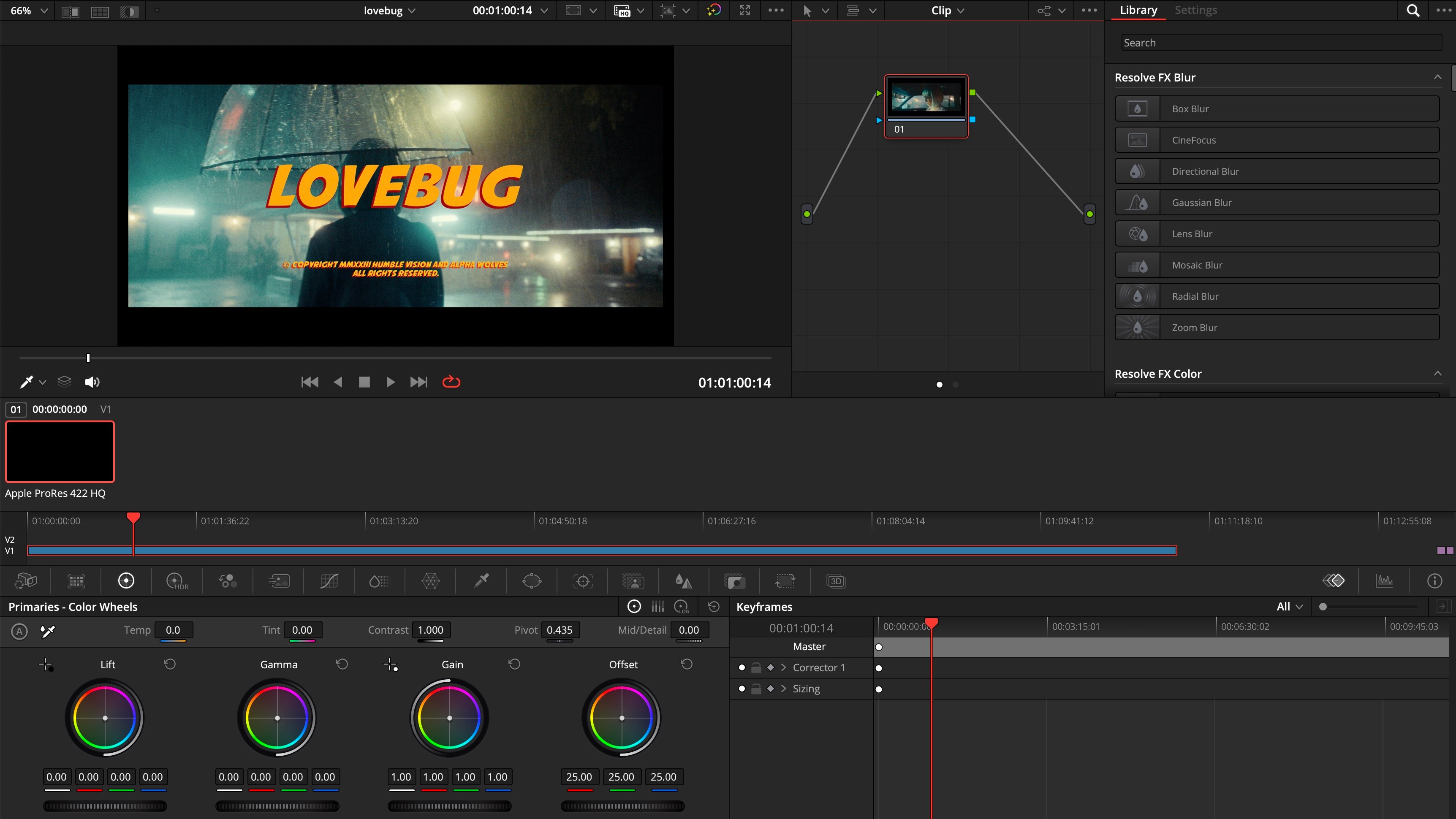 Above the node graph, change **Clip** to **Timeline**. Type `dfine` into the library search. **dfine.io Transmit** appears.
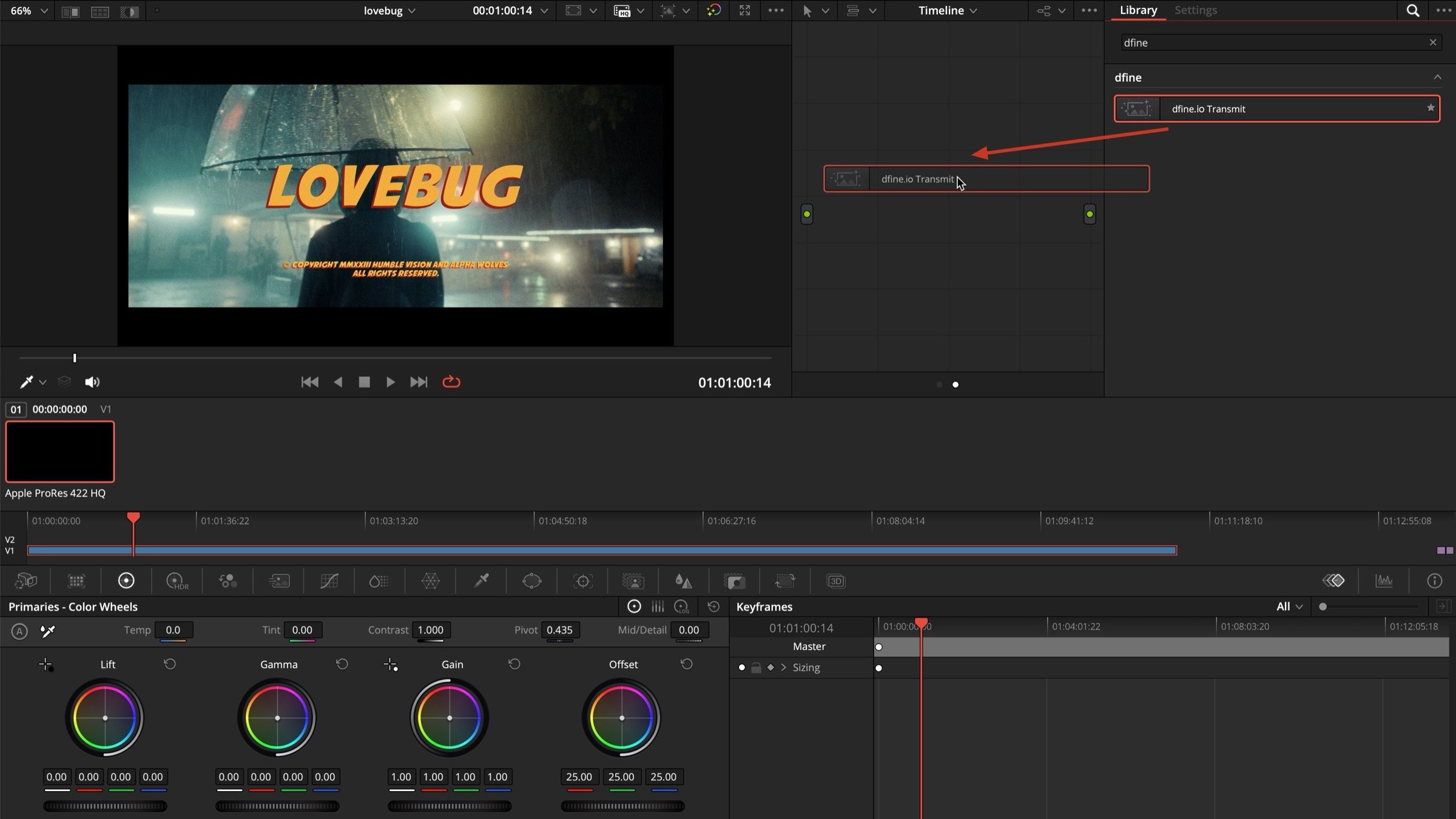
 Pull **dfine.io Transmit** into the empty node graph.
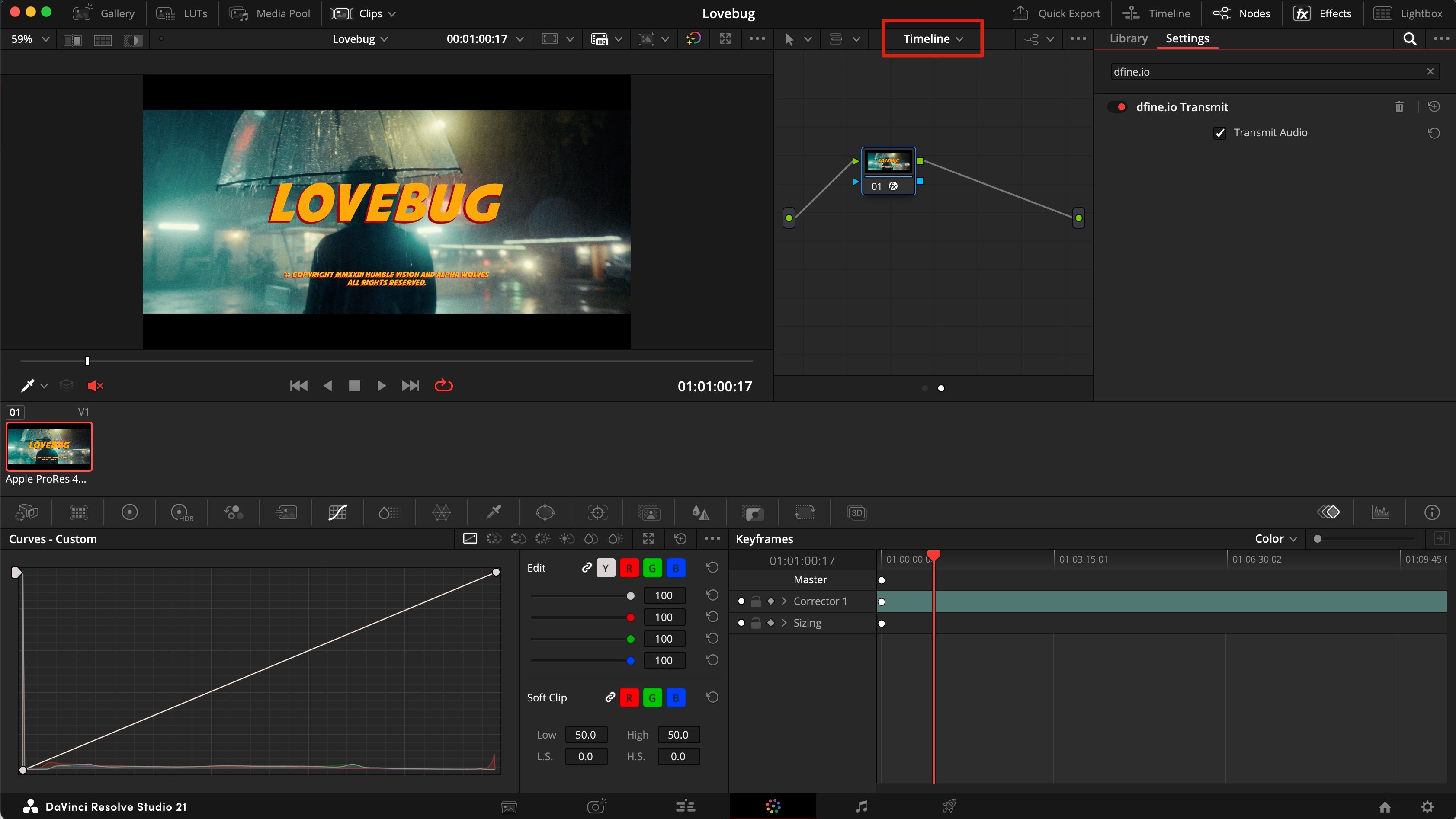
 Select the node and tick **Transmit Audio** in its settings. It is off by default.
 ## 3. Pick where it goes
In Review, open the room and create a source with the type **WHIP**, or use **Quick Create**. Click **Copy Stream Key**.
In Studio's **Stream** panel, set **Destination** to **dfine.io Review**. **Server** reads **dfine.io Review · WHIP, fixed**. Paste the key into **Stream Key**.
## 3. Pick where it goes
In Review, open the room and create a source with the type **WHIP**, or use **Quick Create**. Click **Copy Stream Key**.
In Studio's **Stream** panel, set **Destination** to **dfine.io Review**. **Server** reads **dfine.io Review · WHIP, fixed**. Paste the key into **Stream Key**.
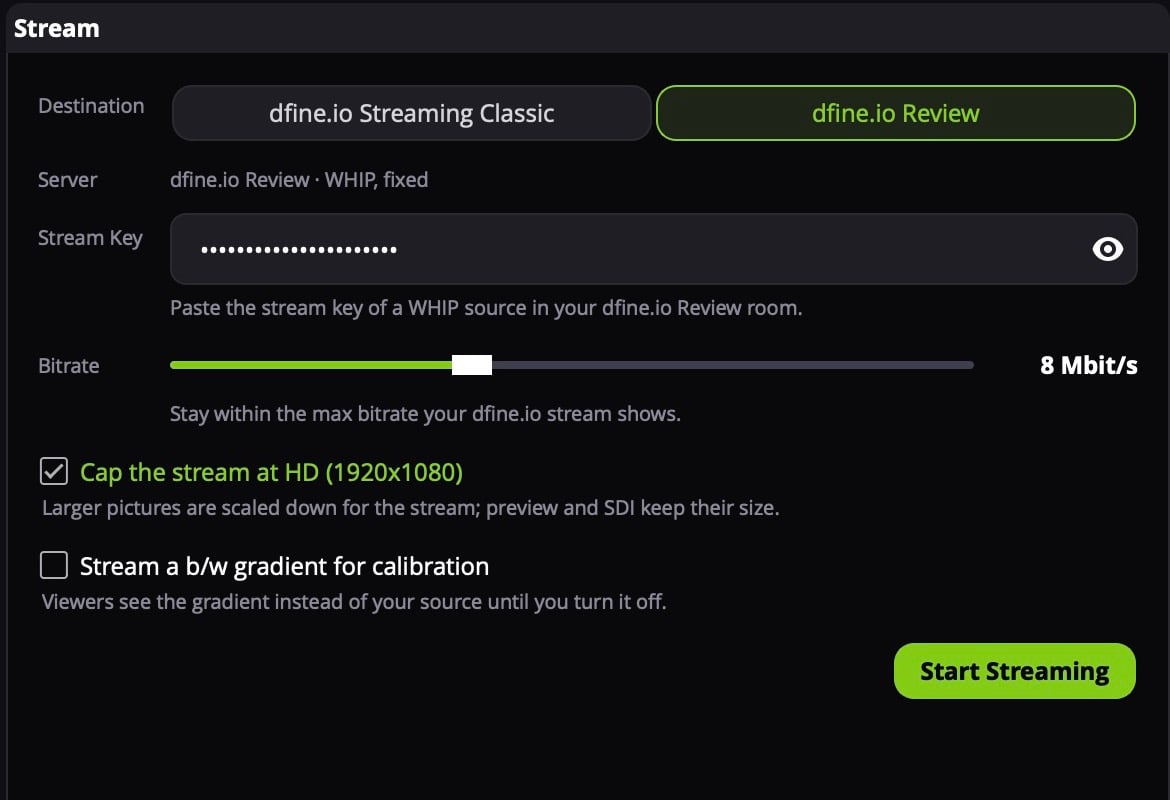 Paste the key of a **WHIP** source. Review refuses the key of an RTMPS source, those are meant for hardware encoders. Where the key is: [stream key and server URL of a room](/en/review/find/stream-key).
In Streaming Classic, open the stream slot and copy the **RTMPS** server URL and the stream key.
In Studio's **Stream** panel, set **Destination** to **dfine.io Streaming Classic**. Paste the URL into **Server URL** and the key into **Stream Key**.
Paste the key of a **WHIP** source. Review refuses the key of an RTMPS source, those are meant for hardware encoders. Where the key is: [stream key and server URL of a room](/en/review/find/stream-key).
In Streaming Classic, open the stream slot and copy the **RTMPS** server URL and the stream key.
In Studio's **Stream** panel, set **Destination** to **dfine.io Streaming Classic**. Paste the URL into **Server URL** and the key into **Stream Key**.
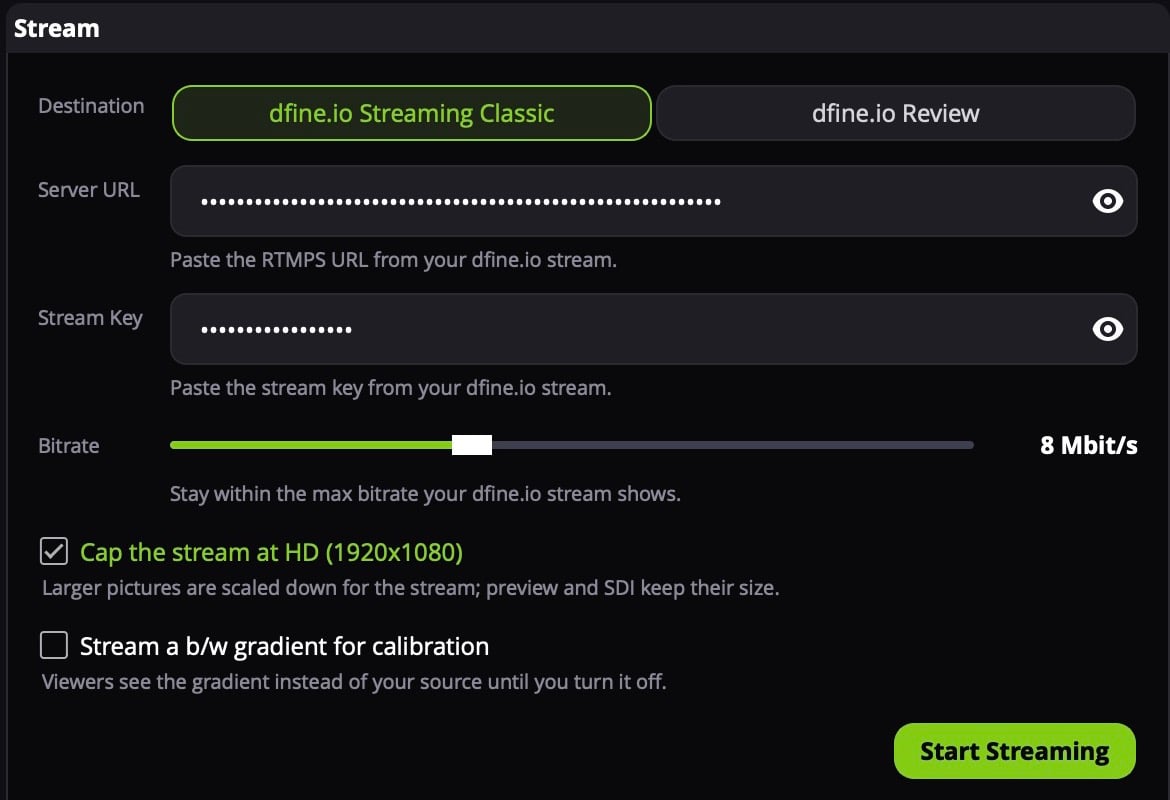 Only `rtmps://` URLs work. Where both values are: [ingest URL and stream key of a slot](/en/streaming-classic/find/ingest-and-stream-key).
## 4. Start
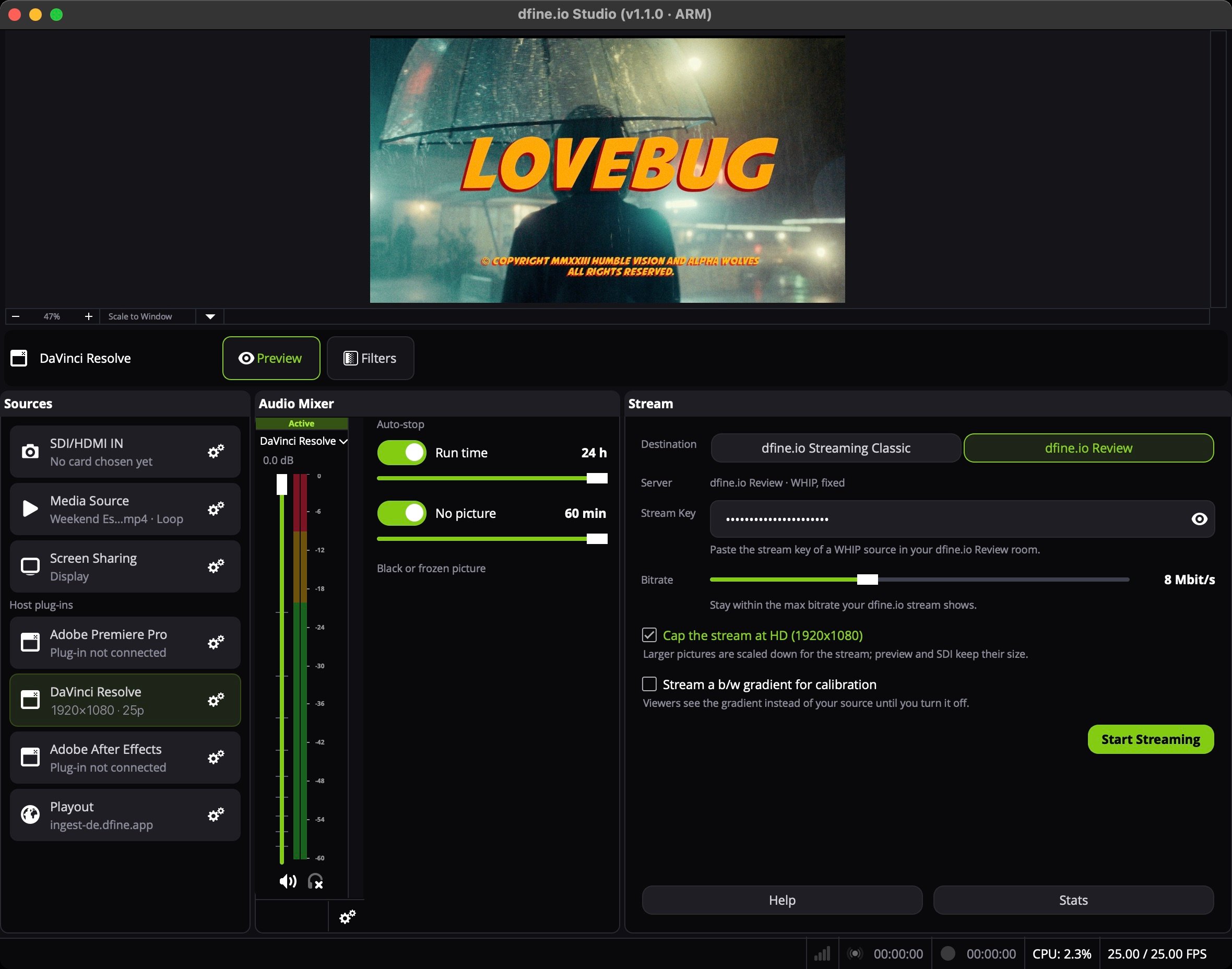
Play the timeline. In Studio the **DaVinci Resolve** row shows size and frame rate. Click it to put it on air, then click **Start Streaming**. The first time, macOS asks for **Screen & System Audio Recording**, which Studio needs for Resolve's sound.
Only `rtmps://` URLs work. Where both values are: [ingest URL and stream key of a slot](/en/streaming-classic/find/ingest-and-stream-key).
## 4. Start
Play the timeline. In Studio the **DaVinci Resolve** row shows size and frame rate. Click it to put it on air, then click **Start Streaming**. The first time, macOS asks for **Screen & System Audio Recording**, which Studio needs for Resolve's sound.
 ## When something is missing
**Picture arrives, sound does not.** This only happens when Resolve monitors through a Blackmagic card, because the sound then goes to the card and never reaches the Mac. Go to **Resolve → Preferences → Video and Audio I/O**, set **I/O Engine** to **System Audio** and switch on **Mirror audio I/O engine output**. The card keeps playing the sound on SDI, so your monitoring stays as it was. If you would rather leave Resolve unchanged, loop the card's SDI output into its input and stream it as an [SDI or HDMI feed](/en/workflows/sdi-hdmi).
**Resolve was running during the install.** Quit it and start it again.
**You use the free version.** OpenFX plug-ins from other vendors need Resolve Studio.
**Only one shot goes out.** The node sits on **Clip**. Switch the graph to **Timeline**.
**Nothing is playing.** Press play in Resolve.
More causes: [Streaming from dfine.io Studio](/en/troubleshooting/studio).
This documentation is built and hosted on [Mintlify](https://mintlify.com), a developer documentation platform.
## When something is missing
**Picture arrives, sound does not.** This only happens when Resolve monitors through a Blackmagic card, because the sound then goes to the card and never reaches the Mac. Go to **Resolve → Preferences → Video and Audio I/O**, set **I/O Engine** to **System Audio** and switch on **Mirror audio I/O engine output**. The card keeps playing the sound on SDI, so your monitoring stays as it was. If you would rather leave Resolve unchanged, loop the card's SDI output into its input and stream it as an [SDI or HDMI feed](/en/workflows/sdi-hdmi).
**Resolve was running during the install.** Quit it and start it again.
**You use the free version.** OpenFX plug-ins from other vendors need Resolve Studio.
**Only one shot goes out.** The node sits on **Clip**. Switch the graph to **Timeline**.
**Nothing is playing.** Press play in Resolve.
More causes: [Streaming from dfine.io Studio](/en/troubleshooting/studio).
This documentation is built and hosted on [Mintlify](https://mintlify.com), a developer documentation platform.