> ## Documentation Index
> Fetch the complete documentation index at: https://docs.dfine.app/llms.txt
> Use this file to discover all available pages before exploring further.
# Where do I find the ingest server URL?
> Where to send your work: the ingest URL for streaming, or a livestreaming source in Review.
Where you send your work depends on the product. Pick yours below.
The ingest server URL tells your encoder where to send the signal. You copy it once from the app and paste it into the server field of your encoder.
In the app, go to **Settings** and open the **Ingest** tab.
Under **Ingest server authentication** you find your username, password and default ingest server. Click **Copy RTMPS ingest URL** to copy the full address to your clipboard.
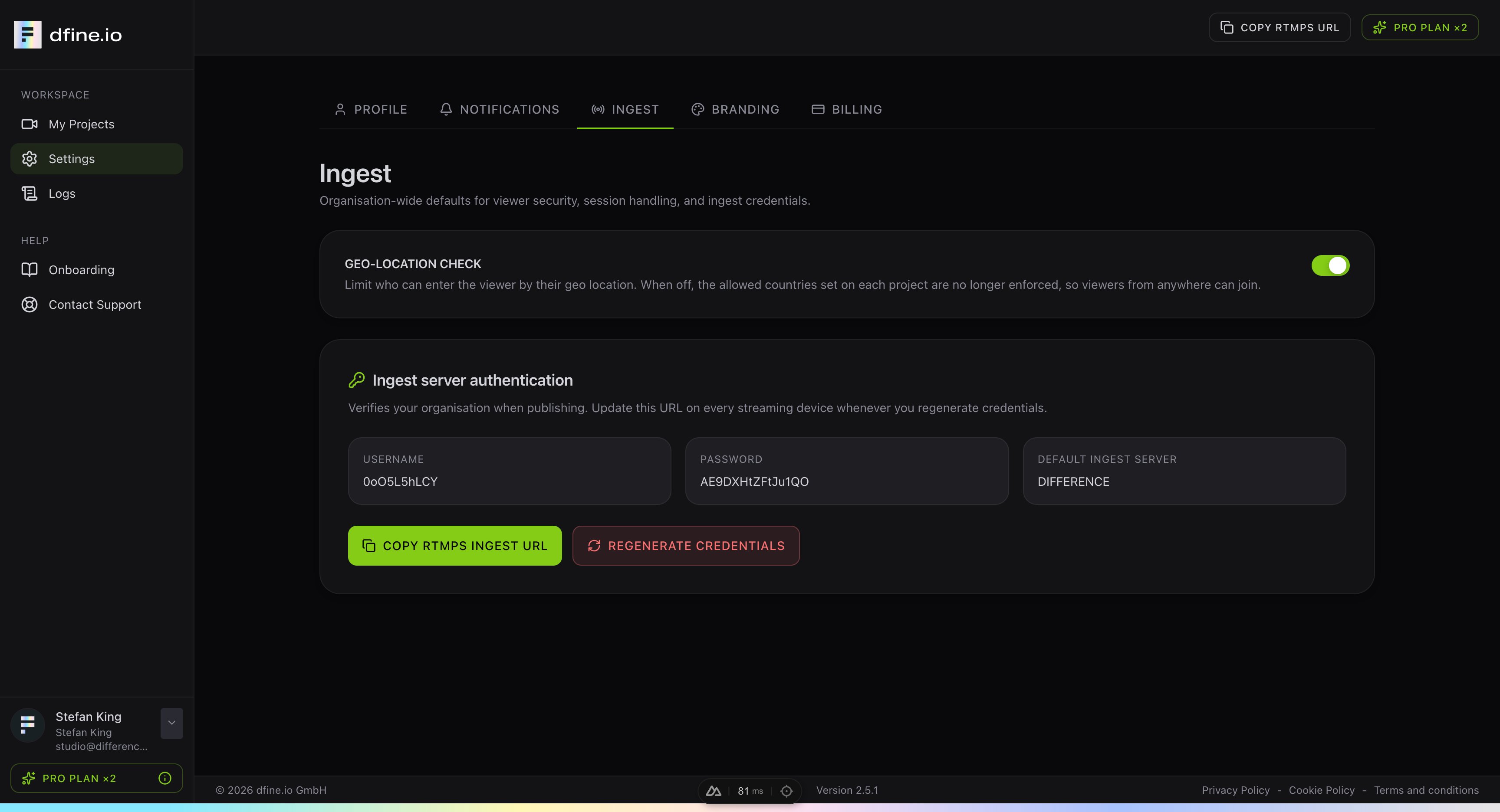 Paste the URL into the **Server** field of your encoder, for example in OBS. The address always starts with `rtmps://` because every stream is encrypted.
If you ever regenerate your credentials, copy the URL again and update it on every device that streams.
In Review the ingest server lives in a conferencing room. You bring an external hardware or software encoder into a room as a **Source**, which gives you a Server URL and a stream key to push to.
Go to **Live Sessions** and open a room, or create one with **Create Room**.
Paste the URL into the **Server** field of your encoder, for example in OBS. The address always starts with `rtmps://` because every stream is encrypted.
If you ever regenerate your credentials, copy the URL again and update it on every device that streams.
In Review the ingest server lives in a conferencing room. You bring an external hardware or software encoder into a room as a **Source**, which gives you a Server URL and a stream key to push to.
Go to **Live Sessions** and open a room, or create one with **Create Room**.
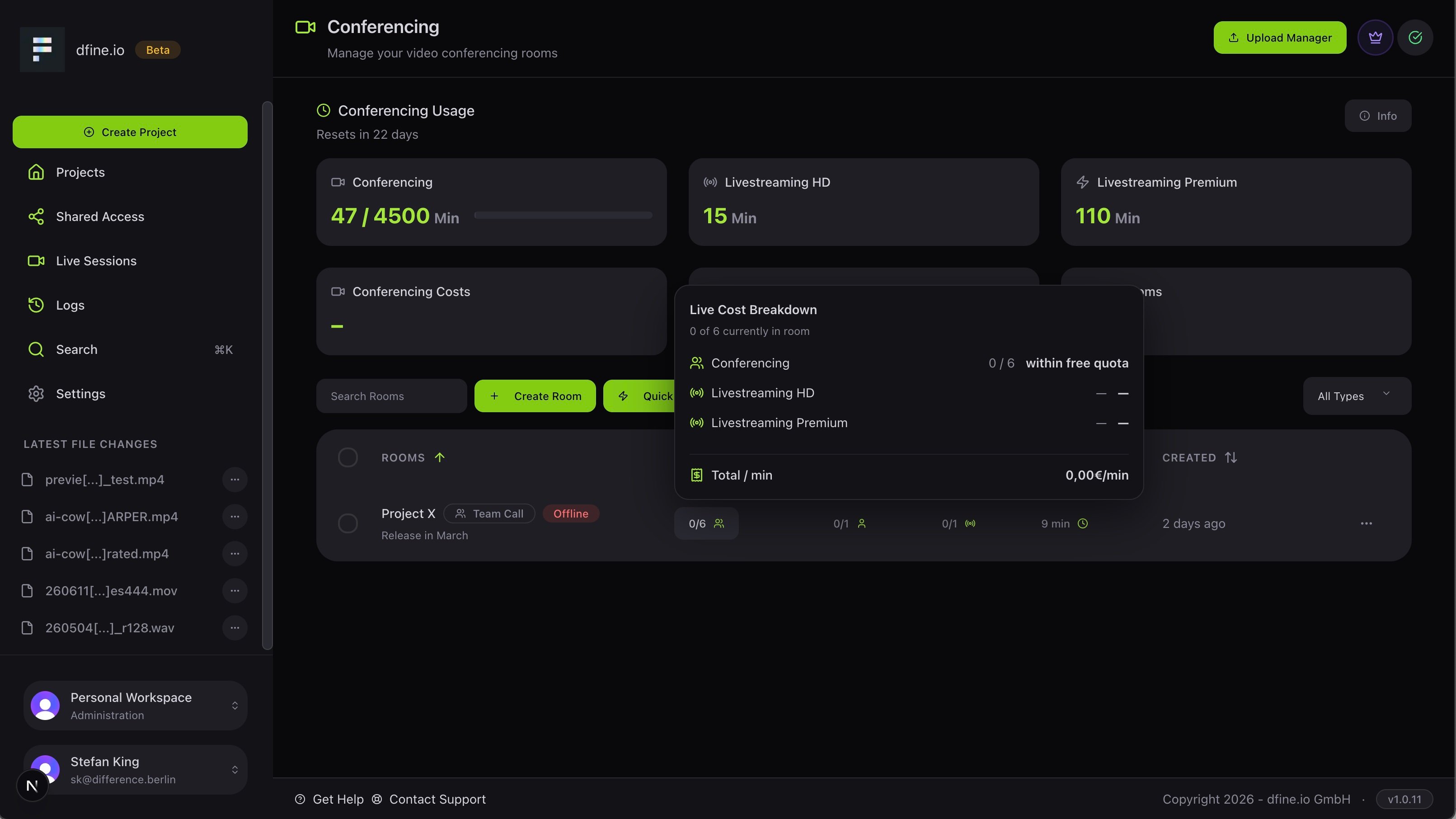 Open the room's **Edit** dialog, go to the **Sources** tab and click **Add Source**. Choose **WHIP** for a premium passthrough or **RTMP** for HD.
The source shows a **Server URL** and a **Stream Key**. Copy both into your encoder. Each active source counts as one participant, uses a room slot, and is billed per minute.
A short checklist to get the best possible playback when streaming.
Open the room's **Edit** dialog, go to the **Sources** tab and click **Add Source**. Choose **WHIP** for a premium passthrough or **RTMP** for HD.
The source shows a **Server URL** and a **Stream Key**. Copy both into your encoder. Each active source counts as one participant, uses a room slot, and is billed per minute.
A short checklist to get the best possible playback when streaming.