> ## Documentation Index
> Fetch the complete documentation index at: https://docs.dfine.app/llms.txt
> Use this file to discover all available pages before exploring further.
# Blackmagic SDI loop-back
> Loop your SDI output back into your SDI input and encode in software with OBS: no dedicated hardware encoder needed.
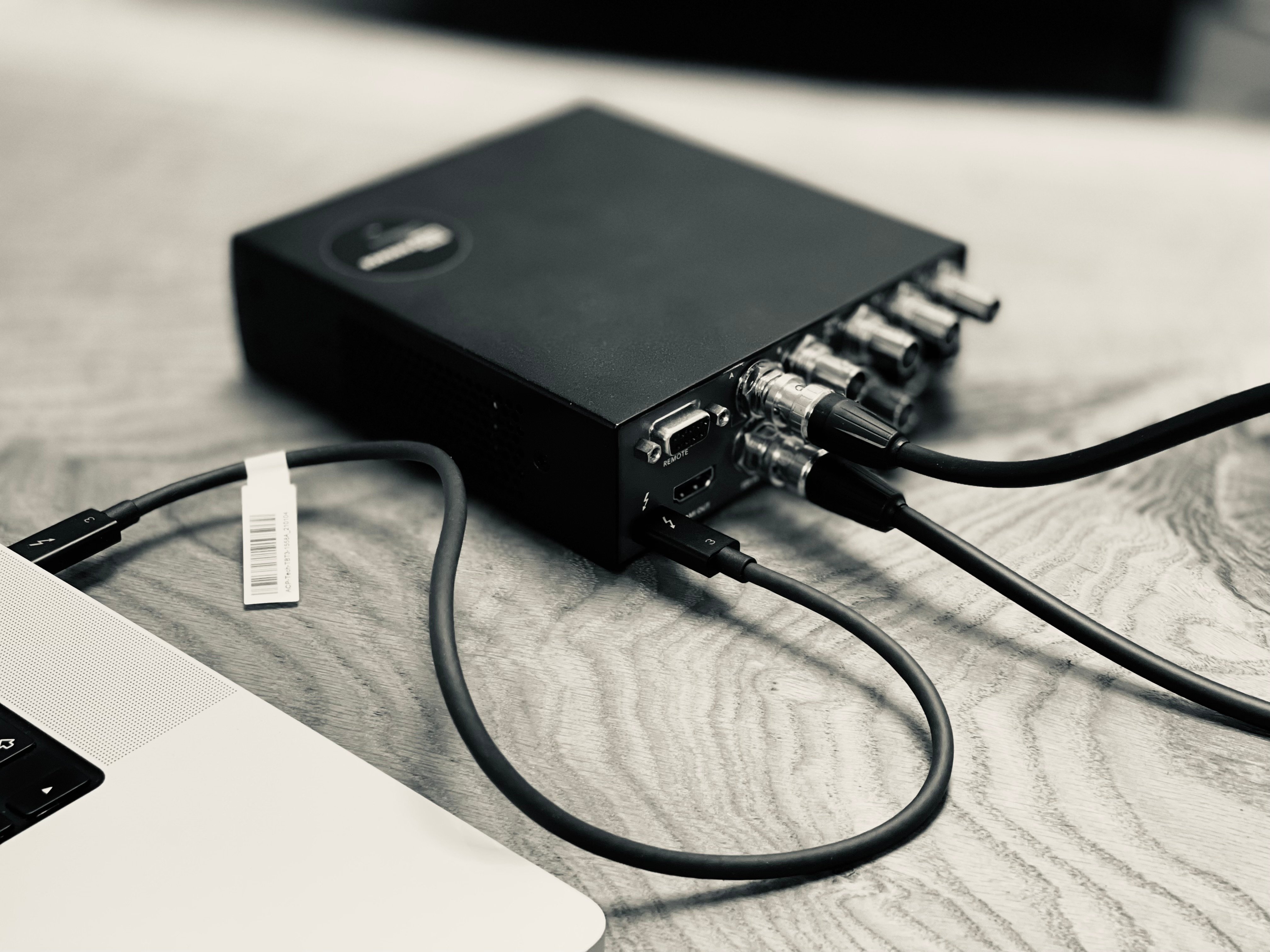
You can avoid a separate, dedicated hardware encoder by looping your own signal back: connect one **SDI output** of a Blackmagic capture device into the **SDI input** of the same device, and let **OBS** encode it and stream it to dfine.io. All you need is a capture device with two SDI outputs and one SDI input. While editing, you can share your screen and feed the SDI reference output to your clients at the same time.
For our own setup we used a Blackmagic UltraStudio 4K to loop the SDI signal back and capture it in OBS.
## Tested devices
* Blackmagic UltraStudio HD/4K Mini
* Blackmagic UltraStudio 4K Extreme
* Blackmagic Decklink 8K Pro
* Blackmagic Decklink 4K Extreme 12G
* Blackmagic Decklink Quad
 ## Set it up
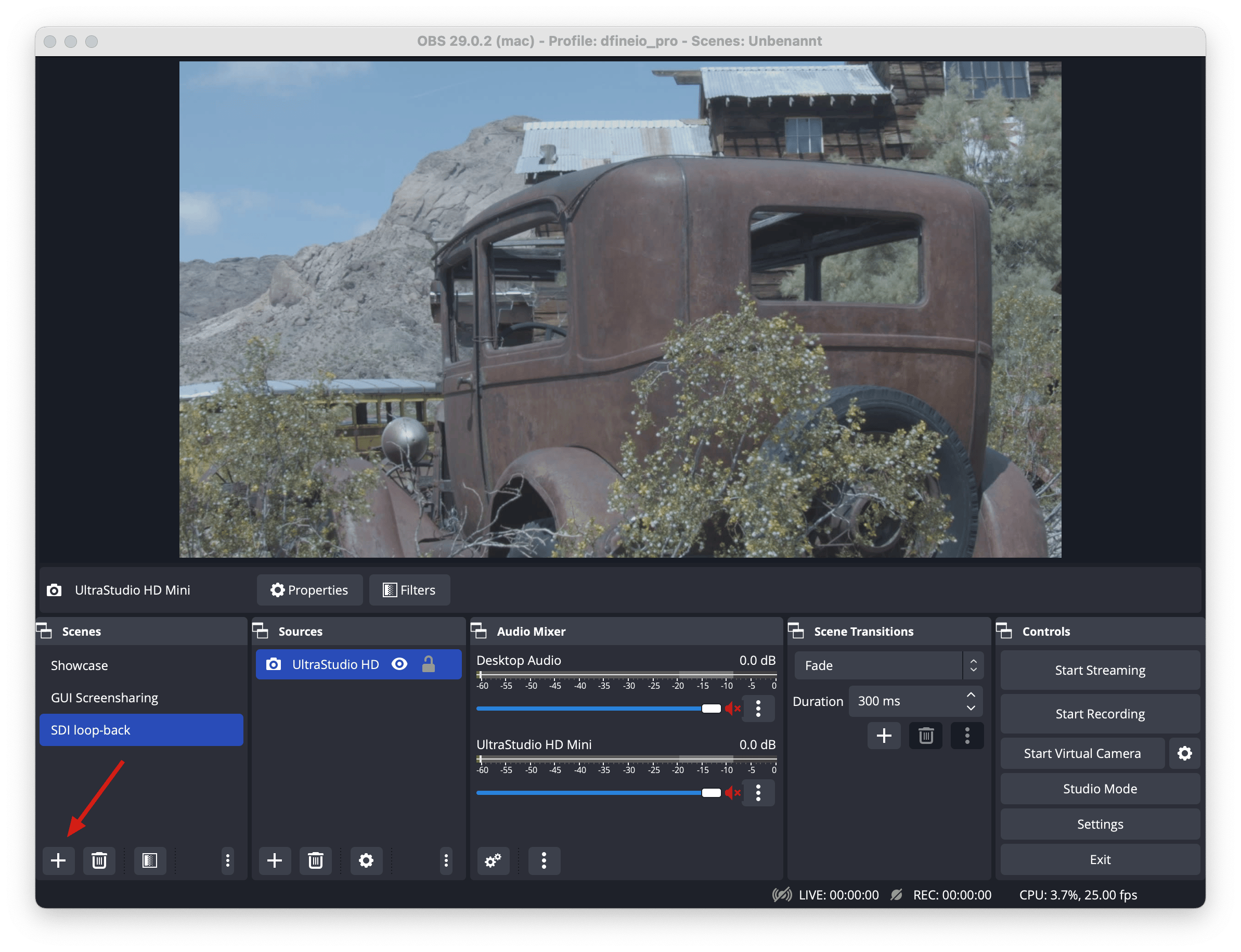
In OBS, use the **+** button at the lower left to add a new scene and give it a name.
## Set it up
In OBS, use the **+** button at the lower left to add a new scene and give it a name.
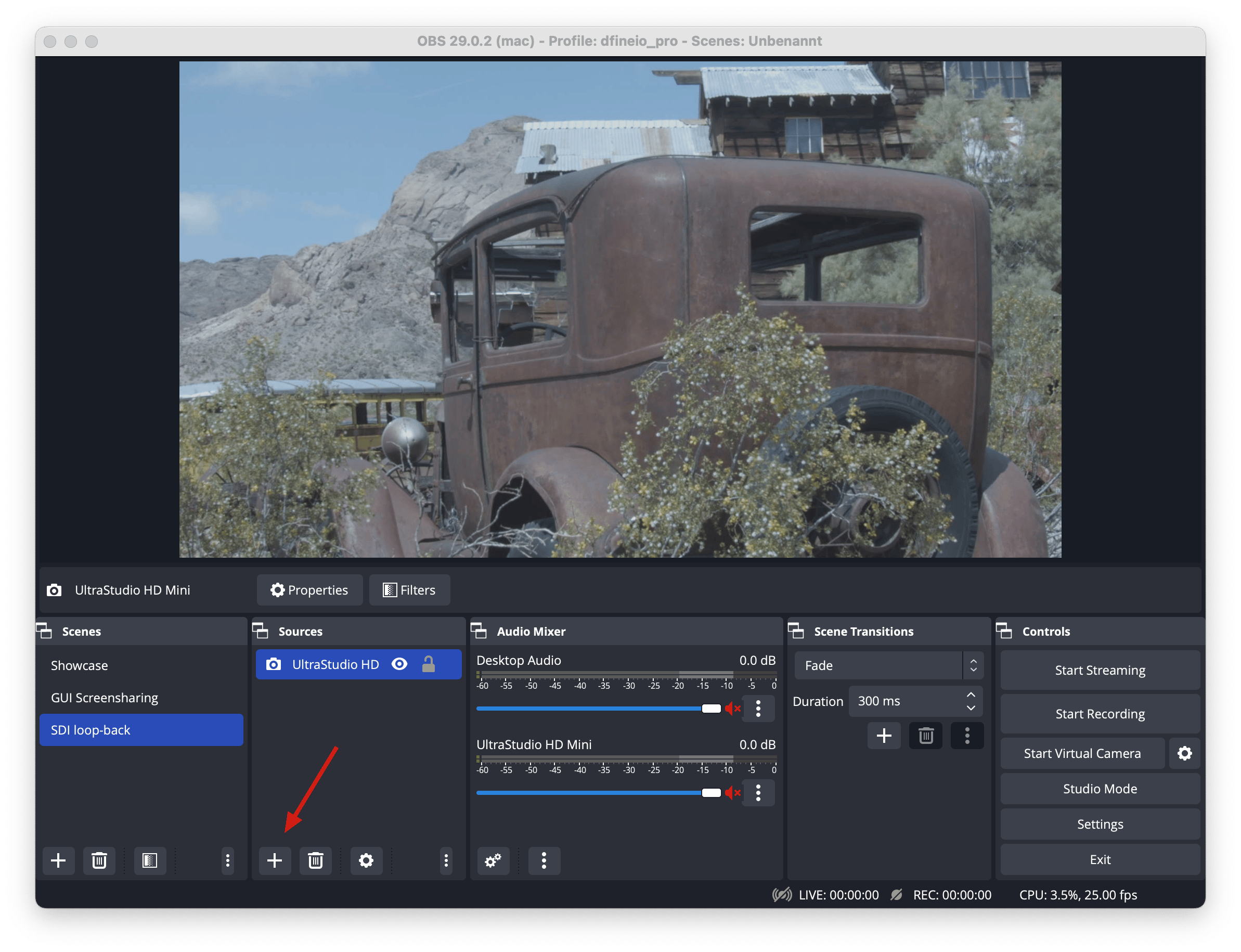
 Add a new source on the right side. We use a **Blackmagic Device** and give it a name.
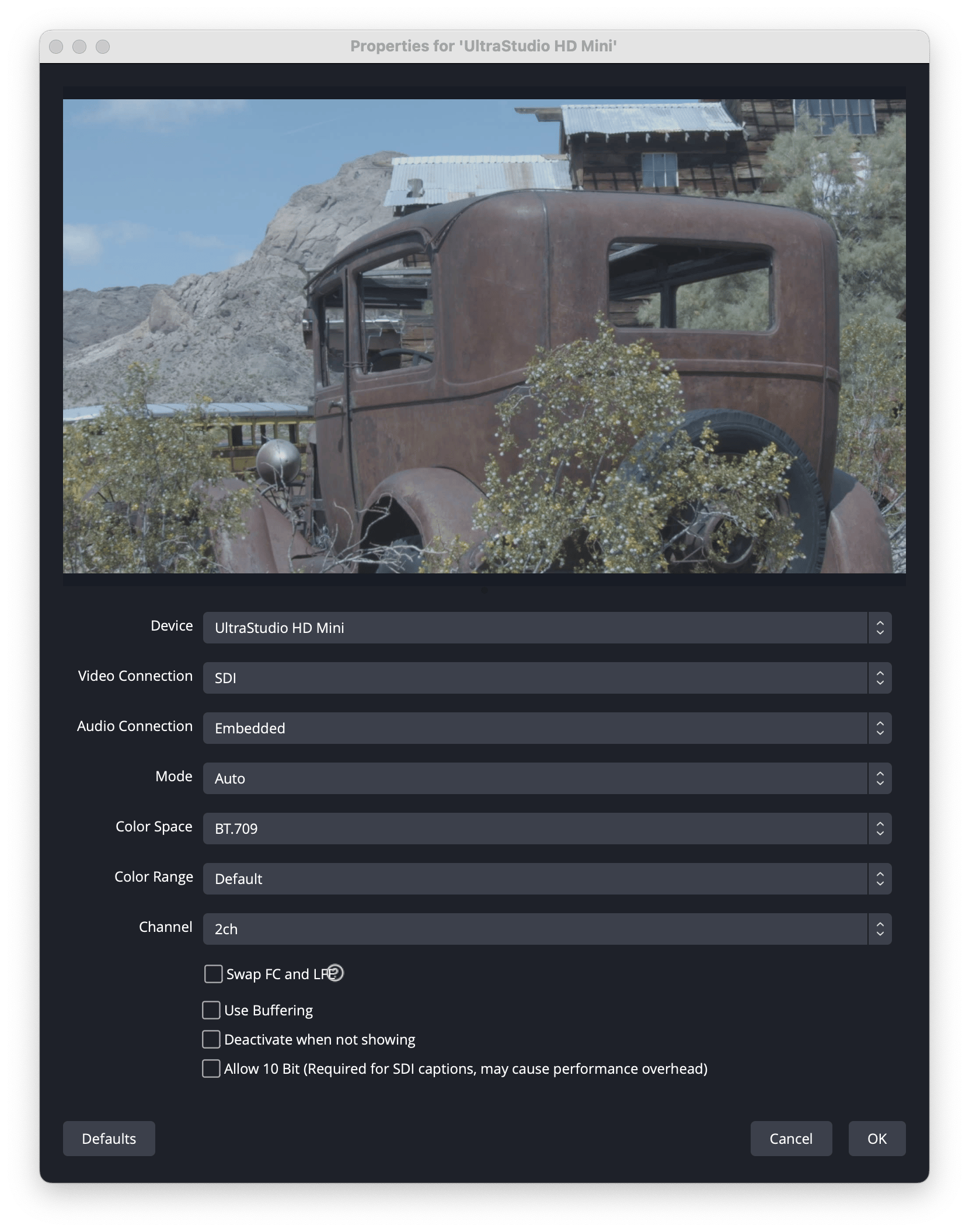
 Double click the source, set it up as shown and save.
 Add your connection details in OBS and go live.