> ## Documentation Index
> Fetch the complete documentation index at: https://docs.dfine.app/llms.txt
> Use this file to discover all available pages before exploring further.
# See colour correctly
> Set up iPhone, iPad, Mac and your room so you see colour in the stream the way it was graded.
To see the picture the way it was graded, your screen has to show it neutrally. iPhone, iPad and Mac adjust colour and brightness on their own out of the box: True Tone shifts the colour temperature to match the room light, Night Shift warms the picture, and auto-brightness keeps adjusting. That is pleasant for everyday use. In a colour review it means you see a different picture than we do.
You change this once, in a few minutes. After the review you can turn everything back on.
Turn off everything that adjusts colour or brightness automatically while you review.
## Set up your device
The numbers in the pictures match the steps below them.
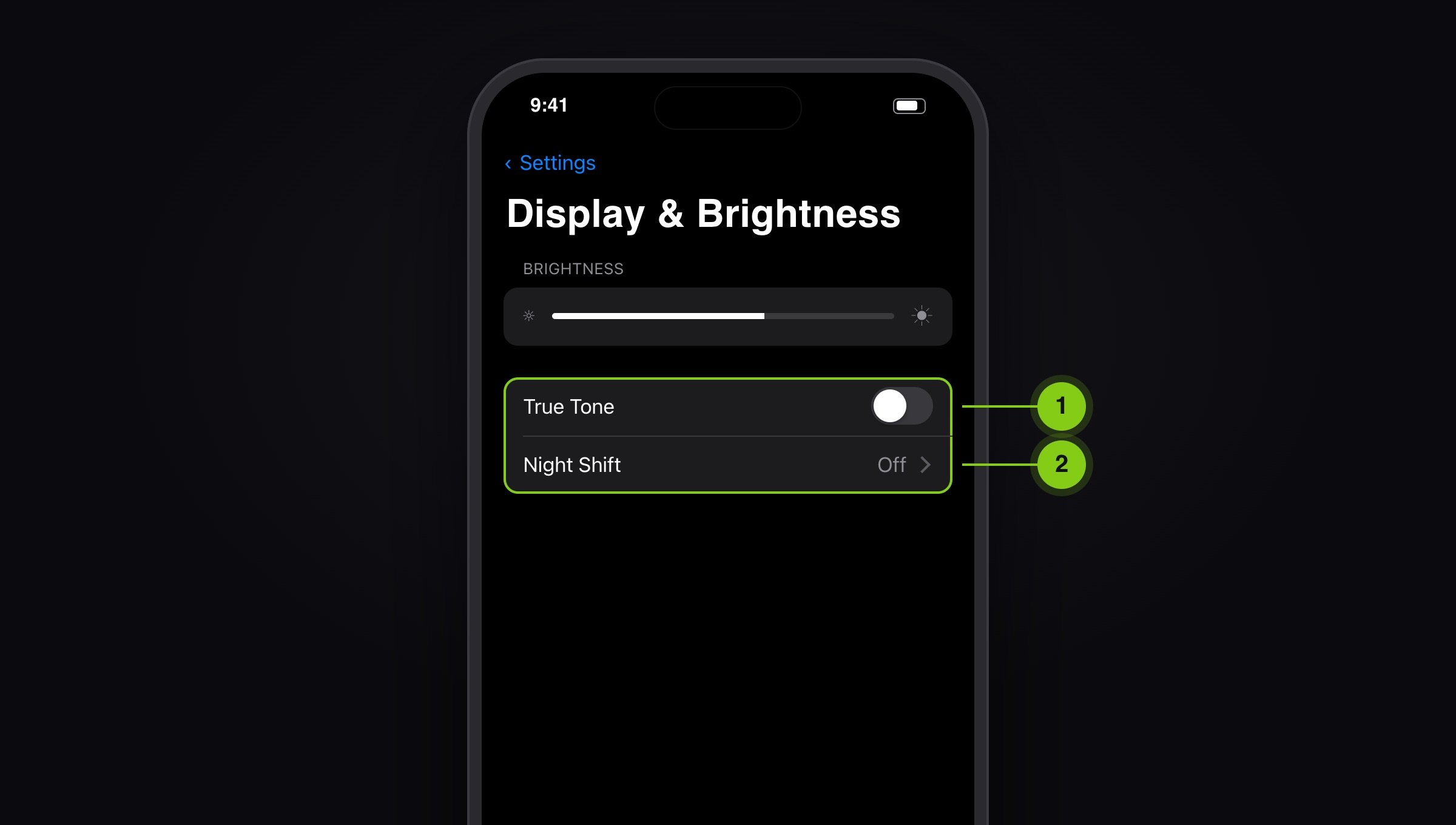
Open **Settings › Display & Brightness**. Turn off **True Tone** (1). Tap **Night Shift** and turn off **Scheduled** there (2). Set a comfortable brightness and leave it there for the whole review.
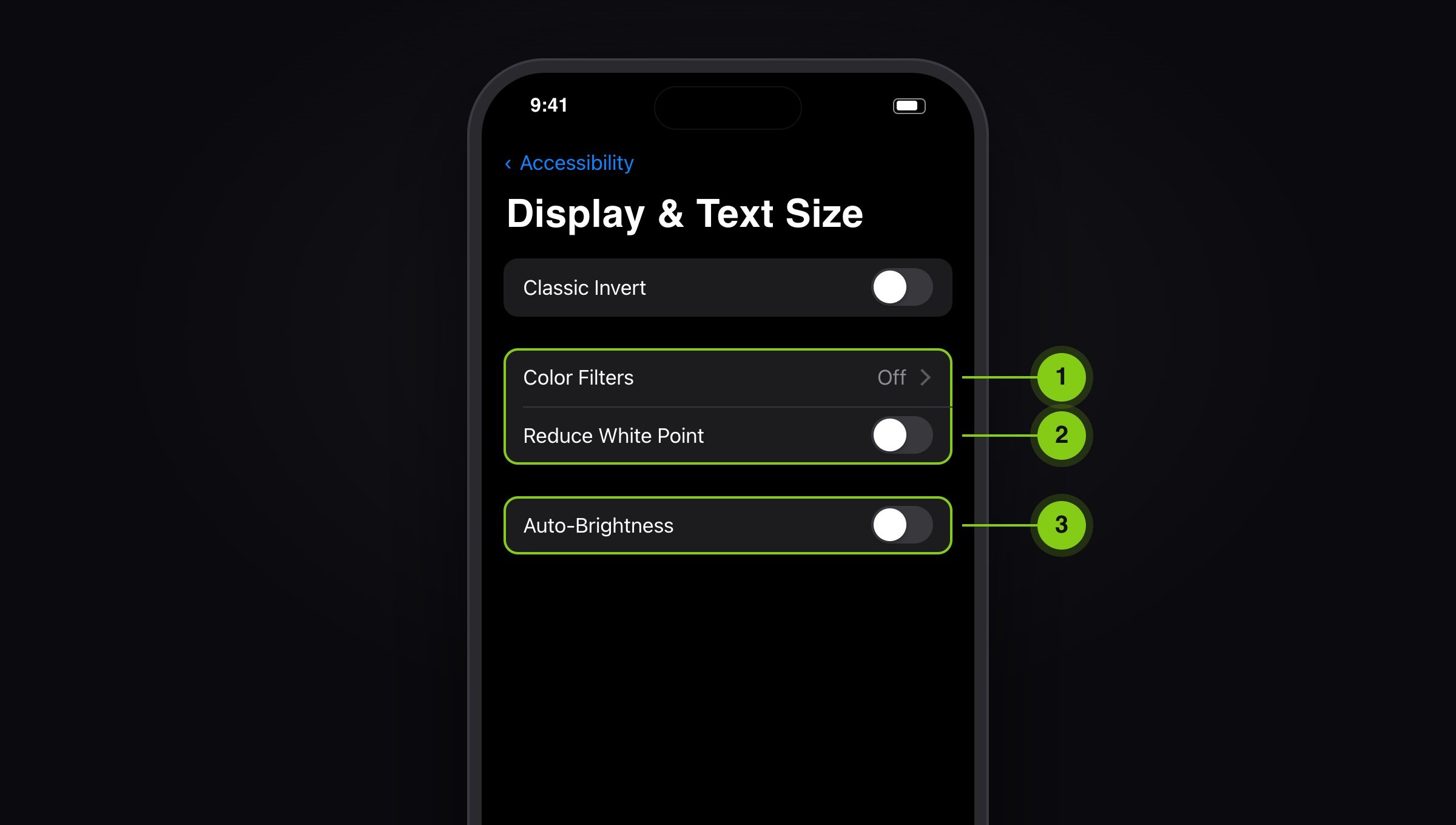
 Open **Settings › Accessibility › Display & Text Size**. Check that **Color Filters** are off (1) and **Reduce White Point** is off (2). Turn off **Auto-Brightness** (3).
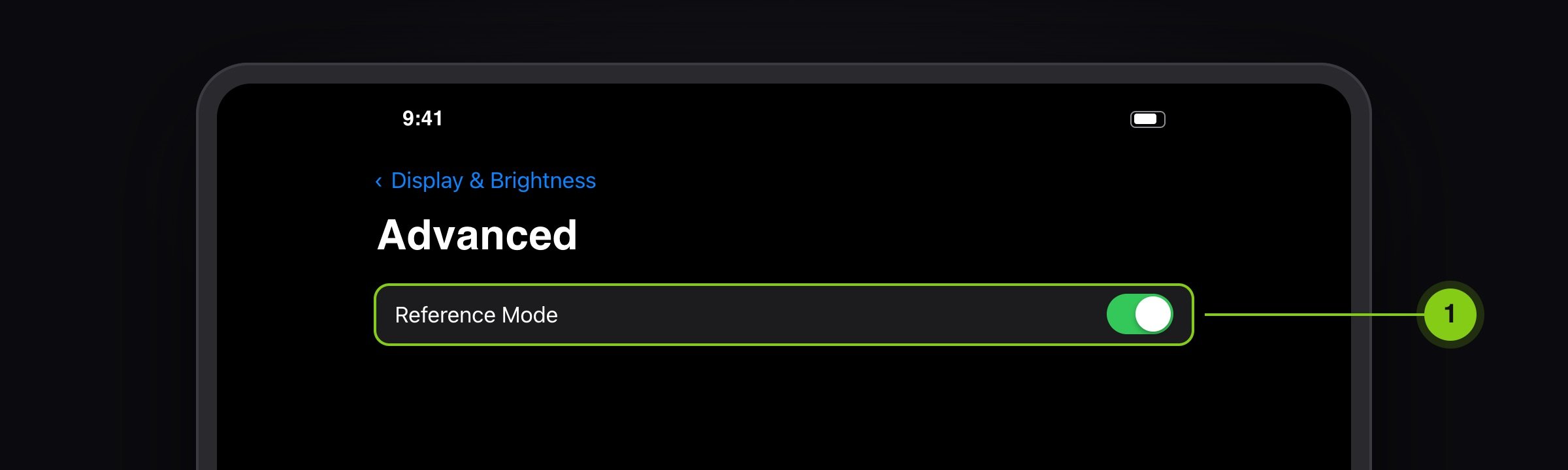
 The iPad Pro with M4 and the 12.9-inch iPad Pro (5th and 6th generation) have a Reference Mode. Open **Settings › Display & Brightness › Advanced** and turn on **Reference Mode** (1). It targets a D65 white point and turns off True Tone, Night Shift and auto-brightness for you.
 Turn on **Do Not Disturb** so no notifications land on the picture, and plug the device in. Low Power Mode dims the display.
Open **System Settings › Displays**.
Turn on **Do Not Disturb** so no notifications land on the picture, and plug the device in. Low Power Mode dims the display.
Open **System Settings › Displays**.
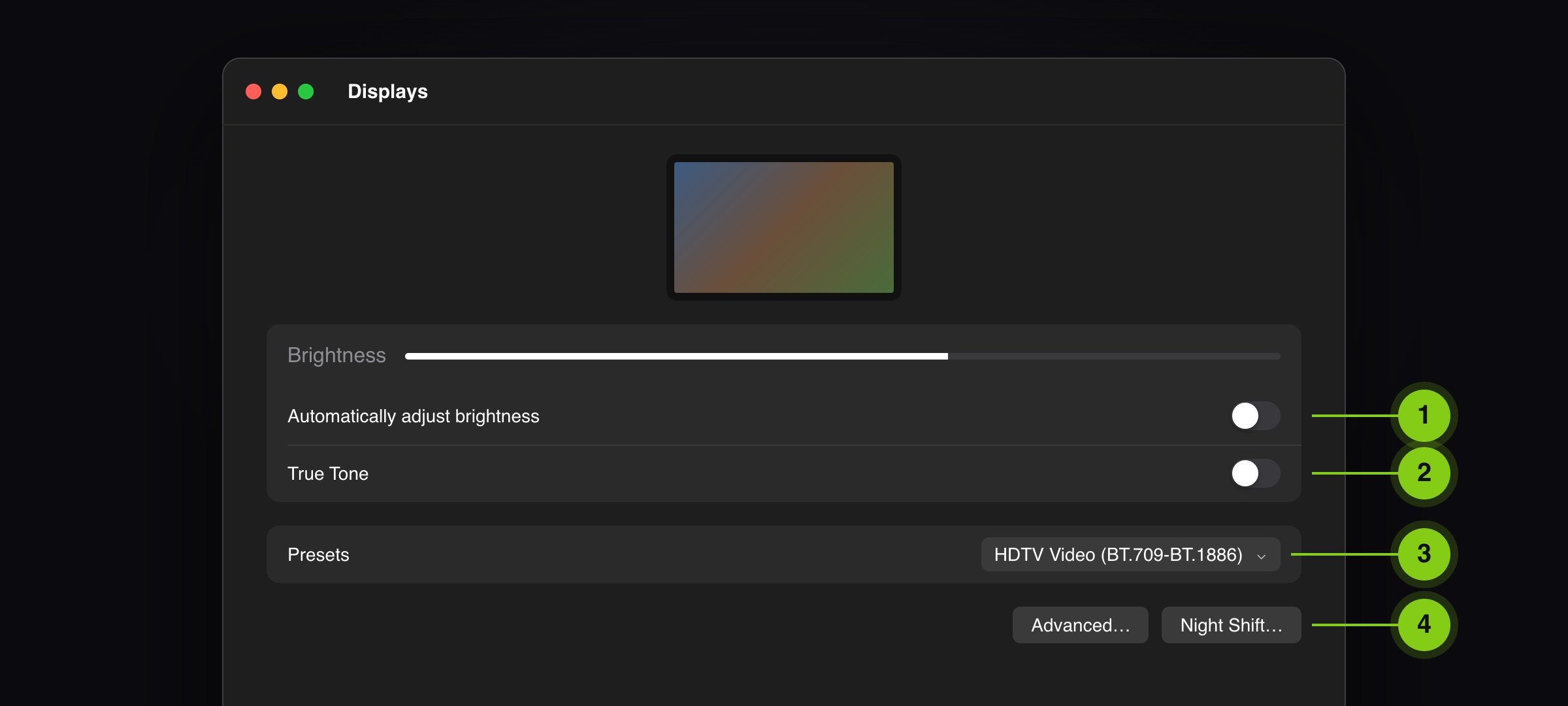 Turn off **Automatically adjust brightness** (1) and **True Tone** (2).
A MacBook Pro with a Liquid Retina XDR display and the Pro Display XDR have reference modes under **Presets** (3). For Rec. 709 video, choose **HDTV Video (BT.709-BT.1886)**. On other Macs, keep the display's built-in colour profile.
Click **Night Shift…** (4) and set the schedule to **Off**.
Give the display 10 to 15 minutes after you switch it on before you judge colour.
A dark, neutral desktop picture helps, and so do **Do Not Disturb** and watching in full screen. Then grey surrounds the picture instead of colourful windows.
## Set up your room
Your eyes keep adapting to what surrounds them. A colourful wall, warm lamp light or a bright window is enough to make colours look different.
Turn off **Automatically adjust brightness** (1) and **True Tone** (2).
A MacBook Pro with a Liquid Retina XDR display and the Pro Display XDR have reference modes under **Presets** (3). For Rec. 709 video, choose **HDTV Video (BT.709-BT.1886)**. On other Macs, keep the display's built-in colour profile.
Click **Night Shift…** (4) and set the schedule to **Off**.
Give the display 10 to 15 minutes after you switch it on before you judge colour.
A dark, neutral desktop picture helps, and so do **Do Not Disturb** and watching in full screen. Then grey surrounds the picture instead of colourful windows.
## Set up your room
Your eyes keep adapting to what surrounds them. A colourful wall, warm lamp light or a bright window is enough to make colours look different.
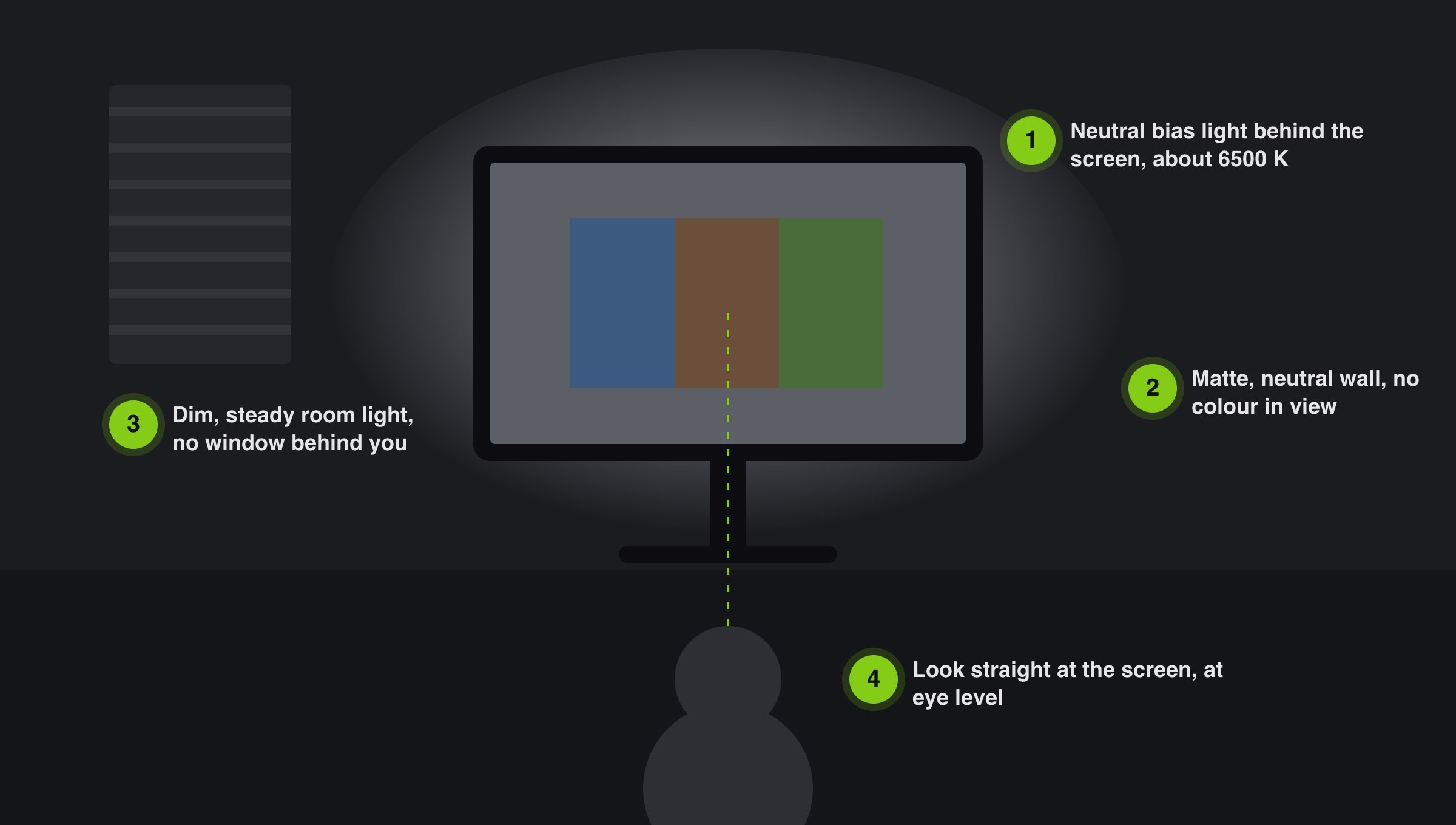 1. A neutral white bias light behind the screen, about 6500 K (D65), rests your eyes and keeps your sense of colour steady.
2. Keep your field of view neutral: matte grey or white surfaces, no strong colours on walls or clothing, no reflections.
3. Keep the light dim and steady. Direct sun or a window behind you changes over the day.
4. Look straight at the display, at eye level. On iPhone and iPad, colours shift as soon as you look at the screen at a slight angle.
## Quick check before every review
* True Tone off, on iPhone, iPad and Mac
* Night Shift off, including its schedule
* Auto-brightness off, brightness steady
* Color Filters and Reduce White Point off (iPhone and iPad)
* iPad Pro in Reference Mode, Mac with XDR display on a reference preset
* Do Not Disturb on, device plugged in
* Picture in full screen
* Room dim and neutral, looking straight at the screen
To print or forward to everyone who reviews with you.
This documentation is built and hosted on [Mintlify](https://mintlify.com), a developer documentation platform.
1. A neutral white bias light behind the screen, about 6500 K (D65), rests your eyes and keeps your sense of colour steady.
2. Keep your field of view neutral: matte grey or white surfaces, no strong colours on walls or clothing, no reflections.
3. Keep the light dim and steady. Direct sun or a window behind you changes over the day.
4. Look straight at the display, at eye level. On iPhone and iPad, colours shift as soon as you look at the screen at a slight angle.
## Quick check before every review
* True Tone off, on iPhone, iPad and Mac
* Night Shift off, including its schedule
* Auto-brightness off, brightness steady
* Color Filters and Reduce White Point off (iPhone and iPad)
* iPad Pro in Reference Mode, Mac with XDR display on a reference preset
* Do Not Disturb on, device plugged in
* Picture in full screen
* Room dim and neutral, looking straight at the screen
To print or forward to everyone who reviews with you.
This documentation is built and hosted on [Mintlify](https://mintlify.com), a developer documentation platform.