> ## Documentation Index
> Fetch the complete documentation index at: https://docs.dfine.app/llms.txt
> Use this file to discover all available pages before exploring further.
# Where do I find the stream key?
> The stream key links your signal to the right stream slot. Copy it from the slot's Ingest tab.
The stream key links your live signal to the right stream slot. Together with the RTMPS server address it is all your encoder needs to go live.
Go to **My Projects** and open the project you want to stream to.
A project holds one or more stream slots, and each slot has its own key. Open a slot, or create one with **New stream slot**.
In the slot, open the **Ingest** tab. You see the RTMPS server and the stream key, each with its own copy button. Paste both into your encoder.
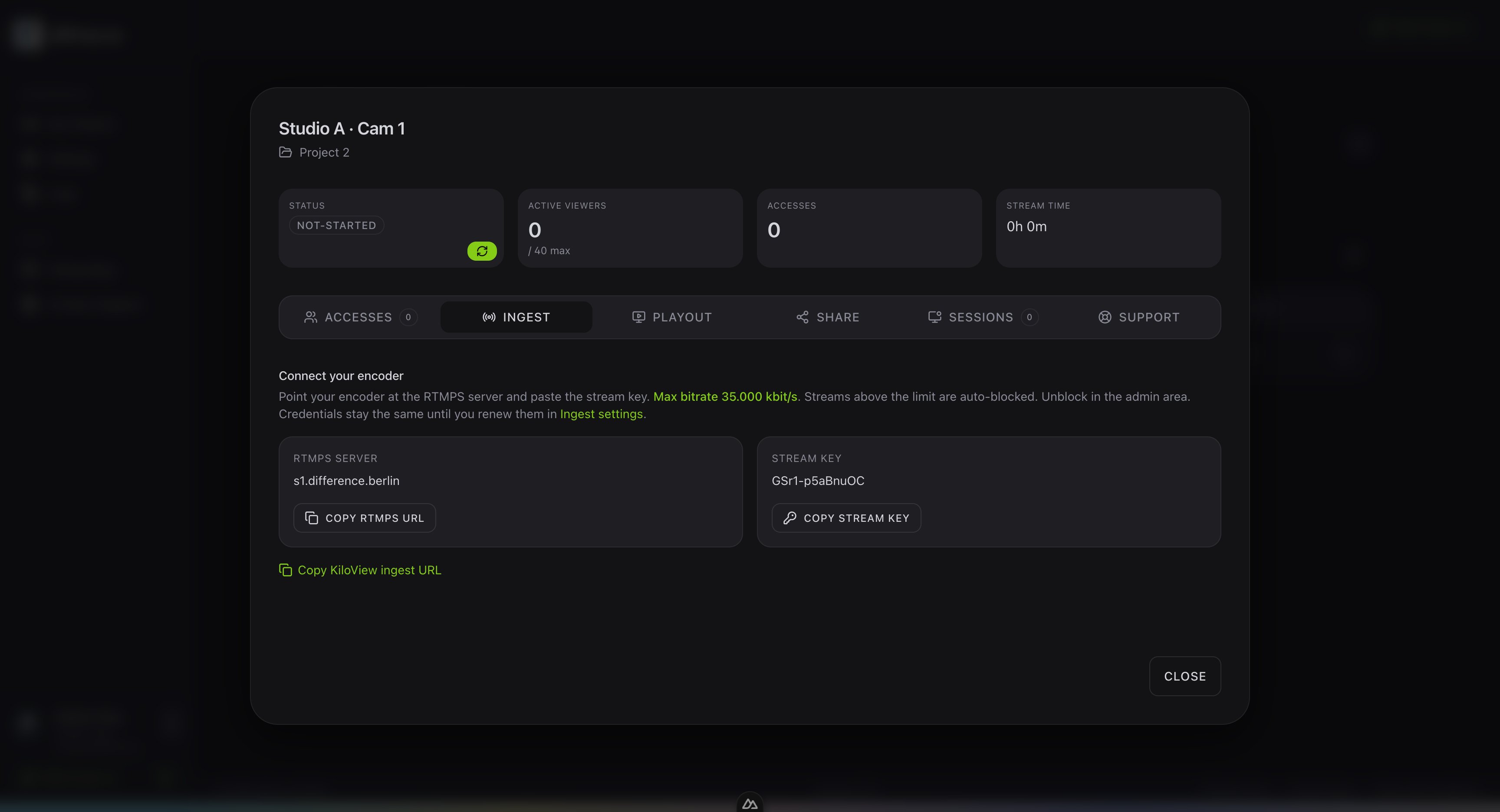 Treat the stream key like a password. Anyone who has it can publish to your slot. Your credentials stay the same until you renew them in the ingest settings.
More on where your encoder sends the signal.
Treat the stream key like a password. Anyone who has it can publish to your slot. Your credentials stay the same until you renew them in the ingest settings.
More on where your encoder sends the signal.