> ## Documentation Index
> Fetch the complete documentation index at: https://docs.dfine.app/llms.txt
> Use this file to discover all available pages before exploring further.
# OBS settings (RTMPS)
> Enter your ingest URL and stream key in OBS and go live over RTMPS.
This guide shows how to enter your ingest URL and stream key in OBS and stream over RTMPS. Install the [OBS profile](/en/profile-installation) first.
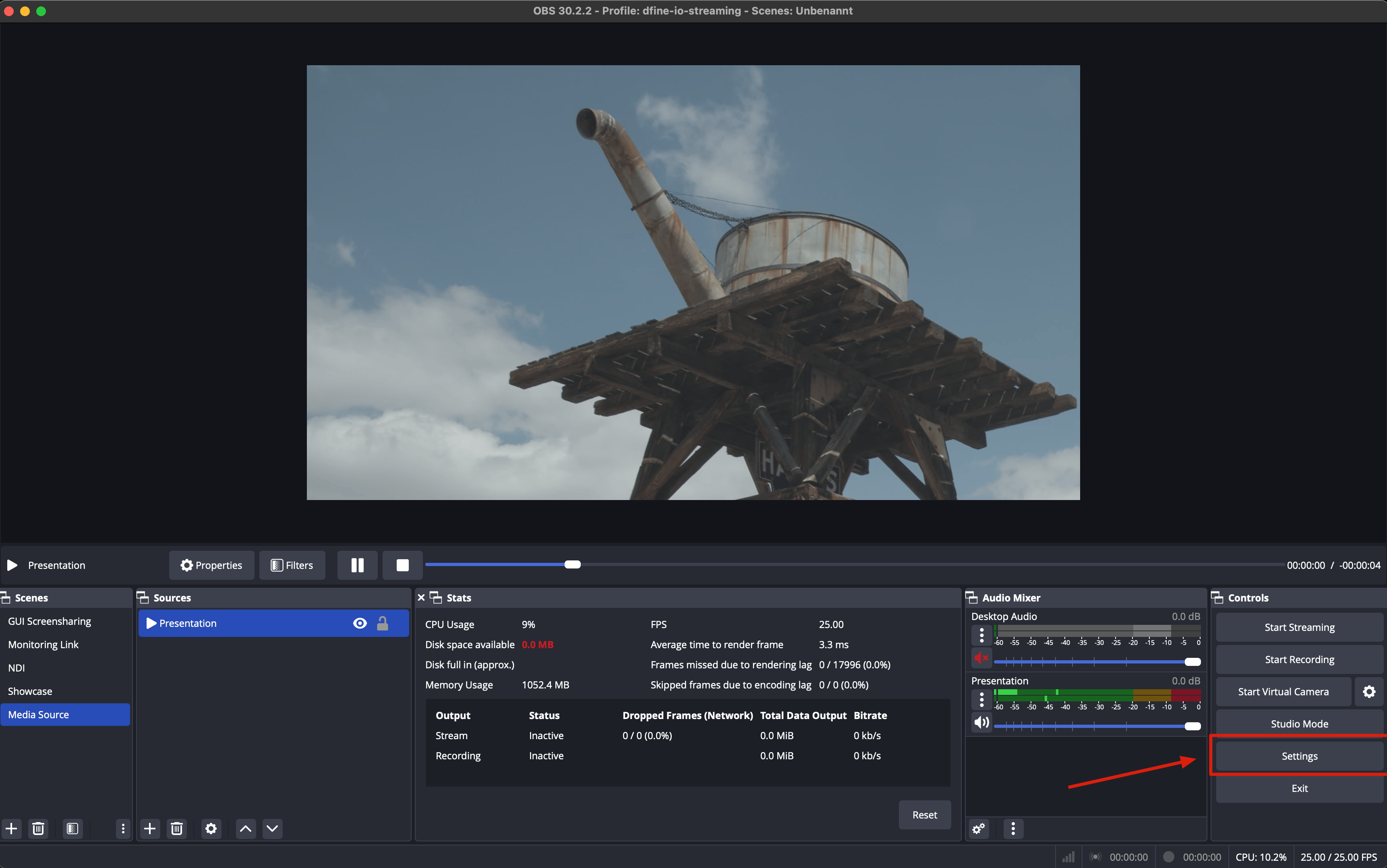
Open the **Settings** menu in OBS.
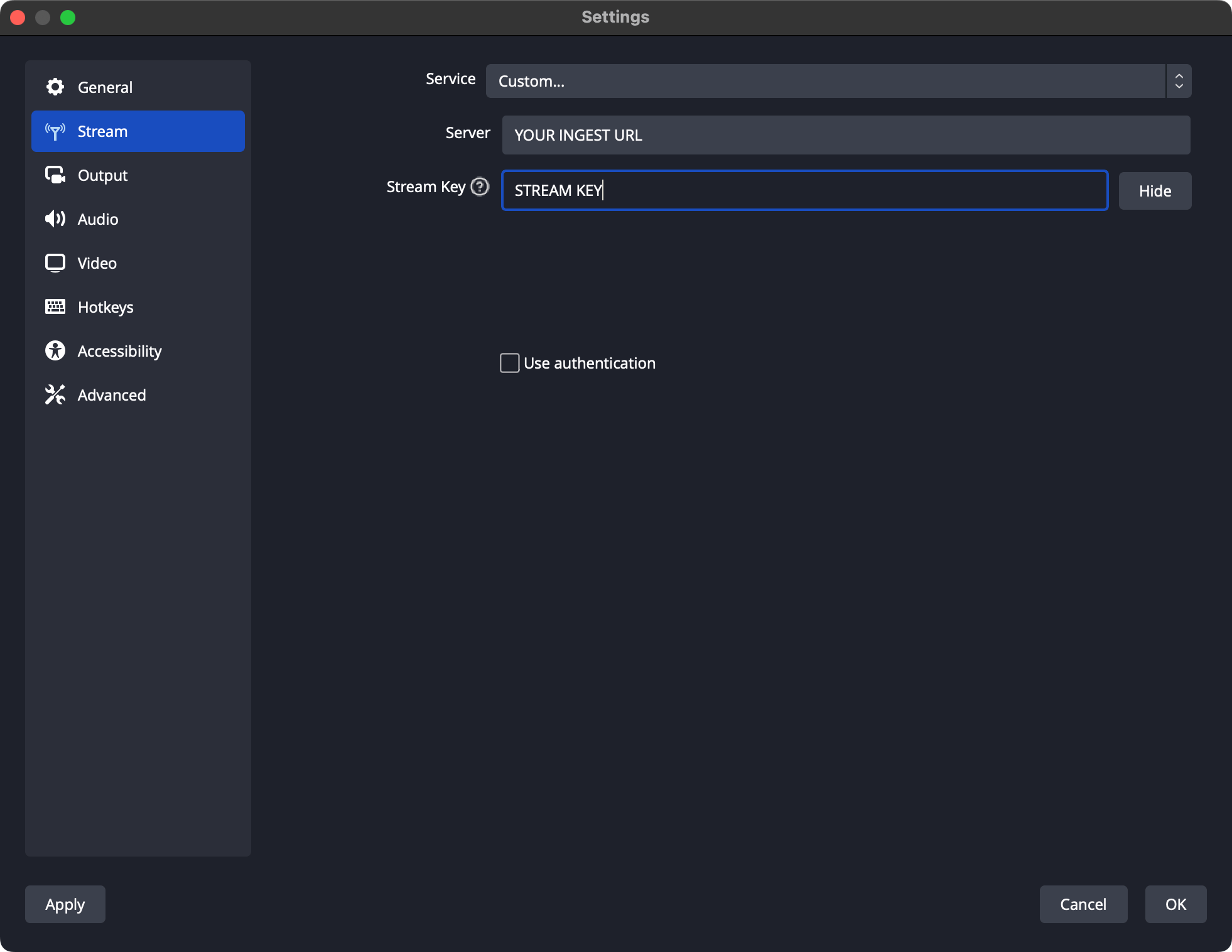
 Open the **Stream** pane, then enter your ingest URL in the **Server** field and your stream key in the **Stream Key** field.
 Can't find them? See [Find your ingest URL](/en/where-do-i-find-the-ingest-server-url) and [Find your stream key](/en/where-do-i-find-the-stream-key).
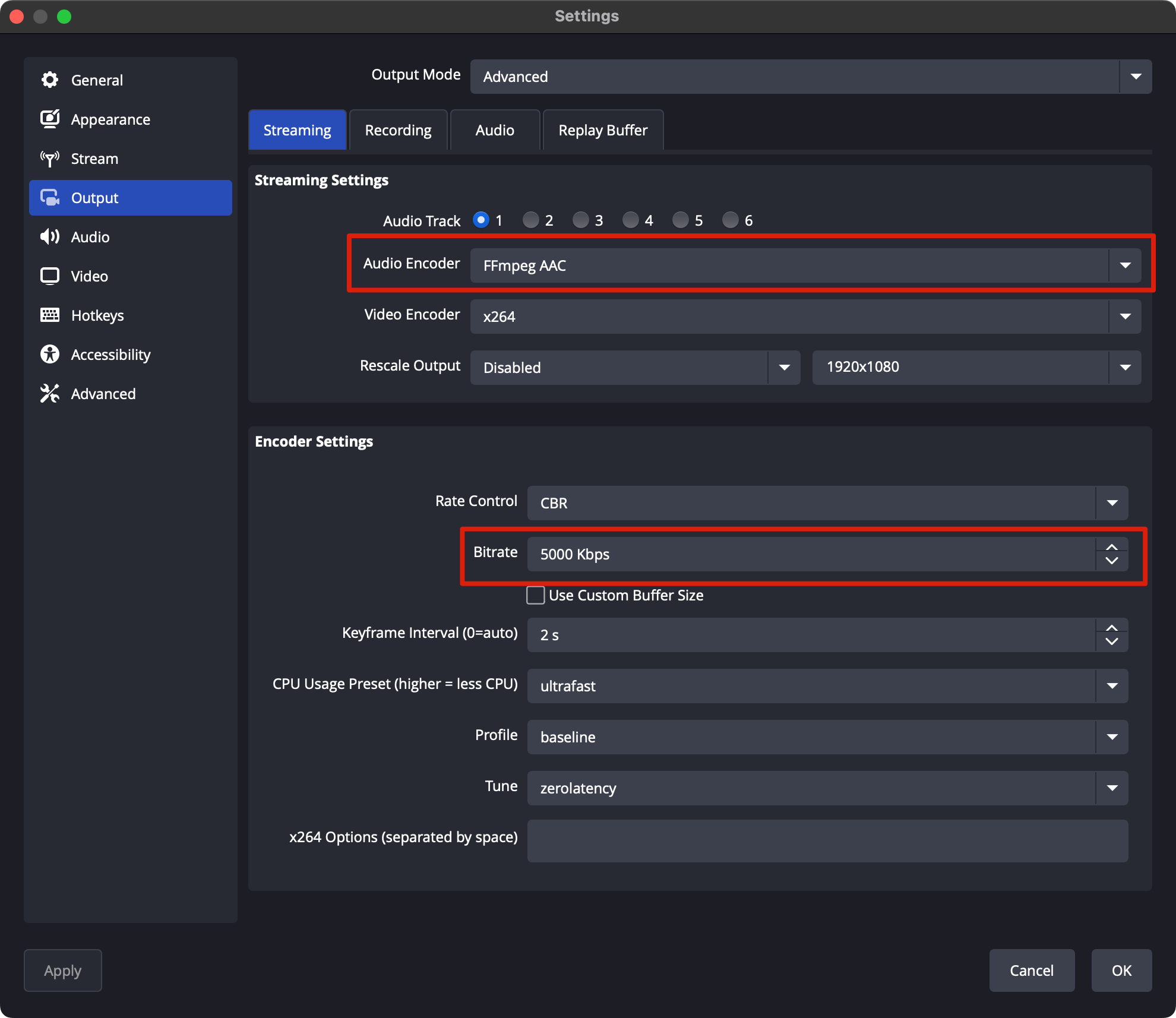
In **Settings → Output**, stream with at least **3,500 kbps** for good quality (subject to your plan). If available, use **FFmpeg AAC** as the audio encoder instead of CoreAudio AAC.
Can't find them? See [Find your ingest URL](/en/where-do-i-find-the-ingest-server-url) and [Find your stream key](/en/where-do-i-find-the-stream-key).
In **Settings → Output**, stream with at least **3,500 kbps** for good quality (subject to your plan). If available, use **FFmpeg AAC** as the audio encoder instead of CoreAudio AAC.
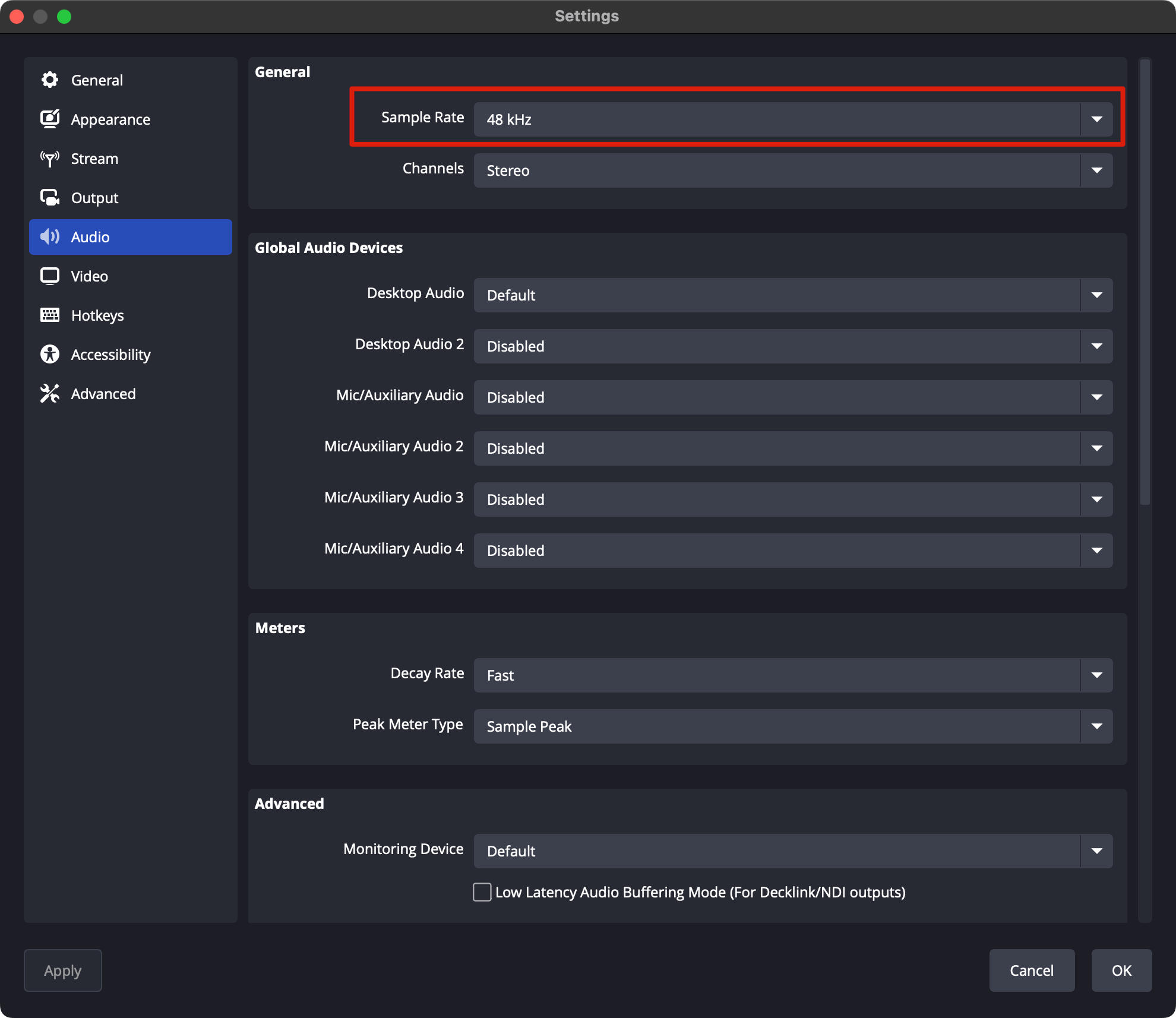
 In the **Audio** pane, use a **48 kHz** sample rate.
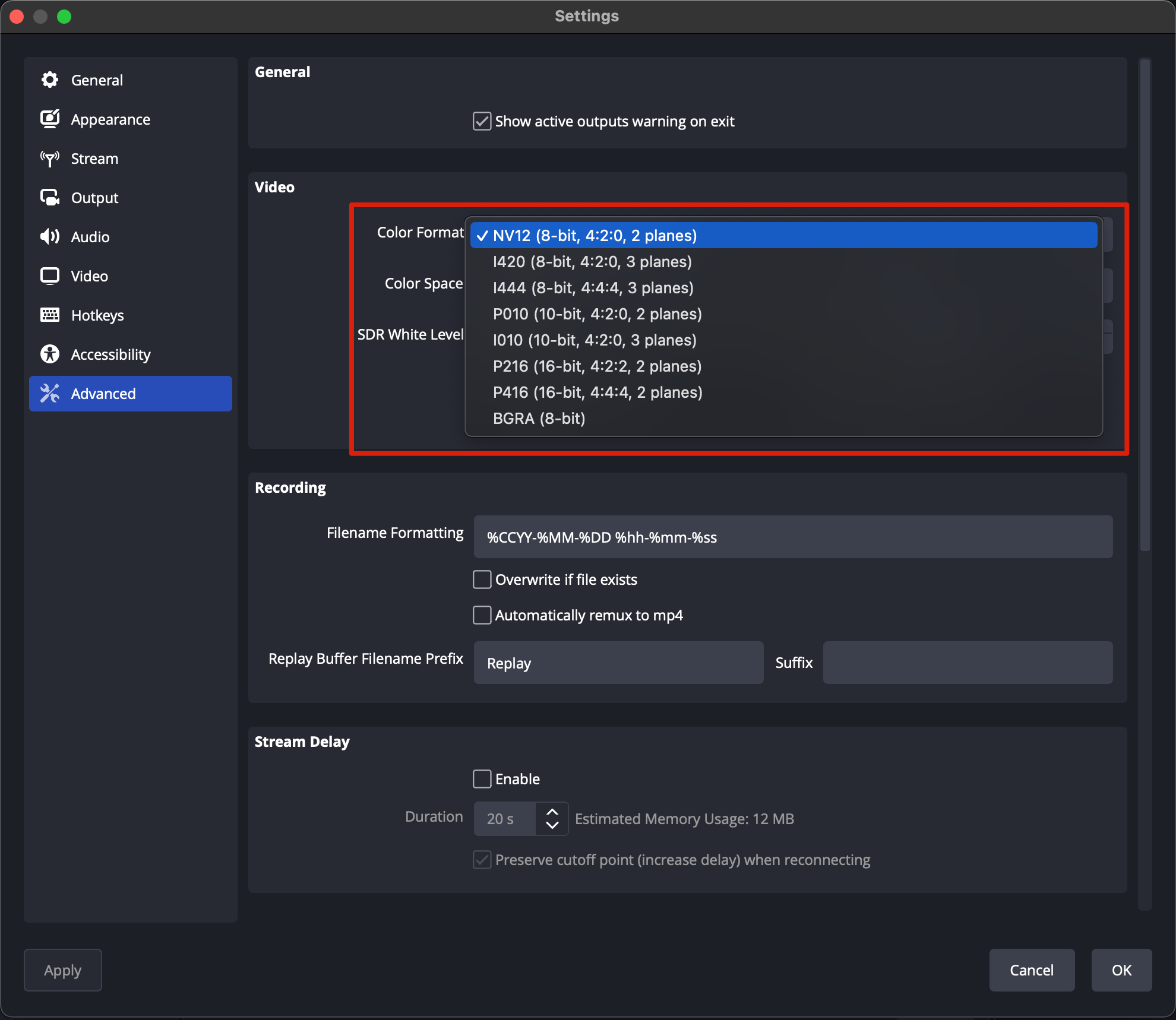
 In the **Advanced** pane, pick a color format. We use the H.264 codec, so the stream is 8 bit, supported up to 4:4:4 (I444, 3 planes).
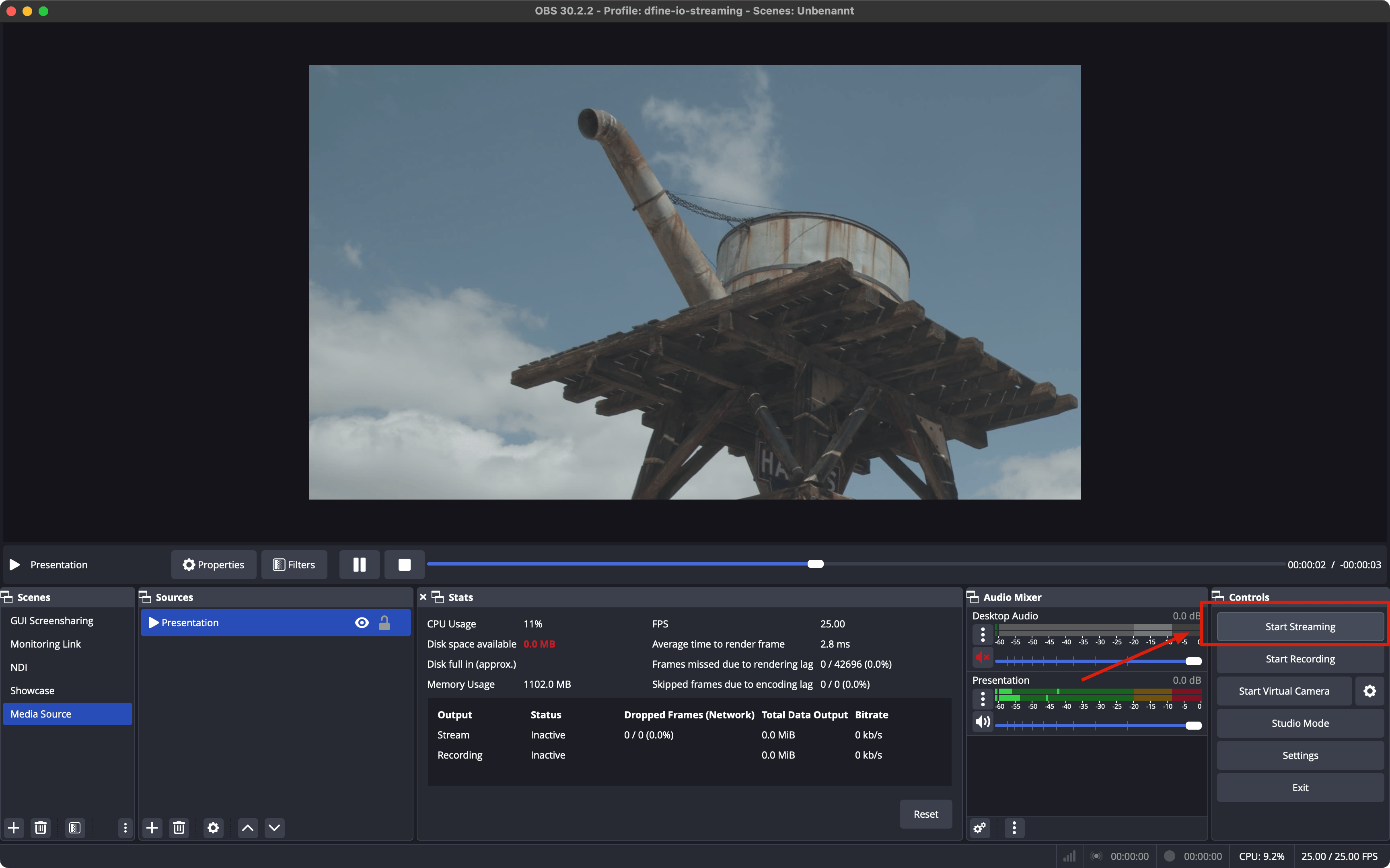
 Click **OK**, then **Start Streaming**.
 For the best quality, match your OBS video settings to your source's resolution and frame rate. See [Quality of stream](/en/quality-of-stream).