> ## Documentation Index
> Fetch the complete documentation index at: https://docs.dfine.app/llms.txt
> Use this file to discover all available pages before exploring further.
# Camera and microphone
> Mute yourself in a live session, turn the camera on and off, pick another device and let the sound through.
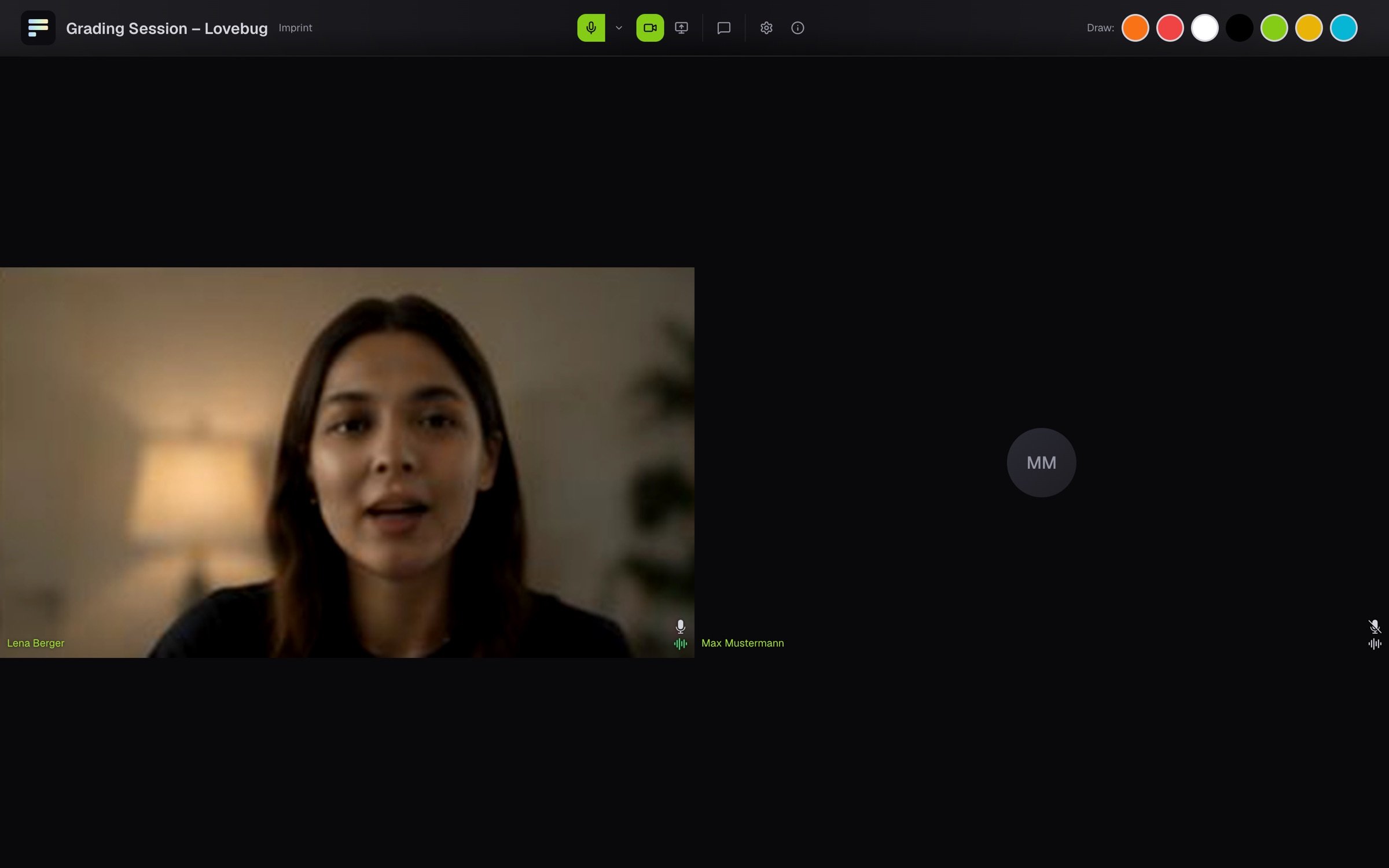
The microphone and camera switches sit in the bar at the top of the room. A crossed-out icon means off. What you switch there applies to everyone in the room.
 ## Mute yourself
Click the microphone icon. It is crossed out, and the others no longer hear you. A second click makes you heard again.
## Turn the camera on and off
Click the camera icon. When it is crossed out, the others no longer see your picture.
## Pick another device
If you have more than one camera or microphone connected, a small arrow sits next to the icon. Use it to pick the device your browser should use, for example a headset instead of the built-in microphone.
## If you hear nothing
If your browser blocks the sound, **Sound is off** appears at the top. Click **Turn on sound**.
## More settings
Click the gear (**Meeting settings**) and open **Audio / Video**:
* **Background Blur** softens the room behind you.
* **Noise Cancellation** keeps keyboard and room noise out of your microphone.
* **Viewing Mode** turns this device into a watch-only seat, without sound or camera pictures from the room.
Both filters only appear when your browser supports them. You change your name in the same menu under **Change Name**.
## Share your screen
**Share screen** shows the others your screen, and **Stop sharing screen** ends it. Safari on iPhone and iPad cannot share a screen, so the button is missing there.
If you see no microphone or camera switches at all, you are in a pure live stream or in **Viewing Mode**. See [Join a live session](/en/review/viewers/join).
This documentation is built and hosted on [Mintlify](https://mintlify.com), a developer documentation platform.
## Mute yourself
Click the microphone icon. It is crossed out, and the others no longer hear you. A second click makes you heard again.
## Turn the camera on and off
Click the camera icon. When it is crossed out, the others no longer see your picture.
## Pick another device
If you have more than one camera or microphone connected, a small arrow sits next to the icon. Use it to pick the device your browser should use, for example a headset instead of the built-in microphone.
## If you hear nothing
If your browser blocks the sound, **Sound is off** appears at the top. Click **Turn on sound**.
## More settings
Click the gear (**Meeting settings**) and open **Audio / Video**:
* **Background Blur** softens the room behind you.
* **Noise Cancellation** keeps keyboard and room noise out of your microphone.
* **Viewing Mode** turns this device into a watch-only seat, without sound or camera pictures from the room.
Both filters only appear when your browser supports them. You change your name in the same menu under **Change Name**.
## Share your screen
**Share screen** shows the others your screen, and **Stop sharing screen** ends it. Safari on iPhone and iPad cannot share a screen, so the button is missing there.
If you see no microphone or camera switches at all, you are in a pure live stream or in **Viewing Mode**. See [Join a live session](/en/review/viewers/join).
This documentation is built and hosted on [Mintlify](https://mintlify.com), a developer documentation platform.