> ## Documentation Index
> Fetch the complete documentation index at: https://docs.dfine.app/llms.txt
> Use this file to discover all available pages before exploring further.
# Settings
> Control security, notifications and folder templates.
The settings page is where you manage your account. It has tabs for security, notifications, templates and billing.
## Security
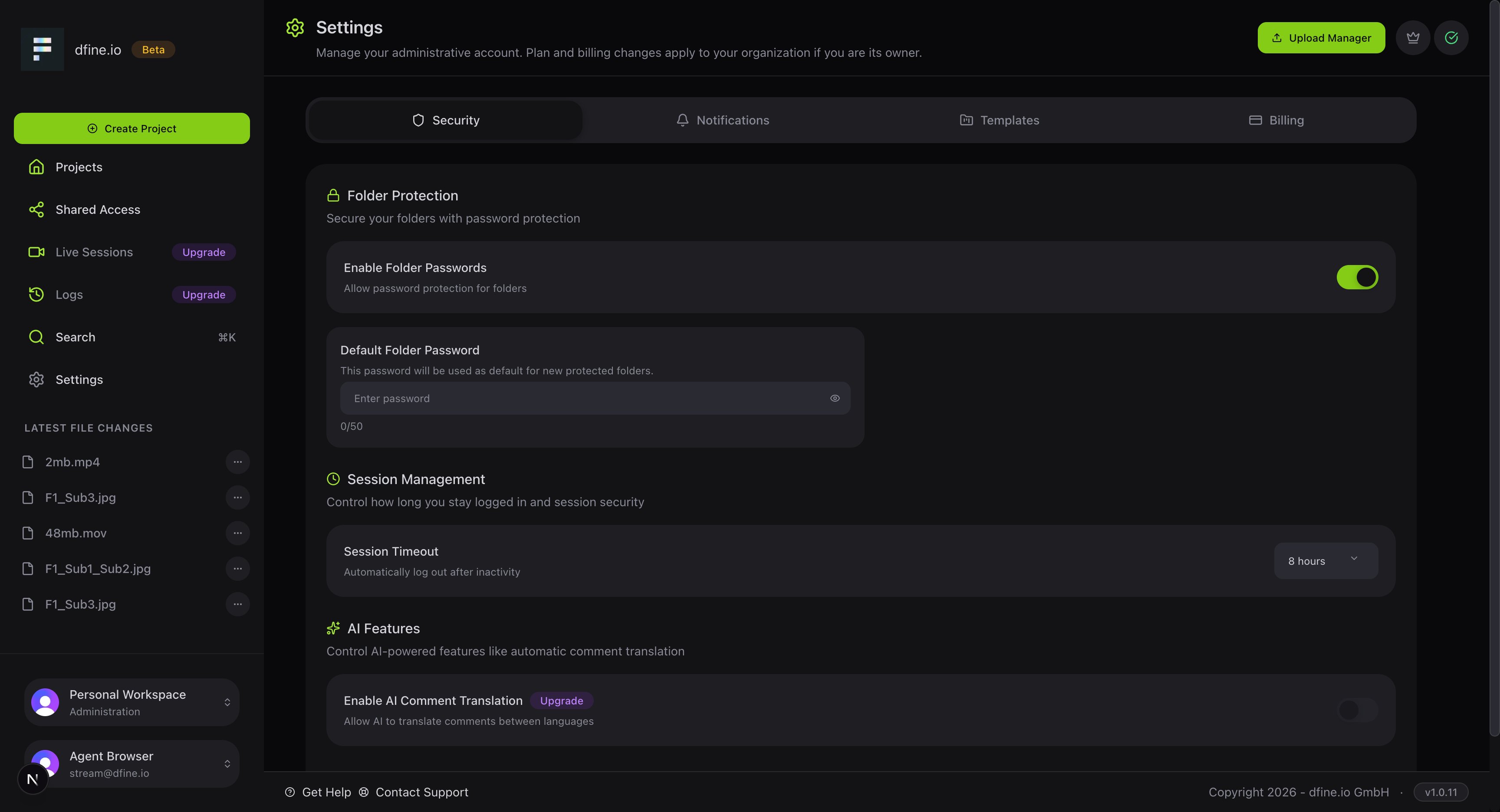
Here you protect your folders with passwords, set a default folder password and choose how long you stay signed in before the session times out. You can also turn on automatic comment translation, so feedback in another language is translated for you.
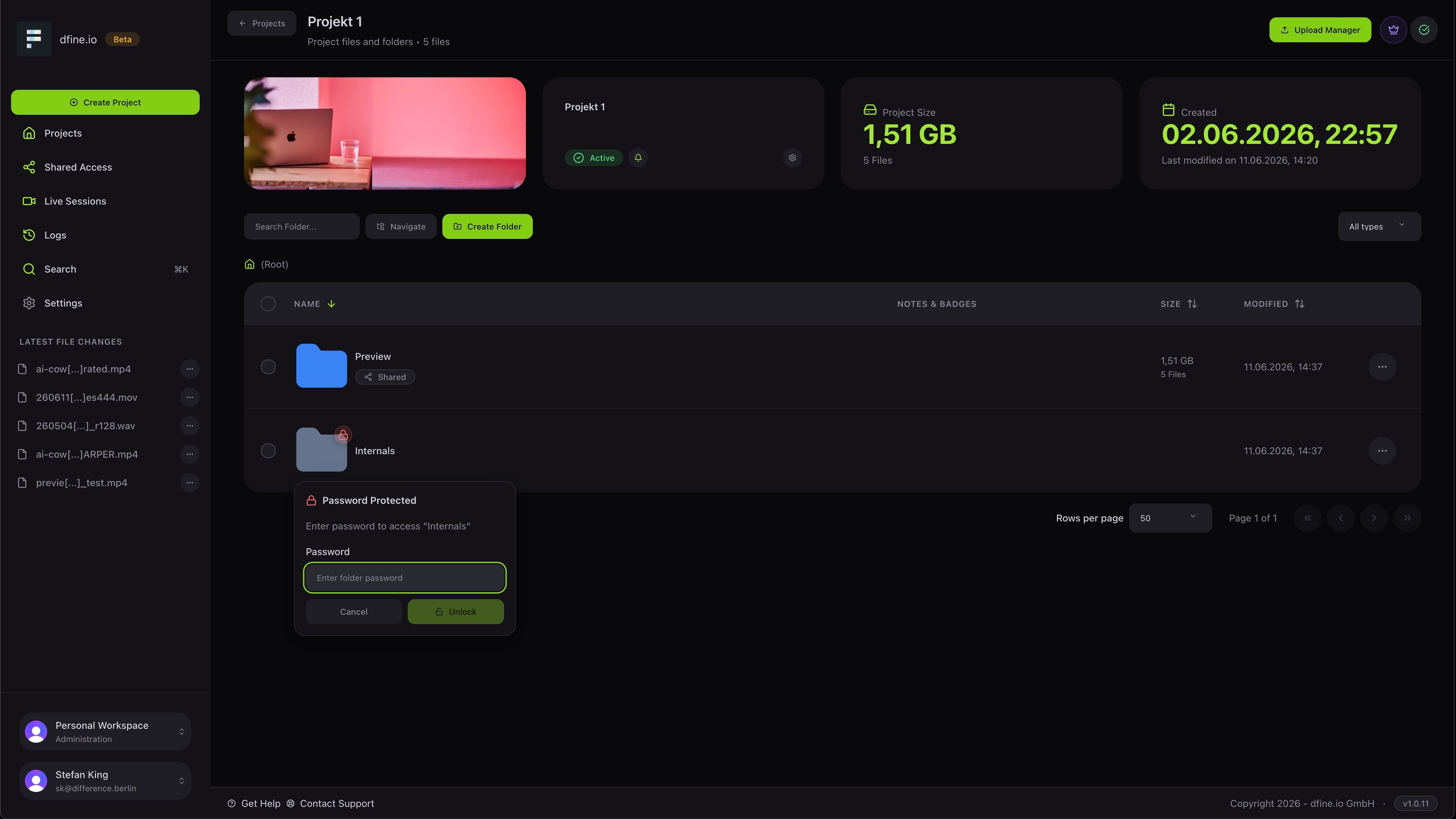
 A protected folder shows a small lock, and anyone who opens it is asked for the password first.
 ## Notifications
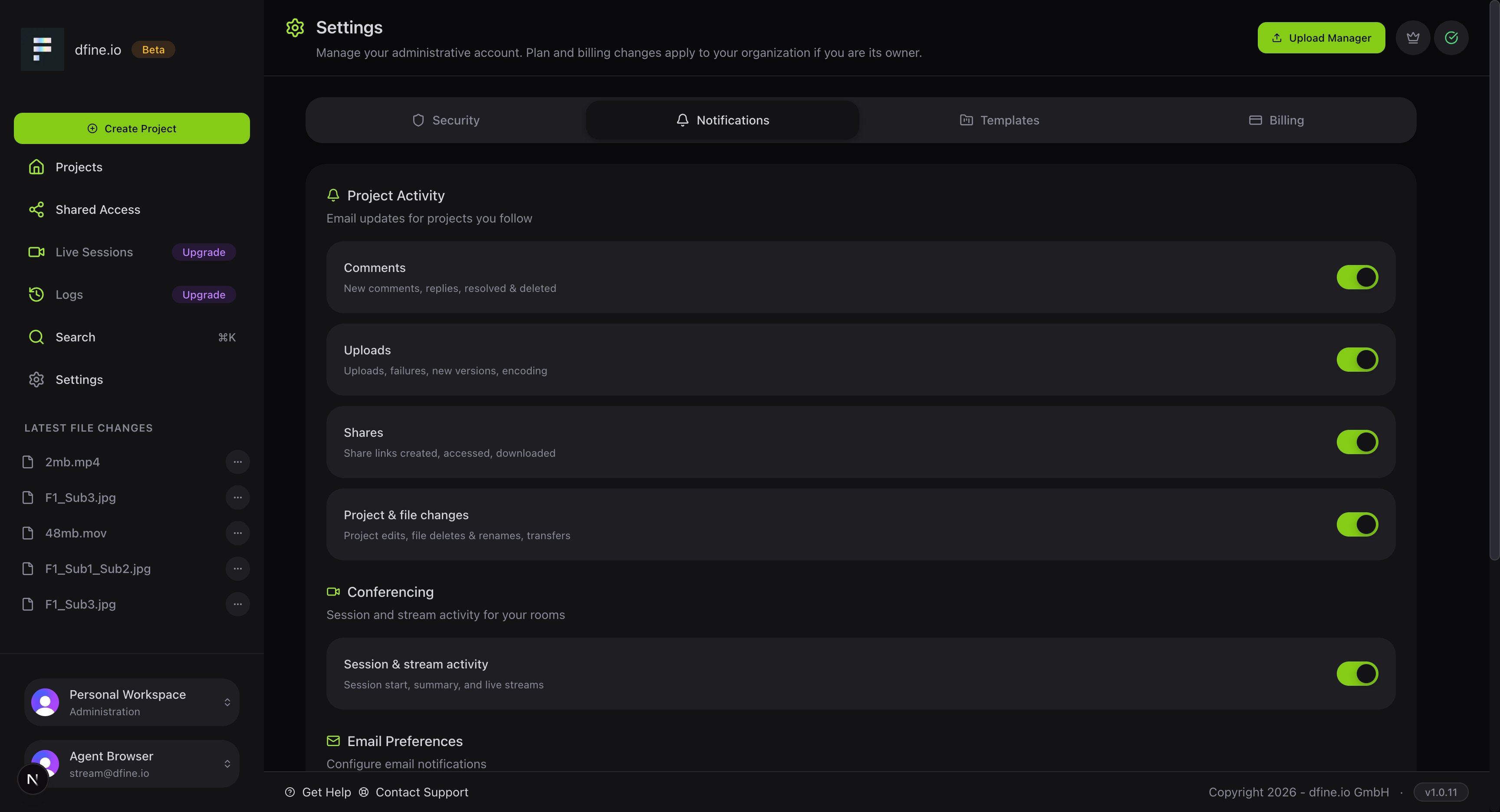
Choose which email updates you want. You can switch notifications on or off for comments, uploads, shares, project changes and live sessions.
## Notifications
Choose which email updates you want. You can switch notifications on or off for comments, uploads, shares, project changes and live sessions.
 ## Templates
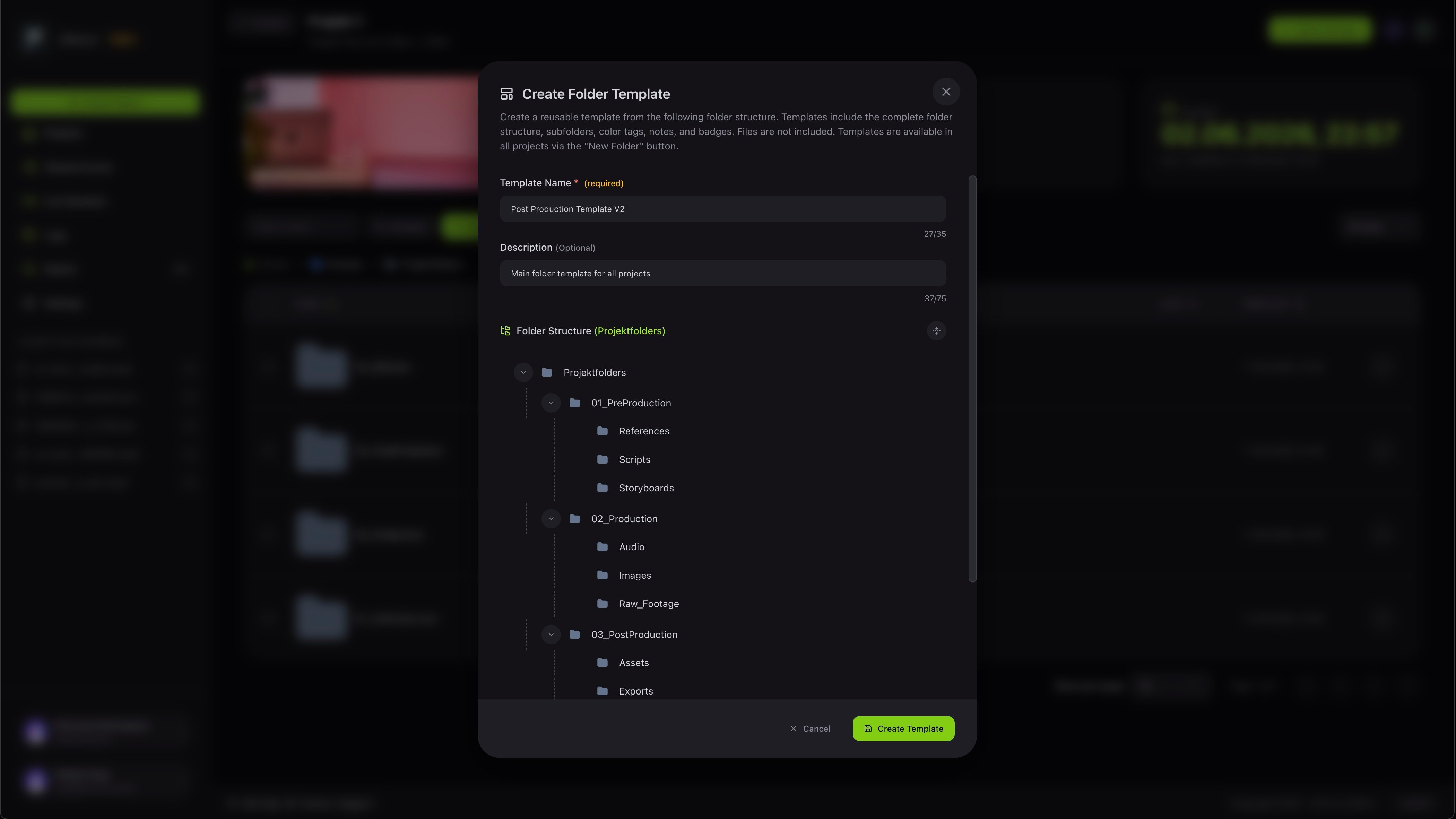
Templates let you save a folder structure and reuse it for new projects, so every project starts the same way. You can build a structure by hand or load one of your saved templates.
## Templates
Templates let you save a folder structure and reuse it for new projects, so every project starts the same way. You can build a structure by hand or load one of your saved templates.
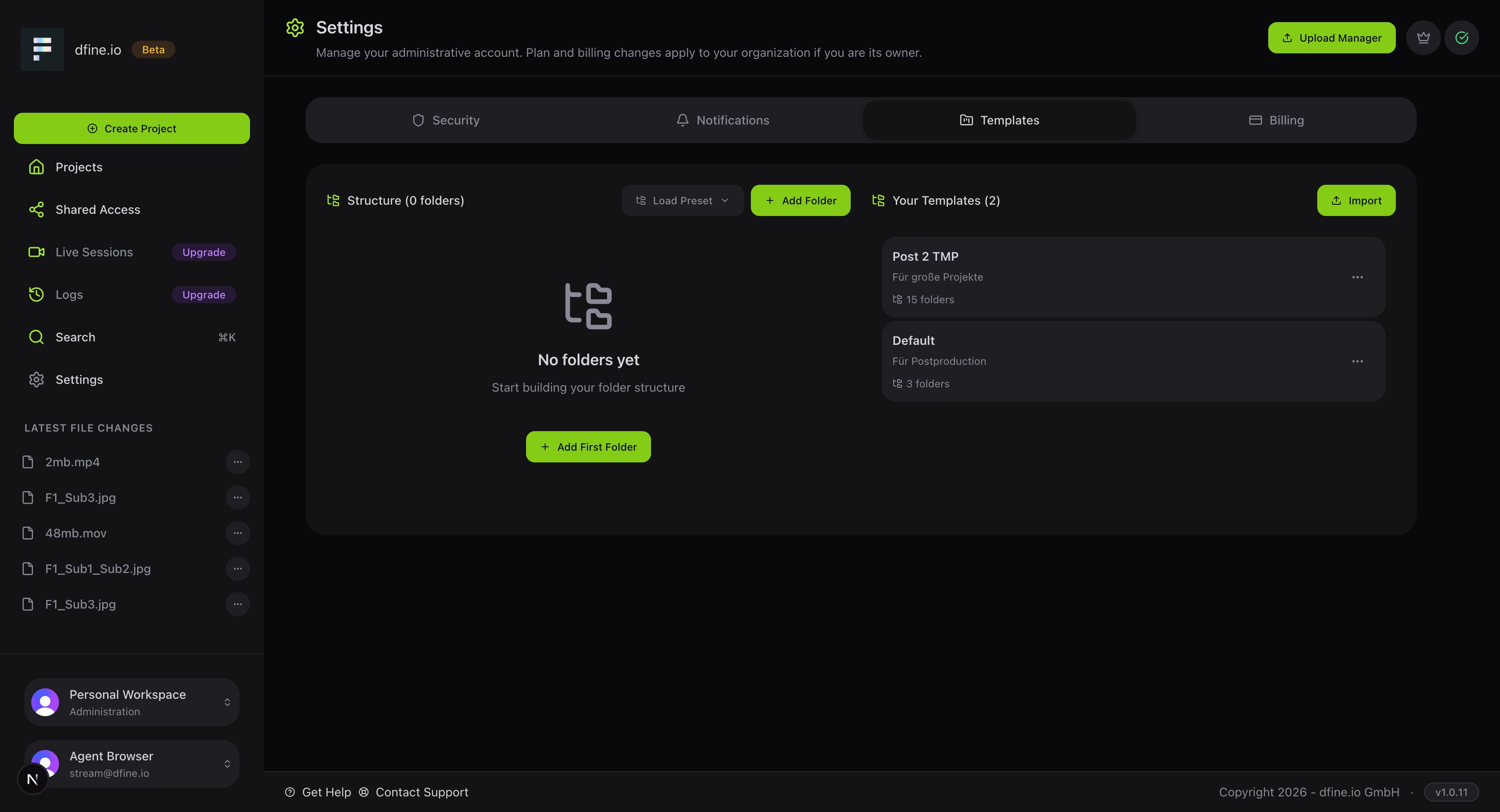 When you save a template, you give it a name and it keeps the whole folder structure, including subfolders, color tags and notes.
 Manage your subscription and storage.