> ## Documentation Index
> Fetch the complete documentation index at: https://docs.dfine.app/llms.txt
> Use this file to discover all available pages before exploring further.
# dfine.io Playout
> Put a Review room on a reference monitor: dfine.io Playout joins the room and sends the source you pick to a Blackmagic DeckLink output over SDI.
dfine.io Playout is the way back out of a Review room. It joins the room like a participant, takes the source you pick, and puts it on a Blackmagic DeckLink card. From there it goes over SDI to your reference monitor, colour-accurate and in sync with the room.
Sending your edit into a room is a different app: [dfine.io Desktop](/en/review/desktop/index).
Apple Silicon and Intel builds, macOS 13 or newer.
Playout needs a **Blackmagic DeckLink** card and the Blackmagic **Desktop Video** driver on the Mac. Without the card you can connect and preview, but **Start Monitoring** has nowhere to send the picture.
## How it is laid out
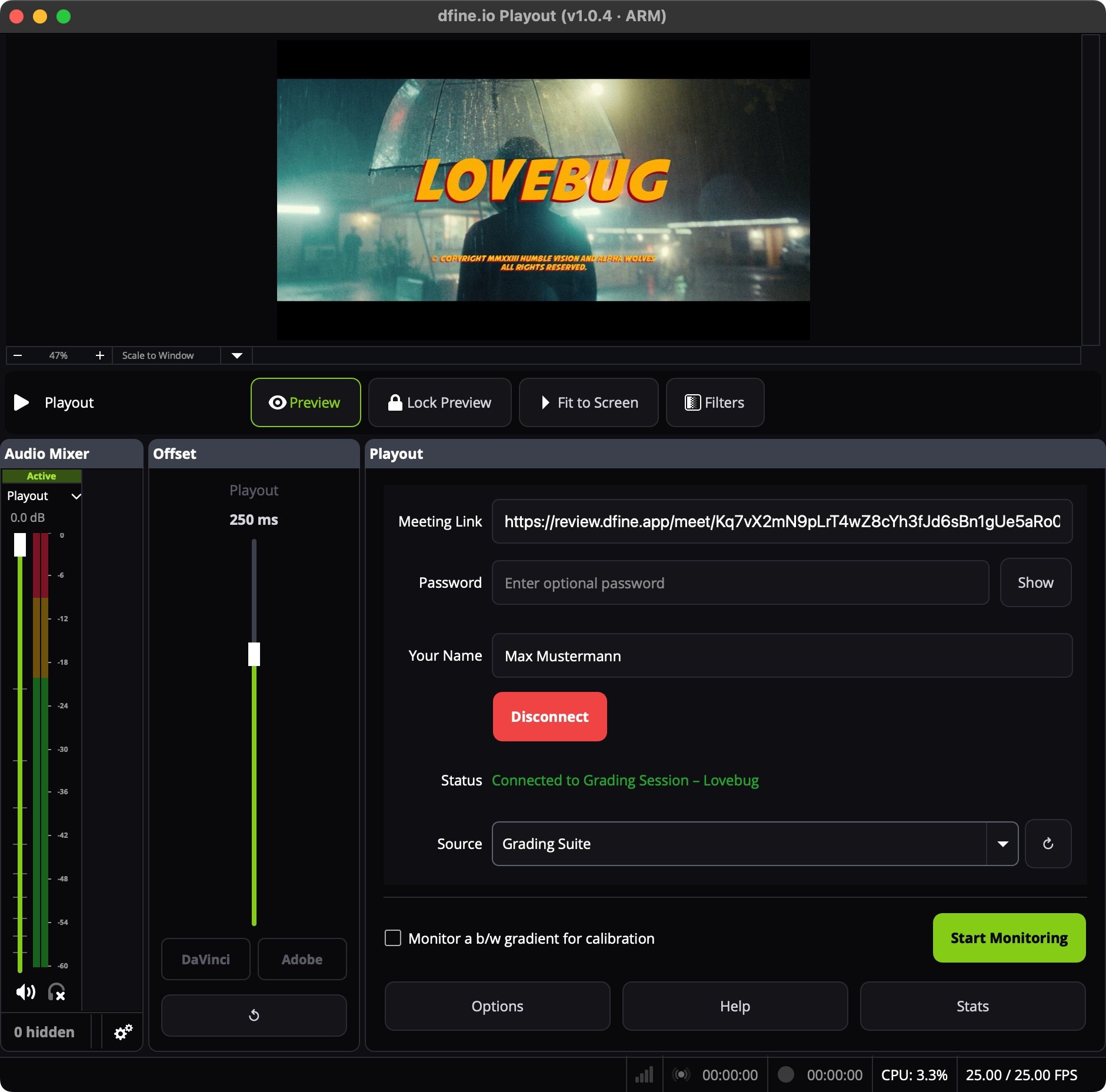
Playout has one window. The preview at the top shows what goes out. Below it sit three panels: **Audio Mixer**, **Offset** and **Playout**. The buttons at the bottom open **Options**, **Help** and **Stats**.
 ## Monitor a room in five steps
Copy an access link of the room. You find it in the room's **Accesses** in Review, or in the invitation you were sent. See [Conferencing](/en/review/conferencing).
In the **Playout** panel, paste the link into **Meeting Link**. Add the **Password** if the access has one, enter **Your Name** and click **Connect**. The status turns to **Connected** and names the room.
Choose what you want to see in the source list, for example the edit someone streams from dfine.io Desktop. The preview switches to it. Click **↻** if a source joined after you.
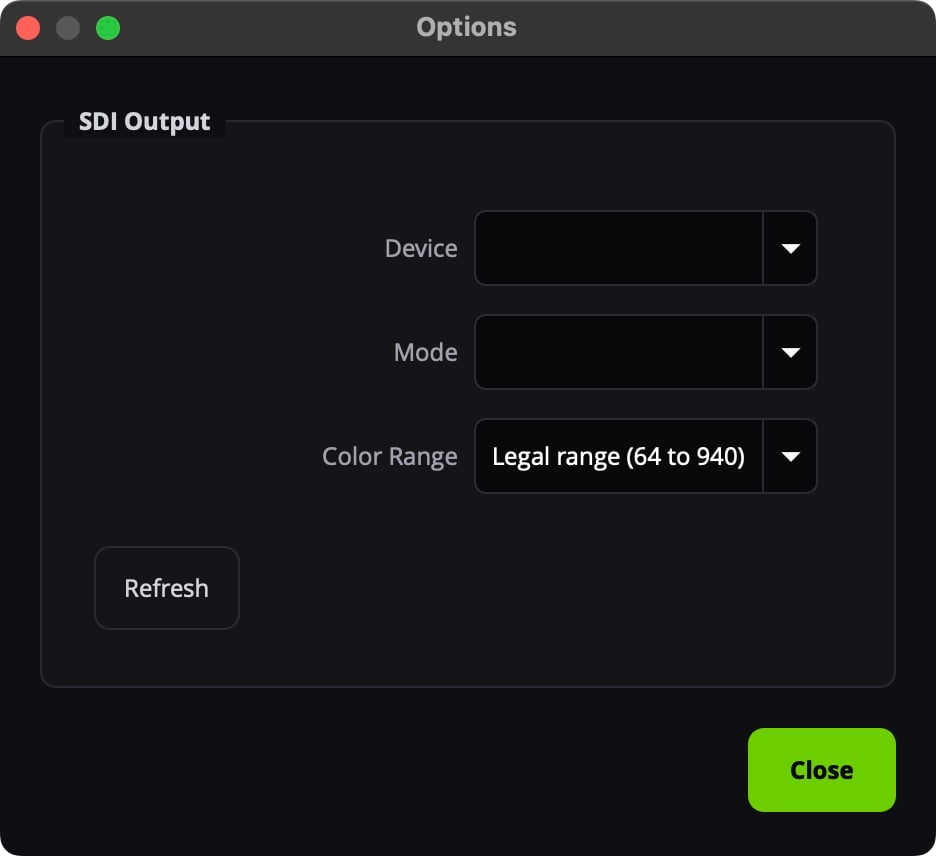
Click **Options**. Under **SDI Output**, pick your DeckLink **Device**, the **Mode** your monitor expects and the **Color range**.
Click **Start Monitoring**. The picture now plays on your reference monitor. **Stop Monitoring** ends it.
## Monitor a room in five steps
Copy an access link of the room. You find it in the room's **Accesses** in Review, or in the invitation you were sent. See [Conferencing](/en/review/conferencing).
In the **Playout** panel, paste the link into **Meeting Link**. Add the **Password** if the access has one, enter **Your Name** and click **Connect**. The status turns to **Connected** and names the room.
Choose what you want to see in the source list, for example the edit someone streams from dfine.io Desktop. The preview switches to it. Click **↻** if a source joined after you.
Click **Options**. Under **SDI Output**, pick your DeckLink **Device**, the **Mode** your monitor expects and the **Color range**.
Click **Start Monitoring**. The picture now plays on your reference monitor. **Stop Monitoring** ends it.
 Playout joins the room as a participant under the name you entered, so everyone in the room can see that you are watching.
## Colour range
**Legal range (64 to 940)** is the broadcast convention and right for almost every monitor. Use **Full range (0 to 1023)** only when your monitor is set up for full-range input. A wrong choice shows as lifted blacks or clipped highlights.
## Check the monitor chain
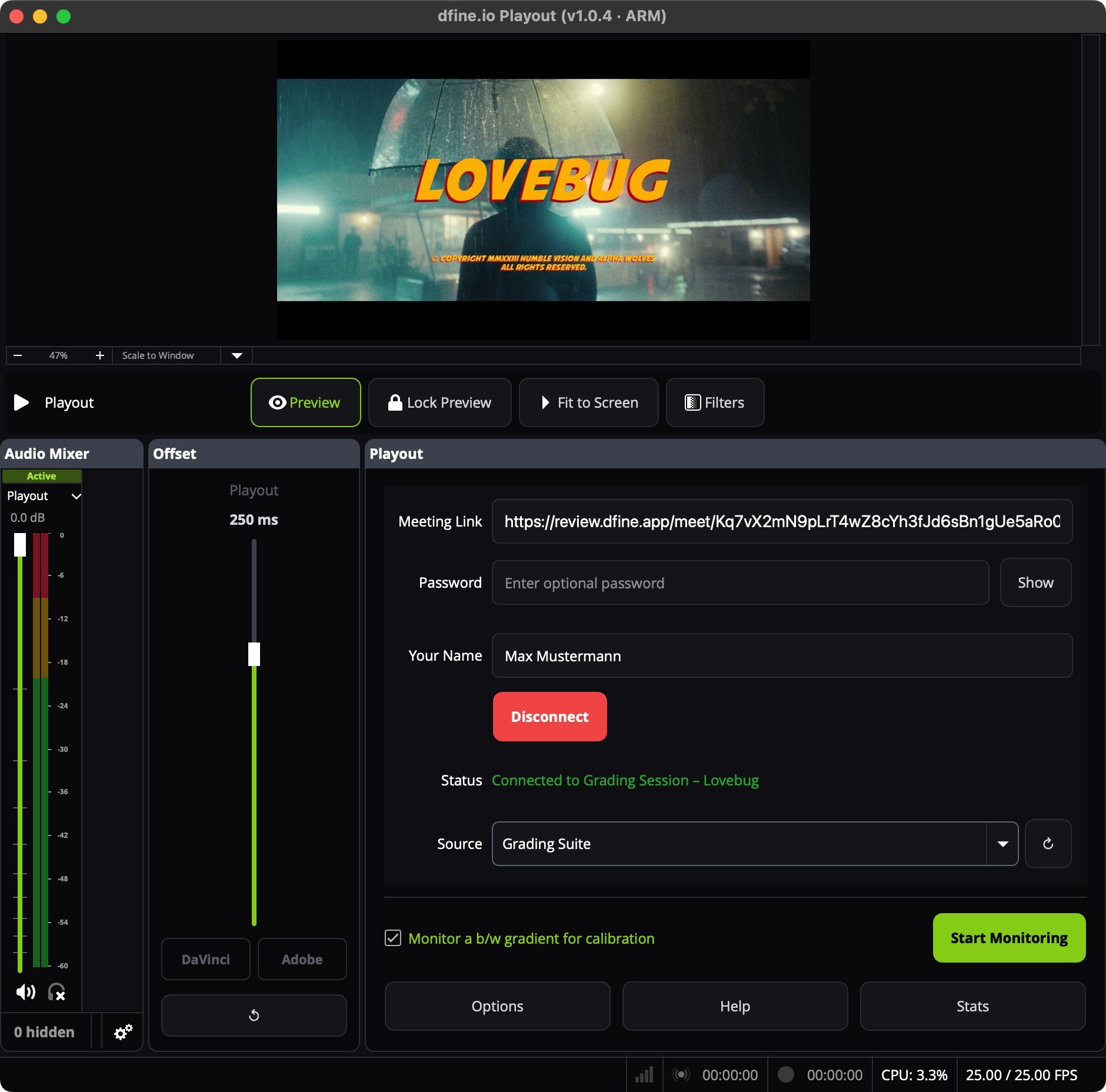
Tick **Monitor a b/w gradient for calibration** and click **Start Monitoring** to send a black-to-white gradient to your monitor instead of the room. It works without a room, so you can check the cabling and the range before a session starts. The gradient goes to the card only, and the preview keeps showing the room.
Playout joins the room as a participant under the name you entered, so everyone in the room can see that you are watching.
## Colour range
**Legal range (64 to 940)** is the broadcast convention and right for almost every monitor. Use **Full range (0 to 1023)** only when your monitor is set up for full-range input. A wrong choice shows as lifted blacks or clipped highlights.
## Check the monitor chain
Tick **Monitor a b/w gradient for calibration** and click **Start Monitoring** to send a black-to-white gradient to your monitor instead of the room. It works without a room, so you can check the cabling and the range before a session starts. The gradient goes to the card only, and the preview keeps showing the room.
 ## Offset
Some hosts send their picture behind their sound. The **Offset** panel delays the output so both line up again. **DaVinci** loads the measured value for DaVinci Resolve, which sends its picture about 250 ms behind its sound. **Adobe** fits Premiere Pro and After Effects, which send both together. **↺** returns to the default for the current source.
## When nothing plays
**Start Monitoring stays greyed out.** Connect to a room first, or tick the calibration gradient.
**No card selected.** Open **Options** and pick your DeckLink device under **SDI Output**.
**The device list is empty, or the SDI controls are missing.** Install the Blackmagic Desktop Video driver, connect the card and restart Playout.
**The source list is empty.** Nobody is sending into the room yet. Start the stream in dfine.io Desktop, then click **↻**.
This documentation is built and hosted on [Mintlify](https://mintlify.com), a developer documentation platform.
## Offset
Some hosts send their picture behind their sound. The **Offset** panel delays the output so both line up again. **DaVinci** loads the measured value for DaVinci Resolve, which sends its picture about 250 ms behind its sound. **Adobe** fits Premiere Pro and After Effects, which send both together. **↺** returns to the default for the current source.
## When nothing plays
**Start Monitoring stays greyed out.** Connect to a room first, or tick the calibration gradient.
**No card selected.** Open **Options** and pick your DeckLink device under **SDI Output**.
**The device list is empty, or the SDI controls are missing.** Install the Blackmagic Desktop Video driver, connect the card and restart Playout.
**The source list is empty.** Nobody is sending into the room yet. Start the stream in dfine.io Desktop, then click **↻**.
This documentation is built and hosted on [Mintlify](https://mintlify.com), a developer documentation platform.