> ## Documentation Index
> Fetch the complete documentation index at: https://docs.dfine.app/llms.txt
> Use this file to discover all available pages before exploring further.
# DaVinci Resolve
> Send your DaVinci Resolve programme, picture and audio both, to dfine.io Desktop by adding the dfine.io Transmit effect to the timeline node.
Resolve does not have a Mercury Transmit equivalent, so the picture is picked up by an OpenFX effect instead. Where you place that effect decides what ends up on the stream, and the timeline node is the place that covers everything. The same effect also carries audio, switched on with one checkbox.
This needs DaVinci Resolve **Studio** on an **Apple Silicon** Mac. The free version does not load OpenFX plugins from other vendors, and the plugin itself is arm64 only because Resolve loads it into its own process. On an Intel Mac, use [Premiere Pro](/en/review/desktop/premiere) or [SDI IN](/en/review/desktop/sdi-in) instead.
## Install the plugin
Install the Resolve plugin under **Settings → [Plugin Sources](/en/review/desktop/plugin-sources)**, then quit Resolve and start it again so it picks the plugin up.
## Add the effect to the timeline node
The Color page has two node levels. **Clip** works on the shot under the playhead, **Timeline** works on the finished programme. You want Timeline, otherwise the stream only carries the one shot you happened to be on.
Switch to the Color page and open the **Library** panel on the right, where the OpenFX effects live.
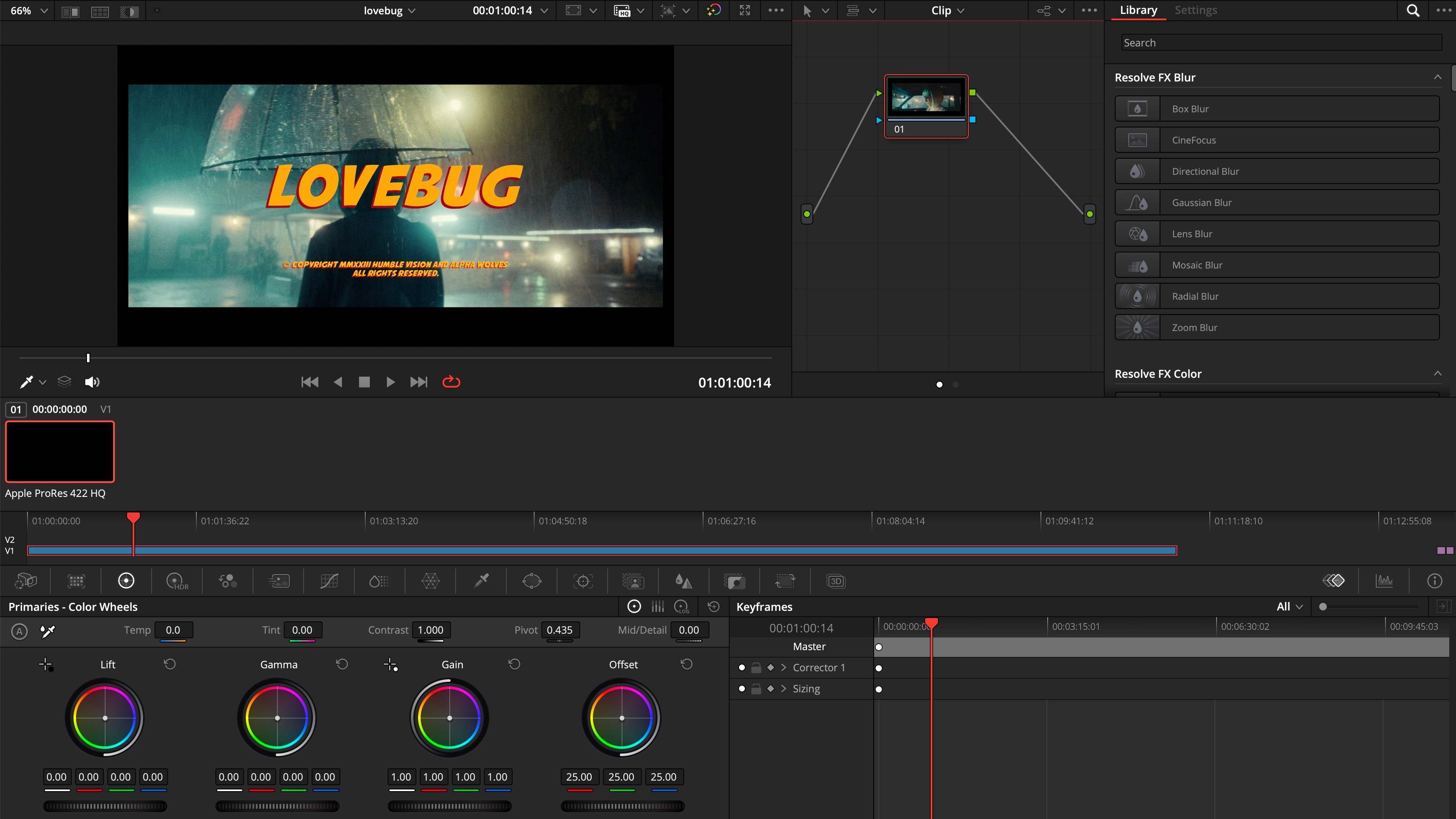 Above the node graph, change the mode from **Clip** to **Timeline**. Then type `dfine` into the library search. **dfine.io Transmit** appears.
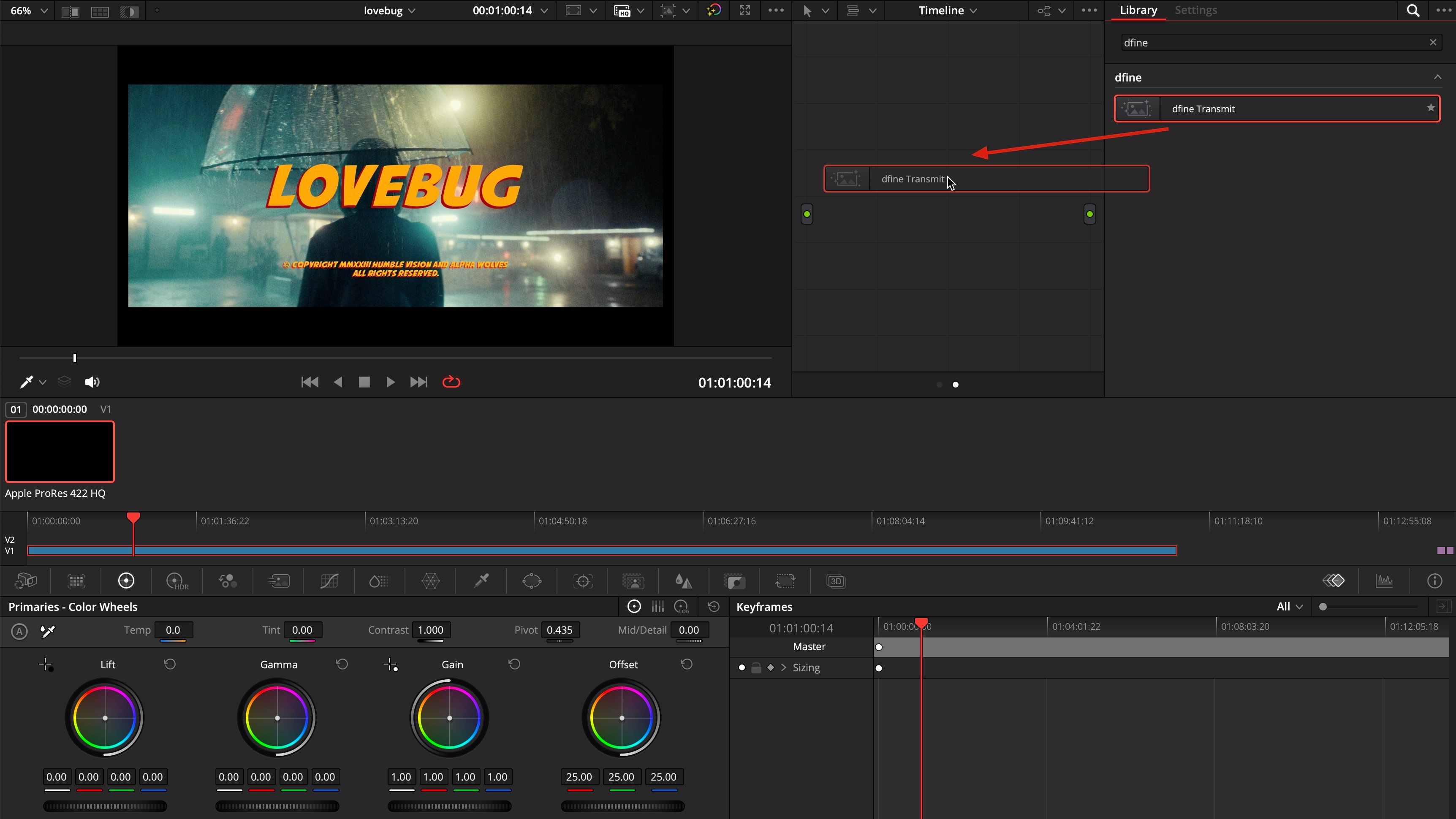
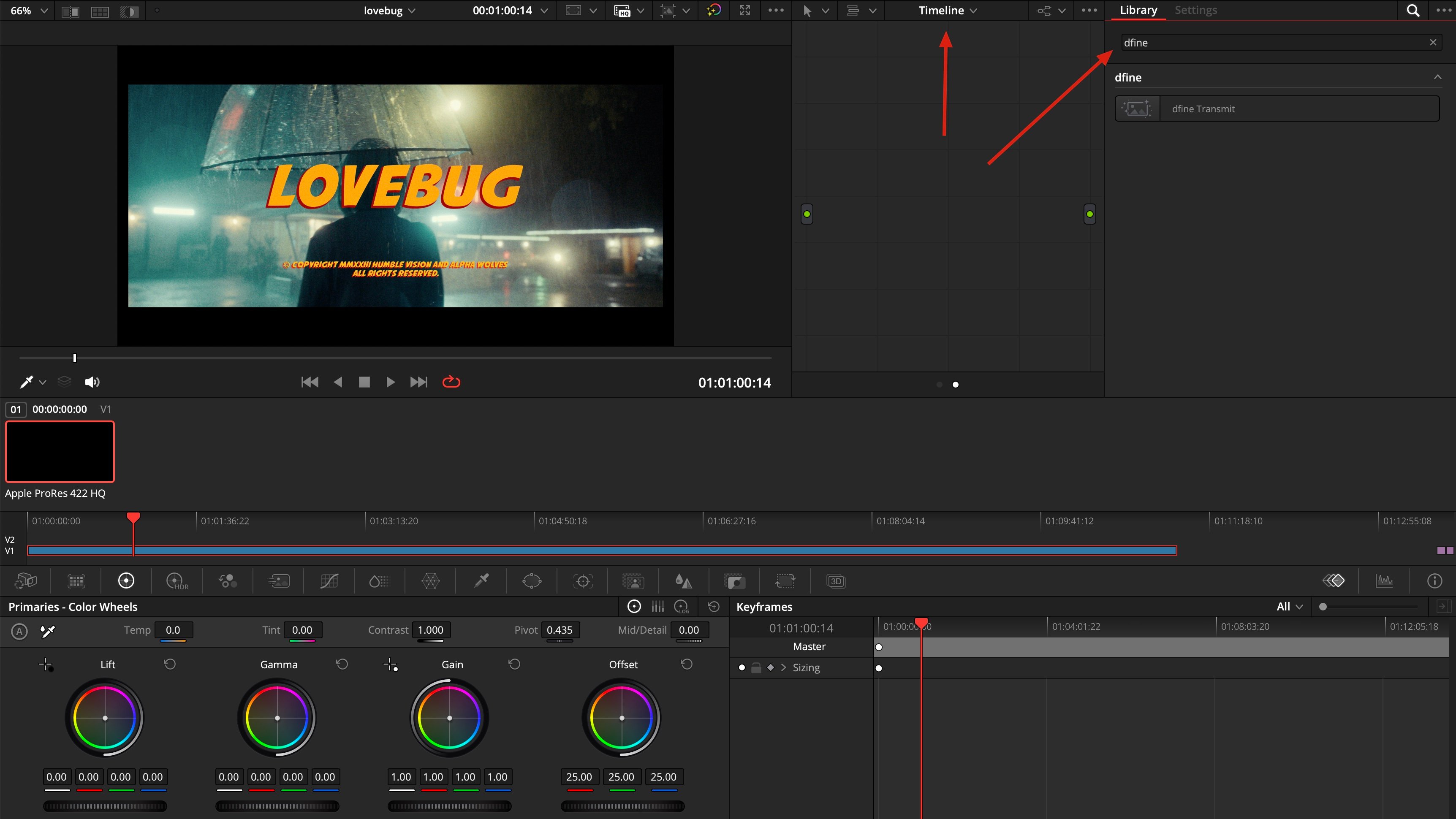 Pull **dfine.io Transmit** from the library into the empty node graph.
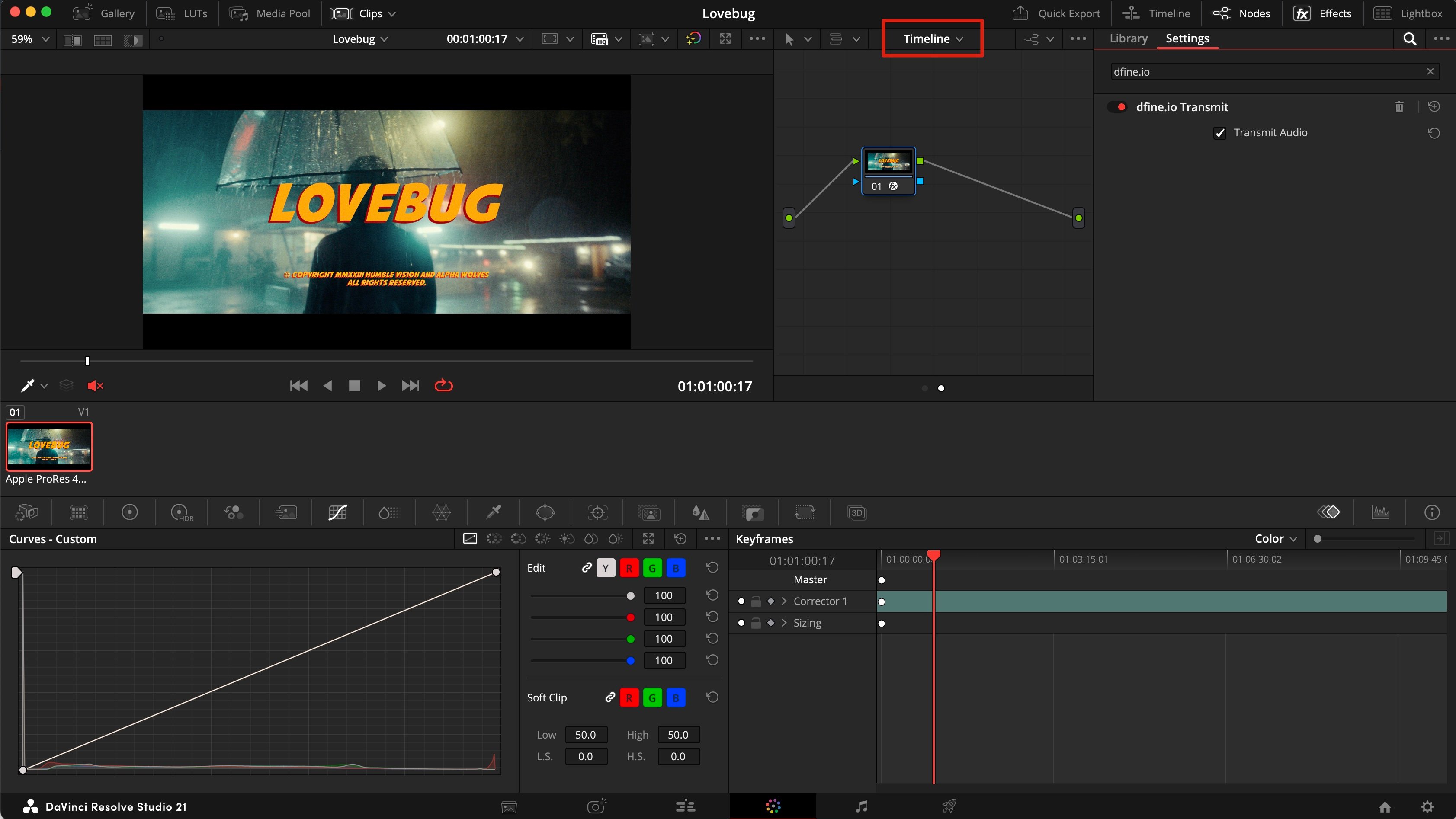
 With the node selected, open its settings on the right. Tick **Transmit Audio**. It is off by default, and this is the only step audio needs: no Fairlight, no second plugin.
 ## Check that it arrives
Play the timeline in Resolve, then follow [Check that it arrives](/en/review/desktop/index#check-that-it-arrives) on the Ingest tab.
## If picture arrives but audio does not
This happens when Resolve monitors through a DeckLink card: that path bypasses Core Audio, and the plugin only ever taps Core Audio.
Go to **Resolve → Preferences → Video and Audio I/O**, set **I/O Engine** to **System Audio**, and switch on **Mirror audio I/O engine output**. Your DeckLink monitoring keeps working, and the plugin now has audio to tap.
## When nothing arrives
**Resolve was running during the install.** Quit it completely and start it again.
**You are on the free version.** OpenFX plugins from other vendors need Resolve Studio.
**You are on an Intel Mac.** The Resolve plugin is Apple Silicon only. Use Premiere Pro or SDI IN instead.
**The node sits on Clip instead of Timeline.** Then only the current shot is transmitted. Switch the graph to Timeline and add the effect there.
**Nothing is playing.** Press play in Resolve. Without playback there are no frames to send.
## Check that it arrives
Play the timeline in Resolve, then follow [Check that it arrives](/en/review/desktop/index#check-that-it-arrives) on the Ingest tab.
## If picture arrives but audio does not
This happens when Resolve monitors through a DeckLink card: that path bypasses Core Audio, and the plugin only ever taps Core Audio.
Go to **Resolve → Preferences → Video and Audio I/O**, set **I/O Engine** to **System Audio**, and switch on **Mirror audio I/O engine output**. Your DeckLink monitoring keeps working, and the plugin now has audio to tap.
## When nothing arrives
**Resolve was running during the install.** Quit it completely and start it again.
**You are on the free version.** OpenFX plugins from other vendors need Resolve Studio.
**You are on an Intel Mac.** The Resolve plugin is Apple Silicon only. Use Premiere Pro or SDI IN instead.
**The node sits on Clip instead of Timeline.** Then only the current shot is transmitted. Switch the graph to Timeline and add the effect there.
**Nothing is playing.** Press play in Resolve. Without playback there are no frames to send.