> ## Documentation Index
> Fetch the complete documentation index at: https://docs.dfine.app/llms.txt
> Use this file to discover all available pages before exploring further.
# Performance
> Picture quality and what happens when the network gets tight: pick presets for both, or set the bitrate floor and start value yourself.
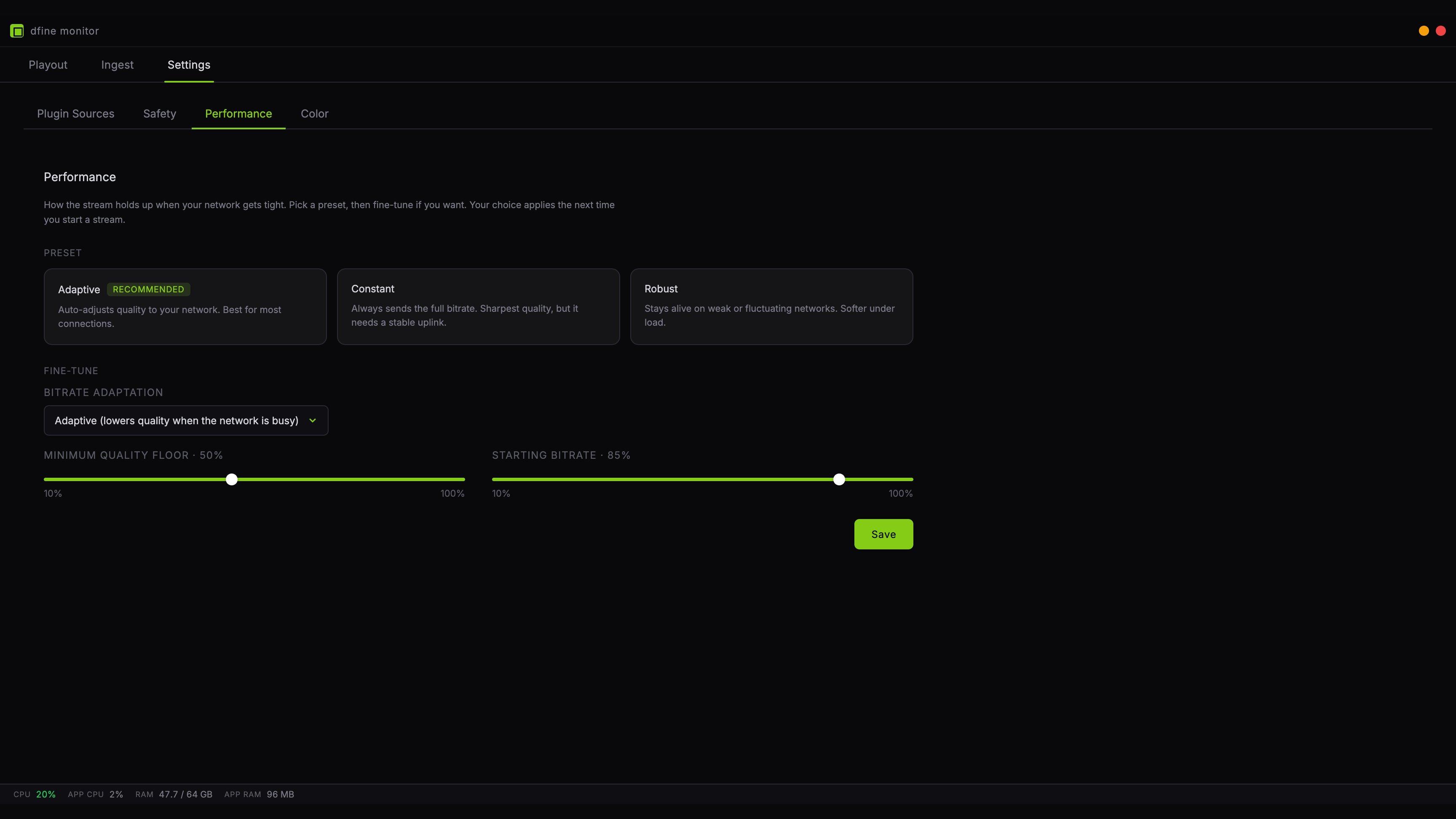
Two separate decisions live on this tab. How hard the encoder works for picture quality, and what the stream does when your connection gets tight.
 ## Picture quality
**Best quality**, **Balanced** and **Fastest** trade encoder effort for headroom. Best quality spends the most CPU per frame and looks sharpest; Fastest spends the least and is the one to reach for if your machine cannot keep up at your chosen resolution.
If pictures start dropping or the fan spins up under load, step down one level before touching anything else on this tab.
## Pick a network preset
Three presets cover the usual situations. Each one loads its values into the fields below, where you can still adjust them.
**Adaptive** watches the connection and lowers quality when the line gets busy, then comes back up. This is right for almost everyone and it is the default.
**Constant** always sends the full bitrate and never adapts. The sharpest picture you can get, but on a weak line it stutters instead of softening. Use it when you know the connection holds, for example on a wired office line.
**Robust** gives up quality earlier and more willingly. On a hotel connection or a mobile hotspot this keeps the picture moving where Adaptive would still be fighting.
## Fine-tune
Below the presets are the individual values. Change one and the preset selection simply releases, because your configuration is now your own.
**Minimum quality floor** is how far the automatic control may go down, as a percentage of your bitrate. Without a floor, a brief burst of motion can push the quality down much further than necessary, and the picture takes a while to recover. Adaptive sets it to twenty percent.
**Starting bitrate** is what the encoder begins with, before the automatic control has measured anything. At one hundred percent the picture is sharp from the first frame, but on a weak line the first seconds may stutter until the control pulls back. A lower value starts safely and sharpens within a few seconds.
With **Constant** both values have no effect, so they are dimmed. Without automatic control there is nothing to limit.
## Playout
One control on this tab does not touch the stream at all. **Recover the output** rebuilds the SDI output when the card starts repeating pictures, at the cost of a second or two of black. It sits here because it answers the same question as everything else on the tab: what the app should do when something goes wrong.
## What it does not change
The bitrate itself lives on the **Ingest** tab. Everything here decides how that bitrate is used, and how hard the encoder works to fill it, not how high it is.
## Saving
Click **Save**. The settings apply the next time you start a stream, not to one that is already running.
## Picture quality
**Best quality**, **Balanced** and **Fastest** trade encoder effort for headroom. Best quality spends the most CPU per frame and looks sharpest; Fastest spends the least and is the one to reach for if your machine cannot keep up at your chosen resolution.
If pictures start dropping or the fan spins up under load, step down one level before touching anything else on this tab.
## Pick a network preset
Three presets cover the usual situations. Each one loads its values into the fields below, where you can still adjust them.
**Adaptive** watches the connection and lowers quality when the line gets busy, then comes back up. This is right for almost everyone and it is the default.
**Constant** always sends the full bitrate and never adapts. The sharpest picture you can get, but on a weak line it stutters instead of softening. Use it when you know the connection holds, for example on a wired office line.
**Robust** gives up quality earlier and more willingly. On a hotel connection or a mobile hotspot this keeps the picture moving where Adaptive would still be fighting.
## Fine-tune
Below the presets are the individual values. Change one and the preset selection simply releases, because your configuration is now your own.
**Minimum quality floor** is how far the automatic control may go down, as a percentage of your bitrate. Without a floor, a brief burst of motion can push the quality down much further than necessary, and the picture takes a while to recover. Adaptive sets it to twenty percent.
**Starting bitrate** is what the encoder begins with, before the automatic control has measured anything. At one hundred percent the picture is sharp from the first frame, but on a weak line the first seconds may stutter until the control pulls back. A lower value starts safely and sharpens within a few seconds.
With **Constant** both values have no effect, so they are dimmed. Without automatic control there is nothing to limit.
## Playout
One control on this tab does not touch the stream at all. **Recover the output** rebuilds the SDI output when the card starts repeating pictures, at the cost of a second or two of black. It sits here because it answers the same question as everything else on the tab: what the app should do when something goes wrong.
## What it does not change
The bitrate itself lives on the **Ingest** tab. Everything here decides how that bitrate is used, and how hard the encoder works to fill it, not how high it is.
## Saving
Click **Save**. The settings apply the next time you start a stream, not to one that is already running.