> ## Documentation Index
> Fetch the complete documentation index at: https://docs.dfine.app/llms.txt
> Use this file to discover all available pages before exploring further.
# Install the OBS profile
> Download and import the dfine.io streaming profile into OBS before your first stream.
Before you stream with OBS, install the dfine.io profile. It ships the encoder settings tuned for our servers, and you only adjust the bitrate to match your plan.
This profile works for **both** dfine.io products that livestream — Streaming Classic and Review. Only the bitrate limits differ by product and plan.
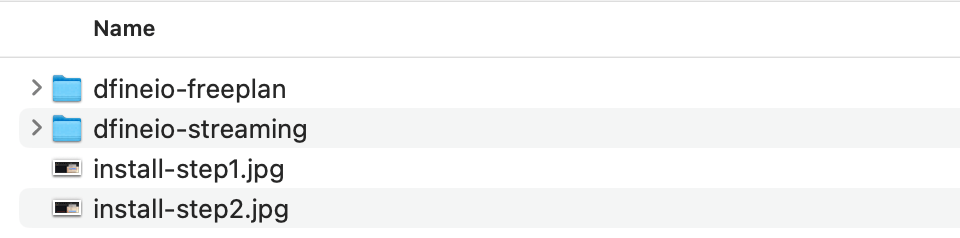
[Download the OBS profiles](https://dl.difference.berlin/dfine/dfineio_obs_profiles.zip) and unpack the archive.
Use the **dfineio-streaming** profile. It works for all paid plans. The only difference between plans is the bitrate, which you set according to your subscription.
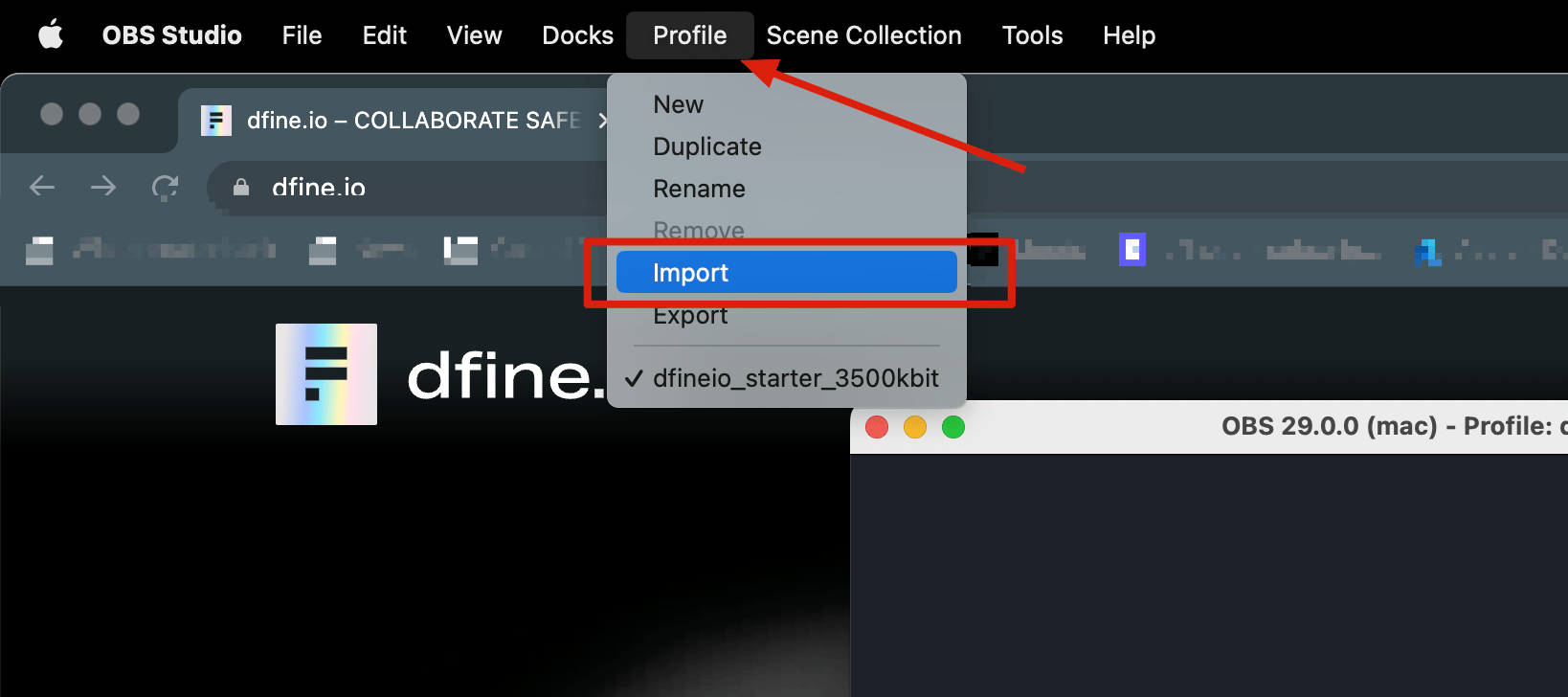
 In OBS, choose **Profile → Import**, then select the imported profile from the **Profile** menu.
 Enter your ingest URL and stream key, then go live.