> ## Documentation Index
> Fetch the complete documentation index at: https://docs.dfine.app/llms.txt
> Use this file to discover all available pages before exploring further.
# File streaming with OBS
> Play a finished file out live with OBS — QuickTime, MP4 and any other format OBS supports.
Playing a media file out live is a great way to run a moderated screening or present a finished master. It works with **any format OBS can play** — QuickTime, MP4 and more — and one person controls playback (play, pause, loop). That makes it ideal for client presentations of final renders and for live moderation.
These steps apply to **both** dfine.io products that livestream — Streaming Classic and Review. The encoder setup is the same; only where you copy your ingest URL and stream key differs by product. See [Where do I find the ingest server URL?](/en/where-do-i-find-the-ingest-server-url).
Get OBS ready before you build the scene.
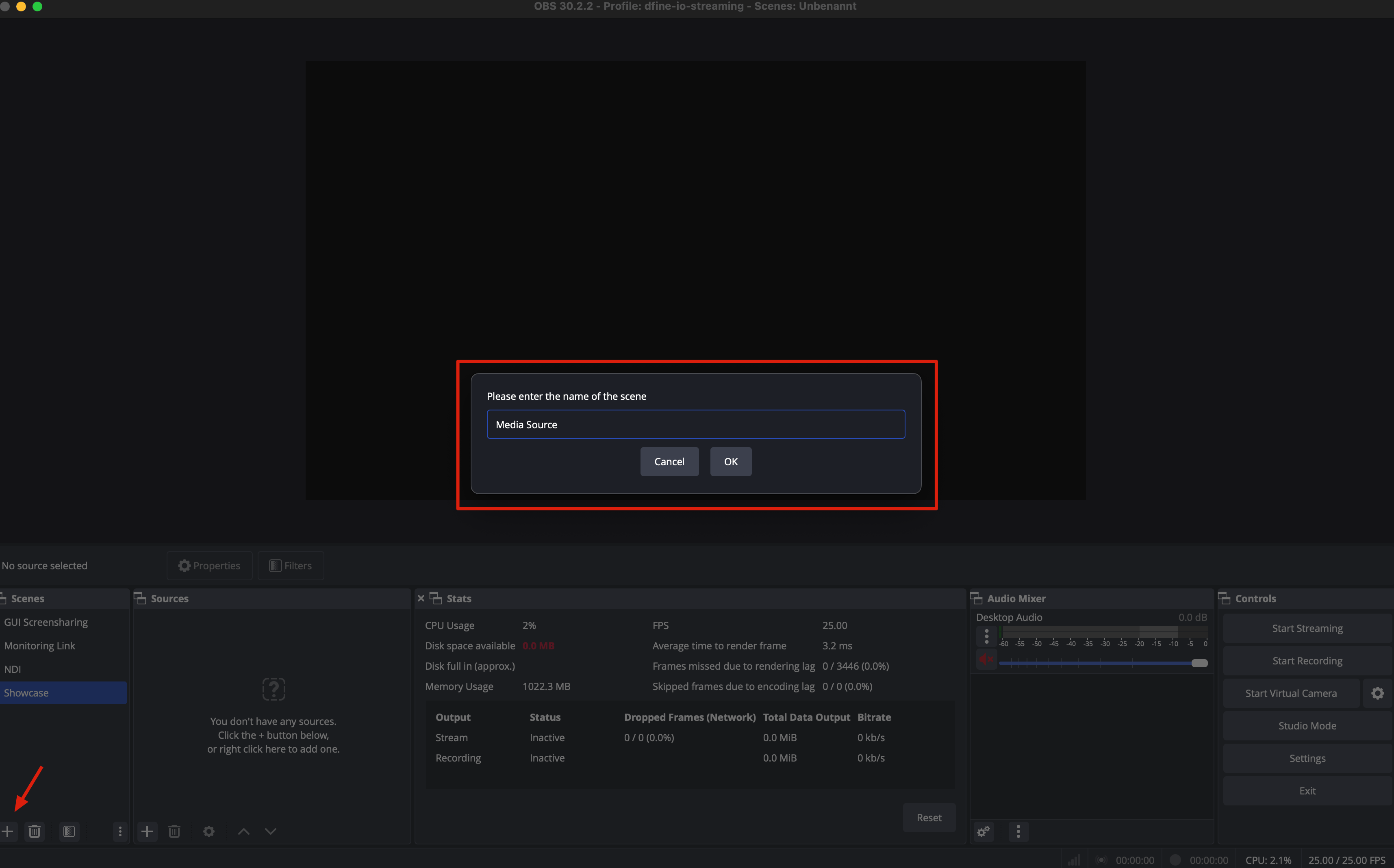
Create a new scene called **Media Source**.
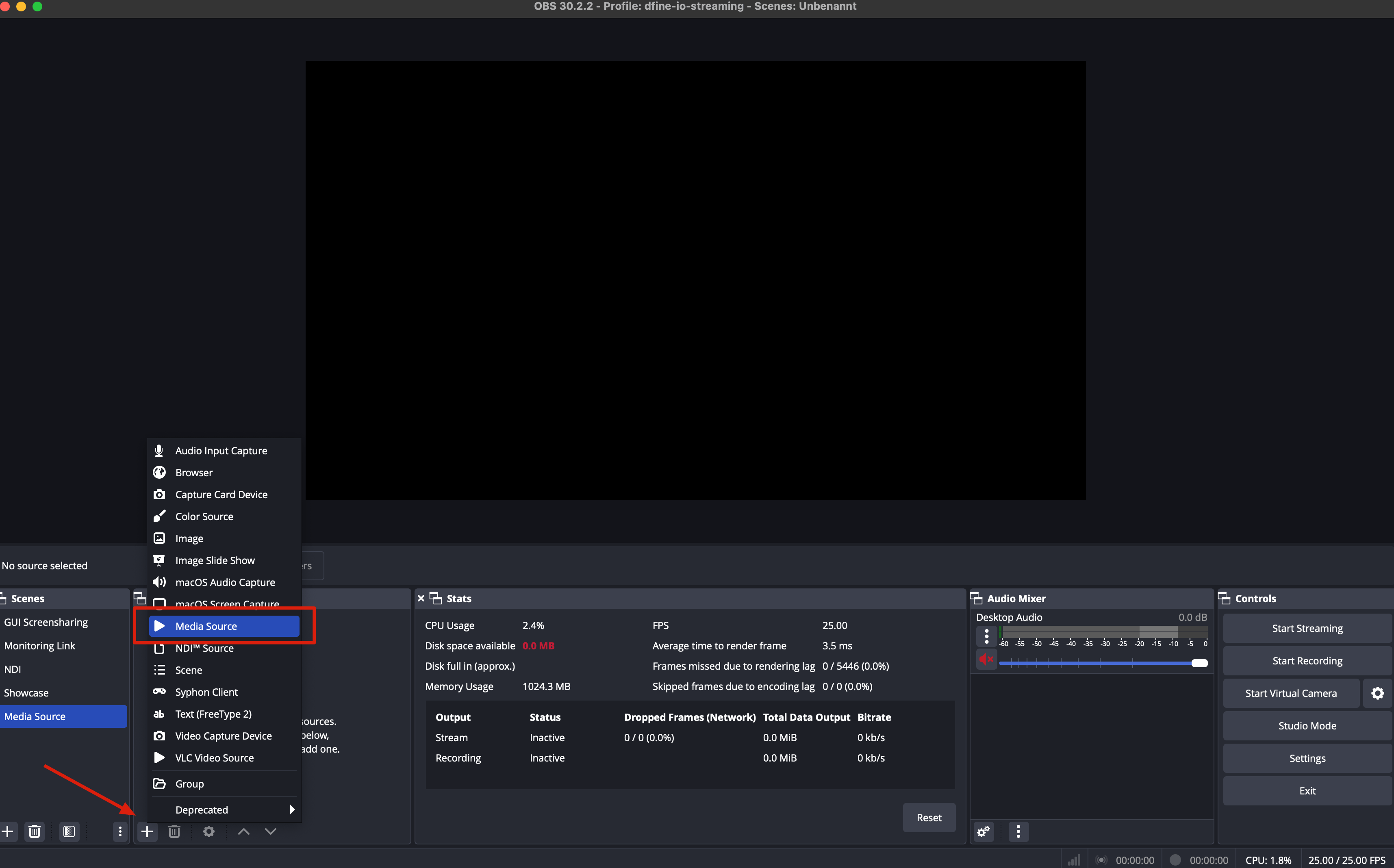
 Inside the scene, add a new media source and give it a name. We call it **Presentation**.
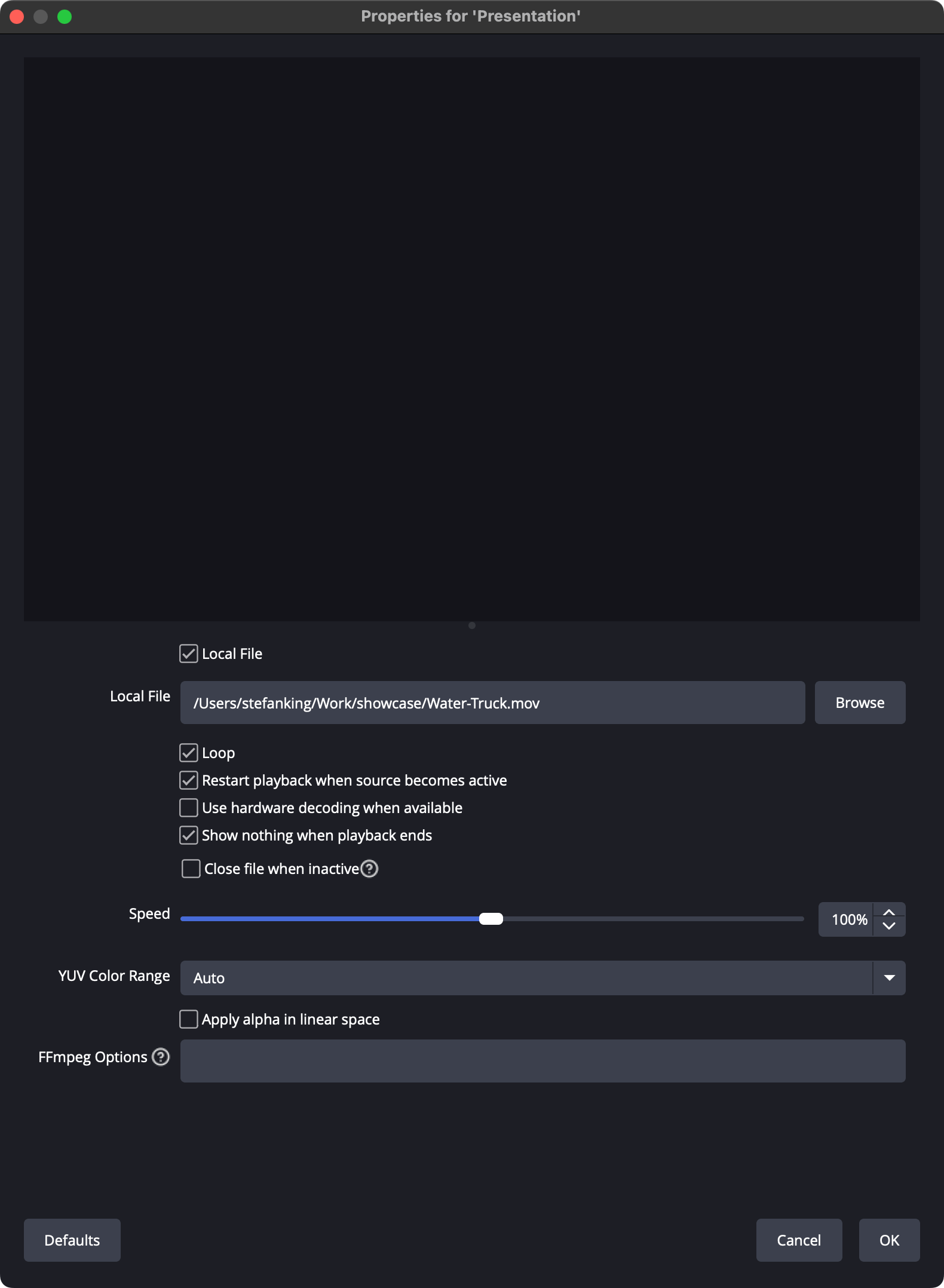
 In the window that opens, select the file you want to stream. Turn on **Loop** if you need it, then confirm with **OK**.
 Right click the preview, then choose **Transform**, then **Fit to Screen**.
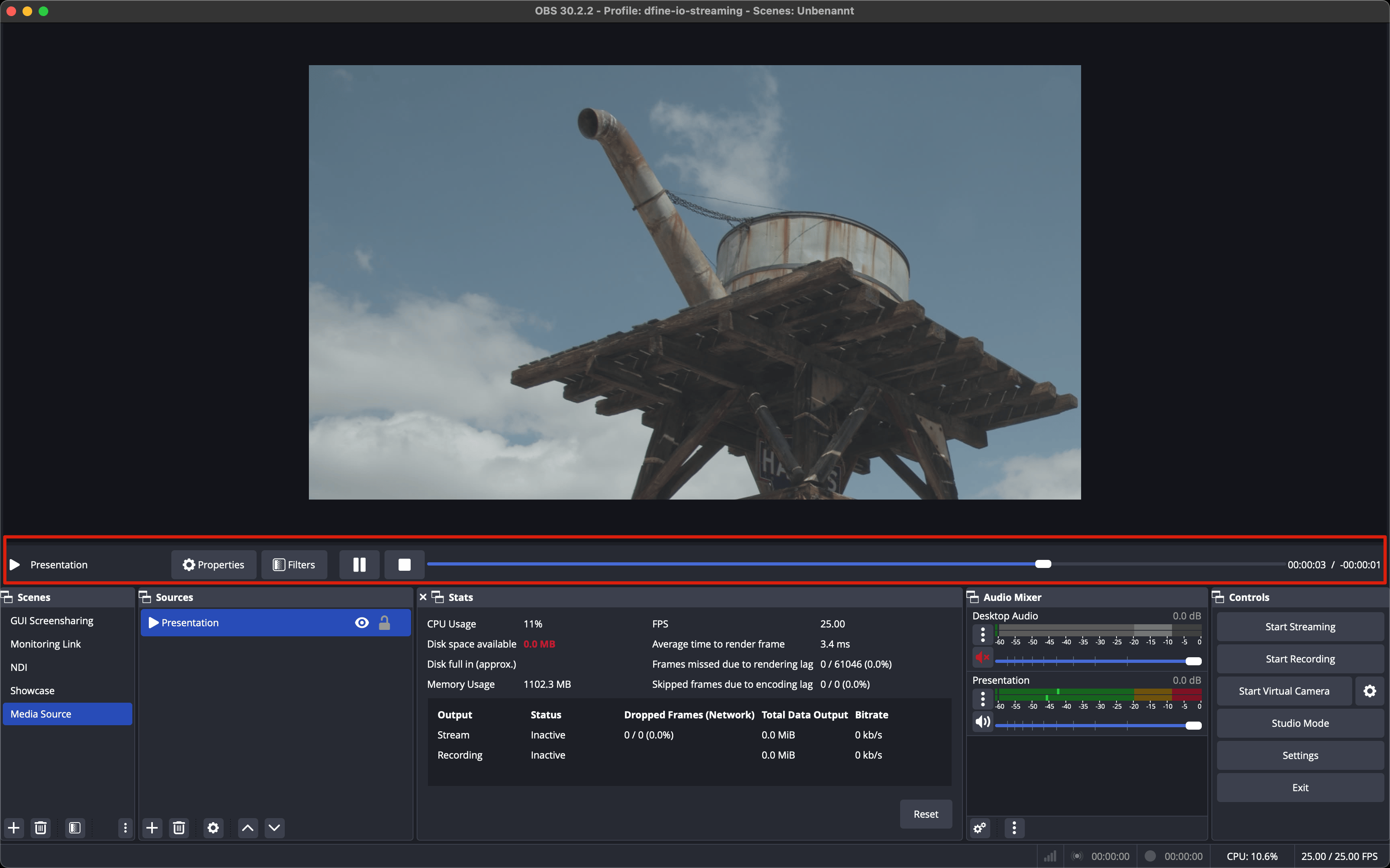
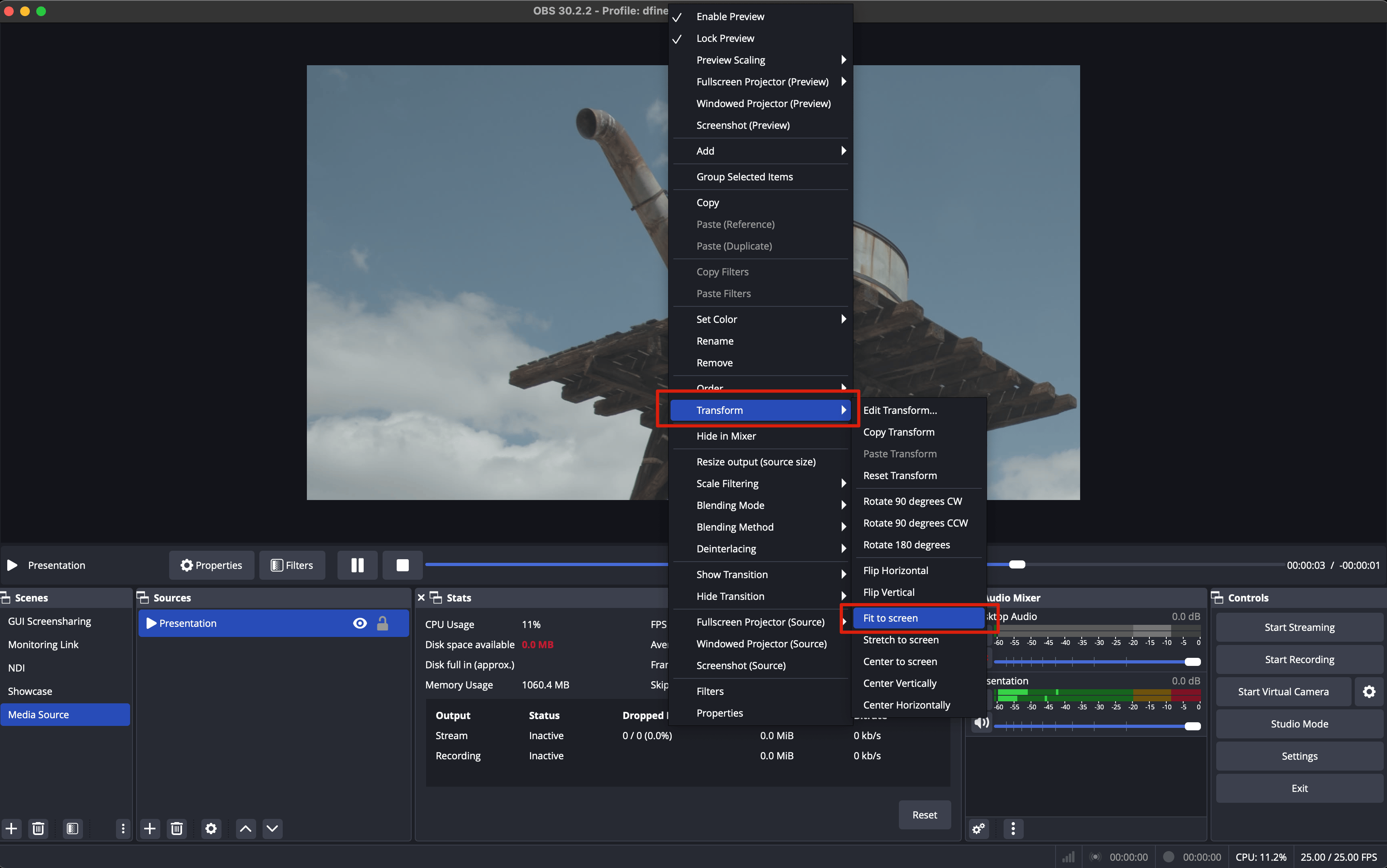 You can now play, pause and moderate the file from the playback bar.
 Add your connection details in OBS and go live.