> ## Documentation Index
> Fetch the complete documentation index at: https://docs.dfine.app/llms.txt
> Use this file to discover all available pages before exploring further.
# DaVinci Resolve
> Send your DaVinci Resolve programme to dfine.io Desktop by adding the dfine.io Transmit effect to the timeline node.
Resolve does not have a Mercury Transmit equivalent, so the picture is picked up by an OpenFX effect instead. Where you place that effect decides what ends up on the stream, and the timeline node is the place that covers everything.
This needs DaVinci Resolve **Studio**. The free version does not load OpenFX plugins from other vendors.
## Install the plugin
Open **Settings** in dfine.io Desktop, go to **Plugin Sources**, and install the Resolve plugin. macOS will ask for your password, because OpenFX plugins live in a system folder. Then quit Resolve and start it again so it picks the plugin up.
## Add the effect to the timeline node
The Color page has two node levels. **Clip** works on the shot under the playhead, **Timeline** works on the finished programme. You want Timeline, otherwise the stream only carries the one shot you happened to be on.
Switch to the Color page and open the **Library** panel on the right, where the OpenFX effects live.
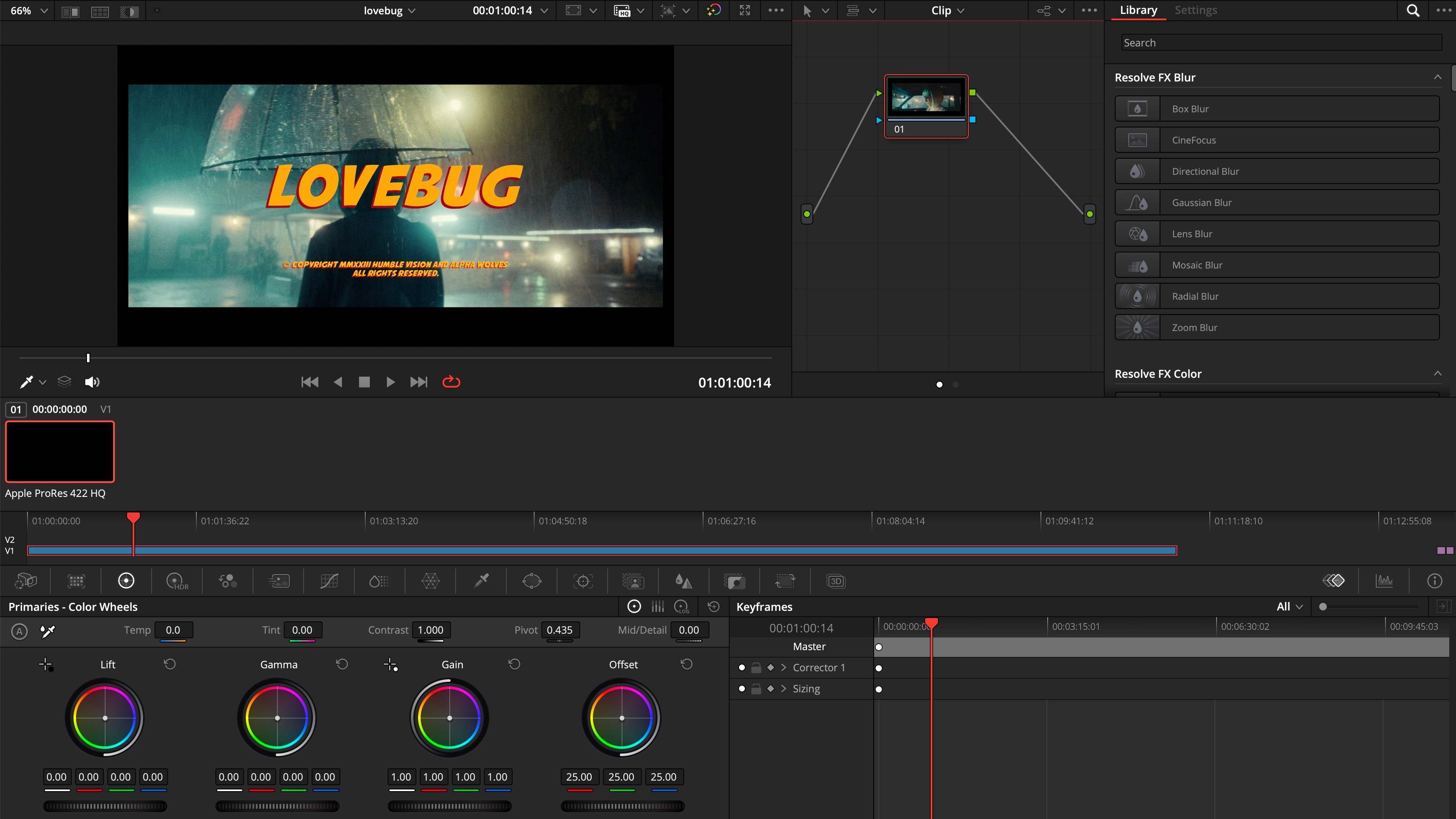 Above the node graph, change the mode from **Clip** to **Timeline**. Then type `dfine` into the library search. **dfine.io Transmit** appears.
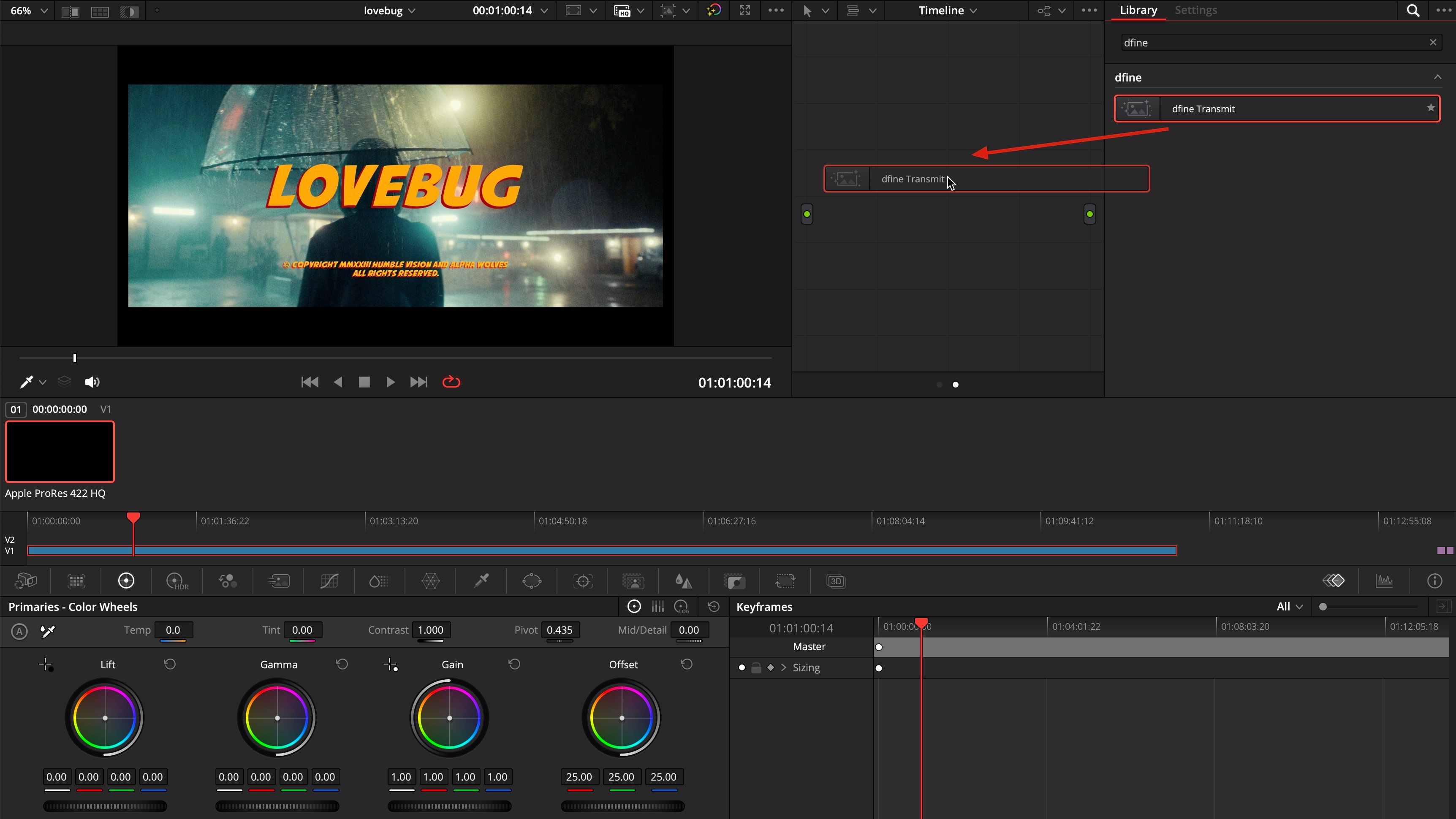
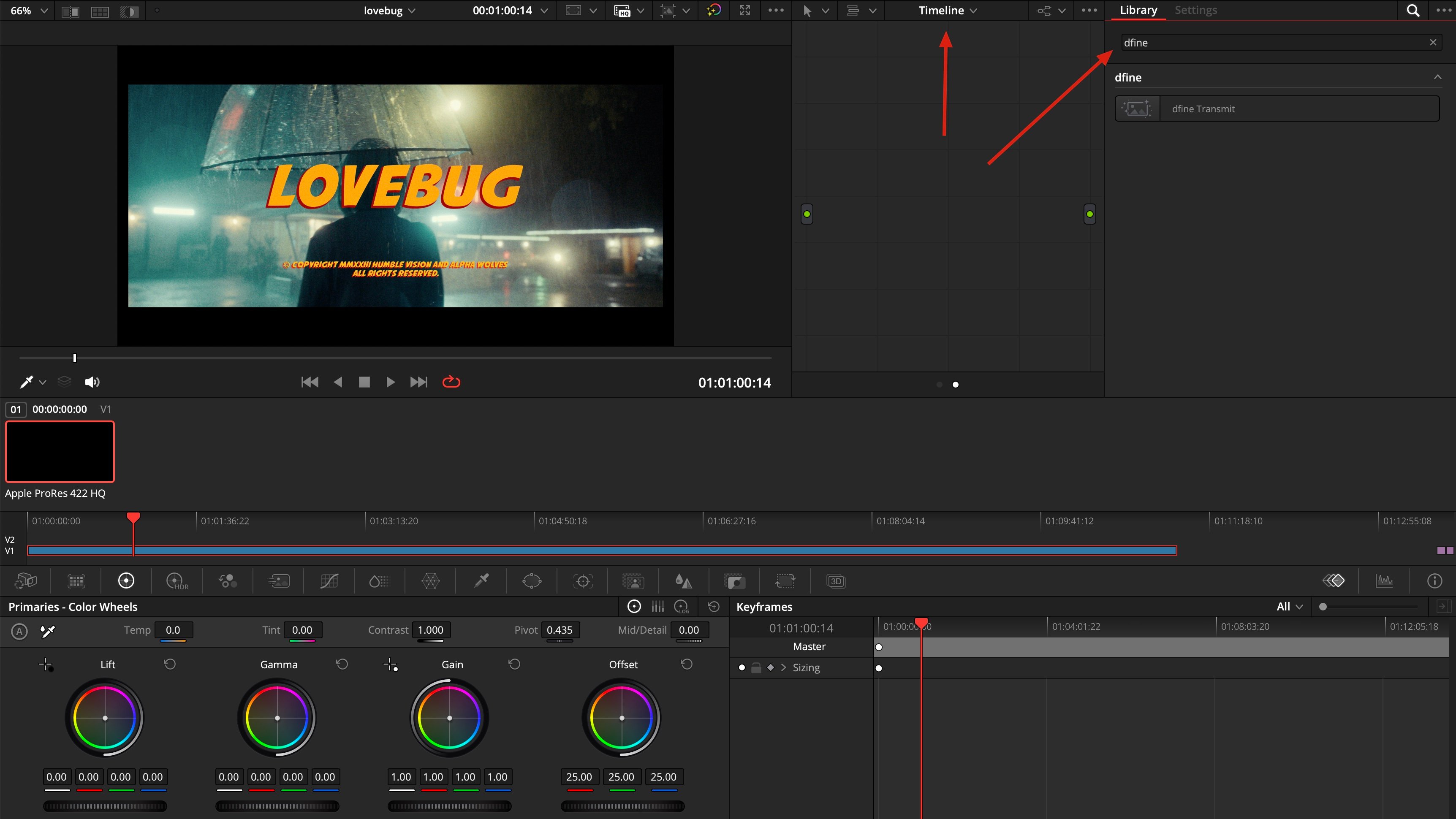 Pull **dfine.io Transmit** from the library into the empty node graph.
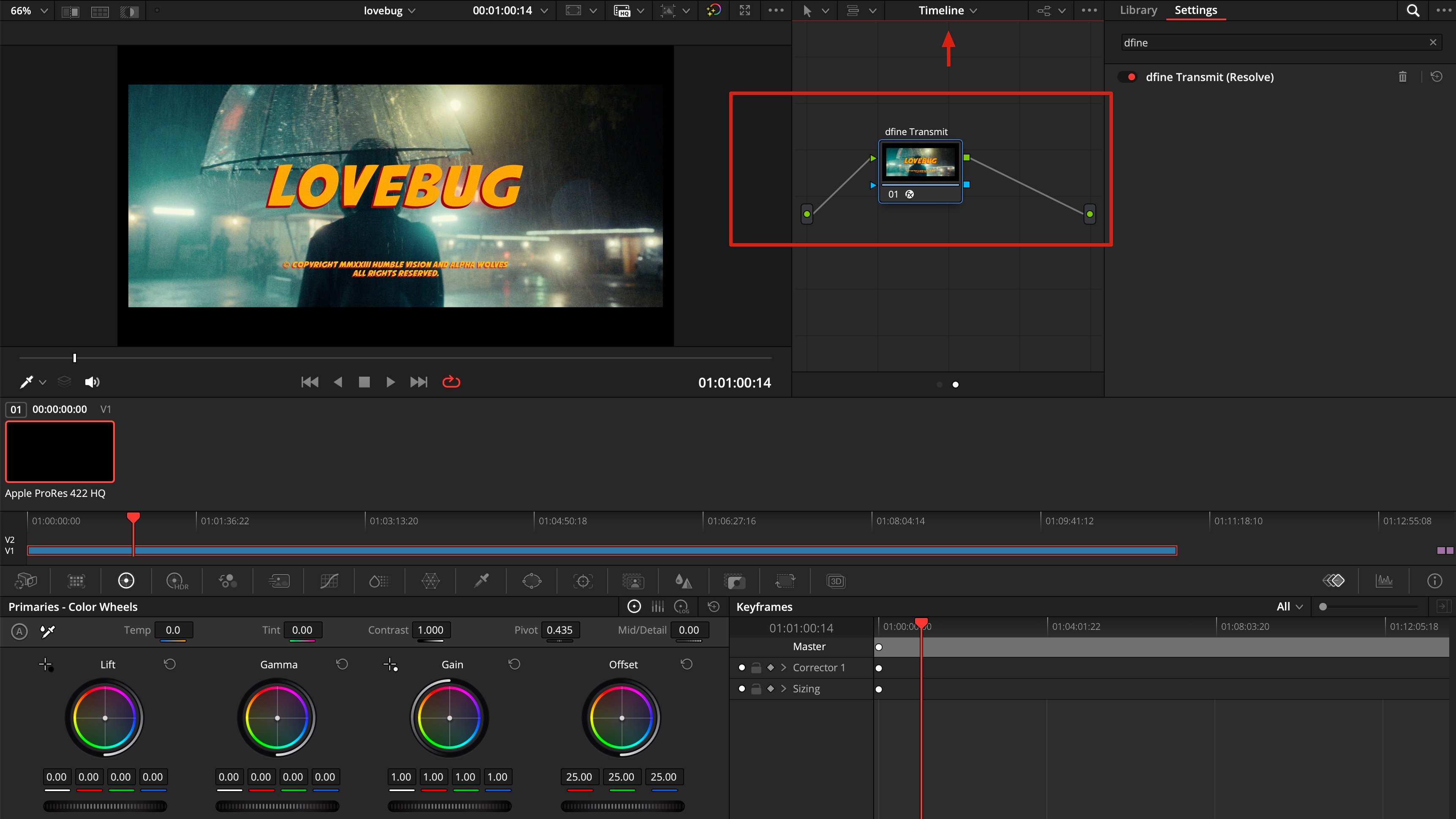
 The node now sits between input and output, and the **Settings** tab shows **dfine.io Transmit** switched on.
 ## Check that it arrives
Play the timeline in Resolve, then switch to the **Ingest** tab in dfine.io Desktop. The preview shows your picture and the source is listed as connected. Press **Start** to go live.
## Sound is a separate step
The effect you just added carries picture only. Resolve keeps video and audio in different parts of the application, so sound needs its own effect on the Fairlight page.
Add the dfine.io Transmit audio effect to the Main bus so your mix reaches the stream.
## When nothing arrives
**Resolve was running during the install.** Quit it completely and start it again.
**You are on the free version.** OpenFX plugins from other vendors need Resolve Studio.
**The node sits on Clip instead of Timeline.** Then only the current shot is transmitted. Switch the graph to Timeline and add the effect there.
**Nothing is playing.** Press play in Resolve. Without playback there are no frames to send.
## Check that it arrives
Play the timeline in Resolve, then switch to the **Ingest** tab in dfine.io Desktop. The preview shows your picture and the source is listed as connected. Press **Start** to go live.
## Sound is a separate step
The effect you just added carries picture only. Resolve keeps video and audio in different parts of the application, so sound needs its own effect on the Fairlight page.
Add the dfine.io Transmit audio effect to the Main bus so your mix reaches the stream.
## When nothing arrives
**Resolve was running during the install.** Quit it completely and start it again.
**You are on the free version.** OpenFX plugins from other vendors need Resolve Studio.
**The node sits on Clip instead of Timeline.** Then only the current shot is transmitted. Switch the graph to Timeline and add the effect there.
**Nothing is playing.** Press play in Resolve. Without playback there are no frames to send.