> ## Documentation Index
> Fetch the complete documentation index at: https://docs.dfine.app/llms.txt
> Use this file to discover all available pages before exploring further.
# Activate audio in DaVinci Resolve
> Put the dfine.io Transmit audio effect on the Fairlight Main bus so your mix reaches the live stream.
In Resolve, picture and sound are handled in different parts of the application. The OpenFX effect on the Color page carries picture only, so sound needs a second effect on the Fairlight page. You do this once per timeline.
Set this up **before** you start mixing. The effect itself changes nothing about your sound, but the Fairlight mixer is where your levels and processing live, and it is worth knowing your way around before a live session.
## Your project must run at 48 kHz
The stream carries 48 kHz audio. If your project runs at a different rate, the effect loads but stays silent on purpose, because sending the wrong rate would shift the pitch of everything.
Check under **File → Project Settings → Fairlight** and set the sample rate to 48 kHz if it is not already.
## Put the effect on the Main bus
The Main bus is where your finished mix arrives, after all tracks and all processing. That is what your clients should hear.
Place the effect on **Main 1**, not on an individual audio track. On a single track you would only transmit that one track, and everything else in your mix would be missing from the stream. The mistake is easy to miss, because sound does arrive, just not all of it.
Switch to the Fairlight page. If the mixer is not visible on the right, switch it on under **Mixer** in the toolbar.
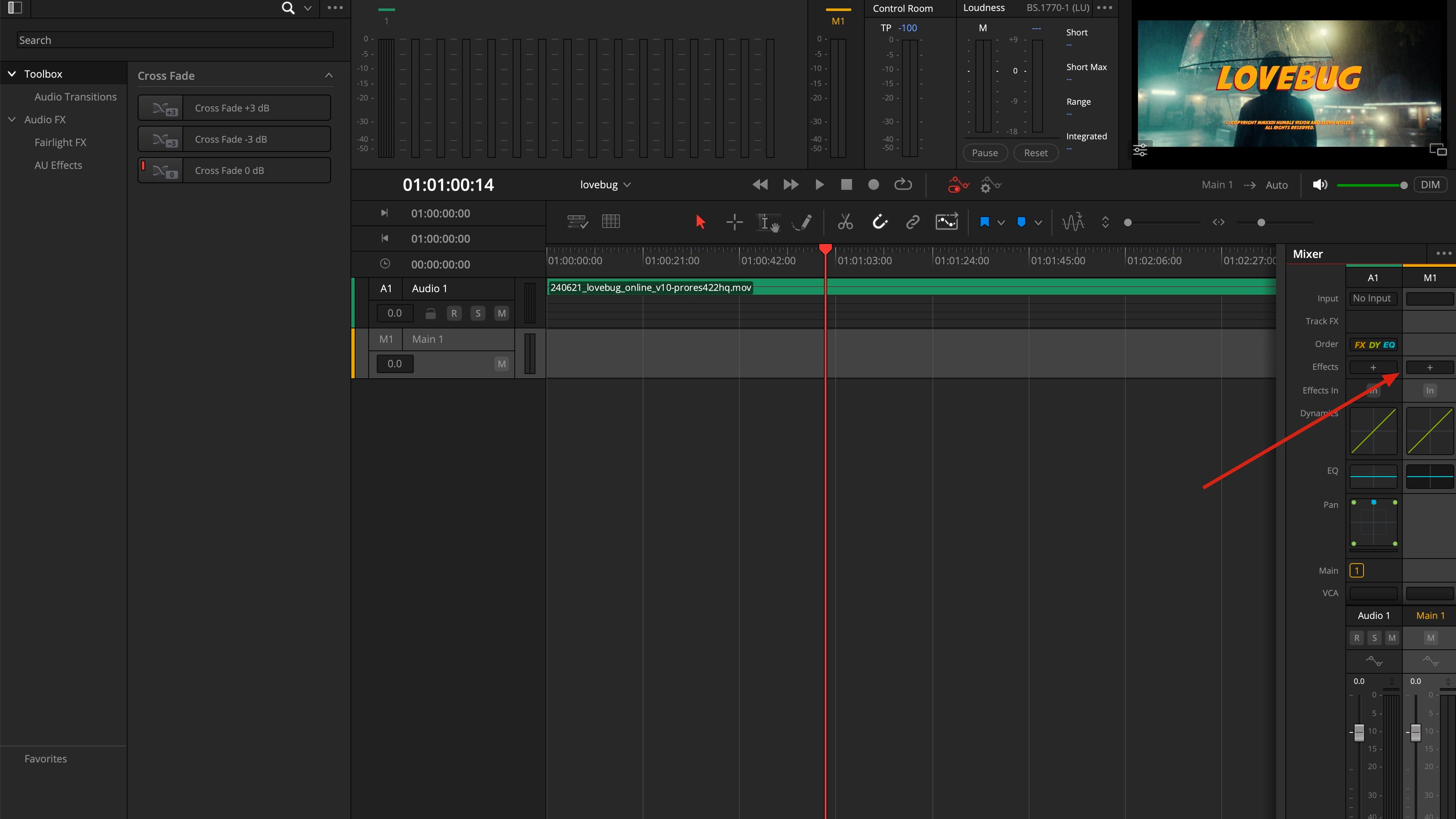
Find the **M1 / Main 1** column in the mixer, which is the rightmost strip. Click the **+** in its **Effects** row.
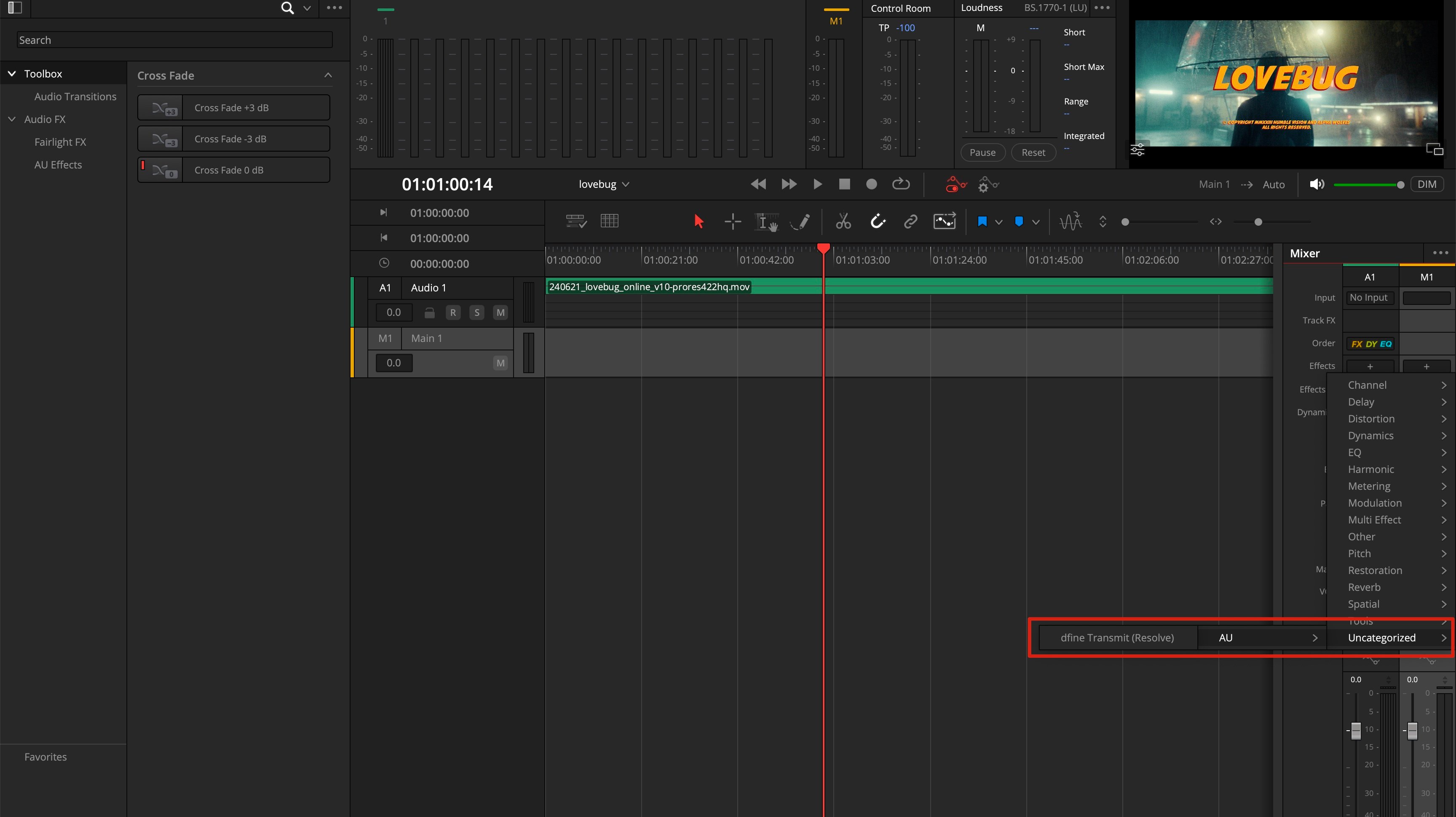
 In the menu that opens, go to **Uncategorized** and choose **dfine.io Transmit**.
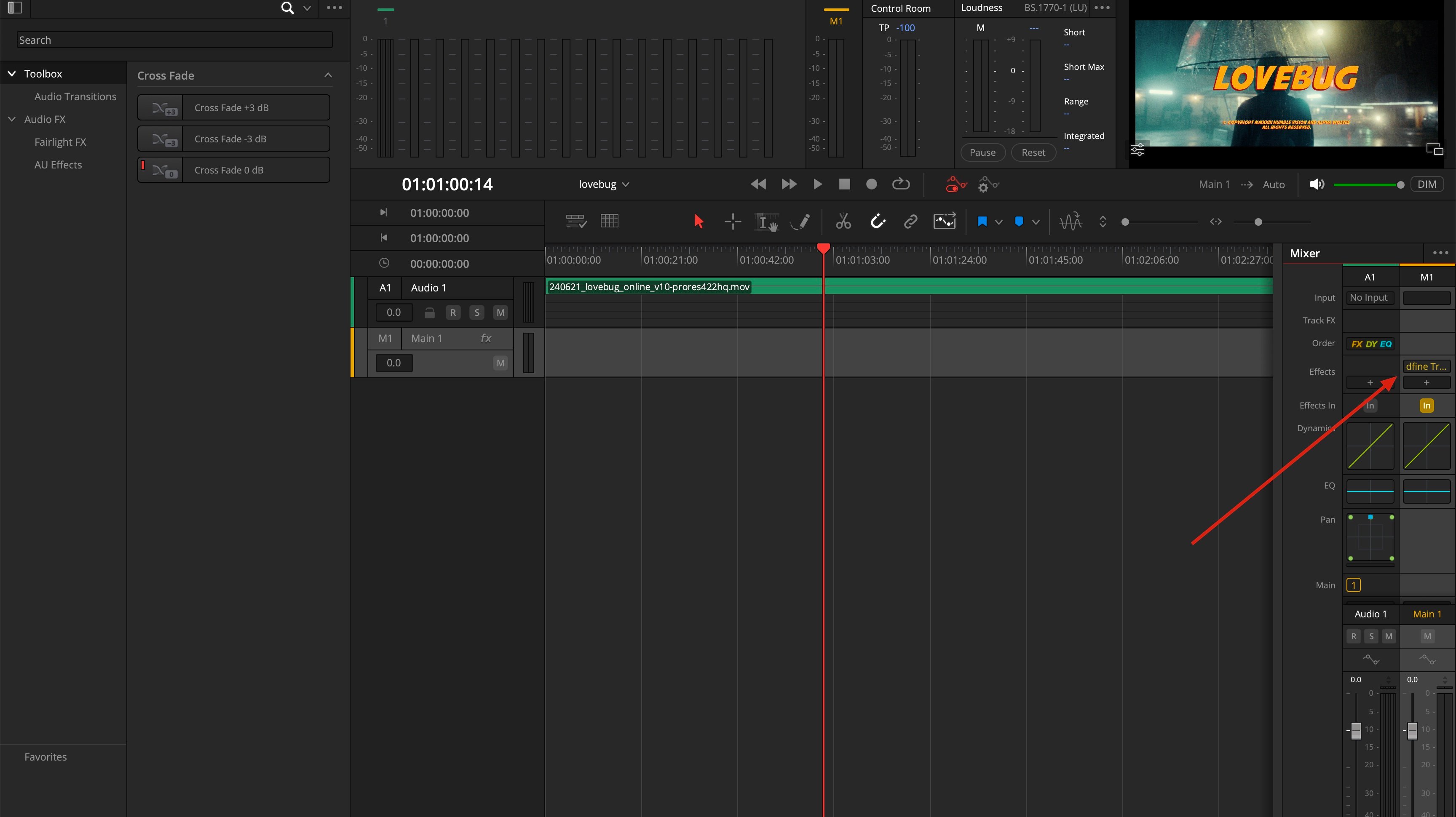
 The effect now appears in the Effects slot of the Main 1 strip, and the M1 track header is marked with **fx**.
 ## Check that sound arrives
Play the timeline and watch the audio meter in the footer of dfine.io Desktop. If it moves, sound is flowing. A meter that stays flat while you can hear the mix in Resolve means the effect is not on the Main bus, or the project is not at 48 kHz.
Add the effect **before** you press Start in the app. The audio connection is opened once when the stream starts, so an effect that arrives later will not be picked up in that session. If you added it while streaming, press Stop and Start again.
## Why this is a manual step
Resolve's scripting interface can restore a saved mixer configuration, but it has no command for adding a single effect to a bus. Automating it would mean overwriting your entire Fairlight setup, including your levels and your own plugins. We would rather have you place one effect yourself than quietly replace work you have already done.
## Check that sound arrives
Play the timeline and watch the audio meter in the footer of dfine.io Desktop. If it moves, sound is flowing. A meter that stays flat while you can hear the mix in Resolve means the effect is not on the Main bus, or the project is not at 48 kHz.
Add the effect **before** you press Start in the app. The audio connection is opened once when the stream starts, so an effect that arrives later will not be picked up in that session. If you added it while streaming, press Stop and Start again.
## Why this is a manual step
Resolve's scripting interface can restore a saved mixer configuration, but it has no command for adding a single effect to a bus. Automating it would mean overwriting your entire Fairlight setup, including your levels and your own plugins. We would rather have you place one effect yourself than quietly replace work you have already done.