> ## Documentation Index
> Fetch the complete documentation index at: https://docs.dfine.app/llms.txt
> Use this file to discover all available pages before exploring further.
# Adobe Premiere Pro
> Send your Premiere Pro programme monitor to dfine.io Desktop using Mercury Transmit.
Premiere Pro hands the picture to other applications through Mercury Transmit, the same route it uses for a Blackmagic or AJA output card. Our plugin registers as one of those devices, so you switch it on once in the preferences and Premiere feeds it from then on.
## Install the plugin
Open **Settings** in dfine.io Desktop, go to **Plugin Sources**, and install the Premiere plugin. Then quit Premiere Pro and start it again, because Premiere only reads its plugin folder at launch.
## Switch on Mercury Transmit
In Premiere, go to **Premiere Pro → Settings → Playback** on macOS.
Tick **Enable Mercury Transmit**. Without it the whole device list stays inactive, no matter what else you set.
In the device list, tick the checkbox for **dfine.io Transmit** under **Video Stream**. Tick **Audio Stream** as well if you want sound on the stream.
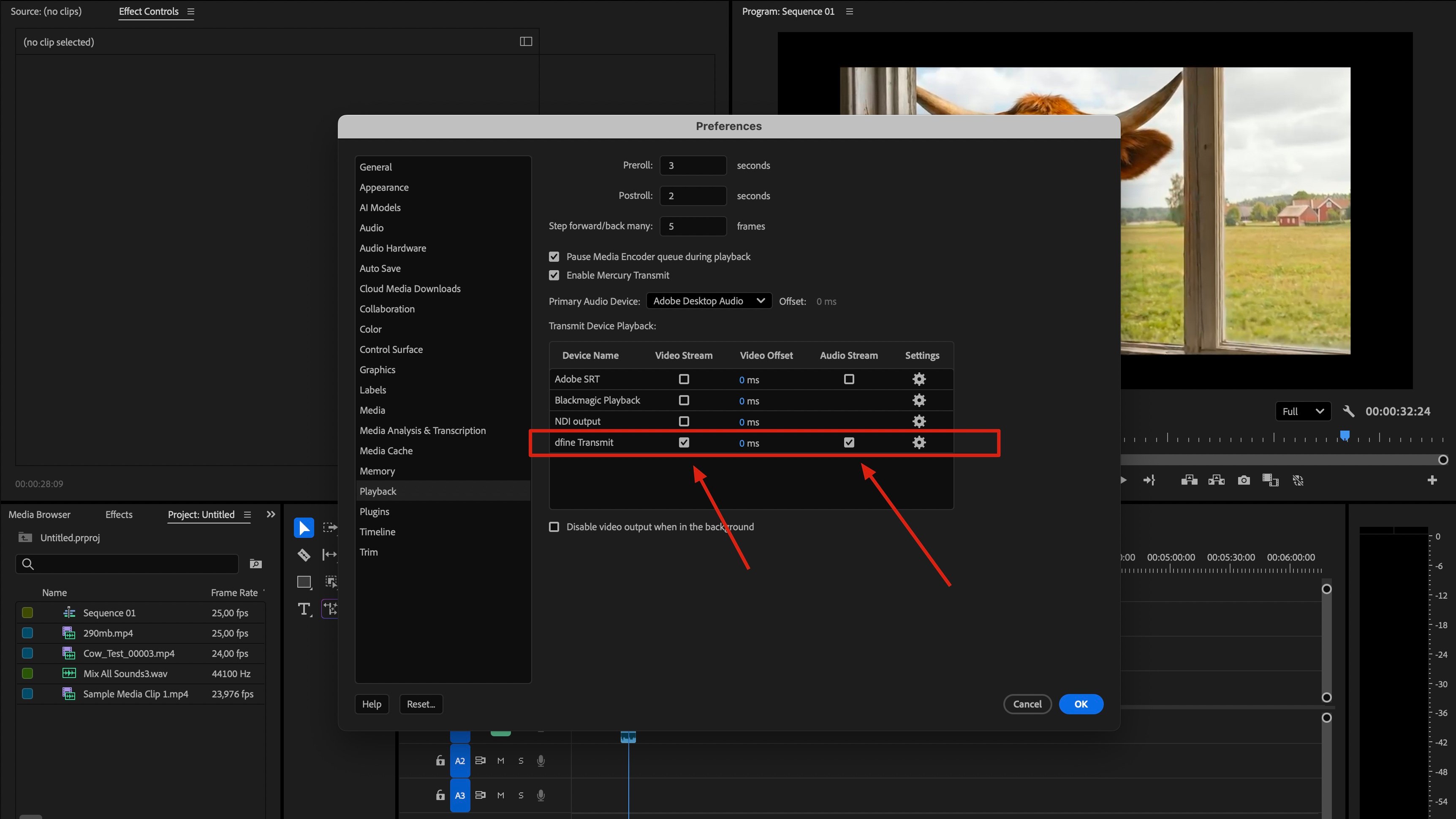 Close the preferences. Premiere starts feeding the device right away.
## Check that it arrives
Play your sequence in Premiere, then switch to the **Ingest** tab in dfine.io Desktop. You should see the picture in the preview and the source listed as connected. Now press **Start** to go live.
Premiere only sends while it is playing or scrubbing. On a paused timeline the last frame stays on the stream, which is normal and not an error.
## When nothing arrives
If the preview stays empty, work through these in order.
**Premiere was running during the install.** Quit it completely and start it again. This is by far the most common cause.
**Mercury Transmit is off.** The device checkbox alone does nothing while the main switch above the list is unticked.
**Another device is claiming the output.** If Blackmagic Playback or NDI output is also ticked, untick them and try again.
**Nothing is playing.** Press play in Premiere. Without playback there are no frames to send.
Close the preferences. Premiere starts feeding the device right away.
## Check that it arrives
Play your sequence in Premiere, then switch to the **Ingest** tab in dfine.io Desktop. You should see the picture in the preview and the source listed as connected. Now press **Start** to go live.
Premiere only sends while it is playing or scrubbing. On a paused timeline the last frame stays on the stream, which is normal and not an error.
## When nothing arrives
If the preview stays empty, work through these in order.
**Premiere was running during the install.** Quit it completely and start it again. This is by far the most common cause.
**Mercury Transmit is off.** The device checkbox alone does nothing while the main switch above the list is unticked.
**Another device is claiming the output.** If Blackmagic Playback or NDI output is also ticked, untick them and try again.
**Nothing is playing.** Press play in Premiere. Without playback there are no frames to send.