> ## Documentation Index
> Fetch the complete documentation index at: https://docs.dfine.app/llms.txt
> Use this file to discover all available pages before exploring further.
# Plugin Sources
> Install and remove the plugins for Premiere Pro and DaVinci Resolve from inside dfine.io Desktop.
This is where the plugins live. dfine.io Desktop cannot see into your editing application by itself, so a small plugin does the handover. You install it here, and the app puts it in the right folder for you.
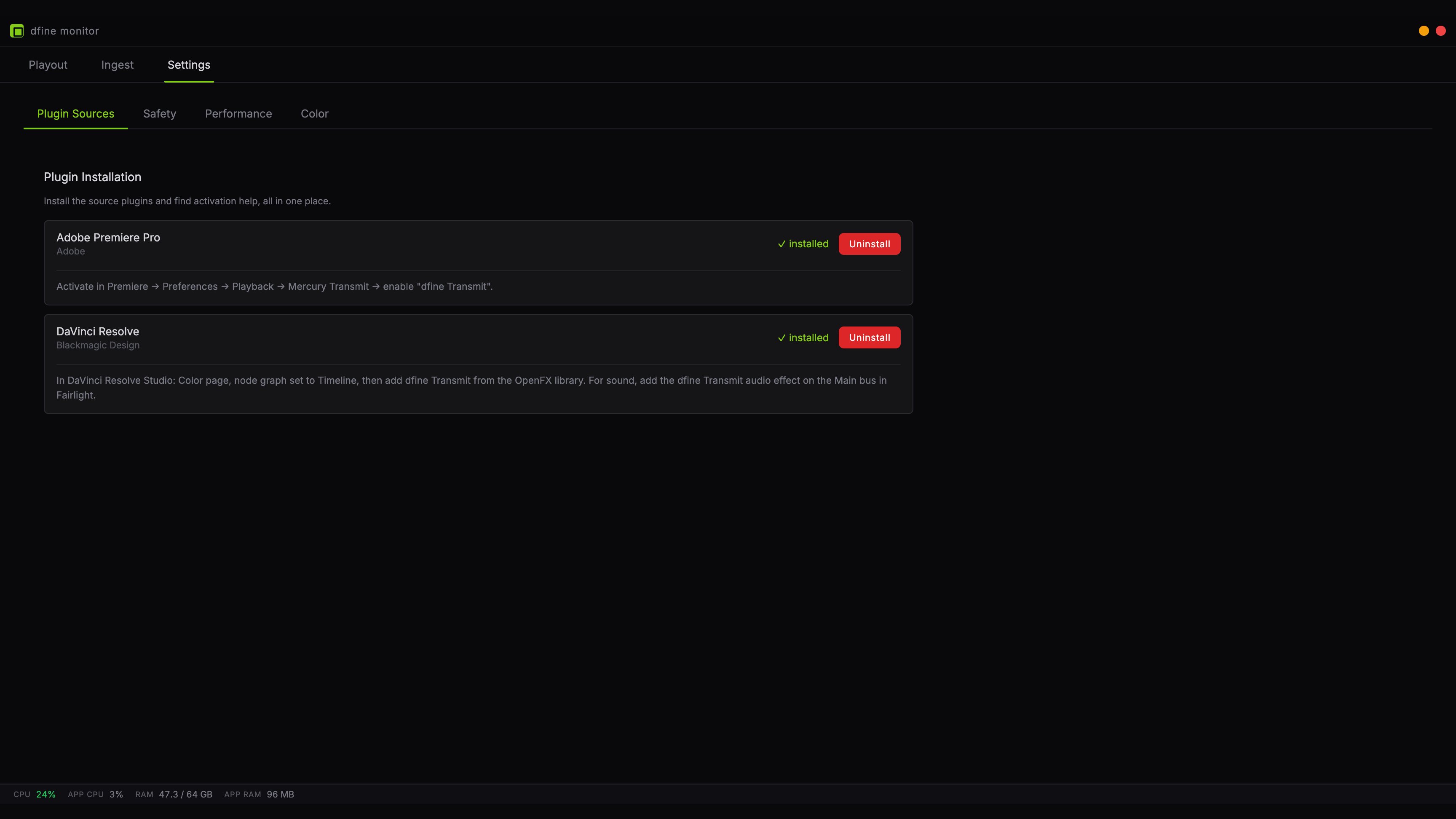 ## What a row tells you
Each supported application gets one row with its current state.
**Installed** means the plugin is in place and the application can load it. The button next to it removes it again.
**Not installed** means the application was found on this machine, but the plugin is missing. Install it here.
**Host application not detected** means the app could not find Premiere or Resolve on this machine. Install the application first, then come back.
Under each row you find the activation hint for that application, so you know what to do next without leaving the app.
## Installing
Click **Install**. For DaVinci Resolve, macOS asks for your password, because OpenFX plugins live in a system folder that is shared by all users. Premiere installs into your personal plugin folder and needs no password.
Quit the host application before installing, or restart it afterwards. Premiere and Resolve read their plugin folders once at launch. A running instance will not notice a plugin that arrived while it was open, and you will spend time looking for a problem that is not there.
## Removing
**Uninstall** takes the plugin out again. Your projects are unaffected, but a timeline that still has the effect on it will show it as missing until you remove it there too.
## Where the plugins go
| Application | Location | Password needed |
| ---------------------- | --------------------------------- | --------------- |
| Premiere Pro | Your personal Adobe plugin folder | No |
| DaVinci Resolve | The shared system OpenFX folder | Yes |
| DaVinci Resolve, audio | Your personal Audio Units folder | No |
DaVinci Resolve gets two pieces: the OpenFX plugin for picture and an Audio Unit for sound. Both are installed together when you click Install.
## Next
Switch on Mercury Transmit and pick the device.
Add the effect to the timeline node.
## What a row tells you
Each supported application gets one row with its current state.
**Installed** means the plugin is in place and the application can load it. The button next to it removes it again.
**Not installed** means the application was found on this machine, but the plugin is missing. Install it here.
**Host application not detected** means the app could not find Premiere or Resolve on this machine. Install the application first, then come back.
Under each row you find the activation hint for that application, so you know what to do next without leaving the app.
## Installing
Click **Install**. For DaVinci Resolve, macOS asks for your password, because OpenFX plugins live in a system folder that is shared by all users. Premiere installs into your personal plugin folder and needs no password.
Quit the host application before installing, or restart it afterwards. Premiere and Resolve read their plugin folders once at launch. A running instance will not notice a plugin that arrived while it was open, and you will spend time looking for a problem that is not there.
## Removing
**Uninstall** takes the plugin out again. Your projects are unaffected, but a timeline that still has the effect on it will show it as missing until you remove it there too.
## Where the plugins go
| Application | Location | Password needed |
| ---------------------- | --------------------------------- | --------------- |
| Premiere Pro | Your personal Adobe plugin folder | No |
| DaVinci Resolve | The shared system OpenFX folder | Yes |
| DaVinci Resolve, audio | Your personal Audio Units folder | No |
DaVinci Resolve gets two pieces: the OpenFX plugin for picture and an Audio Unit for sound. Both are installed together when you click Install.
## Next
Switch on Mercury Transmit and pick the device.
Add the effect to the timeline node.