> ## Documentation Index
> Fetch the complete documentation index at: https://docs.dfine.app/llms.txt
> Use this file to discover all available pages before exploring further.
# Color
> Tell the app which range your source delivers, and correct blacks, mids and highs on the way to the stream.
This is where you make sure the picture arrives the way you graded it, and where you can nudge it if the stream needs it.
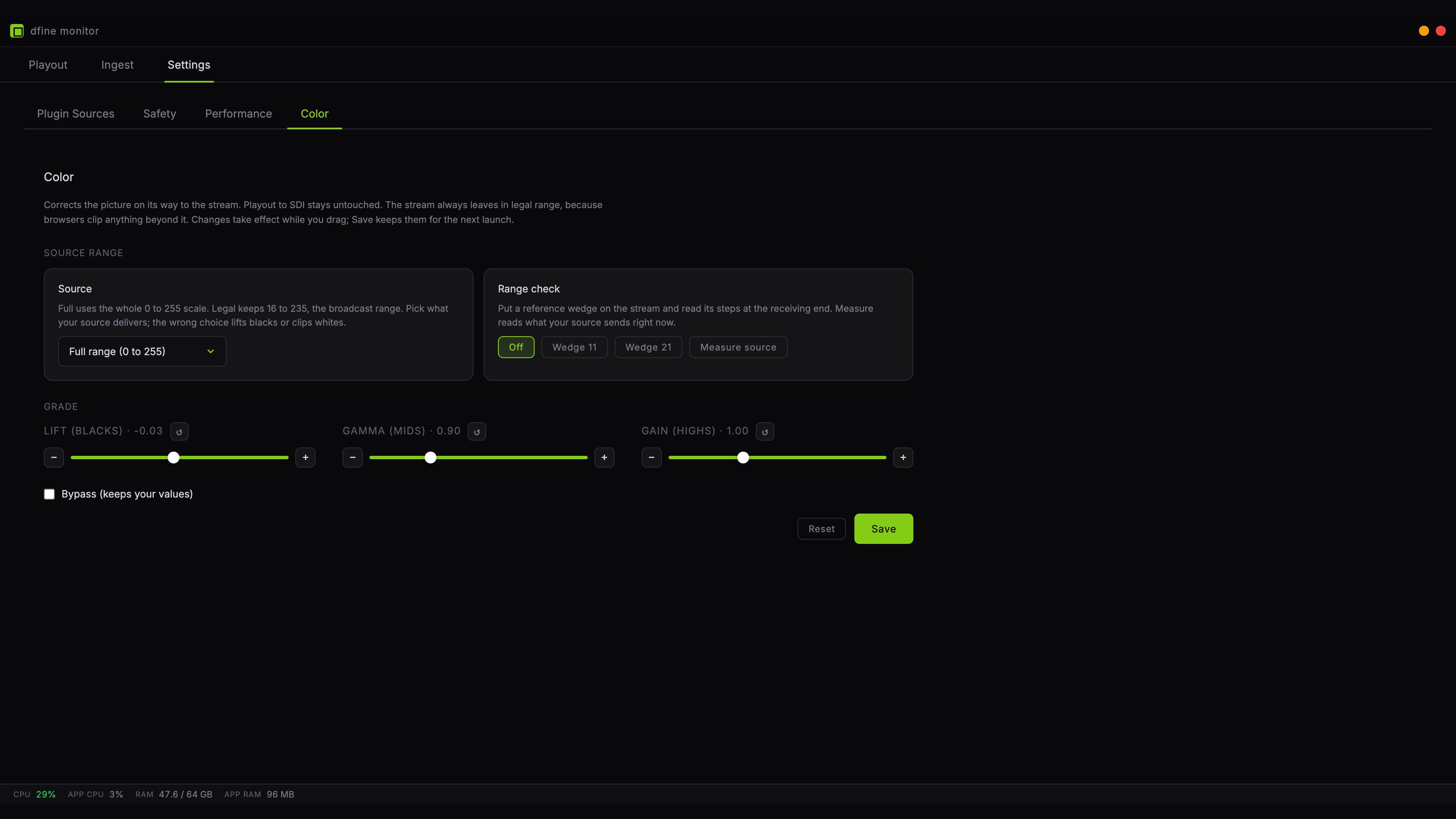 Everything here affects the **stream only**. Playout to your SDI monitor stays untouched, so your reference stays a reference.
## Source range
This is the one setting that matters for correctness, and getting it wrong is visible.
Video comes in two conventions. **Full range** uses the whole scale from 0 to 255. **Legal range** keeps black at 16 and white at 235, the broadcast convention. The stream itself always leaves in legal range, because browsers clip anything beyond it.
Pick what your source delivers. Choose wrong and one of two things happens: your blacks lift and the picture looks washed out, or your highlights clip and detail disappears.
If you are unsure, use the range check rather than guessing.
## Range check
Two tools sit side by side here.
**Measure source** reads the picture arriving right now and reports its darkest and brightest values, then names the setting that matches. Play a shot with real blacks and real whites, then measure. A shot that is entirely mid grey tells you nothing.
**Wedge 11 and Wedge 21** put a grey staircase on the stream instead of your picture, with eleven or twenty-one steps from black to white. Look at it on the receiving end: if the steps are evenly spaced and both ends are distinct, the chain is intact. The wedge is a reference, so the grading controls deliberately do not touch it.
While a wedge is switched on, your viewers see the wedge and not your picture. The app shows a warning as long as it is active. Switch it back to **Off** when you are done.
## Grade
Three controls, working the way you know them from a grading panel.
**Lift** raises or lowers the blacks without moving white. **Gamma** bends the midtones. **Gain** scales the highlights without moving black.
Each has a slider for the rough move and plus and minus buttons for exact steps of 0.01. Next to the value sits a small reset button that returns that one control to neutral, leaving the others alone.
Changes take effect while you drag, so you can judge them against the running picture. **Save** keeps them for the next time you launch the app.
**Bypass** switches the whole correction off while keeping your values, so you can compare before and after without losing your work. **Reset** at the bottom returns everything to neutral, deliberately.
Everything here affects the **stream only**. Playout to your SDI monitor stays untouched, so your reference stays a reference.
## Source range
This is the one setting that matters for correctness, and getting it wrong is visible.
Video comes in two conventions. **Full range** uses the whole scale from 0 to 255. **Legal range** keeps black at 16 and white at 235, the broadcast convention. The stream itself always leaves in legal range, because browsers clip anything beyond it.
Pick what your source delivers. Choose wrong and one of two things happens: your blacks lift and the picture looks washed out, or your highlights clip and detail disappears.
If you are unsure, use the range check rather than guessing.
## Range check
Two tools sit side by side here.
**Measure source** reads the picture arriving right now and reports its darkest and brightest values, then names the setting that matches. Play a shot with real blacks and real whites, then measure. A shot that is entirely mid grey tells you nothing.
**Wedge 11 and Wedge 21** put a grey staircase on the stream instead of your picture, with eleven or twenty-one steps from black to white. Look at it on the receiving end: if the steps are evenly spaced and both ends are distinct, the chain is intact. The wedge is a reference, so the grading controls deliberately do not touch it.
While a wedge is switched on, your viewers see the wedge and not your picture. The app shows a warning as long as it is active. Switch it back to **Off** when you are done.
## Grade
Three controls, working the way you know them from a grading panel.
**Lift** raises or lowers the blacks without moving white. **Gamma** bends the midtones. **Gain** scales the highlights without moving black.
Each has a slider for the rough move and plus and minus buttons for exact steps of 0.01. Next to the value sits a small reset button that returns that one control to neutral, leaving the others alone.
Changes take effect while you drag, so you can judge them against the running picture. **Save** keeps them for the next time you launch the app.
**Bypass** switches the whole correction off while keeping your values, so you can compare before and after without losing your work. **Reset** at the bottom returns everything to neutral, deliberately.