> ## Documentation Index
> Fetch the complete documentation index at: https://docs.dfine.app/llms.txt
> Use this file to discover all available pages before exploring further.
# Blackmagic WebPresenter HD/4K/ATEM
> Stream straight from a Blackmagic WebPresenter or ATEM over SDI — including how to set your ingest URL in the profile XML.
The Blackmagic WebPresenter and ATEM devices stream straight from SDI, without a computer in between. The same generic profile works for the WebPresenter HD, the WebPresenter 4K and ATEM devices.
In Auto Mode the WebPresenter switches profiles on its own. In our experience 4K mode needs at least 20 Mbit/s, which can trigger automatic blocking during peak loads. Unless you really need 4K, we recommend HD.
Get the generic XML setting from the download page. It works for WebPresenter HD, 4K and ATEM.
These steps apply to **both** dfine.io products that livestream — Streaming Classic and Review. The encoder setup is the same; only where you copy your ingest URL and stream key differs by product. See [Where do I find the ingest server URL?](/en/where-do-i-find-the-ingest-server-url).
## Add your ingest URL to the profile
The downloaded XML ships with a **placeholder** for the server address — you must replace it with your own dfine.io ingest URL before loading it. Open the XML in any text editor, find the `` block, and swap `ENTER YOUR OWN INGEST URL HERE` for your ingest URL (see [Where do I find the ingest server URL?](/en/where-do-i-find-the-ingest-server-url)), then save.
```xml theme={null}
dfine.io - Germany
ENTER YOUR OWN INGEST URL HERE
```
Prefer not to edit XML by hand? You can generate a ready-to-load profile with an online tool such as [heretorecord.com/xml](https://heretorecord.com/xml/), then load that file in the next step instead.
Connect the WebPresenter to the SDI loop of your reference monitor, or to the second SDI output of your Decklink capture card.
Download and install the latest Blackmagic WebPresenter Setup utility from the [Blackmagic support website](https://www.blackmagicdesign.com/support/family/streaming-and-encoding).
Connect the WebPresenter to your workstation over USB or over the network. The network is the preferred option. You can then load and manage the generic XML.
Open the utility, click your WebPresenter when it appears, and go to the **Live Stream** tab.
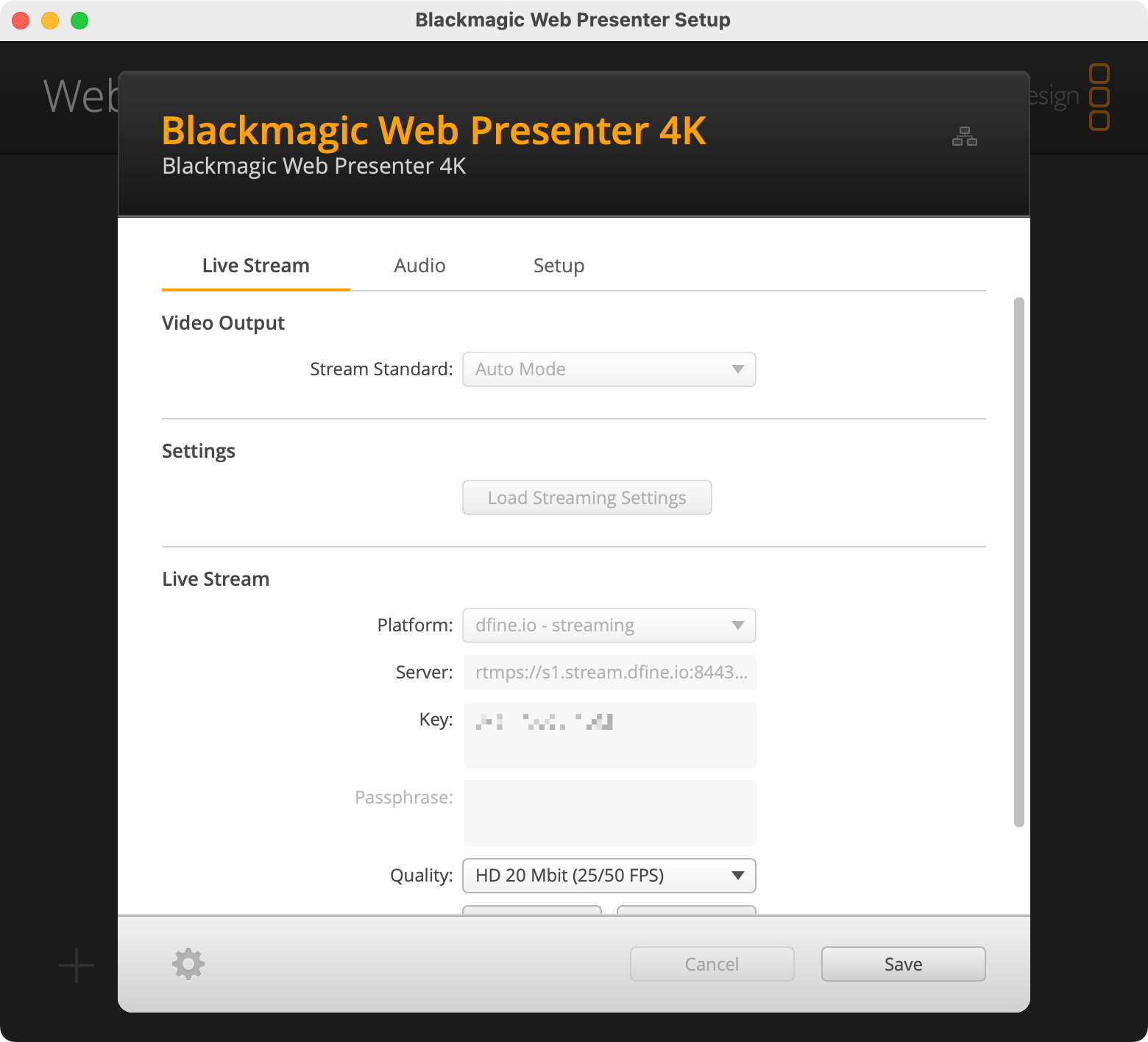 Open **Settings**, load the XML profile you edited above, and set the video output stream standard to **Auto Mode**. Choose a dfine.io bitrate profile that suits your needs, then enter your **stream key**.
Click **On Air** to start streaming.
Where to copy the server address.
Where to copy your private key.
Open **Settings**, load the XML profile you edited above, and set the video output stream standard to **Auto Mode**. Choose a dfine.io bitrate profile that suits your needs, then enter your **stream key**.
Click **On Air** to start streaming.
Where to copy the server address.
Where to copy your private key.